

The following procedure can be used to create a sample of showing images using XML in MVC 4.
Step 1
Create a new project as in the following:
Image 1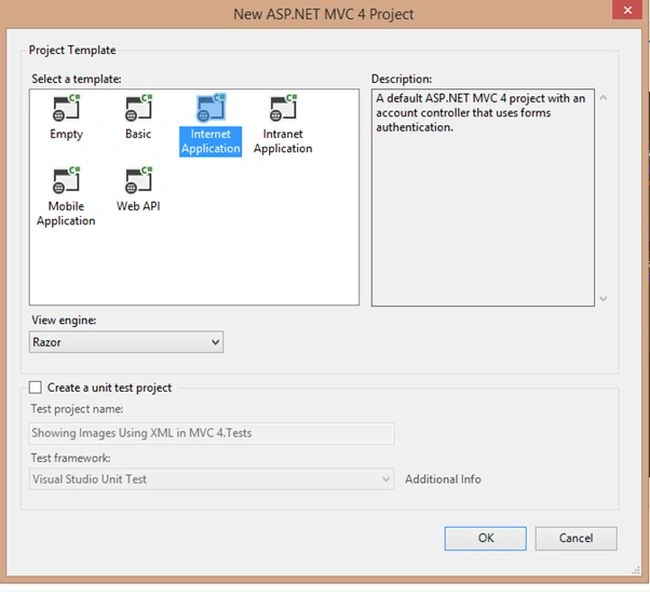
Image 2
Step 2
Now, I add a new folder MyAlbum and I add some images like the following: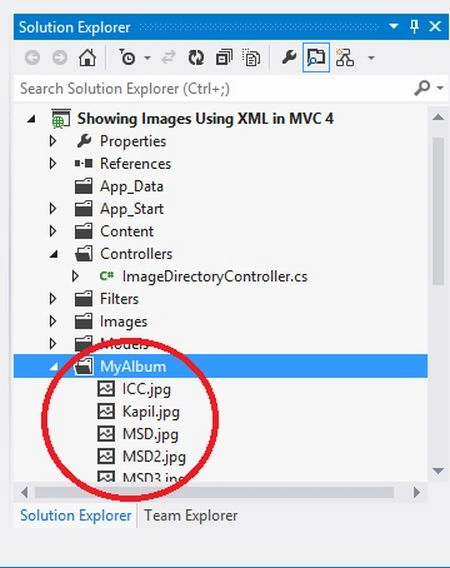
Image 3
Step 3
Now, right-click on the project in Solution Explorer then seelct Add New Item -> Choose a XML.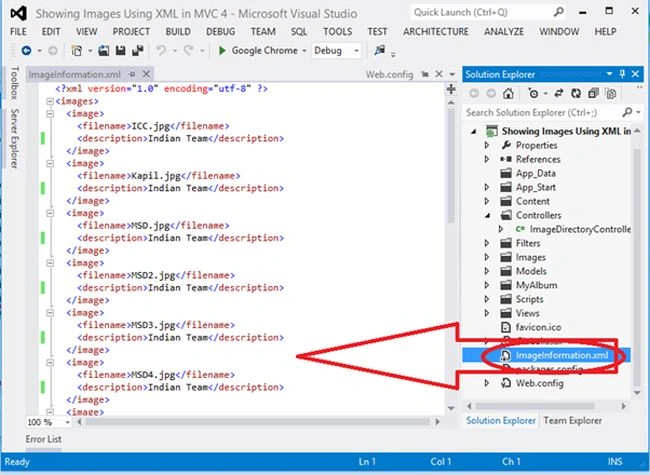
Image 4
Step 4
My ImageInformation.xml is:
- <?xml version="1.0" encoding="utf-8" ?>
- <images>
- <image>
- <filename>ICC.jpg</filename>
- <description>Indian Team</description>
- </image>
- <image>
- <filename>Kapil.jpg</filename>
- <description>Indian Team</description>
- </image>
- <image>
- <filename>MSD.jpg</filename>
- <description>Indian Team</description>
- </image>
- <image>
- <filename>MSD2.jpg</filename>
- <description>Indian Team</description>
- </image>
- <image>
- <filename>MSD3.jpg</filename>
- <description>Indian Team</description>
- </image>
- <image>
- <filename>MSD4.jpg</filename>
- <description>Indian Team</description>
- </image>
- <image>
- <filename>Raina.jpg</filename>
- <description>Indian Team</description>
- </image>
- <image>
- <filename>Sachin.jpg</filename>
- <description>Indian Team</description>
- </image>
- <image>
- <filename>Team.jpg</filename>
- <description>Indian Team</description>
- </image>
- <image>
- <filename>Team2.jpg</filename>
- <description>Indian Team</description>
- </image>
- </images>
Step 5
Now, right-click on the Model Folder and select Add New Item -> Add New Class -> ImageListing.
- using System;
- using System.Collections.Generic;
- using System.Linq;
- using System.Web;
- namespace Showing_Images_Using_XML_in_MVC_4.Models
- {
- public class ImageListing
- {
- public ImageListing(string path, string desc)
- {
- Path = path;
- Description = desc;
- }
- public string Path { get; set; }
- public string Description { get; set;}
- }
- }
Step 6
Now, right-click on the Model Folder and select Add New Item -> Add New Class -> ImageModel.
- using System;
- using System.Collections.Generic;
- using System.Linq;
- using System.Web;
- using System.Xml.Linq;
- namespace Showing_Images_Using_XML_in_MVC_4.Models
- {
- public class ImageModel : List<ImageListing>
- {
- public ImageModel()
- {
- string directoryOfImage = HttpContext.Current.Server.MapPath("~");
- XDocument imageData = XDocument.Load(directoryOfImage + @"/ImageInformation.xml");
- var images = from image in imageData.Descendants("image") select new ImageListing(image.Element("filename").Value, image.Element("description").Value);
- this.AddRange(images.ToList<ImageListing>());
- }
- }
- }
Step 7
Now, right-click on Controller and select Add New Controller.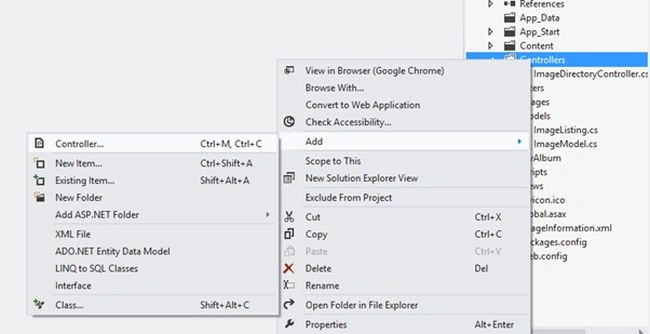
Image 5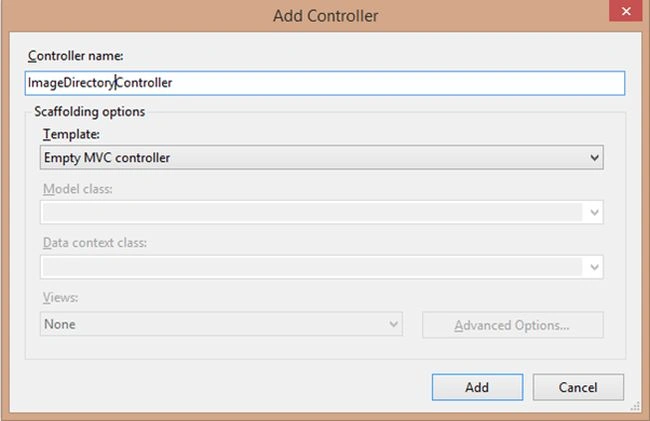
Image 6
Step 8
The Image DirectoryController is:
- using System;
- using System.Collections.Generic;
- using System.Linq;
- using System.Web;
- using System.Web.Mvc;
- using Showing_Images_Using_XML_in_MVC_4.Models;
- namespace Showing_Images_Using_XML_in_MVC_4.Controllers
- {
- public class ImageDirectoryController : Controller
- {
- //
- // GET: /ImageDirectory/
- public ActionResult Index()
- {
- return View(new ImageModel());
- }
- }
- }
Step 9
Now right-click on Index and select Add New View.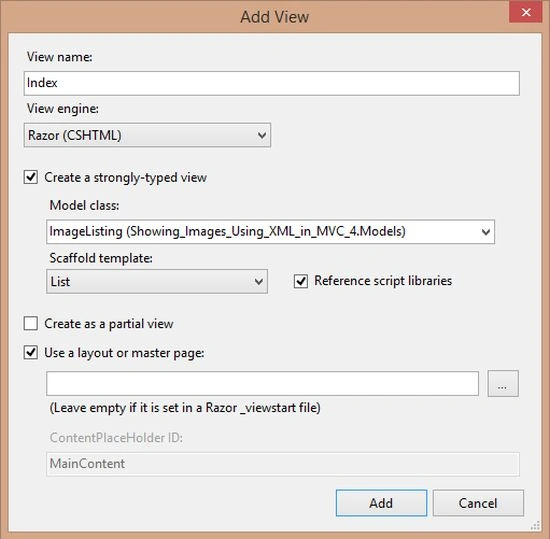
Image 7
Step 10
Do the following code in your View:
- @model IEnumerable<Showing_Images_Using_XML_in_MVC_4.Models.ImageListing>
- @{
- ViewBag.Title = "Showing Image Using XML in MVC 4";
- }
- @foreach (var item in Model)
- {
- <img src="@Url.Content("~/MyAlbum/")@item.Path" height="100" />
- }
Step 11
Now run your application.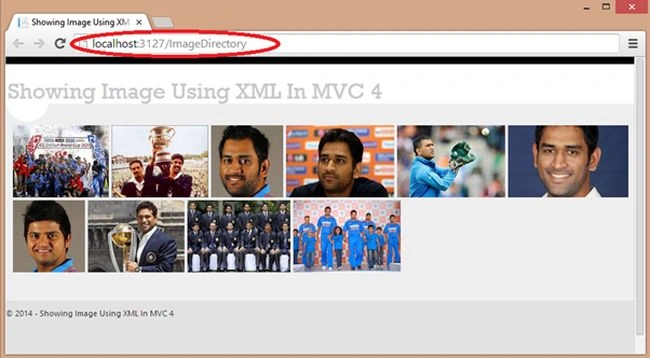
Image 8
sanjay guptaPosted Nov 20, 2014, 1:18 AM
now it's working.....
sanjay guptaPosted Nov 19, 2014, 9:03 AM
sir it is showing error while iterating on @item.Path.