

In this article, you will learn how to create a MVC Web API and how to consume using JSON.
Why User Web API
Web API is a framework that makes it easy to build HTTP services that reach a broad range of clients, including browsers and mobile devices. The ASP.NET Web API is an ideal platform for building REST applications on the .NET Framework.
Getting Started
Create a new project in Visual Studio 2012 and select ASP.NET MVC 4 Web Application and select Web API template and click OK.
Here is my UserModel Class:
- public class UserModel
- {
- public int UserId { get; set; }
- public string UserName { get; set; }
- public string UserAddress { get; set; }
- public string UserMobile { get; set; }
- public string UserCountry { get; set; }
- }
Here is my controller code:
- using CreateSonsumeWebAPIInMVC.Models;
- public class ValuesController : ApiController
- {
- // GET api/values
- public IEnumerable<UserModel> Get()
- {
- return new UserModel[]
- {
- new UserModel()
- {
- UserId= 1,
- UserName = "Raj Kumar",
- UserAddress = "New Delhi",
- UserMobile = "9899461650",
- UserCountry = "India"
- },
- new UserModel()
- {
- UserId= 2,
- UserName = "Mahesh Chand",
- UserAddress = "Philadelphia",
- UserMobile = "610-484-5670",
- UserCountry = "USA"
- },
- new UserModel()
- {
- UserId= 3,
- UserName = "Stephen Hoffman",
- UserAddress = "New York",
- UserMobile = "610-484-5680",
- UserCountry = "USA"
- },
- new UserModel()
- {
- UserId= 4,
- UserName = "Deepak Malhotra",
- UserAddress = "Brisbane",
- UserMobile = "610-487-5680",
- UserCountry = "Australia"
- },
- new UserModel()
- {
- UserId= 5,
- UserName = "John Lehman",
- UserAddress = "Johansburg",
- UserMobile = "610-187-5680",
- UserCountry = "South Africa"
- }
- };
- }
- // GET api/values/5
- public UserModel Get(int id)
- {
- return new UserModel()
- {
- UserId = id,
- UserName = "Raj Kumar",
- UserAddress = "New Delhi",
- UserMobile = "9899461650"
- };
- }
http://localhost:49012/api/values
The result in XML format looks like this:
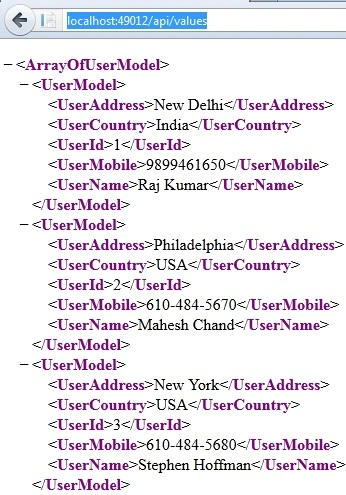
Image 1.
http://localhost:49012/api/values/1
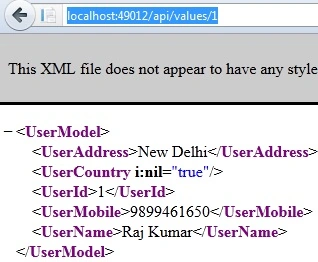
Image 2.
Now let's consume this on a view using JSON.
- @section scripts{
- <script type="text/javascript">
- $(document).ready(function () {
- $('#Search').click(function () {
- $('#users').empty();
- $.getJSON("/api/values", function (data) {
- $.each(data, function (i, user) {
- alert(i);
- //alert(user.UserName);
- var content = user.UserId + ' ' + user.UserName;
- content = content + ' ' + user.UserAddress + ' ' + user.UserMobile + ' ' + user.UserCountry;
- alert(content);
- $('#users').append($('<li>', { text: content }, '</li>'));
- });
- });
- });
- });
- </script>
- }
- <div>
- <div>
- <h1>User Listing</h1>
- <input id="Search" type="button" value="Get Users" />
- </div>
- <div>
- <ul id="users"></ul>
- </div>
- </div>
Now run the application to see the output:
Image 3.
Naresh SinghalPosted Feb 22, 2018, 7:02 AM
Very Nice Sir ...Its really useful....
Priyadarshi DattaPosted May 15, 2017, 3:36 AM
I have a small doubt. If we can consume the Webapi service using jquery, then what is the need of HTTPCLient?
Upendra Pratap ShahiPosted Oct 24, 2015, 7:00 AM
nice sir