

In this article, you will learn how to use Logging Application Block with a real-world example in ASP.NET.
Why use Logging Application Block? Developers frequently write applications that require logging functionality. Typically, these applications format and log information in response to application events. For example, developers often write code to log information in response to unexpected conditions, such as an application exception, or failure to connect to a database. Developers also write code to trace application flow through components during the execution of an application use case or scenario. The Enterprise Library Logging Application Block simplifies the implementation of common logging functions. You can use the Logging Application Block to write information to a variety of locations:
- The event log
- An e-mail message
- A database
- A message queue
- A text file
- A Windows® Management Instrumentation (WMI) event
- Custom locations using application block extension points
Read more at: http://msdn.microsoft.com/en-us/library/ff664569(v=pandp.50).aspx
Install Enterprise Library
Please follow this link to download the Enterprise Library:
http://www.microsoft.com/en-in/download/details.aspx?id=15104
Getting Started
Begin using the following procedure:
- Start Visual Studio
- Create a new website
- Provide the name and location of website
- Click "Next"
Now add a reference for the following two assemblies in the bin folder: "Microsoft.Practices.EnterpriseLibrary" and "Logging.dll".
Now open the web.config file in edit mode and edit the logging settings.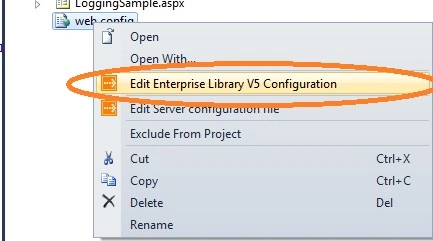
Image 1.
First of all add the Logging setting block. 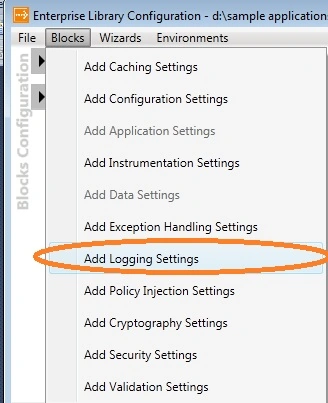
Image 2.
Now delete the existing event log listener.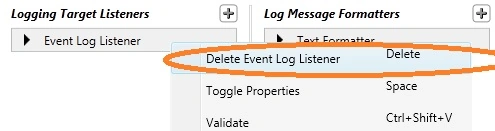
Image 3.
And add a new flat file trace listener.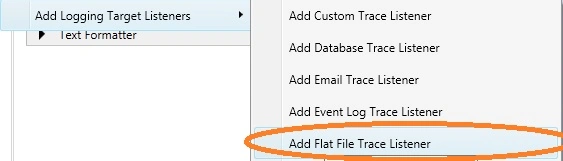
Image 4.
Now provide the following details, like formatter name, header footer message and trace output options and in the general tab select the flat file trace listener and in the logging errors and warnings, select the flat file trace listener and click "Save".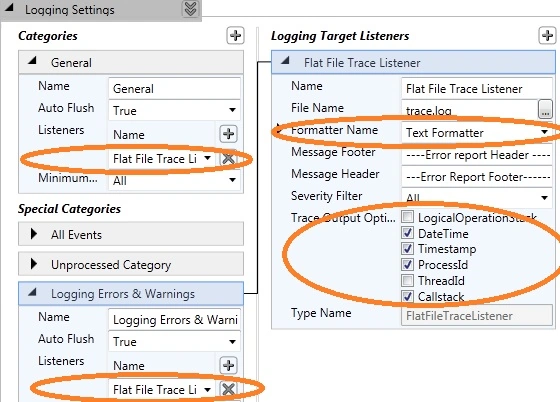
Image 5.
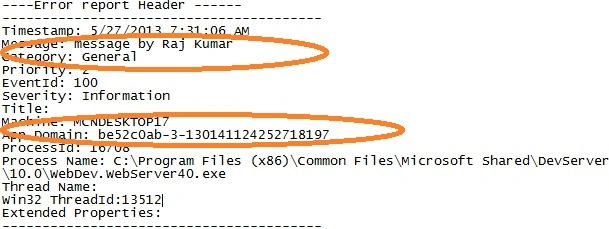
Now check the updated web.config.
Lava Kumar RPosted Aug 5, 2015, 9:01 AM
i am upgrading from enterprise Library 4.0 to 6.0 , i replaced corresponding older dll's with 6.0 dll's Off-course i am getting lot's of errors with logging & common dll's . * error 1 : The type or namespace name 'ObjectBuilder' does not exist in the namespace 'Microsoft.Practices.EnterpriseLibrary.Common.Configuration' (are you missing an assembly reference?) * error 2: The type or namespace name 'AssemblerAttribute' could not be found (are you missing a using directive or an assembly reference?) * error 3 : The type or namespace name 'TraceListenerAsssembler' could not be found (are you missing a using directive or an assembly reference?) i am using visual studio 2013 pls suggest what will be the alternative for thjis..?
saravanan rajPosted Aug 12, 2014, 6:05 AM
I'm gettiing the following EROR : The type initializer for 'Microsoft.Practices.EnterpriseLibrary.Logging.LogEntry' threw an exception. How to Over come this issue.
Raj KumarPosted Jun 6, 2013, 12:12 AM
Log4Net - Easier to use. High level of Flexibility. Easy to log different types of errors with little setup. Alot of great blogs and tutorials on Log4Net. Alot of 3rd party resources have existing integration with Log4Net. Great pre-built solutions for different logging types*(Memory, DB, Smtp, Local File, etc..) Enterprise Library - Very well documented Supported by Microsoft Will continue to be supported and updated (Log4Net is more or less complete and will probably only be updated if .Net changes in some way that warrants it) Complex configurations can be somewhat easier to easier to configure for large projects
Raj KumarPosted Jun 6, 2013, 12:09 AM
Having used both, I recommend the Enterprise Library for large projects where ease of configuration has higher priority over performance and size. For everything else, I'd use log4net.
Rajneesh RaiPosted Jun 5, 2013, 3:05 AM
Nice Article !! Raj Kumar. but i have a question, till now i have only used Log4Net for logging(Error, exceptions etc...). so , which one is better ?