

Introduction
This
article shall describe an approach to building a simple watermarking utility
that may be used to add watermarks to any supported image file format. The
resulting application shall permit the user to open any supported image file
format into a scrollable picture box, to define the text to be applied as a
watermark (with a default version supplied), to set the font and color of the
watermark, to define the opacity of the watermark, to determine whether or not
the watermark appears at the top or bottom of the image, and to preview the
watermark prior to saving it to the image.
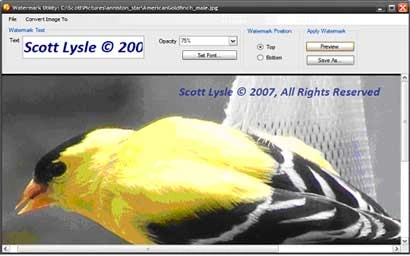
Figure 1: the Utility Application showing a Watermarked Image
If you are at all curious about the image, it is of an American Goldfinch, this
time of year, I have a about 50 or so such birds hanging around my bird
feeders.I tookthe picture with myFuji S700 digital camera through the kitchen
window.
Getting Started
The
solution contains a single Windows Forms project called “WatermarkingVBâ€
written in Visual Basic 2005; the application contains only a single form (frmWatermark.vb)
and all of the code necessary to drive the application is contained in that
single form class.
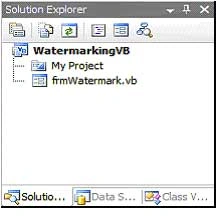
Figure 2: Solution Explorer with the Project Visible
Code: Watermarking Main Form (frmWatermark.vb)
All of the code necessary for this project is contained in this single form; that form shall be described entirely in this section.
The code for this form class begins with the following:
Imports System.Drawing
Imports System.Drawing.Drawing2D
Imports System.Drawing.Imaging
Imports System.Text
''' <summary>
''' An Image Watermarking Utility
''' </summary>
''' <remarks></remarks>
Public Class frmWatermark
Following the declaration of the form class, the next order of business in the application is to declare a collection of member variables requiring form wide scope; these variables are contained in a defined region entitled, “Member Variablesâ€. The declaration of the variables follows; as can been determined, the variables are used to keep track of the current file location and image, codec and encoder information used to translate the image from one format to another, and the color and font used to display the image watermark.
#Region "Member Variables"
Private CurrentFile As String
Private img As Image
Private myImageCodecInfo As ImageCodecInfo
Private myEncoder As System.Drawing.Imaging.Encoder
Private myEncoderParameter As EncoderParameter
Private myEncoderParameters As EncoderParameters
Private myWatermarkColor As System.Drawing.Color
Private myFont As System.Drawing.Font
#End
Region
The next block of code in the form class is the constructor; in this instance, the constructor is used to establish a default configuration including the definition of the watermark color, the opacity level of the watermark, the positioning option (top or bottom), the text contained in the watermark, and the font used to display the watermark.
#Region "Constructor"
''' <summary>
''' Constructor with default settings
''' </summary>
''' <remarks></remarks>
Public Sub New()
InitializeComponent()
' setup default settings
myWatermarkColor = Color.SteelBlue
cboOpacity.SelectedIndex = 2
optTop.Checked = True
txtWaterMark.Text = "Your Name " & _Char.ConvertFromUtf32(169).ToString() & " " & _
DateTime.Now.Year.ToString() + ", All Rights Reserved"
myFont = txtWaterMark.Font
End Sub
#End
Region
Following the constructor, there is a region defined to handle file input/output operations. This region contains two event handlers, one for the selection of the Open File menu strip option, and one for the save buttons’s click event. The open file menu option is used to allow the user to navigate to and select an image file for load; the selected image file is placed into a scrollable picturebox.
The save button click event handler is used to save the image file with the watermark; the original file may be renamed or overwritten.
#Region
"File IO"
Private Sub openToolStripMenuItem_Click(ByVal sender As System.Object, _ByVal e As System.EventArgs) Handles openToolStripMenuItem.Click
' configure the open file dialog to point to some
' common (usable) image file formats
openFileDialog1.Title = "Open Image File"
openFileDialog1.Filter = "Bitmap Files|*.bmp" & _|Enhanced Windows MetaFile|*.emf" & _"|Exchangeable Image File|*.exif"
& _"|Gif Files|*.gif|JPEG Files|*.jpg" & _"|PNG Files|*.png|TIFF Files|*.tif|Windows MetaFile|*.wmf"
openFileDialog1.DefaultExt = "bmp"
openFileDialog1.FilterIndex = 1
openFileDialog1.FileName = ""
openFileDialog1.ShowDialog()
' if the user did not select a file, return
If (openFileDialog1.FileName = "") Then Return
' update the current file and form caption text
CurrentFile = openFileDialog1.FileName.ToString()
Me.Text = "Watermark Utility: " & CurrentFile.ToString()
Try
' open the image into the picture box
img = Image.FromFile(openFileDialog1.FileName, True)
picContainer.Image = img
' resize the picture box to support scrolling
' large images
picContainer.Size = img.Size
Catch ex As Exception
MessageBox.Show(ex.Message, "File Open Error")
End Try
End Sub
Private Sub btnSave_Click(ByVal sender As System.Object, _ByVal e As System.EventArgs) Handles btnSave.Click
Try
' get the extension to figure out how to limit the save
' option to the current image file type
Dim strExt As String
strExt = System.IO.Path.GetExtension(CurrentFile)
strExt = strExt.ToUpper()
strExt = strExt.Remove(0, 1)
' if the current image is, for example, a gif, only
' allow the user to save the file with the watermark
' as a gif
SaveFileDialog1.Title = "Save File"
SaveFileDialog1.DefaultExt = strExt
SaveFileDialog1.Filter = strExt & " Image Files|*." + strExt
SaveFileDialog1.FilterIndex = 1
If SaveFileDialog1.ShowDialog() = DialogResult.OK Then
If (SaveFileDialog1.FileName = "") Then
Return
Else
' save the file with the name supplied by the user
picContainer.Image.Save(SaveFileDialog1.FileName)
End If
' update the current image file to point to the newly saved
' image
CurrentFile = SaveFileDialog1.FileName
Me.Text = "Watermark Utility: " + CurrentFile
MessageBox.Show(CurrentFile.ToString() + " saved.", "File
Save")
Else
MessageBox.Show("The save file request was cancelled by
user.", "Save Cancelled")
End If
Catch ex As Exception
MessageBox.Show(ex.Message.ToString(), "Image Save Error")
End Try
End Sub
#End
Region
After handling the file IO operations, the next region of code is the Image Format Conversion section. In this region, the methods provided are used to convert the open image into an alternative format (e.g., bitmap to JPEG, or JPEC to GIF, etc.). Each section of code is annotated and may be reviewed in the following:
#Region "Image Format Conversion"
Private Function GetEncoderInfo(ByVal mimeType As String) As ImageCodecInfo
Dim j As Integer
Dim encoders As ImageCodecInfo()
encoders = ImageCodecInfo.GetImageEncoders()
For j = 0 To encoders.Length
If (encoders(j).MimeType = mimeType) Then
Return encoders(j)
End If
Next
Return Nothing
End Function
Private Sub bitmapToolStripMenuItem_Click(ByVal sender As System.Object, ByVal e As System.EventArgs) Handles bitmapToolStripMenuItem.Click
' create a new name with the bitmap extension
Dim newName As String = _
System.IO.Path.GetFileNameWithoutExtension(CurrentFile)
newName = newName + ".bmp"
Try
' save the file as a bitmap
img.Save(newName, ImageFormat.Bmp)
CurrentFile = newName
picContainer.Image = Image.FromFile(CurrentFile)
Me.Text = "Watermark Utility: " + CurrentFile.ToString()
Catch
MessageBox.Show("Failed to save image to bitmap.", "Error", _
MessageBoxButtons.OK, MessageBoxIcon.Error)
Return
End Try
MessageBox.Show("Image file saved to " + newName.ToString(), _"Image Saved", MessageBoxButtons.OK,
MessageBoxIcon.Information)
End Sub
Private Sub emfToolStripMenuItem_Click(ByVal sender As System.Object, _ByVal e As System.EventArgs) Handles
emfToolStripMenuItem.Click
' create a new name with the emf extension
Dim newName As String = _
System.IO.Path.GetFileNameWithoutExtension(CurrentFile)
newName = newName + ".emf"
Try
' save the file as a EMF
img.Save(newName, ImageFormat.Emf)
CurrentFile = newName
picContainer.Image = Image.FromFile(CurrentFile)
Me.Text = "Watermark Utility: " + CurrentFile.ToString()
Catch
MessageBox.Show("Failed to save image to EMF.", "Error", _
MessageBoxButtons.OK, MessageBoxIcon.Error)
Return
End Try
MessageBox.Show("Image file saved to " + newName.ToString(), _"Image Saved", MessageBoxButtons.OK, MessageBoxIcon.Information)
End Sub
Private Sub exifToolStripMenuItem_Click(ByVal sender As System.Object, _ByVal e As System.EventArgs) Handles
exifToolStripMenuItem.Click
' create a new name with the EXIF extension
Dim newName As String = _
System.IO.Path.GetFileNameWithoutExtension(CurrentFile)
newName = newName + ".exif"
Try
' save the file as a EXIF
img.Save(newName, ImageFormat.Exif)
CurrentFile = newName
picContainer.Image = Image.FromFile(CurrentFile)
Me.Text = "Watermark Utility: " + CurrentFile.ToString()
Catch
MessageBox.Show("Failed to save image to EXIF.", "Error", _
MessageBoxButtons.OK, MessageBoxIcon.Error)
Return
End Try
MessageBox.Show("Image file saved to " + newName.ToString(), _"Image Saved", MessageBoxButtons.OK,
MessageBoxIcon.Information)
End Sub
Private Sub gIFFileToolStripMenuItem_Click(ByVal sender As System.Object, ByVal e As System.EventArgs) Handles
gIFFileToolStripMenuItem.Click
' create a new name with the GIF extension
Dim newName As String = _
System.IO.Path.GetFileNameWithoutExtension(CurrentFile)
newName = newName + ".gif"
Try
' save the file as a GIF
img.Save(newName, ImageFormat.Gif)
CurrentFile = newName
picContainer.Image = Image.FromFile(CurrentFile)
Me.Text = "Watermark Utility: " + CurrentFile.ToString()
Catch
MessageBox.Show("Failed to save image to GIF.", "Error", _
MessageBoxButtons.OK, MessageBoxIcon.Error)
Return
End Try
MessageBox.Show("Image file saved to " + newName.ToString(), _"Image Saved", MessageBoxButtons.OK, MessageBoxIcon.Information)
End Sub
Private Sub jPEGFileToolStripMenuItem_Click(ByVal sender As System.Object, ByVal e As System.EventArgs) Handles
jPEGFileToolStripMenuItem.Click
' create a new name with the JPEG extension
Dim newName As String = _
System.IO.Path.GetFileNameWithoutExtension(CurrentFile)
newName = newName + ".jpg"
Try
' save the file as a JPG
img.Save(newName, ImageFormat.Jpeg)
CurrentFile = newName
picContainer.Image = Image.FromFile(CurrentFile)
Me.Text = "Watermark Utility: " + CurrentFile.ToString()
Catch
MessageBox.Show("Failed to save image to JPEG.", "Error", _
MessageBoxButtons.OK, MessageBoxIcon.Error)
Return
End Try
MessageBox.Show("Image file saved to " + newName.ToString(), _"Image Saved", MessageBoxButtons.OK, MessageBoxIcon.Information)
End Sub
Private Sub pNGFileToolStripMenuItem_Click(ByVal sender As System.Object,ByVal e As System.EventArgs) Handles pNGFileToolStripMenuItem.Click
' create a new name with the PNG extension
Dim newName As String = _
System.IO.Path.GetFileNameWithoutExtension(CurrentFile)
newName = newName + ".png"
Try
' save the file as a png
img.Save(newName, ImageFormat.Png)
CurrentFile = newName
picContainer.Image = Image.FromFile(CurrentFile)
Me.Text = "Watermark Utility: " + CurrentFile.ToString()
Catch
MessageBox.Show("Failed to save image to PNG.", "Error", _
MessageBoxButtons.OK, MessageBoxIcon.Error)
Return
End Try
MessageBox.Show("Image file saved to " + newName.ToString(), _"Image Saved", MessageBoxButtons.OK, MessageBoxIcon.Information)
End Sub
Private Sub tIFFFileToolStripMenuItem_Click(ByVal sender As System.Object, ByVal e As System.EventArgs) Handles
tIFFFileToolStripMenuItem.Click
' create a new name with the tif extension
Dim newName As String = _
System.IO.Path.GetFileNameWithoutExtension(CurrentFile)
newName = newName + ".tif"
Try
' save the file as a tif
img.Save(newName, ImageFormat.Tiff)
CurrentFile = newName
picContainer.Image = Image.FromFile(CurrentFile)
Me.Text = "Watermark Utility: " + CurrentFile.ToString()
Catch
MessageBox.Show("Failed to save image to TIF.", "Error", _
MessageBoxButtons.OK, MessageBoxIcon.Error)
Return
End Try
MessageBox.Show("Image file saved to " + newName.ToString(), _"Image Saved", MessageBoxButtons.OK, MessageBoxIcon.Information)
End Sub
Private Sub windowsMetafileToolStripMenuItem_Click(ByVal sender As System.Object, ByVal e As System.EventArgs) Handles
windowsMetafileToolStripMenuItem.Click
' create a new name with the WMF extension
Dim newName As String = _
System.IO.Path.GetFileNameWithoutExtension(CurrentFile)
newName = newName + ".wmf"
Try
' save the file as a WMF
img.Save(newName, ImageFormat.Wmf)
CurrentFile = newName
picContainer.Image = Image.FromFile(CurrentFile)
Me.Text = "Watermark Utility: " + CurrentFile.ToString()
Catch
MessageBox.Show("Failed to save image to WMF.", "Error", _
MessageBoxButtons.OK, MessageBoxIcon.Error)
Return
End Try
MessageBox.Show("Image file saved to " + newName.ToString(), _"Image Saved", MessageBoxButtons.OK, MessageBoxIcon.Information)
End Sub
#End
Region
Following the image conversion routines, the next region of code is used to perform the actual water marking functions.
#Region
"Watermarking"
''' <summary>
''' Display the watermark as it would appear after
''' the watermark were saved to the file
''' </summary>
''' <remarks></remarks>
Private Sub btnPreview_Click(ByVal sender As System.Object, ByVal e As System.EventArgs) Handles btnPreview.Click
' Update the applicaton by reloading the image
picContainer.Image = Image.FromFile(CurrentFile)
Dim opac As Integer = 0
Dim sOpacity As String = cboOpacity.Text
' Determine the opacity of the watermark
Select Case (sOpacity)
Case "100%"
opac = 255 ' 1 * 255
Case "75%"
opac = 191 ' .75 * 255
Case "50%"
opac = 127 ' .5 * 255
Case "25%"
opac = 64 ' .25 * 255
Case "10%"
opac = 25 ' .10 * 255
Case Else
opac = 127 ' default at 50%; .5 * 255
End Select
' Get a graphics context
Dim g As Graphics = Graphics.FromImage(picContainer.Image)
' Create a solid brush to write the watermark text on the image
Dim myBrush As Brush
myBrush = New SolidBrush(Color.FromArgb(opac, myWatermarkColor))
' Calculate the size of the text
Dim sz As SizeF = g.MeasureString(txtWaterMark.Text, myFont)
' Creae a copy of variables to keep track of the
' drawing position (X,Y)
Dim X As Integer
Dim Y As Integer
' Set the drawing position based on the users
' selection of placing the text at the bottom or
' top of the image
If (optTop.Checked = True) Then
X = Convert.ToInt32((picContainer.Image.Width - sz.Width) / 2)
Y = Convert.ToInt32((picContainer.Top + sz.Height) / 2)
Else
X = Convert.ToInt32((picContainer.Image.Width - sz.Width) / 2)
Y = Convert.ToInt32((picContainer.Image.Height - sz.Height))
End If
' draw the water mark text
g.DrawString(txtWaterMark.Text, myFont, myBrush, New Point(X, Y))
End Sub
Private Sub btnFont_Click(ByVal sender As System.Object, ByVal e As System.EventArgs) Handles btnFont.Click
' default the current font and color to that
' used in the watermark textbox
fontDialog1.ShowColor = True
fontDialog1.Font = txtWaterMark.Font
fontDialog1.Color = txtWaterMark.ForeColor
If fontDialog1.ShowDialog() <> DialogResult.Cancel Then
myFont = fontDialog1.Font
myWatermarkColor = fontDialog1.Color
txtWaterMark.Font = fontDialog1.Font
txtWaterMark.ForeColor = fontDialog1.Color
End If
End Sub
#End
Region
That
wraps up the sum of the code needed to drive the Watermarking utility. With the
code provided, it is possible to convert from one image format to another and to
apply a user defined watermark on an existing image file.
Summary
While this article was written to demonstrate an approach to watermarking an image file in the context of a Win Foms utility application; the code used in the project could be modified to batch process image files, or to watermark image files programmatically and without user intervention. Even used as a utility, the application could have some value to anyone wishing to watermark or caption an image file before exposing the image file on the web.
sugianto sugiantoPosted Feb 13, 2013, 11:21 PM
Nice Code, thanks for sharing its work