

3d Model Groups, Animation and Camera Control
This was the second 3D program using XAML and C# that I attempted (and succeeded) after reading the only 3D example in the book I am learning from. The example was a rotating 3D pyramid, but I didn't type it in the way it was. I decided instead to modify it and expand it to do more stuff with more stuff.
I had already figured out how to do a rotating 3D cube from looking at the example in the book, so I wanted to try something more complex. I got out some graph paper and drew a large 3D cross and plotted the points. I don't have a 3D modeling program so I did it the old-school way. I placed all the points into the MeshGeometry3D and figured out the TriangleIndices I needed.
<!-- a large 3-D cross, centered at origin 0,0,0 -->
<GeometryModel3D.Geometry>
<MeshGeometry3D
Positions="1,-1,-4 1, 1,-4 -1,-1,-4 -1, 1,-4
1,-1,-2 1, 1,-2 -1,-1,-2 -1, 1,-2
1,-3, 0 1,-1, 0 -1,-3, 0 -1,-1, 0
1, 1, 0 1, 3, 0 -1, 1, 0 -1, 3, 0
1,-3, 2 1,-1, 2 -1,-3, 2 -1,-1, 2
1, 1, 2 1, 3, 2 -1, 1, 2 -1, 3, 2
1,-1, 4 1, 1, 4 -1,-1, 4 -1, 1, 4"
TriangleIndices="
0, 1, 4 1, 5, 4 2, 0, 6 0, 4, 6
1, 3, 5 3, 7, 5 3, 2, 7 2, 6, 7
2, 3, 0 3, 1, 0 4, 5, 9 5,12, 9
6, 4,11 4, 9,11 1, 7,12 7,14,12
7, 6,14 6,11,14 8, 9,16 9,17,16
10, 8,18 8,16,18 11,10,19 10,18,19
16,17,18 17,19,18 10,11, 8 11, 9, 8
9,12,17 12,20,17 14,11,22 11,19,22
12,13,20 13,21,20 13,15,21 15,23,21
15,14,23 14,22,23 20,21,22 21,23,22
14,15,12 15,13,12 17,20,24 20,25,24
19,17,26 17,24,26 20,22,25 22,27,25
22,19,27 19,26,27 24,25,26 25,27,26" />
</GeometryModel3D.Geometry>
If you don't have a modeling program then graph paper is the way to go. Sorry I don't have the original graph paper sketch to go with the Positions above.
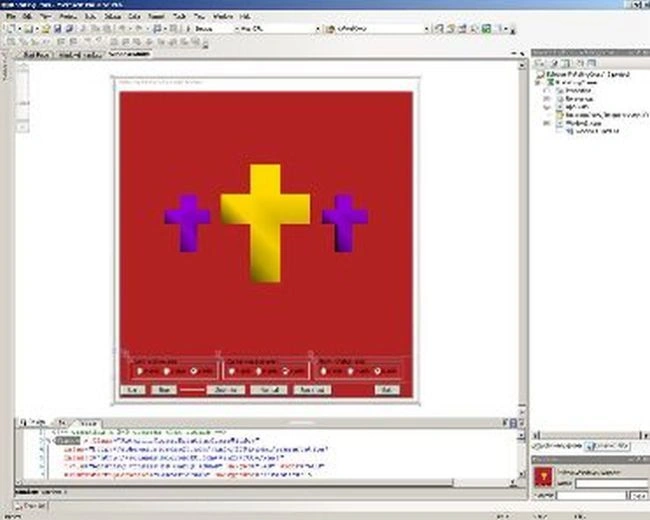
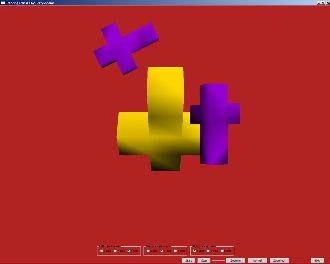
The user interface in design view: screen capture using PtrScr (Print Screen)
Each model needs Material for the surfaces. If you want a solid color it's very simple. If you want to use a bitmap or a gradient, you need to change the brush in the Material to an ImageBrush or a LinearGradientBrush, or whatever type you want.
<!-- defines the surface of the object -->
<GeometryModel3D.Material>
<DiffuseMaterial>
<DiffuseMaterial.Brush>
<SolidColorBrush Color="Gold" />
</DiffuseMaterial.Brush>
</DiffuseMaterial>
</GeometryModel3D.Material>
If you are going to animate your 3DModel in XAML you need to add a Transform for the type of animation (change to a property) that you want to do. If you want to be able to control/change the animation in the C# code-behind file you need to supply a name in the XAML. I wanted to be able to change the axis of rotation from Z to X or Y, so I gave the AxisAngleRotation3D a name using the x: tag so that the C# code could refer to it and change it while the program was running. The Transforms here are triggered when the grid is loaded.
<Grid.Triggers>
<!-- when the grid has loaded, begin the animation -->
<EventTrigger RoutedEvent="Grid.Loaded">
<!-- each model has a Transform, Geometry and Material -->
<GeometryModel3D>
<!-- rotate the geometry about the z-axis - to start -->
<GeometryModel3D.Transform>
<RotateTransform3D>
<RotateTransform3D.Rotation>
<!-- naming it lets us access in C# code
and change the axis of rotation -->
<AxisAngleRotation3D x:Name="rotation"
Angle="0" Axis="0,0,1" />
</RotateTransform3D.Rotation>
</RotateTransform3D>
</GeometryModel3D.Transform>
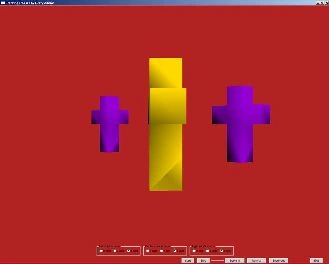
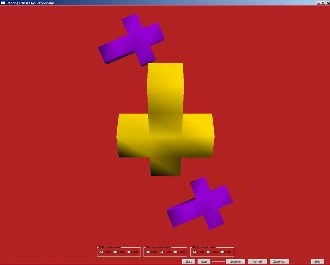
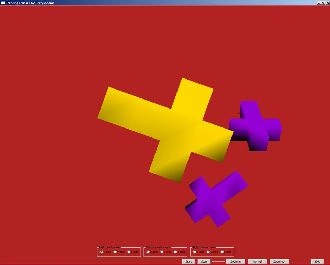
In XAML you need a Storyboard to be able to animate your 3D models. After I had gotten the one cross to work I added 2 more smaller ones on each side. So all three need their own Transform and Storyboard, and of course their own mesh geometry. Again we give the Storyboard a name so we can refer to it in the C# code-behind.
Former memberPosted May 21, 2014, 11:53 PM
Garry great work .. you remind me Graph theory from college ! Thanks keep them coming
Lakshmanan Sethu SankaranarayanPosted May 21, 2014, 8:59 AM
Welcome Garry to the knowledge Hub.
Mahesh ChandPosted May 21, 2014, 8:40 AM
Welcome to C# Corner, Garry.