

Background
When you create an ASP.Net form than before submitting the form data on the server its necessary to ensure that the user has provided valid data to avoid any erroneous data to be inserted into the database. There are many ways to validate ASP.Net form data, we will learn one by one. In this article, we will learn about client-side validation that is done using JavaScript.
So let us learn some basics because I have written this article only focusing on beginners and students.
What Form Validation is
Ensuring that data entered by the user into the form is proper and valid as per our business requirements is called Form Validation.
Types of validation
- Client-Side Validation
- Server-Side Validation
Client-side validation
Validation done in the browser before sending the form data to the server using JavaScript, jQuery and VBScript is called client-side validation.
Server-Side Validation
Validation is done at the server level after sending the form data to the server but before entering the data into the database is called server-side validation.
Where to write JavaScript code in ASP.Net Form?
You can write the JavaScript code in the ASP.Net Page in the following sections.
- Head Section: You can write the JavaScript code in the head section, it is the recommended way to write the code, the code must be enclosed in the following syntax:
<head id="Head1" runat="server"> <script type="text/javascript"> //write JavaScript code here </script> </head> - Body Section: You can also write the JavaScript at the body section of the page, the function written inside the body tag will automatically be called after page load.
- External file: You can write the code by adding the JavaScript file template that is provided by the .Net framework and after that, we can add the reference of the .js file in the head section or body section.
Creating a JavaScript function
The function is created in JavaScript using the function keyword followed by the name.
Syntax
function VildateData()
{
   //write code here
}
In the preceding syntax function is the keyword provided by the JavaScript to declare a function and the VildateData() is the function name, now write the code inside the function as in the following.
Example
function VildateData()
{
    alert("this is the JavaScript");
}
I hope you now understand the basics of validation in JavaScript, now let us create the one sample web application that demonstrates how to do the validation.
Let us first create a web application with two web pages as in the following:
- "Start" - "All Programs" - "Microsoft Visual Studio 2010"
- "File" - "New Website" - "C# - Empty website" (to avoid adding a master page)
- Give the web site a name, such as Validation or whatever you wish and specify the location
- Then right-click on the solution in the Solution Explorer then select "Add New Item" - "Default.aspx page" (add two pages).
We are adding two web pages because our requirement is, in the first web page there is form data to be filled in by the user and only after validating the form data, the form will be redirected to the next page.
The first-page source code <body> tag will look as in the following:
<body bgcolor="#3366ff">
    <form id="form2" runat="server">
    <br />
    <br />
    <div>
        <table>
            <tr>
                <td>
                    Name
                </td>
                <td>
                    <asp:TextBoxID="txtUserId" runat="server"></asp:TextBox>
                </td>
            </tr>
            <tr>
                <td>
                    Email Id
                </td>
                <td>
                    <asp:TextBox ID="txtmail" runat="server"></asp:TextBox>
                </td>
            </tr>
            <tr>
                <td>
                    Gender
                </td>
                <td>
                    <asp:DropDownList ID="ddlType" runat="server">
                        <asp:ListItem Value="0">-Select-</asp:ListItem>
                        <asp:ListItem Value="1">Male</asp:ListItem>
                        <asp:ListItem Value="2">Female</asp:ListItem>
                    </asp:DropDownList>
                </td>
            </tr>
            <tr>
                <td>
                    word
                </td>
                <td>
                    <asp:TextBox ID="txt1" runat="server" TextMode="word"></asp:TextBox>
                </td>
            </tr>
            <tr>
                <td>
                    Confirm word
                </td>
                <td>
                    <asp:TextBox ID="txt2" runat="server" TextMode="word"></asp:TextBox>
                </td>
            </tr>
            <tr>
                <td>
                </td>
                <td>
                    <asp:Button ID="btnSave" runat="server" Text="Create" OnClientClick="return userValid();" />
                    <asp:Button ID="Button1" runat="server" Text="Reset" />
                </td>
            </tr>
        </table>
        <asp:Label ID="Label1" runat="server" Text="Label"></asp:Label>
    </div>
    </form>
</body>
Look at the preceding source code closely; see the ids of controls that play an important role in JavaScript validation by reading the ASP.Net control values in JavaScript code.
The design view of the preceding source code will look as in the following:
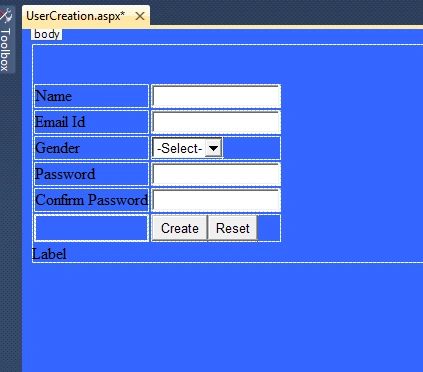
I hope you have created the same form as above for demonstration purposes.
Methods to read ASP.Net controls values in JavaScript areas:
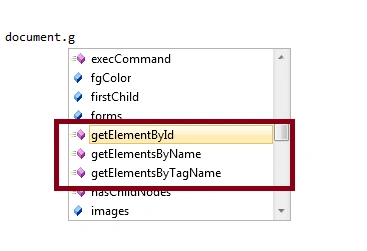
There are three main methods shown in the above image in the red square to read the values of the ASP.Net control; they are:
- getElementById: this method is used to read the values of the control by their ID.
- getElementByName: this method is used to read the controls values by their Name.
- getElementByTagName: this method is used to read the controls values by their TagName.
In this article, we use the getElementById method to read the control's values and external .js file to write JavaScript code, so let us see step-by-step how to add the JavaScript file.
- Right-click on Solution Explorer then select "Add New Item" then the in the script.js page rename the .js page as you wish, I have renamed it to UserValidation.js
- Create the function inside the UserValidation.js file named userValid() as:
function userValid() { //write code here } - Now declare the variable inside the function using the var keyword to read the ASP.Net control values by their ids and assign the values to the declared variable.
In the code above I have taken the ASP.Net control's values in variables so it cannot be repeated again and again in our function the emailExp variable holds the pattern of the email id in the form of a regular expression.function userValid() { var Name, , gender, con, EmailId, emailExp; Name = document.getElementById("txtUserId").value; gender = document.getElementById("ddlType").value;= document.getElementById("txt1").value; con = document.getElementById("txt2").value; EmailId = document.getElementById("txtmail").value; emailExp = /^([a-zA-Z0-9_\.\-])+\@(([a-zA-Z0-9\-])+\.)+([com\co\.\in])+$/; // to validate email id } - Now add the condition to ensure that all controls have a value, if the values are not entered in the form control then it will show a message. The condition will be as follows:
if (Name == '' && gender == 0 && == '' && con == '' && EmailId == '')
{
    alert( "Enter All Fields");
    return false;
}
In the preceding condition, to ensure that the form control's values are blank the message Enter All Fields is shown to the user and finally, we are returning false; that is very important.
Importance of returning false
It's very important to use the return false statement after the condition block that returns false so if validation determines that the business requirements are not met then the form cannot be submitted. If you do not return false then the message will be displayed to the user that all fields are required but the form will be posted back and it gives you the second page directly. Therefore the return false statement works similar to the Required Field validator of ASP.Net.
I hope you understand the concept.
The condition that checks both text boxes for word are as in the following:
if ( != con)
{
    alert( "word not match");
    return false;
}
In the preceding condition, we are checking that the two textboxes have words, in other words, the word and confirm the word.
Condition to determine if the email address is valid:
if (EmailId != '')
{
    if (!EmailId.match(emailExp))
    {
        alert( "Invalid Email Id");
        return false;
    }
}
In the preceding condition, first, we ensure that the email id is not blank then we match the email id entered into the text box to the Regular Expression that is saved in the emailExp variable.
The entire function will be as follows:
function userValid() {
var Name, , gender, con, EmailId, emailExp;
Name = document.getElementById("txtUserId").value;
gender = document.getElementById("ddlType").value;= document.getElementById("txt1").value;
con = document.getElementById("txt2").value;
EmailId = document.getElementById("txtmail").value;
emailExp = /^([a-zA-Z0-9_\.\-])+\@(([a-zA-Z0-9\-])+\.)+([com\co\.\in])+$/; // to validate email id
if (Name == '' && gender == 0 && == '' && con == '' && EmailId == '') {
    alert("Enter All Fields");
    return false;
}
if (Name == '') {
    alert("Please Enter Login ID");
    return false;
}
if (gender == 0) {
   alert("Please Select gender");
   return false;
}
if ( == '')
{
     alert("Please Enter word");
     return false;
}
if ( != '' && con == '')
{
    alert("Please Confirm word");
    return false;
}
if ( != con)
{
    alert("word not match");
    return false;
}
if (EmailId == '')
{
    alert("Email Id Is Required");
    return false;
}
if (EmailId != '')
{
    if (!EmailId.match(emailExp)
    {
        alert("Invalid Email Id");
        return false;
     }
  }
  return true;
}
Adding the reference of external JavaScript file into the Head section of ASP.Net form
Just drag the .js file from the Solution Explorer to the Head section of the ASP.Net form that automatically adds the file reference path, it will look like as in the following:
<head id="Head1" runat="server">
<script src="UserValidation.js" type="text/javascript">
</script>
</head >
Calling JavaScript function on ASP.Net Button
To call the JavaScript function on the ASP.Net button we need to call the function in the ASP.Net button's OnClientClick property.
Example
<asp:Button ID="btnSave" runat="server" Text="Create" OnClientClick="return userValid();"/>
I hope you have understood it then the Solution Explorer will look like as in the following:
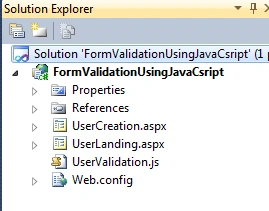
In the preceding Solution Explorer, there are two ASP.Net pages, UserCreation.aspx and UserLanding.aspx along with the UserValidation.js JavaScript file. In the UserCreation.aspx page the user enters the form details and then only after validating the details the page is redirected to the UserLanding.aspx page.
Use the following code in the create button:
protected void btn_Click(object sender, EventArgs e)
{
    Response.Redirect("UserLanding.aspx");
}
In the code above, only after validating the form data, the page is redirected to the UserLanding.aspx page.
Now run the ASP.Net web application and click on the Create button without inserting any data in the form, then it will show the following alert message.
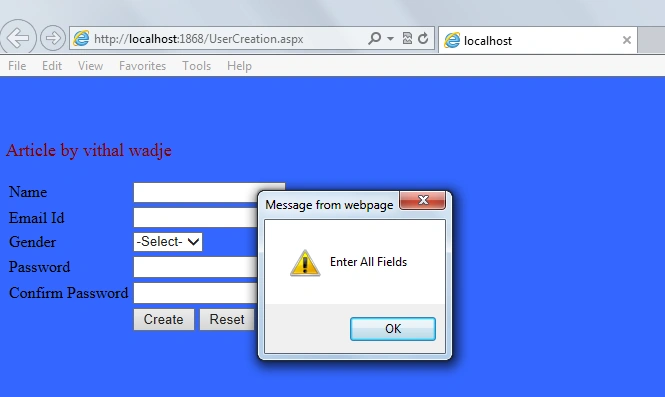
In the preceding screen, you clearly see that even I have written the code on the create button to redirect to the next page but it will not be redirected because the form data is blank and it does not satisfy our validation condition that we set.
In other words, it's clear that the validation is done at the client-side in the browser level and only validates the data; it will execute the server-side code.
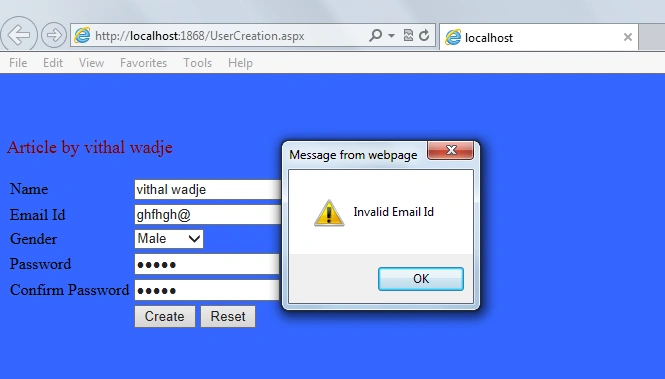
Now enter the invalid Email Id, it will show the following message:
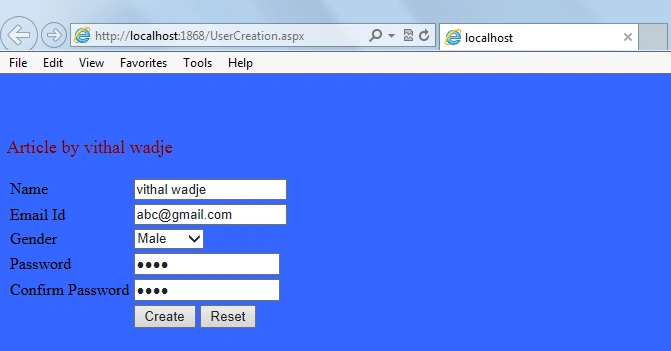
Now enter the valid details.
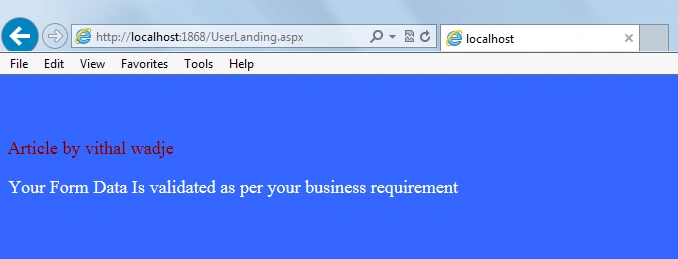
Now click on the "Create" button; it will redirect to the next page as in the following:
Note: For detailed code please download the zip file attached above.
Summary
From all the examples above we see how to validate the form data using JavaScript. I hope this article is useful for all students and beginners. If you have any suggestions related to this article then please contact me.
Sujit PrabhakaranPosted Feb 22, 2026, 2:54 AM
The attached code worked fine in my Laptop. I appreciate the quality of your work.
Lalithambika KoradaPosted Feb 16, 2021, 12:05 PM
Could please explain the code in Visual Basic as well and i write all the code in visual basic but the javascript validations are not working
Mohd TaufeequePosted Jan 30, 2019, 6:40 AM
============RegistrationPage with JavaScript Validations================================.aspx page============= <%@ Page Language="C#" AutoEventWireup="true" CodeBehind="WebForm1.aspx.cs" Inherits="RegistrationFormJavaScript.WebForm1" %> <!DOCTYPE html> <html xmlns="http://www.w3.org/1999/xhtml"> <head runat="server"> <title></title> <style type="text/css"> .auto-style1 { width: 100%; } .auto-style2 { width: 157px; } .auto-style3 { width: 157px; height: 23px; } .auto-style4 { height: 23px; } .auto-style5 { width: 243px; } .auto-style6 { height: 23px; width: 243px; } .auto-style7 { width: 231px; } .auto-style8 { height: 23px; width: 231px; } </style> <script type="text/javascript"> function userValidation() { var Name = document.getElementById("txtUname").value; var Password = document.getElementById("txtPassword").value; var ConPassword = document.getElementById("txtConPassword").value; var gen; var mobile = document.getElementById("txtMobile").value; var email = document.getElementById("txtEmail").value; var qual = ""; var dd = document.getElementById("txtDOB").value; var add = document.getElementById("txtAddress").value; var drop = document.getElementById("dropDocName").value; var fileval = document.getElementById("fileDocument").value; //var fileupload=document.getElementById("fileDocument").value if (Name == "") { document.getElementById('<%=lblUname.ClientID%>').innerHTML = "Please Enter the UserName"; return false; } else { document.getElementById('<%=lblUname.ClientID%>').innerHTML = ""; } //Password if (Password == "") { document.getElementById('<%=lblPassword.ClientID%>').innerHTML = "Please Enter the Password"; return false; } else { document.getElementById('<%=lblPassword.ClientID%>').innerHTML = ""; } //ConPassword if (ConPassword=="") { document.getElementById('<%=lblConPassword.ClientID%>').innerHTML = "Please Enter Conpassword"; return false; } else { document.getElementById('<%=lblConPassword.ClientID%>').innerHTML = ""; } if (Password != ConPassword) { document.getElementById('<%=lblConPassword.ClientID%>').innerHTML = "Password and Confirm Password must be same"; return false; } else { document.getElementById('<%=lblConPassword.ClientID%>').innerHTML = ""; } //Gender if (document.getElementById('radioMale').checked) { gen = document.getElementById("radioMale").value; document.getElementById('<%=lblGender.ClientID%>').innerHTML = ""; } else if (document.getElementById('radioFemale').checked) { gen = document.getElementById("radioFemale").value; document.getElementById('<%=lblGender.ClientID%>').innerHTML = ""; } else { document.getElementById('<%=lblGender.ClientID%>').innerHTML = "Please select Gender"; return false; } //Mobile var len = mobile.length; var val = mobile.value; if (mobile == "") { document.getElementById('<%=lblMobile.ClientID%>').innerHTML = "Mobile Number Must not be Empty..."; return false; } else { document.getElementById('<%=lblMobile.ClientID%>').innerHTML = ""; } if (isNaN(mobile)) { document.getElementById('<%=lblMobile.ClientID%>').innerHTML = "Mobile Number Must be digits only..."; return false; } else { document.getElementById('<%=lblMobile.ClientID%>').innerHTML = ""; } if (len < 10 || len > 10) { document.getElementById('<%=lblMobile.ClientID%>').innerHTML = "Mobile Number Must be 10-digits only..."; return false; } else { document.getElementById('<%=lblMobile.ClientID%>').innerHTML = ""; } //Email var atposition = email.indexOf("@"); var dotposition = email.indexOf("."); //var startposition = email.indexOf(0); if (email == "") { document.getElementById('<%=lblEmail.ClientID%>').innerHTML = "Email id must not be empty"; return false; } else { document.getElementById('<%=lblEmail.ClientID%>').innerHTML = ""; } if (atposition < 1 || dotposition < atposition + 2 || dotposition + 2 >= email.length) { document.getElementById('<%=lblEmail.ClientID%>').innerHTML = "Please Enter Valid email id"; return false; } else { document.getElementById('<%=lblEmail.ClientID%>').innerHTML = ""; } //Qualification Validation if ((document.getElementById('chkBTech').checked) || (document.getElementById('chkBE').checked) || (document.getElementById('chkMCA').checked)) { document.getElementById('<%=lblQualification.ClientID%>').innerHTML = ""; } else { document.getElementById('<%=lblQualification.ClientID%>').innerHTML = "Please Select atleast one Qualification"; return false; } //DateOfBirth Validation if (dd == "") { document.getElementById('<%=lblDOB.ClientID%>').innerHTML = "Please Enter Your Date of Birth"; return false; } else { document.getElementById('<%=lblDOB.ClientID%>').innerHTML = ""; } //Address Validation if (add == "") { document.getElementById('<%=lblAddress.ClientID%>').innerHTML = "Please Enter Your Address"; return false; } else { document.getElementById('<%=lblAddress.ClientID%>').innerHTML = ""; } //Document type Validation if (drop == "") { document.getElementById('<%=lblDropdocnam.ClientID%>').innerHTML = "Please Select Doc Type"; return false; } else { document.getElementById('<%=lblDropdocnam.ClientID%>').innerHTML = ""; } //File Upload Validation if (fileval == "") { document.getElementById('<%=lblFileDoc.ClientID%>').innerHTML = "Please Select your Document"; return false; } else { document.getElementById('<%=lblFileDoc.ClientID%>').innerHTML = ""; } } </script> </head> <body> <form id="form1" runat="server"> <div> <table class="auto-style1"> <tr> <td class="auto-style2"> <asp:Label ID="Label1" runat="server" Text="Enter User Name"></asp:Label> </td> <td class="auto-style5"> <asp:TextBox ID="txtUname" runat="server"></asp:TextBox> </td> <td class="auto-style7"> <asp:Label ID="lblUname" runat="server"></asp:Label> </td> <td> </td> </tr> <tr> <td class="auto-style2"> </td> <td class="auto-style5"> </td> <td class="auto-style7"> </td> <td> </td> </tr> <tr> <td class="auto-style2"> <asp:Label ID="Label2" runat="server" Text="Enter Password"></asp:Label> </td> <td class="auto-style5"> <asp:TextBox ID="txtPassword" runat="server" TextMode="Password"></asp:TextBox> </td> <td class="auto-style7"> <asp:Label ID="lblPassword" runat="server"></asp:Label> </td> <td> </td> </tr> <tr> <td class="auto-style2"> </td> <td class="auto-style5"> </td> <td class="auto-style7"> </td> <td> </td> </tr> <tr> <td class="auto-style3"> <asp:Label ID="Label3" runat="server" Text="Enter Confirm Password"></asp:Label> </td> <td class="auto-style6"> <asp:TextBox ID="txtConPassword" runat="server" TextMode="Password"></asp:TextBox> </td> <td class="auto-style8"> <asp:Label ID="lblConPassword" runat="server"></asp:Label> </td> <td class="auto-style4"> </td> </tr> <tr> <td class="auto-style2"> </td> <td class="auto-style5"> </td> <td class="auto-style7"> </td> <td> </td> </tr> <tr> <td class="auto-style2"> <asp:Label ID="Label4" runat="server" Text="Select Gender"></asp:Label> </td> <td class="auto-style5"> <asp:RadioButton ID="radioMale" runat="server" GroupName="gender" value="Male" Text="Male"/> <asp:RadioButton ID="radioFemale" runat="server" GroupName="gender" value="Female" Text="Female"/> </td> <td class="auto-style7"> <asp:Label ID="lblGender" runat="server"></asp:Label> </td> <td rowspan="14"> <asp:GridView ID="GridView1" runat="server" AutoGenerateColumns="False" CellPadding="4" ForeColor="#333333" GridLines="None"> <AlternatingRowStyle BackColor="White" /> <Columns> <asp:TemplateField HeaderText="Name"> <EditItemTemplate> <asp:TextBox ID="TextBox1" runat="server" Text='<%# Bind("uname") %>'></asp:TextBox> </EditItemTemplate> <ItemTemplate> <asp:Label ID="Label1" runat="server" Text='<%# Bind("uname") %>'></asp:Label> </ItemTemplate> </asp:TemplateField> <asp:TemplateField HeaderText="Gender"> <EditItemTemplate> <asp:TextBox ID="TextBox2" runat="server" Text='<%# Bind("gender") %>'></asp:TextBox> </EditItemTemplate> <ItemTemplate> <asp:Label ID="Label2" runat="server" Text='<%# Bind("gender") %>'></asp:Label> </ItemTemplate> </asp:TemplateField> <asp:TemplateField HeaderText="Mobile"> <EditItemTemplate> <asp:TextBox ID="TextBox3" runat="server" Text='<%# Bind("phone") %>'></asp:TextBox> </EditItemTemplate> <ItemTemplate> <asp:Label ID="Label3" runat="server" Text='<%# Bind("phone") %>'></asp:Label> </ItemTemplate> </asp:TemplateField> <asp:TemplateField HeaderText="Email"> <EditItemTemplate> <asp:TextBox ID="TextBox4" runat="server" Text='<%# Bind("email") %>'></asp:TextBox> </EditItemTemplate> <ItemTemplate> <asp:Label ID="Label4" runat="server" Text='<%# Bind("email") %>'></asp:Label> </ItemTemplate> </asp:TemplateField> <asp:TemplateField HeaderText="Qualification"> <EditItemTemplate> <asp:TextBox ID="TextBox5" runat="server" Text='<%# Bind("qualification") %>'></asp:TextBox> </EditItemTemplate> <ItemTemplate> <asp:Label ID="Label5" runat="server" Text='<%# Bind("qualification") %>'></asp:Label> </ItemTemplate> </asp:TemplateField> <asp:TemplateField HeaderText="Date of Birth"> <EditItemTemplate> <asp:TextBox ID="TextBox6" runat="server" Text='<%# Bind("dateofbirth") %>'></asp:TextBox> </EditItemTemplate> <ItemTemplate> <asp:Label ID="Label6" runat="server" Text='<%# Bind("datofbirth") %>'></asp:Label> </ItemTemplate> </asp:TemplateField> <asp:TemplateField HeaderText="Address"> <EditItemTemplate> <asp:TextBox ID="TextBox7" runat="server" Text='<%# Bind("addr") %>'></asp:TextBox> </EditItemTemplate> <ItemTemplate> <asp:Label ID="Label7" runat="server" Text='<%# Bind("addr") %>'></asp:Label> </ItemTemplate> </asp:TemplateField> </Columns> <FooterStyle BackColor="#990000" Font-Bold="True" ForeColor="White" /> <HeaderStyle BackColor="#990000" Font-Bold="True" ForeColor="White" /> <PagerStyle BackColor="#FFCC66" ForeColor="#333333" HorizontalAlign="Center" /> <RowStyle BackColor="#FFFBD6" ForeColor="#333333" /> <SelectedRowStyle BackColor="#FFCC66" Font-Bold="True" ForeColor="Navy" /> <SortedAscendingCellStyle BackColor="#FDF5AC" /> <SortedAscendingHeaderStyle BackColor="#4D0000" /> <SortedDescendingCellStyle BackColor="#FCF6C0" /> <SortedDescendingHeaderStyle BackColor="#820000" /> </asp:GridView> </td> </tr> <tr> <td class="auto-style2"> </td> <td class="auto-style5"> </td> <td class="auto-style7"> </td> </tr> <tr> <td class="auto-style2"> <asp:Label ID="Label5" runat="server" Text="Mobile Number"></asp:Label> </td> <td class="auto-style5"> <asp:TextBox ID="txtMobile" runat="server"></asp:TextBox> </td> <td class="auto-style7"> <asp:Label ID="lblMobile" runat="server"></asp:Label> </td> </tr> <tr> <td class="auto-style2"> </td> <td class="auto-style5"> </td> <td class="auto-style7"> </td> </tr> <tr> <td class="auto-style2"> <asp:Label ID="Label6" runat="server" Text="Enter Email"></asp:Label> </td> <td class="auto-style5"> <asp:TextBox ID="txtEmail" runat="server"></asp:TextBox> </td> <td class="auto-style7"> <asp:Label ID="lblEmail" runat="server"></asp:Label> </td> </tr> <tr> <td class="auto-style2"> </td> <td class="auto-style5"> </td> <td class="auto-style7"> </td> </tr> <tr> <td class="auto-style2"> <asp:Label ID="Label7" runat="server" Text="Select Qualification"></asp:Label> </td> <td class="auto-style5"> <asp:CheckBox ID="chkBTech" runat="server" Text="B.Tech" value="BTech"/> <asp:CheckBox ID="chkBE" runat="server" Text="B.E" value="BE"/> <asp:CheckBox ID="chkMCA" runat="server" Text="M.C.A" value="MCA"/> </td> <td class="auto-style7"> <asp:Label ID="lblQualification" runat="server"></asp:Label> </td> </tr> <tr> <td class="auto-style2"> </td> <td class="auto-style5"> </td> <td class="auto-style7"> </td> </tr> <tr> <td class="auto-style2"> <asp:Label ID="Label8" runat="server" Text="Select DateOfBirth"></asp:Label> </td> <td class="auto-style5"> <asp:TextBox ID="txtDOB" runat="server"></asp:TextBox> </td> <td class="auto-style7"> <asp:Label ID="lblDOB" runat="server"></asp:Label> </td> </tr> <tr> <td class="auto-style2"> </td> <td class="auto-style5"> </td> <td class="auto-style7"> </td> </tr> <tr> <td class="auto-style2"> <asp:Label ID="Label9" runat="server" Text="Enter Address"></asp:Label> </td> <td class="auto-style5"> <asp:TextBox ID="txtAddress" runat="server" TextMode="MultiLine" style="height: 22px"></asp:TextBox> </td> <td class="auto-style7"> <asp:Label ID="lblAddress" runat="server"></asp:Label> </td> </tr> <tr> <td class="auto-style2"> </td> <td class="auto-style5"> </td> <td class="auto-style7"> </td> </tr> <tr> <td class="auto-style2"> <asp:Label ID="Label10" runat="server" Text="Select Document"></asp:Label> </td> <td class="auto-style5"> <asp:DropDownList ID="dropDocName" runat="server"> </asp:DropDownList> </td> <td class="auto-style7"> <asp:Label ID="lblDropdocnam" runat="server"></asp:Label> </td> </tr> <tr> <td class="auto-style2"> </td> <td class="auto-style5"> </td> <td class="auto-style7"> </td> </tr> <tr> <td class="auto-style2"> <asp:Label ID="Label11" runat="server" Text="Select File"></asp:Label> </td> <td class="auto-style5"> <asp:FileUpload ID="fileDocument" runat="server" Width="166px" /> </td> <td class="auto-style7"> <asp:Label ID="lblFileDoc" runat="server"></asp:Label> <asp:Image ID="Image1" runat="server" Height="50" Width="50" /> </td> <td> </td> </tr> <tr> <td class="auto-style2"> </td> <td class="auto-style5"> </td> <td class="auto-style7"> </td> <td> </td> </tr> <tr> <td class="auto-style2"> </td> <td class="auto-style5"> <asp:Button ID="btnRegister" runat="server" Text="Register" OnClientClick="return userValidation();" OnClick="btnRegister_Click"/> <asp:Button ID="btnSearch" runat="server" Text="Search" OnClick="btnSearch_Click"/> <br /> <br /> <asp:Button ID="btnUpdate" runat="server" Text="Update" OnClientClick="return userValidation();" OnClick="btnUpdate_Click"/> <asp:Button ID="btnDelete" runat="server" Text="Delete" OnClick="btnDelete_Click"/> <asp:Button ID="bnClear" runat="server" Text="Clear" /> </td> <td class="auto-style7"> </td> <td> </td> </tr> <tr> <td class="auto-style2"> </td> <td class="auto-style5"> <asp:Label ID="lblMsg" runat="server"></asp:Label> </td> <td class="auto-style7"> </td> <td> </td> </tr> </table> </div> </form> </body> </html> ============================================.aspx.as page=================================== using System; using System.Collections.Generic; using System.Linq; using System.Web; using System.Web.UI; using System.Web.UI.WebControls; using System.Data; using System.Data.SqlClient; namespace RegistrationFormJavaScript { public partial class WebForm1 : System.Web.UI.Page { SqlConnection con = new SqlConnection("user id=sa;password=abc;database=mydatabase;data source=."); protected void FillData() { con.Open(); string query = "select uname,gender,phone,email,qualification,datofbirth,addr from registration"; SqlCommand cmd=new SqlCommand(query,con); SqlDataAdapter da = new SqlDataAdapter(cmd); DataSet ds = new DataSet(); da.Fill(ds, "emp"); GridView1.DataSource = ds; GridView1.DataBind(); } protected void ClearData() { txtUname.Text = ""; txtPassword.Text = ""; txtConPassword.Text = ""; radioMale.Checked = false; radioFemale.Checked = false; txtMobile.Text = ""; txtEmail.Text = ""; chkBTech.Checked = false; chkBE.Checked = false; chkMCA.Checked = false; txtDOB.Text = ""; txtAddress.Text = ""; dropDocName.Items.Clear(); } protected void docBind() { dropDocName.Items.Add("-Select Document-"); dropDocName.Items.Add("10th"); dropDocName.Items.Add("12th"); dropDocName.Items.Add("Graduation"); dropDocName.Items.Add("PostGraduation"); } protected void Page_Load(object sender, EventArgs e) { if(!IsPostBack) { docBind(); FillData(); } } protected void btnRegister_Click(object sender, EventArgs e) { con.Open(); string uname = txtUname.Text; string pass=txtPassword.Text; string gender=""; if(radioMale.Checked==true) { gender=radioMale.Text; } else { gender=radioFemale.Text; } string mobile=txtMobile.Text; string email=txtEmail.Text; string qualification=""; if(chkBTech.Checked==true) { qualification=qualification+chkBTech.Text; } if(chkBE.Checked==true) { qualification=qualification+chkBE.Text; } if(chkMCA.Checked==true) { qualification=qualification+chkMCA.Text; } string dob = txtDOB.Text; string address=txtAddress.Text; string filedrop=dropDocName.SelectedItem.Text; string fileName =fileDocument.FileName; string filePath = "~/Images/" + fileName; fileDocument.SaveAs(Server.MapPath(filePath)); string path=filePath; string query = "insert into registration values('" + uname + "','" + pass + "','" + gender + "','" + mobile + "','" + email + "','" + qualification + "','" + dob + "','" + address + "','" + filedrop + "','" + path + "')"; SqlCommand cmd=new SqlCommand(query,con); int i = cmd.ExecuteNonQuery(); con.Close(); if(i==1) { lblMsg.Text = "Record inserted successfully"; FillData(); ClearData(); } } protected void btnSearch_Click(object sender, EventArgs e) { con.Open(); string query = "select * from registration where uname='" + txtUname.Text + "'"; SqlCommand cmd = new SqlCommand(query, con); SqlDataReader dr = cmd.ExecuteReader(); DataSet ds = new DataSet(); if(dr.HasRows) { while(dr.Read()) { txtUname.Text = dr[0].ToString(); txtPassword.Text =dr[1].ToString(); txtConPassword.Text = txtPassword.Text; if(dr[2].ToString()=="Male") { radioMale.Checked = true; } else { radioFemale.Checked = true; } txtMobile.Text = dr[3].ToString(); txtEmail.Text = dr[4].ToString(); if(dr[5].ToString()=="BTech") { chkBTech.Checked = true; } else if(dr[5].ToString()=="BE") { chkBE.Checked = true; } else { chkMCA.Checked = true; } txtDOB.Text = dr[6].ToString(); txtAddress.Text = dr[7].ToString(); dropDocName.SelectedItem.Text = dr[8].ToString(); string url = dr[9].ToString(); Image1.ImageUrl = dr[9].ToString(); } } } protected void btnUpdate_Click(object sender, EventArgs e) { con.Open(); string uname = txtUname.Text; string pass=txtPassword.Text; string gender=""; if(radioMale.Checked==true) { gender=radioMale.Text; } else { gender=radioFemale.Text; } string mobile=txtMobile.Text; string email=txtEmail.Text; string qualification=""; if(chkBTech.Checked==true) { qualification=qualification+chkBTech.Text; } if(chkBE.Checked==true) { qualification=qualification+chkBE.Text; } if(chkMCA.Checked==true) { qualification=qualification+chkMCA.Text; } string dob = txtDOB.Text; string address=txtAddress.Text; string filedrop=dropDocName.SelectedItem.Text; string fileName =fileDocument.FileName; string filePath = "~/Images/" + fileName; fileDocument.SaveAs(Server.MapPath(filePath)); string path=filePath; string query = "update registration set pass='" + pass + "',gender='" + gender + "',phone='" + mobile + "',email='" + email + "',qualification='" + qualification + "',datofbirth='" + dob + "',addr='" + address + "',dname='" + filedrop + "',dpath='" + path + "' where uname='"+txtUname.Text+"'"; SqlCommand cmd = new SqlCommand(query, con); int i = cmd.ExecuteNonQuery(); con.Close(); if(i==1) { lblMsg.Text = "Details Updated Successfully"; FillData(); } else { lblMsg.Text = "Failed"; } } protected void btnDelete_Click(object sender, EventArgs e) { con.Open(); string query = "delete from registration where uname='" + txtUname.Text + "'"; SqlCommand cmd = new SqlCommand(query, con); int i = cmd.ExecuteNonQuery(); con.Close(); if (i==1) { lblMsg.Text = "Record Deleted Successfully"; FillData(); } else { lblMsg.Text = "Failed"; } } } }
Shaista MughalPosted Jan 14, 2019, 8:56 PM
How can wevalidate form at run ime through JS
sara abdouPosted Jul 8, 2017, 10:31 AM
How can i make JavaScript validation in a web form inherent from master page in asp.net?
Arvind GuptaPosted Jun 12, 2017, 1:14 AM
How can we create login page using database in java script
Vithal WadjePosted Aug 22, 2016, 9:31 AM
May be spell mistake , download sample code
sanjay manikPosted Aug 22, 2016, 2:50 AM
But there is a mistake the word "Pass" is missing in the content due to that the Password becomes word.
sanjay manikPosted Aug 22, 2016, 2:48 AM
Simple, Clear and really helpful.
Vithal WadjePosted Jul 7, 2016, 11:14 AM
Thanks
kalu singh raoPosted Jul 7, 2016, 1:45 AM
Nice...
Vithal WadjePosted Jun 21, 2016, 2:46 AM
Thanks Humayun sir
Vithal WadjePosted Jun 21, 2016, 2:46 AM
thanks Thrippathi sir
Vithal WadjePosted Jun 21, 2016, 2:46 AM
thanks Sthitaprajnya sir for your valuable feedback
Vithal WadjePosted Jun 21, 2016, 2:45 AM
Thanks Upendra sir
Vithal WadjePosted Jun 21, 2016, 2:44 AM
thanks Damu G
Humayun Kabir MamunPosted Jun 12, 2016, 4:50 AM
Nice...
Thiruppathi RPosted Jun 3, 2016, 11:21 AM
Very useful..
Sthitaprajnya Debasis NayakPosted Sep 19, 2015, 1:54 AM
It very much Helpful....
Upendra Pratap ShahiPosted Aug 20, 2015, 2:59 AM
nice sir
damu gPosted Aug 11, 2015, 10:06 AM
thank u sir
Vithal WadjePosted Jan 27, 2015, 9:41 AM
thanks sir
Venkat KumarPosted Jan 27, 2015, 1:46 AM
nice
Vithal WadjePosted Nov 16, 2014, 6:55 AM
Thanks adnan sir
Adnan SiddiquiPosted Nov 16, 2014, 3:58 AM
I've been searching this form long time.Thnx
Adnan SiddiquiPosted Nov 16, 2014, 3:56 AM
great work
Vithal WadjePosted Nov 12, 2014, 5:48 AM
thanks sir,even i will be happy if u update your display name
??? ?????Posted Nov 12, 2014, 5:22 AM
Thanks,
Vithal WadjePosted Sep 15, 2014, 2:25 PM
thanks
satish GPosted Sep 12, 2014, 8:54 AM
Good one...Thanks :)
Vithal WadjePosted Jul 12, 2014, 10:18 AM
thanks a lot
Veekkas YerhpudePosted Jul 12, 2014, 8:28 AM
Thank You sir, awesome article which I needed......!
Vithal WadjePosted Jun 21, 2014, 12:33 AM
thanks
Aman JainPosted Jun 20, 2014, 1:09 AM
thank u very much sir...this article is very useful....:)
Vithal WadjePosted Jun 16, 2014, 3:14 PM
thanks Maroti sir
maroti kharatePosted Jun 16, 2014, 7:04 AM
thanx sir for such nice and simple article....
Vithal WadjePosted Apr 21, 2014, 1:00 PM
thanks teddy girma
teddy girmaPosted Apr 17, 2014, 3:30 AM
fantastic Tnx bro!
Vithal WadjePosted Apr 8, 2014, 3:11 PM
thanks
manav sharmaPosted Apr 5, 2014, 2:27 PM
Very Useful Article .. Thanks..
Vithal WadjePosted Aug 29, 2013, 2:30 PM
twice thanks Kailash Chandra Behera sir
Former memberPosted Aug 29, 2013, 1:11 AM
very nice article it helped my friend
Former memberPosted Aug 29, 2013, 1:10 AM
nice article