A session is defined as the period of time that a unique user interacts with a Web application. Active Server Pages (ASP) developers who wish to retain data for unique user sessions can use an intrinsic feature known as session state.
Programmatically, a session state is nothing more than memory in the shape of a dictionary or hash table, e.g. key-value pairs, which can be set and read for the duration of a user's session. For example, a user selects stocks to track and the Web application can store these values in the user's ASP session instance.
Session("Stocks") = "MSFT; VRSN; GE"
On subsequent pages, these values are read, and the Web application has access to these values without the user re-entering them.
// Get Stocks, split string, etc.
string StockString;
StockString = Session["Stocks"].ToString();
ASP maintains the session state by providing the client with a unique key assigned to the user when the session begins. This key is stored in an HTTP cookie that the client sends to the server on each request. The server can then read the key from the cookie and re-inflate the server session state.
Problems with ASP Session State
ASP developers know session state as a great feature, but one that is somewhat limited. These limitations include.
- Process dependent: ASP session state exists in the process that hosts ASP; thus, the actions that affect the process also affect the session state. When the process is recycled or fails, the session state is lost.
- Server farm limitations: As users move from server to server in a Web server farm, their session state does not follow them. ASP session state is machine-specific. Each ASP server provides its own session state, and unless the user returns to the same server, the session state is inaccessible. While network IP-level routing solutions can solve such problems by ensuring that client IPs are routed to the originating server, some ISPs choose to use a proxy load-balancing solution for their clients. The most infamous of these is AOL. Solutions such as AOLs prevent network-level routing of requests to servers because the IP addresses for the requestor cannot be guaranteed to be unique.
- Cookie dependent: Clients that don't accept HTTP cookies can't take advantage of the session state. Some clients believe that cookies compromise security and/or privacy and thus disable them, which disables the session state on the server.
These are several of the problem sets that were taken into consideration in the design of the ASP.NET session state.
ASP.NET Session State
ASP.NET session state solves all of the above problems associated with the classic ASP session state.
- Process independent: The ASP.NET session state is able to run in a separate process from the ASP.NET host process. If the session state is in a separate process, the ASP.NET process can come and go while the session state process remains available. Of course, you can still use session state in a process similar to classic ASP.
- Support for server farm configurations: By moving to an out-of-process model, ASP.NET also solves the server farm problem. The new out-of-process model allows all servers in the farm to share a session state process. You can implement this by changing the ASP.NET configuration to point to a common server.
- Cookie independent: Although solutions to the problem of cookieless state management do exist for classic ASP, they're not trivial to implement. ASP.NET, on the other hand, reduces the complexities of the cookieless session state to a simple configuration setting.
Let's look at each of these features in more detail, including how the settings are configured.
Using ASP.NET Session State
Session state settings in ASP.NET are configured through the ASP.NET XML configuration file config.web. We'll look at config.web in more detail in a later column, but for this discussion of session state, let's look at it briefly.
Config.web
There are two types of configuration files: a machine configuration file and an application configuration file, both named config.web. The two are identical, except that the machine configuration file applies settings to all applications but the application configuration files are either restrictive or expansive on an application-by-application basis.
In Beta 1, the machine config.web file is in the WinNT\Microsoft.NET\Framework\v1.0.2204 directory, while the optional application configuration files exist in the application's directory. Application config.web files are optional in the sense that if an application config.web file doesn't exist, the machine config.web settings are used instead. ASP.NET session state settings can be made in the machine config.web file and overridden in a particular application's config.web file.
Note. Changes made to config.web are applied immediately, unlike classic ASP, where the server has to be stopped and started for settings to take effect.
Session configuration
Below is a sample config.web file used to configure the session state settings for an ASP.NET application.
<configuration>
  <sessionState
    mode="InProc"
    cookieless="false"
    timeout="20"
    sqlConnectionString="data source=127.0.0.1;user id=<user id>;password=<password>"
    server="127.0.0.1"
    port="42424" />
</configuration>
The settings above are used to configure the ASP.NET session state. Let's look at each in more detail and cover the various uses afterward.
- Mode: The mode setting supports three options: inproc, sqlserver, and stateserver. As stated earlier, ASP.NET supports two modes: in-process and out-of-process. There are also two options for out-of-process state management: memory-based (stateserver), and SQL Server-based (sqlserver). We'll discuss implementing these options shortly.
- Cookieless: The cookieless option for ASP.NET is configured with this simple Boolean setting.
- Timeout: This option controls the length of time a session is considered valid. The session timeout is a sliding value; on each request, the timeout period is set to the current time plus the timeout value.
- Sqlconnectionstring: The SQL connection string identifies the database connection string that names the database used for the mode SQL server.
- Server: In the out-of-process mode stateserver, it names the server that is running the required Windows NT service: ASPState.
- Port: The port setting, which accompanies the server setting, identifies the port number that corresponds to the server setting for the mode stateserver.
Sample session state application
Before we use the session state, we need an application to test it with. Below is the code for a simple C# application that writes to and reads from session state, SessionState.aspx.
<Script runat="server">
  Public void Session_Add(Object sender, EventArgs e)
  {
    Session("MySession") = text1.Value;
    span1.InnerHtml = "Session data updated! <p>Your session contains: <font color='red'>" +
                      Session("MySession").ToString() + "</font>";
  }

  Public void CheckSession(Object sender, EventArgs e)
  {
    If (Session("MySession") == null)
    {
      span1.InnerHtml = "NOTHING, SESSION DATA LOST!";
    }
    Else
    {
      span1.InnerHtml = "Your session contains: <font color='red'>" +
                        Session("MySession").ToString() + "</font>";
    }
  }
</Script>

<form runat="server" ID="Form1">
  <input id="text1" type="text" runat="server" NAME="text1">
  <input type="submit" runat="server" OnServerClick="Session_Add" Value="Add to Session State" ID="Submit1" NAME="Submit1">
  <input type="submit" runat="server" OnServerClick="CheckSession" Value="View Session State" ID="Submit2" NAME="Submit2">
</form>

<hr size="1">
<font size="6"><span id="span1" runat="server" /></font>
This simple page wires up two server-side events for the Add and View buttons and simply sets the session state to the value in the text box.
There are four general configuration settings we can look at in more detail: in-process mode, out-of-process mode, SQL Server mode, and Cookieless.
In-process Mode
In-process mode simply means using the ASP.NET session state in a similar manner to the classic ASP session state. That is, the session state is managed in process, and if the process is re-cycled, the state is lost. Given the new settings that ASP.NET provides, you might wonder why you would ever use this mode. The reasoning is quite simple: performance. The performance of session state, e.g. the time it takes to read from and write to the session state dictionary, will be much faster when the memory read to and from is in process, as cross-process calls add overhead when data is marshaled back and forth or possibly read from SQL Server.
In-process mode is the default setting for ASP.NET. When this setting is used, only the other session config.web settings used are cookieless and timeout.
If we call SessionState.aspx, set a session state value, and stop and start the ASP.NET process (iisreset). The value set before the process was cycled will be lost.
Out-of-process Mode
Included with the .NET SDK is a Windows NT service: ASPState. This Windows service is what ASP.NET uses for out-of-process session state management. To use this state manager, you first need to start the service. To start the service, open a command prompt and type.
net start aspstate
What you'll see is,

Figure 1. Starting the Windows NT service ASPState at the command prompt
At this point, the Windows NT Service ASPState has started and is available to ASP.NET. Next, we need to configure ASP.NET to take advantage of this service. To do this, we need to configure config.web.
<configuration>
  <sessionState
    mode="StateServer"
    cookieless="false"
    timeout="20"
    sqlConnectionString="data source=127.0.0.1;user id=<user id>;password=<password>"
    server="127.0.0.1"
    port="42424" />
</configuration>
We changed only from inproc mode to stateserver mode. This setting tells ASP.NET to look for the ASP state service on the server specified in the server and port settings this case, the local server.
We can now call SessionState.aspx, set a session state value, stop and start the IIS process (iisreset), and continue to have access to the values for our current state.
SQL Server Mode
The SQL Server mode option is similar to that of the Windows NT Service, except that the information persists in SQL Server rather than being stored in memory.
To use SQL Server as our session state store, we first must create the necessary tables and stored procedures that ASP.NET will look for on the identified SQL Server. The .NET SDK provides us with a SQL script (state.sql) to do just that.
state.sql
The state.sql file contains the SQL commands used to create the ASPState database. This script creates two tables and several stored procedures. ASP.NET uses both the tables and the procedures to store data on the SQL Server. I would recommend reading through state.sql to learn more about what it is doing.
The state.sql file can be found in
[system drive]\winnt\Microsoft.NET\Framework\[version]\
Applying the state.sql script
To apply the state.sql script, use the command line tool SQL Server provides osql.exe. Using a sa equivalent SQL user, the syntax below is used.
osql -S [server name] -U [user] -P [password] < state.sql
Note. A lightweight version of SQL Server is installed when the .NET SDK is installed.
Here's what you should see,
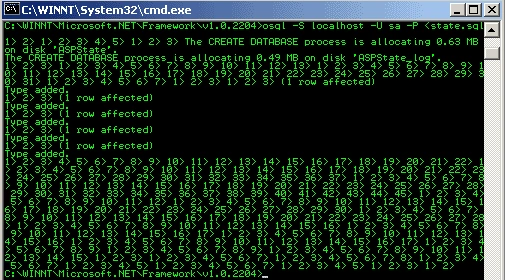
Figure 2. Using the SQL Server command line tool to apply state.sql script
After running osql, start and stop SQL Server; part of what state.sql added were some start-up stored procedures that need to be run. Next, modify the configuration settings to set the mode to SQL server and modify the SQL connection string to identify the appropriate SQL Server serving the ASPState database. For example:
<configuration>
  <sessionState
    mode="SQLServer"
    cookieless="false"
    timeout="20"
    sqlConnectionString="data source=MySqlServer; user id=ASPState; password=1Gr8State"
    server="127.0.0.1"
    port="42424" />
</configuration>
Again, similar to the Windows NT service state manager, we can now call SessionState.aspx, set a session state value, stop and start the IIS process (iisreset), and continue to have access to the values for our current state. In fact, we could cluster the SQL Servers such that if one SQL Server happened to be unavailable, another server that was replicating its data could take its place. This provides a level of reliability that was not available in ASP.
Cookieless State
The last new feature that we can configure for the ASP.NET session state is the cookieless session state. Essentially, this feature allows sites whose clients choose not to use cookies to take advantage of ASP.NET session state.
This is done by modifying the URL with an ID that uniquely identifies the session.
http://localhost/(lit3py55t21z5v55vlm25s55)/Application/SessionState.aspx
ASP.NET will modify relative links found within the page and embed this ID. Thus, as long as the user follows the path of links the site provides, the session state can be maintained. However, if the end-user re-writes the URL, the session state instance will most likely be lost.
The IIS 4.0 Resource Kit provided a similar feature. It was implemented as an ISAPI filter that could modify the incoming and outgoing byte stream to write and read the necessary information. The difference between this and the ASP.NET feature is the effort required to use the feature. In ASP.NET, it's simply a matter of flipping a Boolean value in the config.web file.
<configuration>
  <sessionState
    mode="StateServer"
    cookieless="true"
    timeout="20"
    sqlConnectionString="data source=127.0.0.1;user id=<user id>;password=<password>"
    server="127.0.0.1"
    port="42424" />
</configuration>
Once the cookieless is set to true, ASP.NET will do the work necessary to enable the cookieless session state. Also, note that all modes are supported for cookieless sessions.
Performance and Reliability Considerations
It's worth mentioning briefly some of the performance and reliability issues you should consider when using ASP.NET session state modes.
- In process: In process will perform best because the session state memory is kept within the ASP.NET process. For Web applications hosted on a single server, applications in which the user is guaranteed to be re-directed to the correct server, or when session state data is not critical (in the sense that it can be re-constructed or re-populated), this is the mode to choose.
- Out of process: This mode is best used when performance is important, but you can't guarantee which server a user will request an application from. With out-of-process mode, you get the performance of reading from memory and the reliability of a separate process that manages the state for all servers.
- SQL Server: This mode is best used when the reliability of the data is fundamental to the stability of the application, as the database can be clustered for failure scenarios. The performance isn't as fast as out-of-process, but the tradeoff is the higher level of reliability.

Mayuresh ShindePosted Jan 6, 2016, 4:09 AM
very nice
Chandu KumawatPosted Dec 24, 2015, 7:37 AM
nice
sushil kumarPosted Oct 14, 2015, 6:04 AM
<script
sushil kumarPosted Oct 14, 2015, 6:04 AM
<script>
Samson JeanettPosted Feb 20, 2010, 6:33 AM
How do I write a code for session variables that restricts users that are not loged in successfully to view other pages in a website?
venuPosted Oct 12, 2007, 5:08 AM
how to convert the asp to asp.net