

Introduction
In this article, I will explain how to use the Package "Microsoft.AspNet.Cors" from the nightly builds.
Nightly Build is a framework. We strongly advise that it should only used for official builds for production. It is used by the developers for fixing the bugs and new features of an official prerelease. There is no guarantee that the nightly build is available or will work. Now I define all the steps of creating the project.
Step 1
First we create the Web API project as in the following:
- Start Visual Studio 2012 and select "New Project" from the Start Page.
- In the Template window, select "Installed template" -> "Visual C#" -> "Web".
- Choose "ASP. NET MVC 4 Web Application" then change its name.
- Click on the "OK" button.
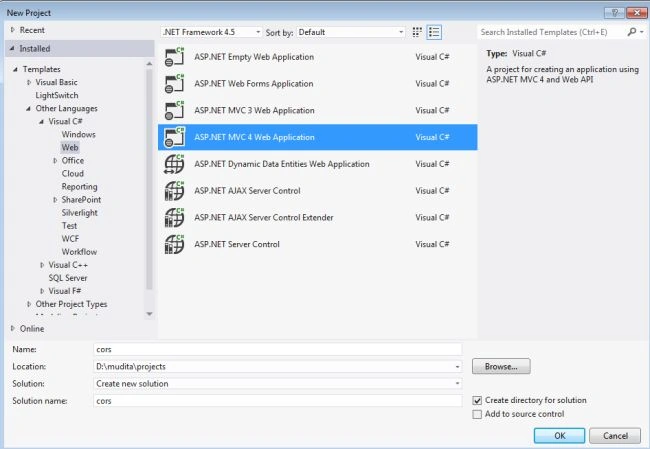
- MVC 4 Project window:
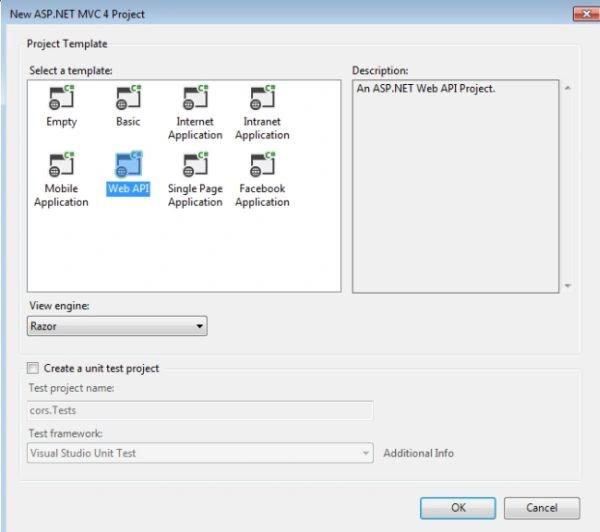
- Select "Web API" and click on the "OK" button.
Step 2
Now we install the client package.
- Go to the "Tools".
- Choose "Library Package Manager" -> "Manage Nuget Packages" for the solution.
- Make sure to "include Prerelease".
- Type in the search box "webapitestclient".
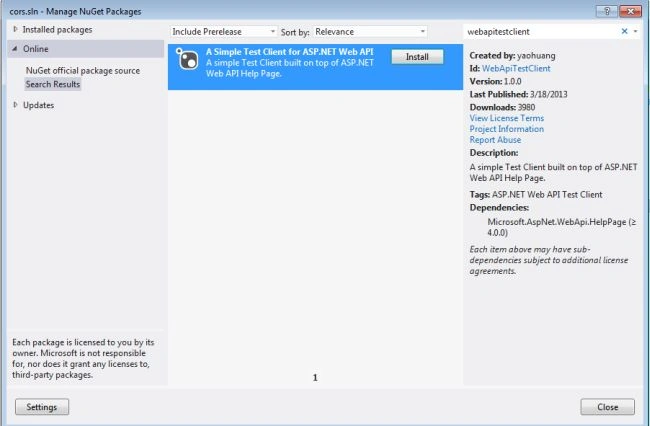
- Now click to install.
When the Web API Test Client is installed, the following files will be added to your application:
- Scripts\WebApiTestClient.js
- Areas\HelpPage\TestClient.css
- Areas\HelpPage\views\Help\Display Template\TestClientReferences.cshtml
- Areas\HelpPage\views\Help\Display Template\TestClientDialogs.cshtml
Step 3
Now open the "TestClientReference.cshtml" file. This file exists in the Solution Explorer: "Areas\HelpPage\Views\DisplayTemplates\TestClientReferences.cshtml".
And write this code.
- @using System.Text.RegularExpressions
- <script src="~/Scripts/jquery-1.8.2.js"></script>
- <script src="~/Scripts/knockoutjs%202.1.0.js"></script>
- <script src="~/Scripts/jquery-ui-1.10.3.js"></script>
- <link href="~/Content/themes/base/jquery.ui.all.css" rel="stylesheet" />
- <link href="~/Areas/HelpPage/TestClient.css" rel="stylesheet" />
- @* Automatically grabs the installed version of JQuery/JQueryUI/KnockoutJS *@
- @{var filePattern = @"(jquery-[0-9]+.[0-9]+.[0-9]+.js|jquery-ui-[0-9]+.[0-9]+.[0-9]+.js|knockout-[0-9]+.[0-9]+.[0-9]+.js)";}
- @foreach (var item in Directory.GetFiles(Server.MapPath(@"~/Scripts")).Where(f => Regex.IsMatch(f, filePattern)))
- {
- <script src="~/Scripts/@Path.GetFileName(item)"></script>
- }
- <script src="~/Scripts/WebApiTestClient.js" defer="defer"></script>
In this code we use some JavaScripts files that exist in the "Script" folder. We can drag and drop these files from the Script folder. These files are:
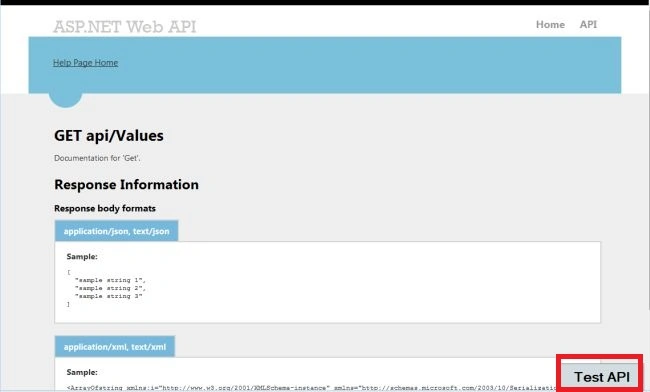
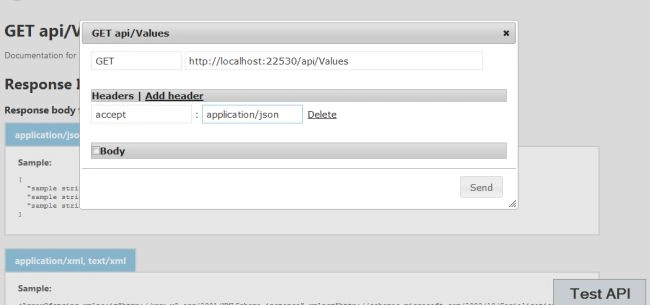
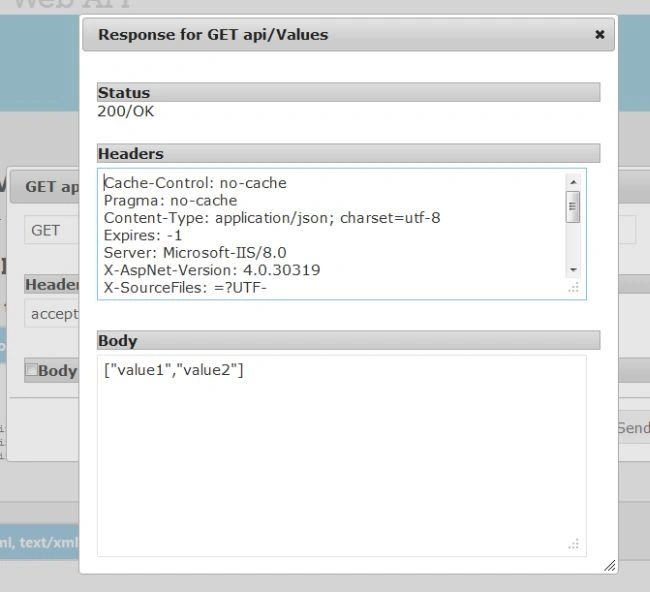
Join the conversation! Your thoughts help the community grow.