

Introduction:
This article discusses the construction of a custom control used to add a scrollable Picturebox control to a project. There are different ways to scroll an image; it can be done using GDI+ for example, but the approach used in this demo is based upon what I feel is the easiest approach; that being to just scroll a full sized image contained within a panel control set to auto size. By building the control as a custom control, you can reuse in any application where you might need to provide such capability.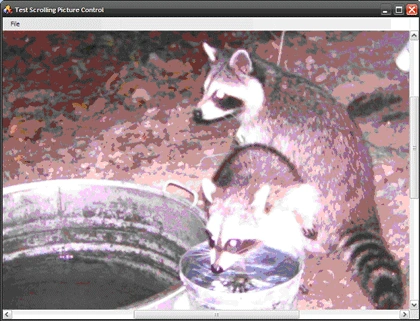
Figure 1: Custom Control Loaded into a Test Application
Since the control is based upon the panel control, you will pick up all of the properties contained in the panel control which will make this simple control immediately more useful (for example, you will be able to dock the control into a form).
Getting Started:
In order to get started, unzip the included project and open the solution in the Visual Studio 2008 environment. There are two projects contained in the solution. TestControl is the first project and it is Windows form application used to test the custom control. The second project (XPicbox) is class library containing a single custom control called XtendPicBox.cs.
In the solution explorer, you should note these items: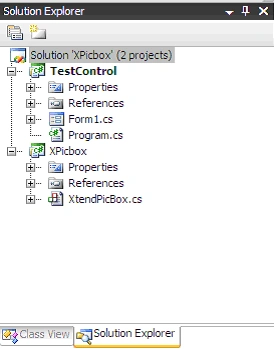
Figure 2: Solution Explorer
The Custom Control (XtendPicBox.cs)
The extended picture box custom control contains everything necessary to display an image in a scrollable container. The control itself is an extension of the panel control. Within the extended control, a picture box control is configured and added to the panel's control collection. When the control is initialized, the picture box is set to the upper left corner of the control and its size mode is set to normal. Properties within the control are used to both limit the consumer's access to the auto scroll property of the panel control (it has to be set to true in order for the image to scroll) and to allow the consumer to set the image file displayed in the inner picture box at both design and runtime.
The custom control class begins with the following library imports:
using System.ComponentModel;
using System.Drawing;
using System.Windows.Forms;
Following the imports, the namespace and class are defined. A constructor is added as are a collection of local member variables. The local member variables include the declaration of the inner Picturebox control, the path to the Picturebox image, and a Boolean value used to set auto scroll to true (for the extended panel control). The constructor is used to configure the Picturebox and to add the Picturebox control to the extended panel control.
namespace XPicbox
{
/// <summary>
/// Extend the panel control to provide a
/// scrollable picturebox control
/// </summary>
public partial class XtendPicBox : Panel
{
#region Local Member Variables
PictureBox innerPicture = new PictureBox();
private string mPictureFile = string.Empty;
private bool mAutoScroll = true;
#endregion
#region Constructor
/// <summary>
/// Constructor - set up the inner
/// picture box so that is plants itself
/// in the top left corner of the panel
/// and so that its size mode is always
/// set to normal. At normal, the picture
/// will appear at full size.
/// </summary>
public XtendPicBox()
{
InitializeComponent();
// add the inner picture
innerPicture.Top = 0;
innerPicture.Left = 0;
innerPicture.SizeMode = PictureBoxSizeMode.Normal;
Controls.Add(innerPicture);
}
#endregion
Next up are the custom control's properties. The first property is used to set the image file to be displayed within the inner Picturebox control. Attributes are set to describe the purpose of the property when that property is used within the IDE; the attributes also specify that the property will be set using the file name editor; this will support opening a file browser window within the IDE at design time if the control consumer chooses to set the image file at design time. If the editor were not specified here, the control consumer would have to key in the path the image file.
The second property merely overrides the extended panel control's auto scroll property. By overriding the property and setting up the Browsable attribute to false, the control consumer will be denied the ability to set the property using the property editor at design time. Since we always want the panel's auto scroll property set to true, we block access to the property and set the value within the custom control's code.
#region Properties
/// <summary>
/// Allow control consumer to set the image
/// used in the internal picture box through
/// this public and browsable property -
/// set the editor to the file name editor
/// to make the control easier to use at
/// design time (to provide an interface for
/// browsing to and selecting the image file
/// </summary>
[Category("Image File")]
[Browsable(true)]
[Description("Set path to image file.")]
[Editor(typeof(System.Windows.Forms.Design.FileNameEditor),typeof(System.Drawing.Design.UITypeEditor))]
public string PictureFile
{
get
{
return mPictureFile;
}
set
{
mPictureFile = value;
if (!string.IsNullOrEmpty(mPictureFile))
{
Meeta JaineditedPosted Apr 29, 2009, 7:56 AMEdited Apr 29, 2009, 7:59 AM
Please can any one tell how should we play a video or .flv player or vlc player in this box. I need to play a video file only in a minimized size but not for a full screen. Till now i got only full screen code but no small size screen player.
balu krishnaPosted Feb 24, 2009, 5:02 AM
hi i hope, am writin at a right place. my actual task is to read the long text from the custom control(window) of the third party aplication through my program. any help please.
ds psPosted Dec 23, 2008, 6:10 AM
This is what i'm looking for actually.I also need a scrollable picture box but i'm working on Visual c#.net 2005 window application. how can we use custom picturebox control in vs 2005.any help is appreciated.