

All developers must be familiar with how to interact with a server for various project requirements. This server interaction varies depending on the project requirements. Some of us may just want to connect to a SQL Server database server through an application, some of us may be hosting our application to an IIS Server.
But, the number of developers who get a chance to setup and manage a server will be much less. That is the reason I thought of writing a step by step guide on this topic, especially for those who are not familiar with Server Management and Server Setup. When you are asked to set up a development server for hosting your application, it may sound scary if you have no experience in that area.
Before setting up a server as your development server, we should know our requirements first. A few things we may consider before a server setup include -
- Whether you need an on-premise server which runs on your organization’s network or you are OK with a cloud server.
- Which are the applications, you are going to install on this? what is the purpose of the server?
- How many users are going to connect to it concurrently?
- The size of the server required.
In my case, I wanted a server that runs an SQL Server 2016 with SQL Server Data Tools (SSDT) and IIS. I was fine with a cloud server, so went for Azure Server.
You may need to figure out the hardware requirements needed. For this, you can think of a few things.
- OS to be used
- Applications to be used
- Number of concurrent users
So, the next step is to identify the Operating System you may need. In my case, it was Windows Server 2012 R2.
In most cases, your IT team will install the OS and the necessary network settings are done for you.
You can go to Azure site and choose the configuration you want. It will calculate and show you the amount you will be charged based on your selection.
Go here.
- Choose Virtual Machines.
- Choose the region, OS, CPU/Memory configuration etc.
- The amount will be shown for each item you choose.
- By default, the amount will be in dollars. You can change it to the currency of your choice.
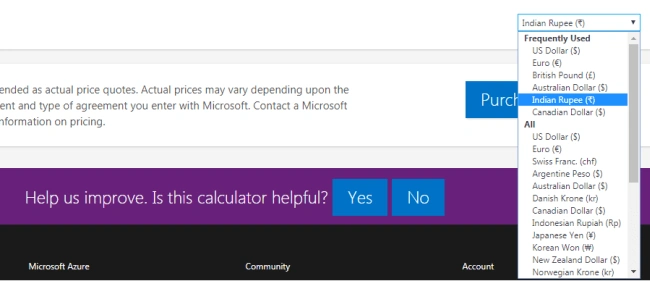
In my case, for running an SQL Server and an IIS server, a 4 cores processor with 7 GB RAM was fine. You will get a certain amount of hard disk space for free for the configuration. You can scale up later and it will be charged accordingly.
Increasing the hard disk space is easier than adding more cores and RAM.
Connecting to the server
If your server has RDP enabled, you will be able to connect to it using Remote Desktop Connection from your local machine. Open the Remote Desktop Connection wizard from the Start menu.
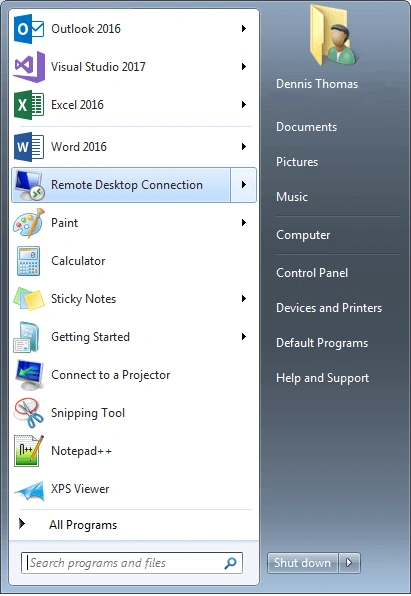
Type your server's IP for the Computer field.
Give your username prefixed with your domain. For eg: DOMAIN\{USERID}
Give your password in the password field.
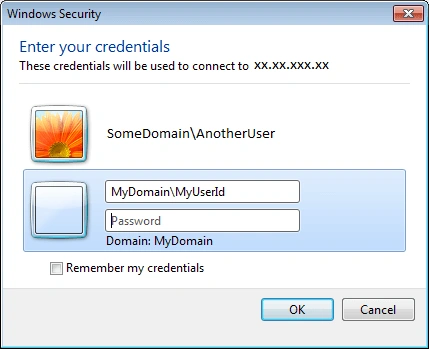
For Security reasons, some organizations will not allow direct access to your server. Instead, they may ask you to connect to a terminal server and from there, you will have to start another remote desktop connection session to connect to your actual server.
Once you have connected to your server, you will be welcomed by Server Manager page.
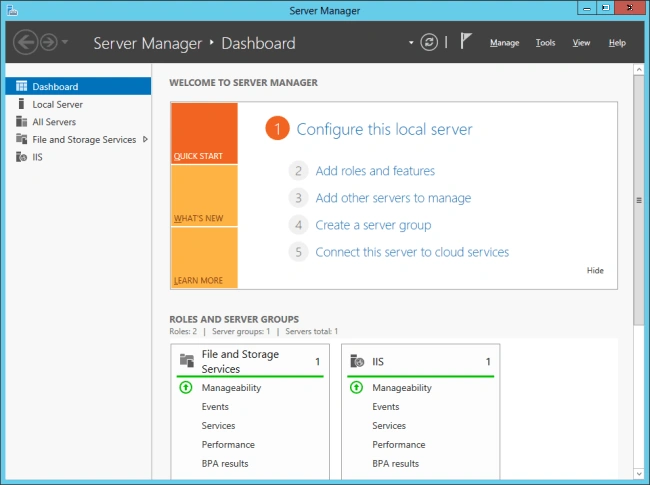
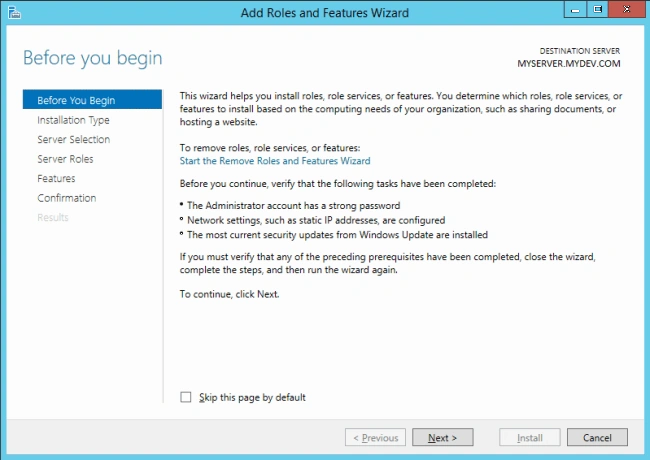
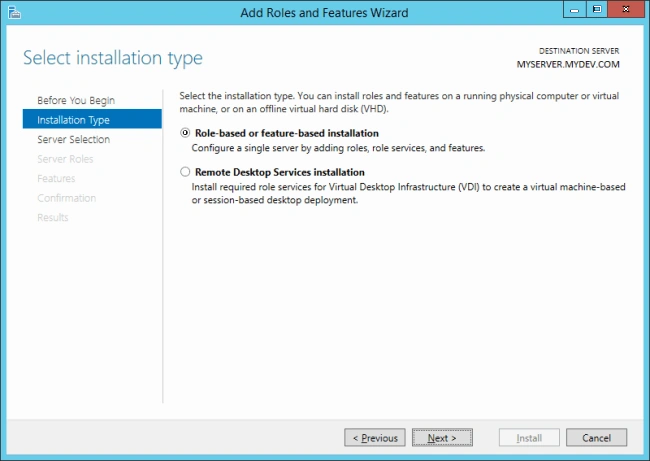
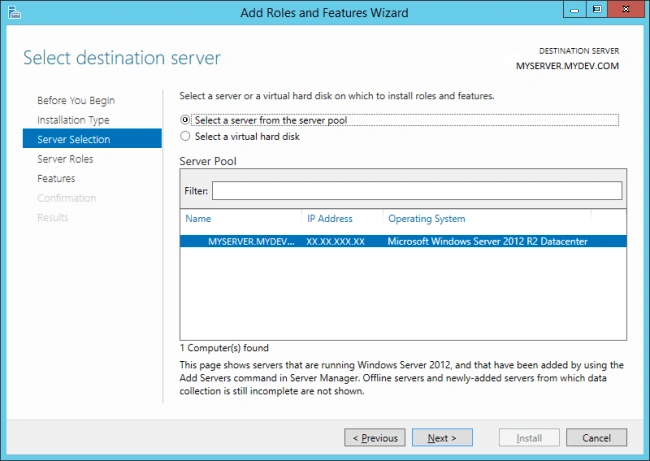
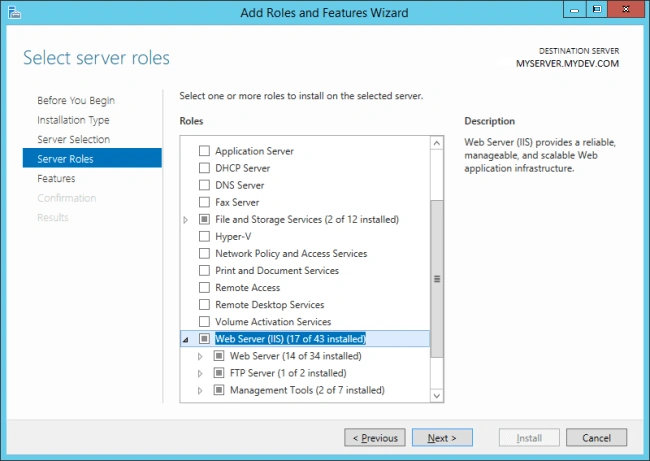
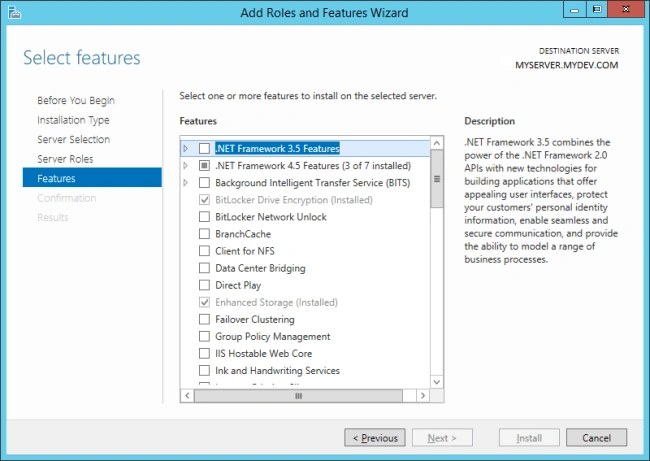
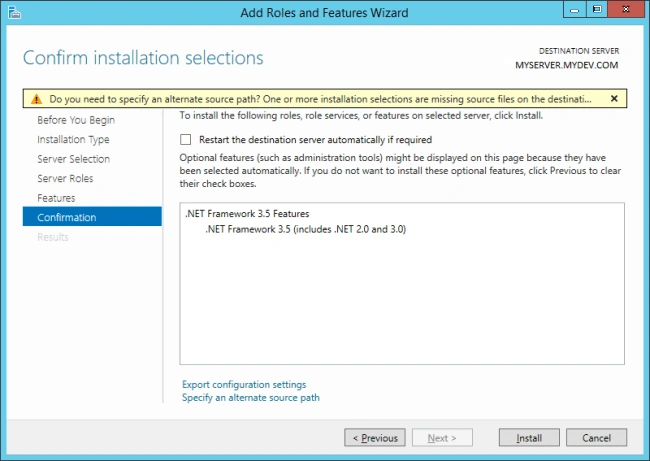
It displays the server roles and you can manage them and many things like installing new Windows features etc.
Join the conversation! Your thoughts help the community grow.