

Introduction
This article explains the JSP Standard Tag Library (JSTL) in Java. The NetBeans IDE is used to create the sample example.
JSP Standard Tag Library (JSTL)
The JSTL represents a set of tags to simplify the JSP development.
The JSTL tags can be classified by their functions, in other words the JSTL mainly provides the following 5 types of tags:
- Core tags
- SQL tags
- XML tags
- Formatting tags
- Functions tags
1. Core Tags
The core group of tags are the most frequently used tags. The syntax is:
<%@ taglib uri="http://java.sun.com/jsp/jstl/core" prefix="c" %>
Note:
A "URI" is a Uniform Resource Identifier. It is a string of characters that identify the name of a web source. It contains a string of addresses to identify a resource or a name on the internet over a browser. It identifies either by name, or location, or both.
Examples:
url: http://www.c-sharpcorner.com/MyAccount
uri: http://www.c-sharpcorner.com/MyAccount
urn: MyAccount
Some commonly used tags of Core Tags are:
- <c:out>
Used to print the expression or result.
- <c:url>
Used to create a URL with optional parameters.
- <c:set>
Used to set the result of an expression in a scope.
- <c:catch>
Used to catch the exception that is generated during program execution.
- <c:remove>
Used to remove the scoped variable.
- <c:choose>
It's a conditional tag that establishes a context for mutually-exclusive conditional operations, marked by <when> and <otherwise>.
- <c:if>
Used to test a condition if it matches, then the result is displayed else not displayed.
- <c:import>
Used to import the URL of other sites.
- <c:when>
It is a sub-tag of <choose> that includes its body when the condition is "true".
- etcetera.
2. SQL Tags
- <sql:query>
Used to execute the query written in the body part.
- <sql:update>
Used to execute the update query defined in the body part.
- <sql:param>
Used to set a parameter in an SQL statement.
- <sql:dateParam>
Used to set a date parameter in an SQL statement.
- <sql:transaction>
Provides nested database action elements with a shared connection.
3. XML Tags
The JSTL XML tags provide a JSP-centric way of creating and manipulating XML documents. The following is the syntax to include the XML tags.
Syntax:
<%@ taglib uri="http://java.sun.com/jsp/jstl/xml" prefix="x" %>
- <x:out>
Used in an expression tag, just like <c:out> but written for XML.
- <x:param>
Used alond with the transform tag to set parameters.
- <x:set>
Used to set a path variable.
- <x:parse>
Used to parse XML data specified, either via an attribute or in the tag or in the tag body.
- <x:if>
- <x:choose>
- <x:when>
- <x:otherwise>
- <x:forEach>
They are all conditional tags by name; their functionality is defined.
- etcetera
4. Function Tags
- fn:contains()
Test for the substring.
- fn:trim()
Used to remove white spaces from both ends of strings.
- fn:containsIgnoreCase()
Tests if an input string contains the specified sub-string.
- fn:substring()
Used to return a subset of a string.
- fn:substringAfter()
Returns a subset of a string following a specific procedure.
- fn:join()
Used to join all elements of an array to the string.
- etcetera.
5. Formatting Tags
Used to format and display text, values, date, numbers, and time.
Syntax
<%@ taglib uri="http://java.sun.com/jsp/jstl/fmt" prefix="fmt" %>
Some formatting tags are:
- <fmt:requestEncoding>
Used to sets the request character encoding.
- <fmt:timeZone>
Used to specify the time zone for any time formatting or parsing actions.
- <fmt:message>
Used to display a message.
- etcetera.
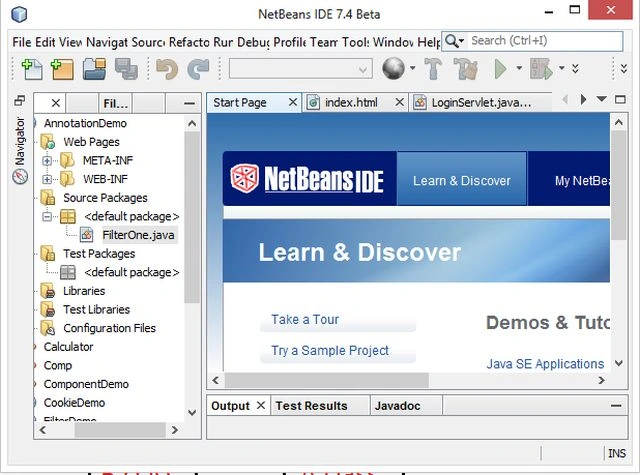
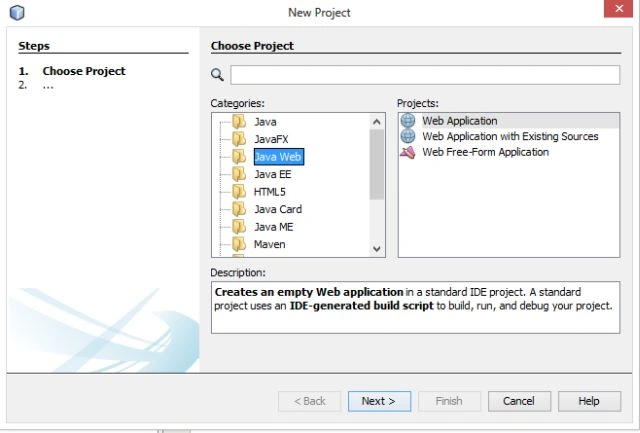
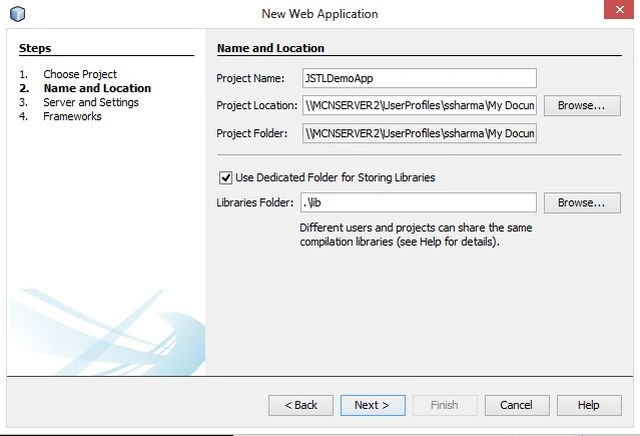
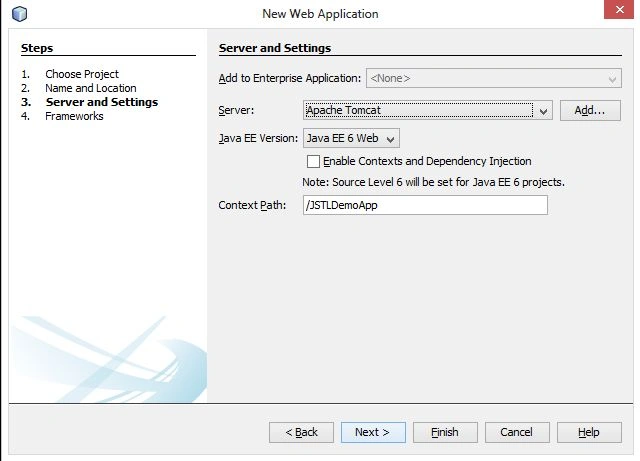
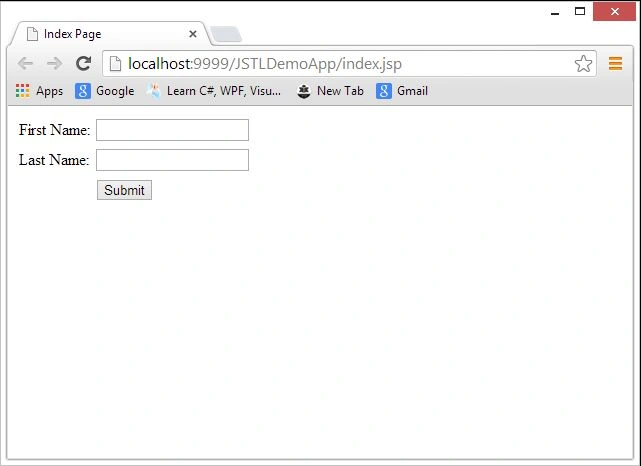
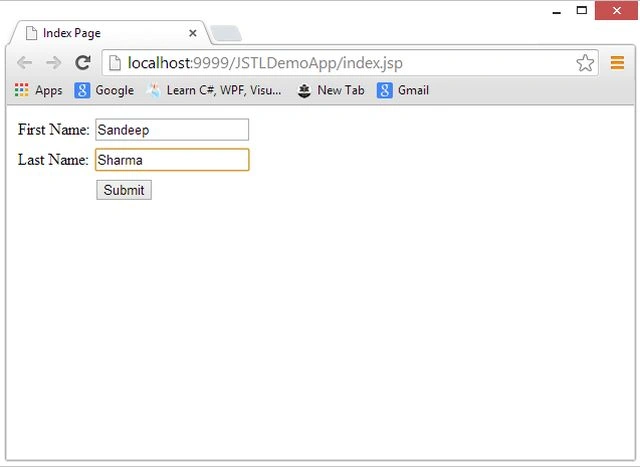
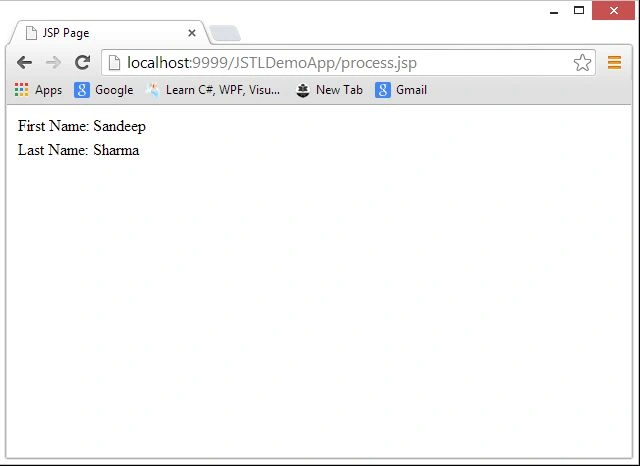
Let's use a simple example
In this example we print the current date and time using JSTL Tags.
Join the conversation! Your thoughts help the community grow.