
Introduction
In this article, we will learn how to build Material design with a fonts using Angular and Bootstrap 4. Also, we will learn steps to fix issues in various ways during the installation of the Angular Material package and its use.
Prerequisites
- Node
- Npm
- Angular CLI
- TypeScript
- Visual Studio Code
Note
Before going through this session, please visit my previous articles related to Angular 7 applications.
- Steps To Build 🏗️ Angular 7 (Beta) Desktop 🖥️ Apps With Electron
- Steps To Add 📎 Country Flags 🏁 In Angular App Using Bootstrap 4
Step 1
In this step, you need to install Angular Material, Angular CDK, and Angular Animations. For this, you can use either the npm or yarn command-line tool to install packages. Run the command as mentioned below.
PS C:\Angular7\Dev\angular7app> npm install --save @angular/material @angular/cdk @angular/animations
Step 2
After the animations package is installed, import BrowserAnimationsModule into your project to activate the animations feature support. For this, put the below code in the app.module.ts file to import the animation support in Angular application.
- import {BrowserAnimationsModule} from '@angular/platform-browser/animations';
Then, inside the imports section, add the BrowserAnimationsModule to activate the animation support.
- imports: [
- BrowserModule,
- AppRoutingModule,
- BrowserAnimationsModule,
- AngularFireModule.initializeApp(environment.firebase)
- ],
Step 3
Import the NgModule for each and every component as per your requirement. For the button component, I have added the below code to import MatButtonModule. Repeat the same steps as per step 2.
- import {MatButtonModule} from '@angular/material/button';
Like this, for checkbox component, I have added the below code to import MatCheckboxModule. Repeat the same steps as per step 2.
- import {MatCheckboxModule} from '@angular/material/checkbox';
Step 4
In this step, a theme is required to apply all of the theme styles to our Angular application. For this, add the below line of code in styles.scss file.
- @import "~@angular/material/prebuilt-themes/indigo-pink.css";
Step 5
Then, we need to add HammerJS to your application via npm. Some components depend on HammerJS for gestures. In order to get the full feature-set of these components, HammerJS should be required.
Use the following command to install HammerJS via NPM.
PS C:\Angular7\Dev\angular7app> npm install --save hammerjs
Step 6
After successful installation of HammerJS, import it on app.module.ts file of Angular application. Then put the below code in app.module.ts file of Angular application.
- import 'hammerjs';
Step 7
Here, I need to add mat-icon component with the Material Design Icons. Then, load the icon font in your index.html. It supports any font. To do so, add the below line of code in index.html file.
- <link href="https://fonts.googleapis.com/icon?family=Material+Icons" rel="stylesheet">
- <link rel="stylesheet" href="https://use.fontawesome.com/releases/v5.5.0/css/all.css" integrity="sha384B4dIYHKNBt8Bc12p+WXckhzcICo0wtJAoU8YZTY5qE0Id1GSseTk6S+L3BlXeVIU" crossorigin="anonymous">
Step 8
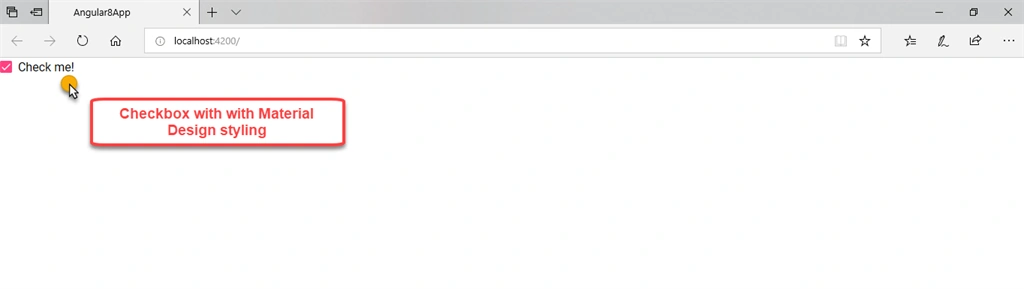
In this step, I added a checkbox control which is enhanced with Material Design styling and animations. To do so, I opened the app.component.html file and added the below code.
- <mat-checkbox>Check me!</mat-checkbox>
OUTPUT
Step 9
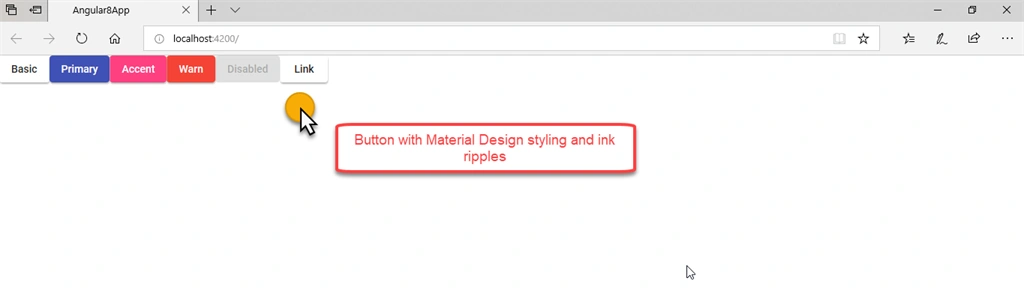
In this step, I added a button control which is enhanced with Material Design styling and ink ripples. To do so, I opened the app.component.html file and added the below code.
- <div class="example-button-row">
- <button mat-raised-button>Basic</button>
- <button mat-raised-button color="primary">Primary</button>
- <button mat-raised-button color="accent">Accent</button>
- <button mat-raised-button color="warn">Warn</button>
- <button mat-raised-button disabled>Disabled</button>
- <a mat-raised-button routerLink=".">Link</a>
- </div>
mat-raised-button attribute descibes rectangular contained button w/ elevation
OUTPUT
Step 10
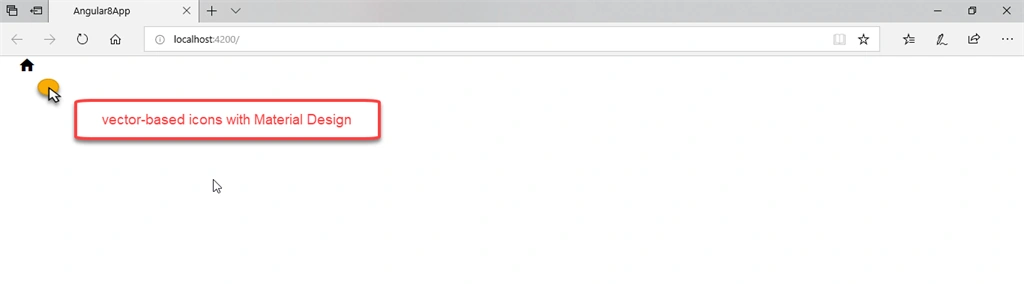
In this step, I added icon fonts and SVG icons to use vector-based icons in your app. For example: Like button in Facebook site. To do so, I added the below code in app.module.ts to import the service to register and display icons used by the <mat-icon> component.
- import {MatIconModule} from '@angular/material/icon';
- imports: [
- BrowserModule,
- BrowserAnimationsModule,
- MatButtonModule,
- MatCheckboxModule,
- AppRoutingModule,
- MatIconModule
- ],
- <mat-icon aria-hidden="false" aria-label="Example home icon">home</mat-icon>
OUTPUT
Step 11
In this, I have added API reference for Angular Material toolbar. To do so, I need to add the below code in app.module.ts file.
- import {MatToolbarModule} from '@angular/material/toolbar';
- imports: [
- BrowserModule,
- BrowserAnimationsModule,
- MatButtonModule,
- MatCheckboxModule,
- AppRoutingModule,
- MatIconModule,
- MatToolbarModule
- ],
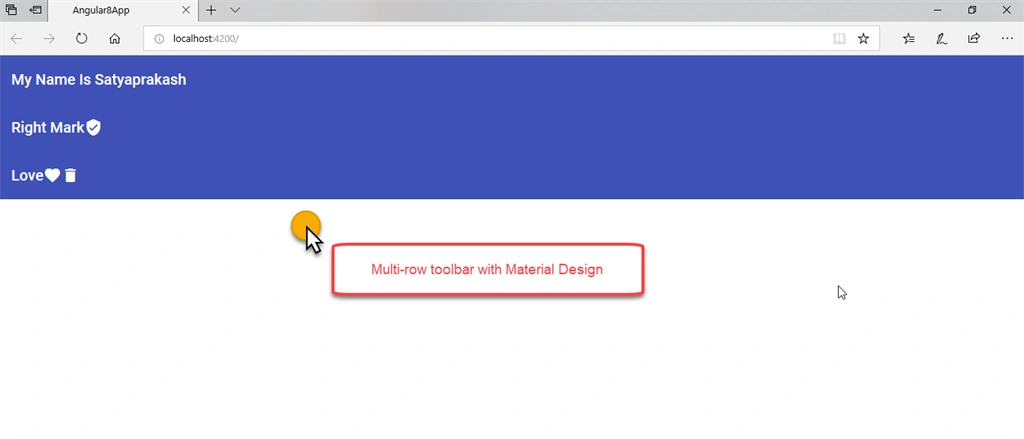
Here, I will show you Multi-row toolbar with Material Design. To do so, I added the below code in app.component.html file.
- <mat-toolbar color="primary">
- <mat-toolbar-row>
- <span>My Name Is Satyaprakash</span>
- </mat-toolbar-row>
- <mat-toolbar-row>
- <span>Right Mark</span>
- <span class="example-spacer"></span>
- <mat-icon class="example-icon" aria-hidden="false" aria-label="Example user verified icon">verified_user</mat-icon>
- </mat-toolbar-row>
- <mat-toolbar-row>
- <span>Love</span>
- <span class="example-spacer"></span>
- <mat-icon class="example-icon" aria-hidden="false" aria-label="Example heart icon">favorite</mat-icon>
- <mat-icon class="example-icon" aria-hidden="false" aria-label="Example delete icon">delete</mat-icon>
- </mat-toolbar-row>
- </mat-toolbar>
OUTPUT
Steps to solve issues during installation of Material Design package
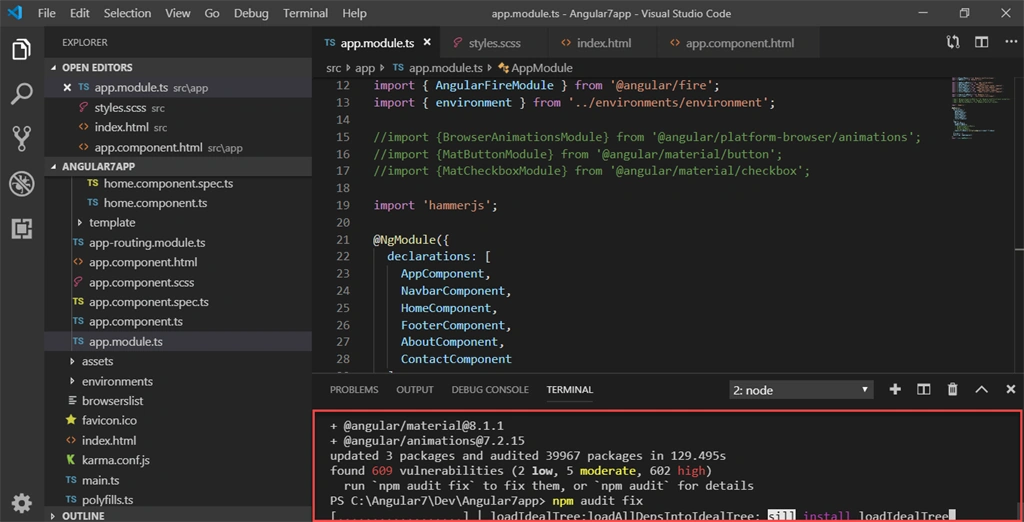
During the installation of the Material design package, if you find a couple of vulnerabilities, then run 'npm audit fix' command to fix them. Check the below image,
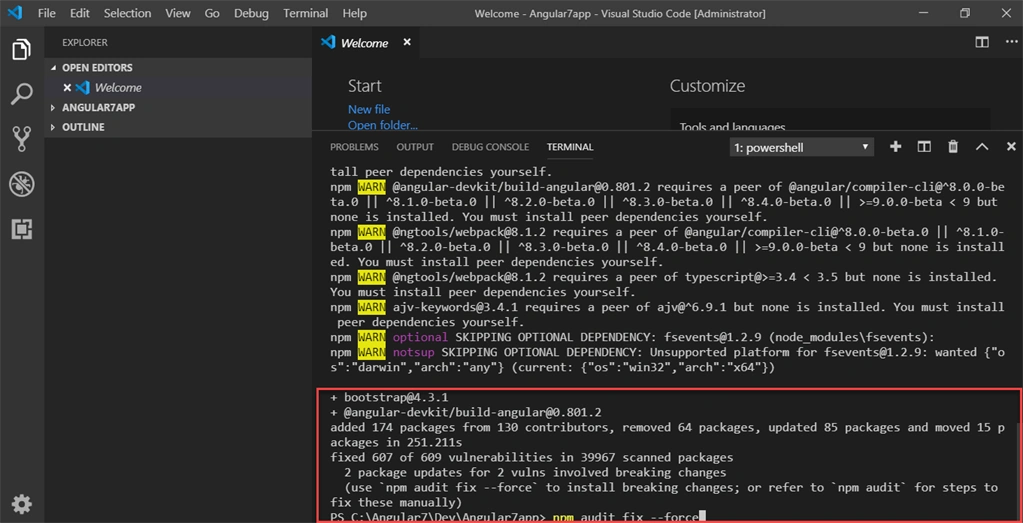
If you get the error like "TypeError: Object(…) is not a function for angular-material" while using angular material, then you need to apply the below steps.
Reason
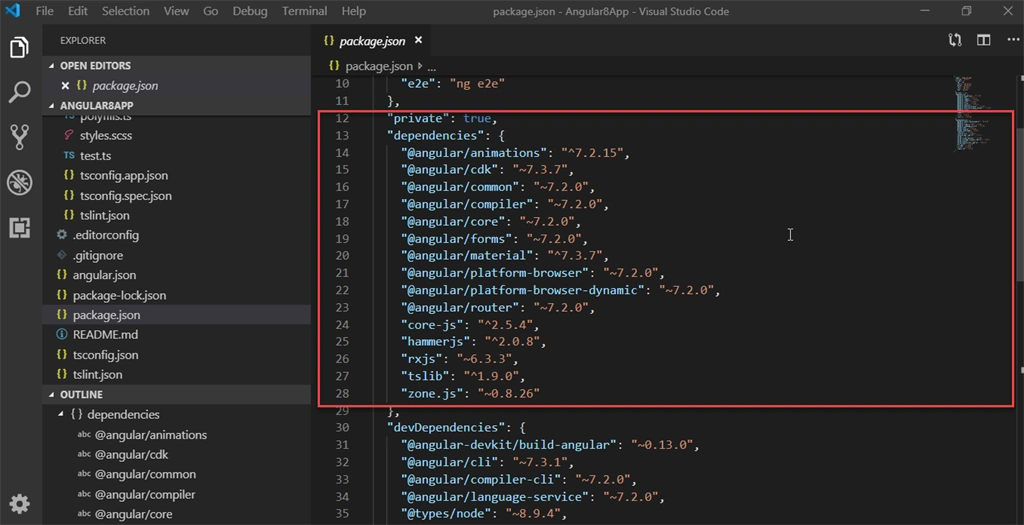
You can't use @angular/material and @angular/cdk version 8.1.1 since your angular dependencies is still at 7.3.7. So, download the version 7.3.7; To do so,
Remove this line as well: "angular-material": "^1.1.19", It is for Angular 1, not Angular 2+ from package.json file. Then, install dependencies with npm install and run the command: ng add @angular/material@^7.3.7
After successful installation, check your package.json file as shown below.
Another way to set-up the environment by avoiding the issue as mentioned below,
Reason
The use of @angular/cdk and @angular/material in version 8 together with @angular/core @angular/common 7. If you want to stay at Angular 7 then uninstall cdk and material and install the specific CDK and material for version 7. Run below command,
npm uninstall @angular/cdk @angular/material
To find out the version 7 specific run below command,
npm show @angular/cdk versions
npm show @angular/material versions
and then install the specific one by running below command,
npm install @angular/[email protected]
To find out the version 7 specific run below command,
npm show @angular/cdk versions
npm show @angular/material versions
and then install the specific one by running below command,
npm install @angular/[email protected]
Or just upgrade your angular by running the below command,
npm install -g @angular/cli@latest
ng update @angular/cli @angular-devkit/build-angular
ng update @angular/core @angular/cdk @angular/material
Then it asks to choose a prebuilt theme name as shown below,
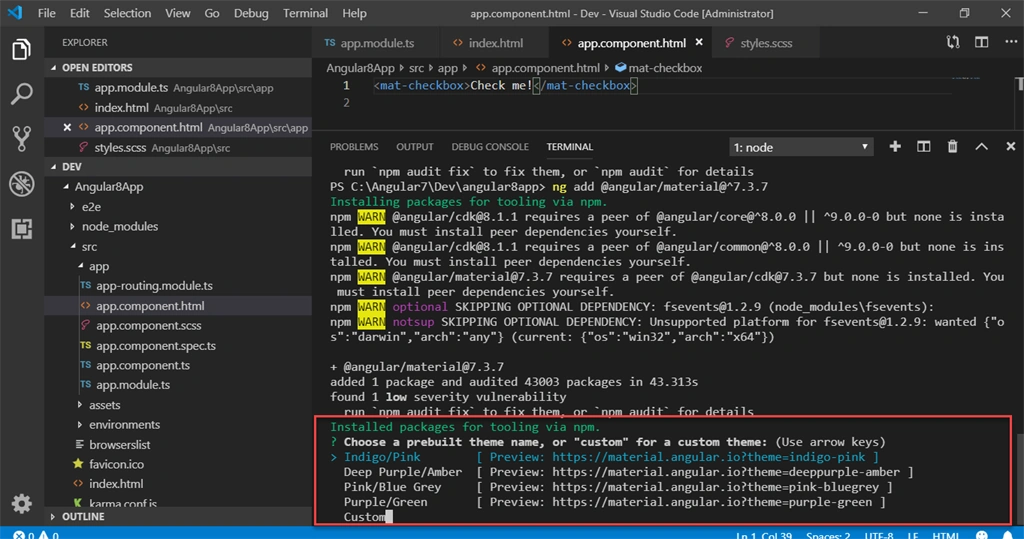
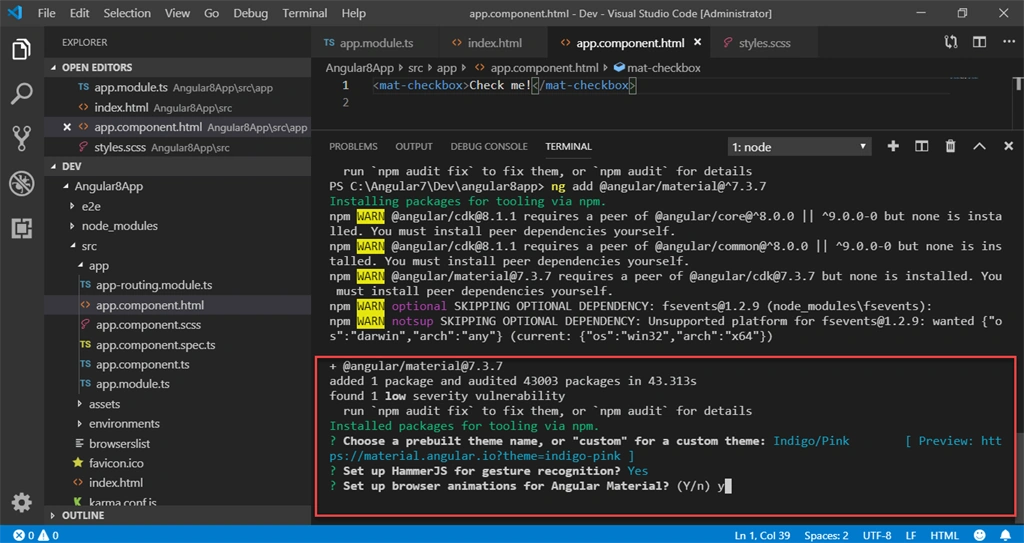
Say 'y' when it asks you about adding hammer.js and animations module.
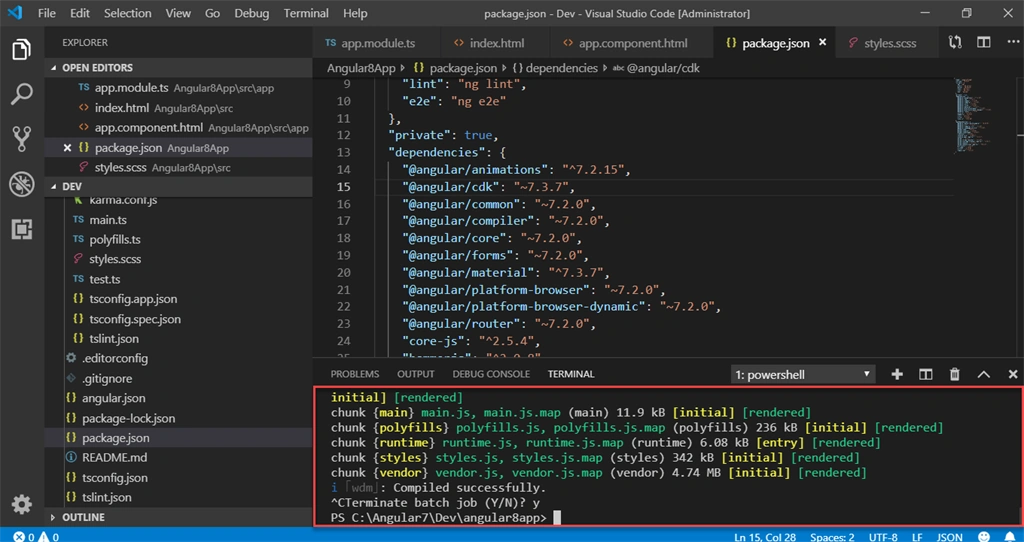
Steps to terminate batch job and reset terminal to run command
First type Ctrl+C => (^C) then its asks to "Terminate Batch Job"(Terminate batch job (Y/N)? y). You should say "Y". Then you are able to type command on same terminal window instead of open new terminal. Check the below image,
Summary
In this article, we have learned,
- Intro to Angular Material design
- Set-up Angular Material design
- Import the NgModule for each and every component as per your requirement
- Fix issues at the time of use of Angular Material design
Floris GroenendijkPosted Jul 16, 2020, 5:08 AM
Your article helped me out, thanks! The command I used was only in the picture though... I used ng add @angular/[email protected] After that I got the hammerjs question...
Chittaranjan SwainPosted Aug 18, 2019, 11:06 PM
Nice article. Good job..
Lucas BaumPosted Aug 12, 2019, 8:35 PM
Nice, said very detailed
Sachin SboaPosted Aug 12, 2019, 2:37 AM
Awesome article and keep sharing....