In this example, we create a nested GridView. In this Griview we will expand the grid to show the complete data regarding a Student with "jQuery" and Filter the GridView using a "Stored Procedure" like this:
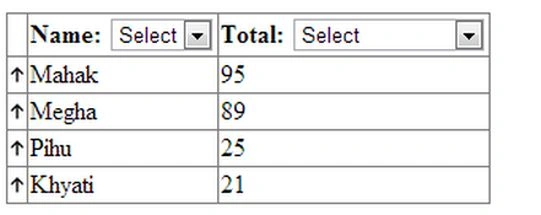
Expanding
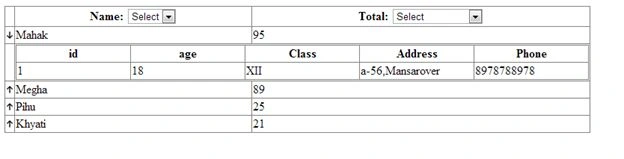
Filter
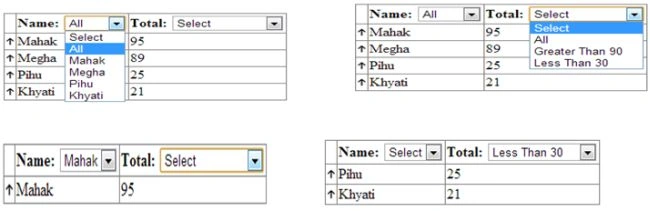
Here we filter the Name and Total Marks depending on the Conditions (greater than 90 and less than 30).
Step 1: First we will create a table in the database (here we will use the example of a Student) as in the following:
- create table Student
- (
- id int identity(1,1),
- Name varchar(20),
- Class varchar(20),
- Age int,
- s_Address varchar(100),
- Phone varchar(20),
- Total varchar(20)
- )
Step 2: Now we create the nested GridView as in the following:
- <asp:GridView ID="gvStudents" runat="server" AutoGenerateColumns="false" DataKeyNames="id"
- OnRowDataBound="OnRowDataBound">
- <Columns>
- <asp:TemplateField>
- <ItemTemplate>
- <img alt="" style="height: 10px;" src="images/Up.jpg" />
- <asp:Panel ID="pnlDetails" runat="server" Style="display: none">
- <asp:GridView ID="gvDetails" runat="server" AutoGenerateColumns="false">
- <Columns>
- <asp:BoundField ItemStyle-Width="150px" DataField="id" HeaderText="id" />
- <asp:BoundField ItemStyle-Width="150px" DataField="age" HeaderText="age" />
- <asp:BoundField ItemStyle-Width="150px" DataField="Class" HeaderText="Class" />
- <asp:BoundField ItemStyle-Width="150px" DataField="s_Address" HeaderText="Address" />
- <asp:BoundField ItemStyle-Width="150px" DataField="Phone" HeaderText="Phone" />
- </Columns>
- </asp:GridView>
- </asp:Panel>
- </ItemTemplate>
- </asp:TemplateField>
- <asp:TemplateField>
- <HeaderTemplate>
- Name:
- <asp:DropDownList ID="ddlName" runat="server" OnSelectedIndexChanged="NameChanged"
- AutoPostBack="true" AppendDataBoundItems="true">
- <asp:ListItem Text="Select" Value="Select"></asp:ListItem>
- <asp:ListItem Text="All" Value="All"></asp:ListItem>
- </asp:DropDownList>
- </HeaderTemplate>
- <ItemTemplate>
- <%# Eval("Name") %>
- </ItemTemplate>
- </asp:TemplateField>
- <asp:TemplateField>
- <HeaderTemplate>
- Total
- <asp:DropDownList ID="ddlTotal" runat="server" OnSelectedIndexChanged="TotalChanged"
- AutoPostBack="true" AppendDataBoundItems="true">
- <asp:ListItem Text="Select" Value="Select"></asp:ListItem>
- <asp:ListItem Text="All" Value="All"></asp:ListItem>
- <asp:ListItem Text="Greater Than 90" Value="90"></asp:ListItem>
- <asp:ListItem Text="Less Than 30" Value="30"></asp:ListItem>
- </asp:DropDownList>
- </HeaderTemplate>
- <ItemTemplate>
- <%# Eval("Total") %>
- </ItemTemplate>
- </asp:TemplateField>
- </Columns>
- </asp:GridView>
Here we will create a GridView(gvStudents), Inside this GridView, Here we take an Image(for Exapand and Collapse) and a Panel(pnlDetails) in which we will take an another GridView(gvDetails) as Nested GridView.
- <asp:GridView ID="gvStudents" runat="server" AutoGenerateColumns="false" DataKeyNames="id"
- OnRowDataBound="OnRowDataBound">
- <Columns>
- <asp:TemplateField>
- <ItemTemplate>
- <img alt="" style="height: 10px;" src="images/Up.jpg" />
- <asp:Panel ID="pnlDetails" runat="server" Style="display: none">
- <asp:GridView ID="gvDetails" runat="server" AutoGenerateColumns="false">
- <Columns>
- <asp:BoundField ItemStyle-Width="150px" DataField="id" HeaderText="id" />
- <asp:BoundField ItemStyle-Width="150px" DataField="age" HeaderText="age" />
- <asp:BoundField ItemStyle-Width="150px" DataField="Class" HeaderText="Class" />
- <asp:BoundField ItemStyle-Width="150px" DataField="s_Address" HeaderText="Address" />
- <asp:BoundField ItemStyle-Width="150px" DataField="Phone" HeaderText="Phone" />
- </Columns>
- </asp:GridView>
- </asp:Panel>
- </ItemTemplate>
- </asp:TemplateField>
- </Columns>
- </asp:GridView>
Step 3: Now we will create the HeaderTemplate in our GridView for Filtering the data. Here we will use a DropDownList to filter the data like this:
- <headertemplate>
- Name:
- <asp:DropDownList ID="ddlName" runat="server"
- OnSelectedIndexChanged = "NameChanged" AutoPostBack = "true"
- AppendDataBoundItems = "true">
- <asp:ListItem Text = "Select" Value = "Select"></asp:ListItem>
- <asp:ListItem Text = "All" Value = "All"></asp:ListItem>
- </asp:DropDownList>
- </headertemplate>
- <itemtemplate>
- <%# Eval("Name") %>
- </itemtemplate>
- </asp:TemplateField>
- <asp:TemplateField>
- <headertemplate>
- Total:
- <asp:DropDownList ID="ddlTotal" runat="server"
- OnSelectedIndexChanged = "TotalChanged" AutoPostBack = "true"
- AppendDataBoundItems = "true">
- <asp:ListItem Text = "Select" Value = "Select"></asp:ListItem>
- <asp:ListItem Text = "All" Value = "All"></asp:ListItem>
- <asp:ListItem Text = "Greater Than 90" Value = "90"></asp:ListItem>
- <asp:ListItem Text = "Less Than 30" Value = "30"></asp:ListItem>
- </asp:DropDownList>
- </headertemplate>
- <itemtemplate>
- <%# Eval("Total") %>
- </itemtemplate>
- </asp:TemplateField>
Step 4: Now we will create the Stored Procedure for Name and Total like this:
- SET ANSI_NULLS ON
- GO
- SET QUOTED_IDENTIFIER ON
- GO
- CREATE PROCEDURE GetName
- @Search VARCHAR(50)
- AS
- BEGIN
- SET NOCOUNT ON;
- IF @Search = 'Select'
- SELECT * FROM Student
- ELSE If @Search = 'All'
- SELECT * FROM Student
- ELSE IF @Search= '2'
- SELECT TOP 2 id, Name, Total FROM Student
- ELSE
- SELECT id, Name, Total FROM Student WHERE Name=@Search
- END
- GO
- SET ANSI_NULLS ON
- GO
- SET QUOTED_IDENTIFIER ON
- GO
- CREATE PROCEDURE GetTotal
- @Search VARCHAR(50)
- AS
- BEGIN
- SET NOCOUNT ON;
- IF @Search = 'All'
- SELECT * FROM Student
- ELSE IF @Search= '90'
- SELECT * from Student where Total>@Search
- ELSE IF @Search= '30'
- SELECT * from Student where Total<@Search
- ELSE
- SELECT id, Name, Total FROM Student WHERE Total=@Search
- END
- GO
Here we set the value of the search depending on the value of the DropDownList, by which we can filter the data like this:
- <asp:ListItem Text = "Select" Value = "Select"></asp:ListItem>
- <asp:ListItem Text = "All" Value = "All"></asp:ListItem>
- <asp:ListItem Text = "Greater Than 90" Value = "90"></asp:ListItem>
- <asp:ListItem Text = "Less Than 30" Value = "30"></asp:ListItem>
Here we will set the ListItem value "All" so the SP calls the following query:
- IF @Search = 'All'
- SELECT * FROM Student
Step 5: Now we will write our jQuery function for expanding and collapasing the data:
- <script type="text/javascript">
- $("[src*=Up]").live("click", function () {
- $(this).closest("tr").after("<tr><td></td><td colspan = '1000'>" + $(this).next().html() + "</td></tr>")
- $(this).attr("src", "images/Down.jpg");
- });
- $("[src*=Down]").live("click", function () {
- $(this).attr("src", "images/Up.jpg");
- $(this).closest("tr").next().remove();
- });
- </script>
Here we will use the two images (Up.jpg and Down.jpg), so when we click on the image (Up.jpg) a new row will be added. This is called Expanding and when we click on the Down.jpg the row is removed, this is called collapsing.
Step 6: Now we will write the code in the .cs page as in the following:
- if (!IsPostBack)
- {
- ViewState["Search"] = "All";
- ViewState["Search1"] = "All";
- BindName();
- BindTotal();
- gvStudents.DataSource = GetData("select * from Student");
- gvStudents.DataBind();
- }
Step 7: Now we will write the code to filter the data by name as in the following:
- protected void NameChanged(object sender, EventArgs e)
- {
- DropDownList ddlName = (DropDownList)sender;
- ViewState["Search"] = ddlName.SelectedValue;
- this.BindName();
- }
Here we will assign the DropDownlist Value in the ViewState, so it will be helpful in the filtering of data.
- private void BindName()
- {
- SqlConnection con = new SqlConnection("Data Source=ADMIN-PC\\SQLEXPRESS;Initial Catalog=student;Integrated Security=True");
- DataTable dt = new DataTable();
- SqlDataAdapter da = new SqlDataAdapter();
- SqlCommand cmd = new SqlCommand("GetName");
- cmd.CommandType = CommandType.StoredProcedure;
- cmd.Parameters.AddWithValue("@Search", ViewState["Search"].ToString());
- cmd.Connection = con;
- da.SelectCommand = cmd;
- da.Fill(dt);
- gvStudents.DataSource = dt;
- gvStudents.DataBind();
- DropDownList ddlName =
- (DropDownList)gvStudents.HeaderRow.FindControl("ddlName");
- this.BindNameList(ddlName);
- }
Here we will first create the ConnectionString and call the Stored Procedure (GetName) and set the value of the search depending on the value of ViewState["Search"]. And call another funtion (BindNameList) as in the following:
- private void BindNameList(DropDownList ddlName)
- {
- SqlConnection con = new SqlConnection("Data Source=ADMIN-PC\\SQLEXPRESS;Initial Catalog=student;Integrated Security=True");
- SqlDataAdapter sda = new SqlDataAdapter();
- SqlCommand cmd = new SqlCommand("select * from Student");
- cmd.Connection = con;
- con.Open();
- ddlName.DataSource = cmd.ExecuteReader();
- ddlName.DataTextField = "Name";
- ddlName.DataValueField = "Name";
- ddlName.DataBind();
- con.Close();
- ddlName.Items.FindByValue(ViewState["Search"].ToString())
- .Selected = true;
- }
Here we will add the data in the DropDownList(ddlName).
- protected void NameChanged(object sender, EventArgs e)
- {
- DropDownList ddlName = (DropDownList)sender;
- ViewState["Search"] = ddlName.SelectedValue;
- this.BindName();
- }
Like this we will write the code for Total:
- private void BindTotal()
- {
- SqlConnection con = new SqlConnection("Data Source=ADMIN-PC\\SQLEXPRESS;Initial Catalog=student;Integrated Security=True");
- DataTable dt1 = new DataTable();
- SqlDataAdapter da1 = new SqlDataAdapter();
- SqlCommand cmd1 = new SqlCommand("GetTotal");
- cmd1.CommandType = CommandType.StoredProcedure;
- cmd1.Parameters.AddWithValue("@Search", ViewState["Search1"].ToString());
- cmd1.Connection = con;
- da1.SelectCommand = cmd1;
- da1.Fill(dt1);
- gvStudents.DataSource = dt1;
- gvStudents.DataBind();
- DropDownList ddlTotal =
- (DropDownList)gvStudents.HeaderRow.FindControl("ddlTotal");
- this.BindTotalList(ddlTotal);
- }
- private void BindTotalList(DropDownList ddlTotal)
- {
- SqlConnection con = new SqlConnection("Data Source=ADMIN-PC\\SQLEXPRESS;Initial Catalog=student;Integrated Security=True");
- SqlDataAdapter sda = new SqlDataAdapter();
- SqlCommand cmd = new SqlCommand("select * from Student");
- cmd.Connection = con;
- con.Open();
- ddlTotal.DataSource = cmd.ExecuteReader();
- ddlTotal.DataTextField = "Total";
- ddlTotal.DataValueField = "Total";
- ddlTotal.DataBind();
- con.Close();
- ddlTotal.Items.FindByValue(ViewState["Search1"].ToString())
- .Selected = true;
- }
- protected void TotalChanged(object sender, EventArgs e)
- {
- DropDownList ddlTotal = (DropDownList)sender;
- ViewState["Search1"] = ddlTotal.SelectedValue;
- this.BindTotal();
- }
Now we will write the code for creating the DataTable like this:
- private static DataTable GetData(string query)
- {
- SqlConnection con = new SqlConnection("Data Source=ADMIN-PC\\SQLEXPRESS;Initial Catalog=student;Integrated Security=True");
- using (SqlCommand cmd = new SqlCommand())
- {
- cmd.CommandText = query;
- using (SqlDataAdapter sda = new SqlDataAdapter())
- {
- cmd.Connection = con;
- sda.SelectCommand = cmd;
- using (DataSet ds = new DataSet())
- {
- DataTable dt = new DataTable();
- sda.Fill(dt);
- return dt;
- }
- }
- }
- }
Step 8: Now we will write the code to fill the data in the GridView (gvDetails) as in the following:
- protected void OnRowDataBound(object sender, GridViewRowEventArgs e)
- {
- if (e.Row.RowType == DataControlRowType.DataRow)
- {
- string StudentId = gvStudents.DataKeys[e.Row.RowIndex].Value.ToString();
- GridView gvDetails = e.Row.FindControl("gvDetails") as GridView;
- gvDetails.DataSource = GetData(string.Format("select * from Student where id='" + StudentId + "'"));
- gvDetails.DataBind();
- }
- }
Here we will fill in the data in the GridView depending on the KeyName, that we already specified in our GridView like this:
- <asp:GridView ID="gvStudents" runat="server" AutoGenerateColumns="false"
- DataKeyNames="id" OnRowDataBound="OnRowDataBound">


Tea LinePosted Sep 25, 2020, 12:07 AM
How do you make it automatically expanded when you load the page?
Ajeet MishraPosted Oct 3, 2015, 5:02 AM
nice
Gowtham RajamanickamPosted Mar 13, 2015, 2:16 AM
great and simple...
raja shekarPosted Oct 13, 2014, 4:21 AM
nice code