
Introduction
This article will show you how to create pagination using jQuery with as little effort or configuration as possible. A jQuery plugin that comes with a twist; animated page numbers. The user can slide through the available page numbers by clicking or just hovering over the bullets. When you have a large list of items, you can display them grouped in pages and present navigational elements to move from one page to another. This plugin creates these navigational elements.
Step 1: First we have to create a Web Application.
- Go to Visual Studio 2010.
- New--> And select the Web Application.
- Give whatever name you want to.
- Click OK.
Step 2: Secondly you have to add a new page to the website.
- Go to the Solution Explorer.
- Right-click on the project name.
- Select add new item.
- Add new web page and give it a name.
- Click OK.
Step 3: Now add an image to the "Img" folder of the project.
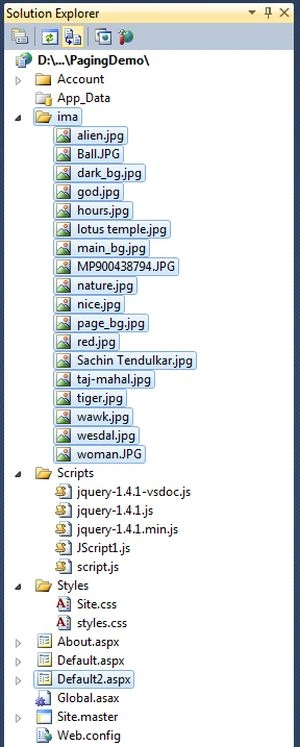
Step 4: Then add the style.css files to your Styles folder.
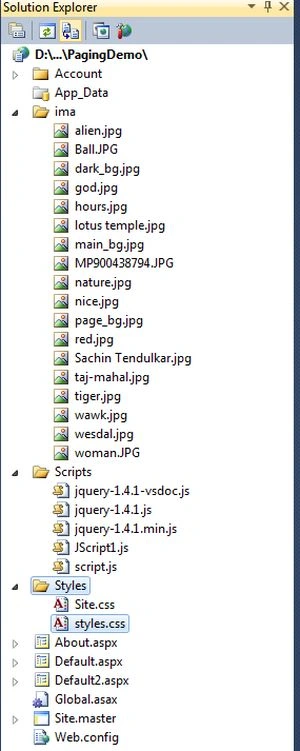
Right-click on style.css files -> copy and paste it inside <Head> section of your page. The reference looks like:
<link href="Styles/style.css" rel="stylesheet" type="text/css" />
Step 5: In this step we have to write the script reference to the aspx page; let us see from where you have to write the script code.
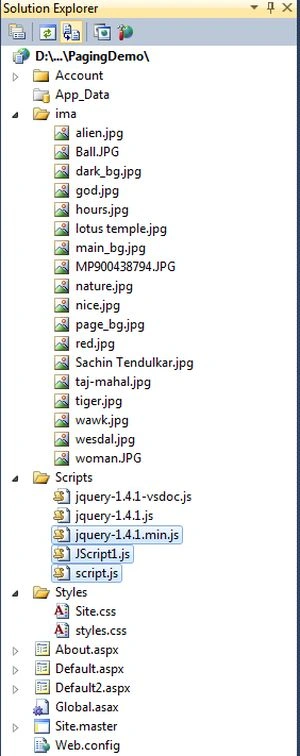
Right-click on selected files respectively -> copy and paste it inside <Head> section of your page; see step 6.
Step 6: Let us see the script code which you have to add inside the <script></script> tags and that will be placed either in the <head> section or the <body> section as you prefer.
<script src="Scripts/jquery-1.4.1.min.js" type="text/javascript"></script>
<script src="Scripts/script.js" type="text/javascript"></script>
<script src="Scripts/JScript1.js" type="text/javascript"></script>
Step 7: In this step you will see the body code of the Default2.aspx page which is given below.
Code
<body>
<div id="main">
<ul id="holder">
<li><b> <img src="ima/Sachin%20Tendulkar.jpg" height="150px" width="340px"/> </li>
<li><img src="ima/lotus%20temple.jpg" height="150px" width="340px" /> </li>
<li> <img src="ima/MP900438794.JPG" height="150px" width="340px" /></li>
<li><img src="ima/taj-mahal.jpg" height="150px" width="340px"/></li>
<li> <img src="ima/woman.JPG" height="150px" width="340px" /></li>
<li><img src="ima/Ball.JPG" height="150px" width="340px" /></li>
<li> <img src="ima/red.jpg" height="150px" width="340px" /></li>
<li><img src="ima/alien.jpg" height="150px" width="340px" /></li>
<li><img src="ima/wesdal.jpg" height="150px" width="340px" /></li>
<li><img src="ima/god.jpg" height="150px" width="340px" /></li>
<li><img src="ima/nice.jpg" height="150px" width="340px" /></li>
<li><img src="ima/hours.jpg" height="150px" width="340px"/></li>
<li><img src="ima/nature.jpg" height="150px" width="340px"/></li>
<li> <img src="ima/tiger.jpg" height="150px" width="340px"/></li>
<li> <img src="ima/wawk.jpg" height="150px" width="340px" /></li>
</ul>
</div>
Step 8: In this step we will see the complete code of the Default2.aspx page which is given below.
Code
<%@ Page Language="C#" AutoEventWireup="true" CodeFile="Default2.aspx.cs" Inherits="Default2" %>
<!DOCTYPE html PUBLIC "-//W3C//DTD XHTML 1.0 Transitional//EN" "http://www.w3.org/TR/xhtml1/DTD/xhtml1-transitional.dtd">
<html xmlns="http://www.w3.org/1999/xhtml">
<head runat="server">
<title> A Simple Pagination using jQuery </title>
<link href="Styles/styles.css" rel="stylesheet" type="text/css" />
<script src="Scripts/jquery-1.4.1.min.js" type="text/javascript"></script>
<script src="Scripts/script.js" type="text/javascript"></script>
<script src="Scripts/JScript1.js" type="text/javascript"></script>
</head>
<body>
<div id="main">
<ul id="holder">
<li><b> <img src="ima/Sachin%20Tendulkar.jpg" height="150px" width="340px"/> </li>
<li><img src="ima/lotus%20temple.jpg" height="150px" width="340px" /> </li>
<li> <img src="ima/MP900438794.JPG" height="150px" width="340px" /></li>
<li><img src="ima/taj-mahal.jpg" height="150px" width="340px"/></li>
<li> <img src="ima/woman.JPG" height="150px" width="340px" /></li>
<li><img src="ima/Ball.JPG" height="150px" width="340px" /></li>
<li> <img src="ima/red.jpg" height="150px" width="340px" /></li>
<li><img src="ima/alien.jpg" height="150px" width="340px" /></li>
<li><img src="ima/wesdal.jpg" height="150px" width="340px" /></li>
<li><img src="ima/god.jpg" height="150px" width="340px" /></li>
<li><img src="ima/nice.jpg" height="150px" width="340px" /></li>
<li><img src="ima/hours.jpg" height="150px" width="340px"/></li>
<li><img src="ima/nature.jpg" height="150px" width="340px"/></li>
<li> <img src="ima/tiger.jpg" height="150px" width="340px"/></li>
<li> <img src="ima/wawk.jpg" height="150px" width="340px" /></li>
</ul>
</div>
</body>
</html>
Step 9: In this step we will see the design of the Default2.aspx page which is given below.

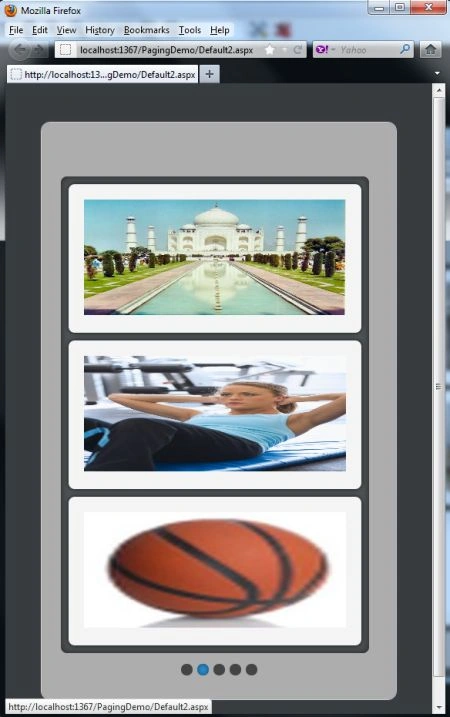
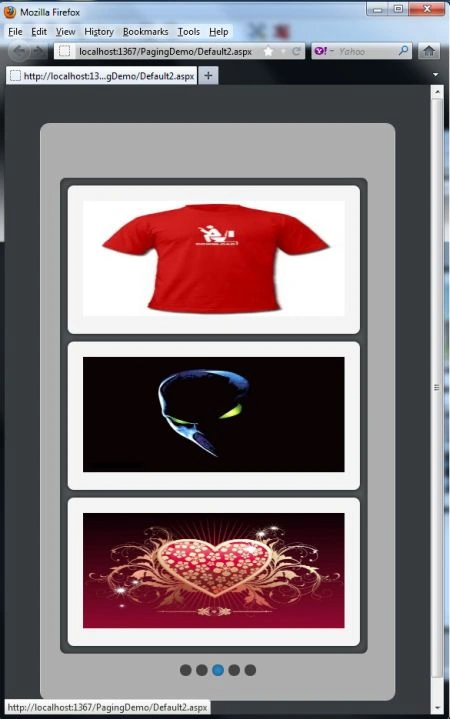
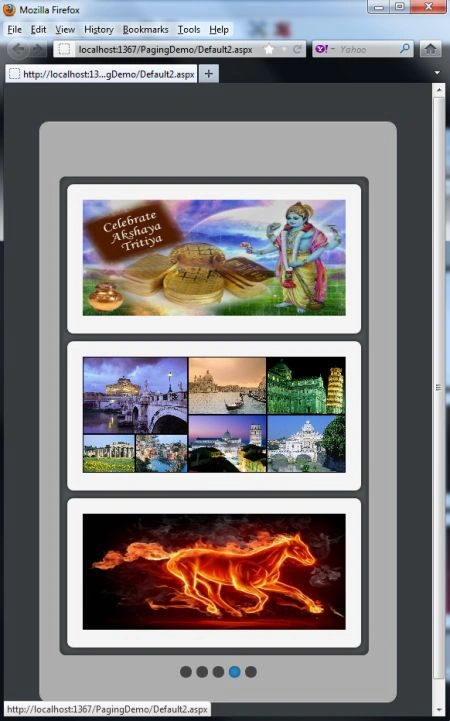
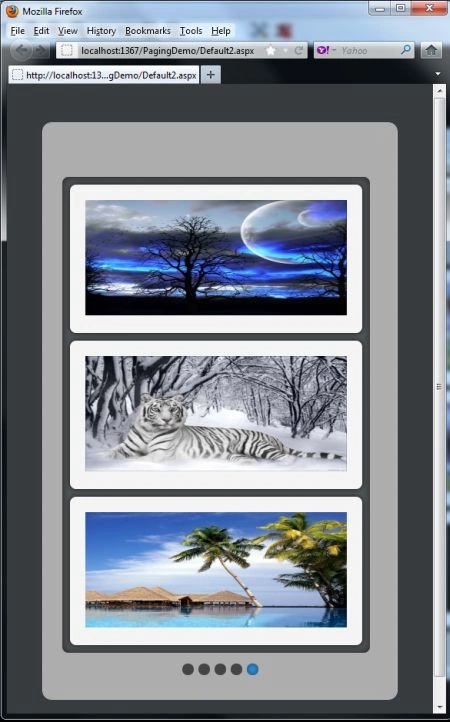
Step 10: In this step we are going to run the Default2.aspx page by pressing F5.
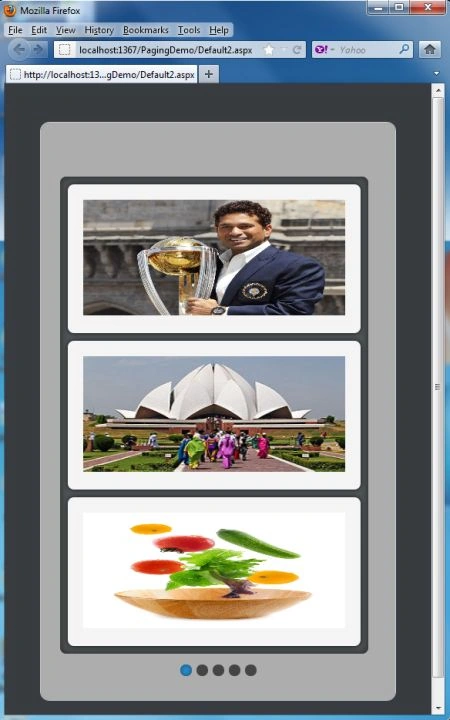
Now click on the bullets to see the effect.
Resources
mohan kumareditedPosted Apr 30, 2012, 11:41 AMEdited Apr 30, 2012, 11:41 AM
Looks awesome.. But, you could have used the images resolution size little bit smaller...
Shubham SrivastavaPosted Apr 24, 2012, 5:45 PM
hi, how can we make a Tab control in ASP.NET page using JQuery ?