

In the previous article we discussed the installation of Java and configuration of Eclipse with a Selenium WebDriver. Now here we will be creating a small JavaScript. All beginners will first want to open a browser and automate it. So here we will be doing that.
First of all we will write the scenario of what we will be doing here. Here we will Login to Gmail account and will automate the following scenarios.
- Open a Firefox browser. Navigate to the URL.
- Maximize the window.
- Enter the User Name and Password.
- Sign-in to the Gmail Account.
- Click on the Compose Button.
- Sign-out from the Gmail account.
- Close the browser.
- package login;
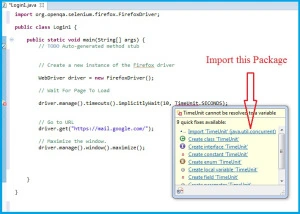
- import java.util.concurrent.TimeUnit;
- import org.openqa.selenium.By;
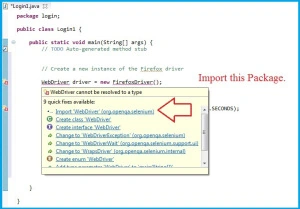
- import org.openqa.selenium.WebDriver;
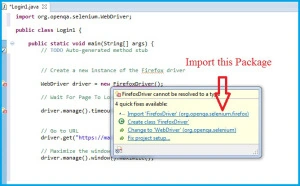
- import org.openqa.selenium.firefox.FirefoxDriver;
- public class Login1 {
- public static void main(String[] args) {
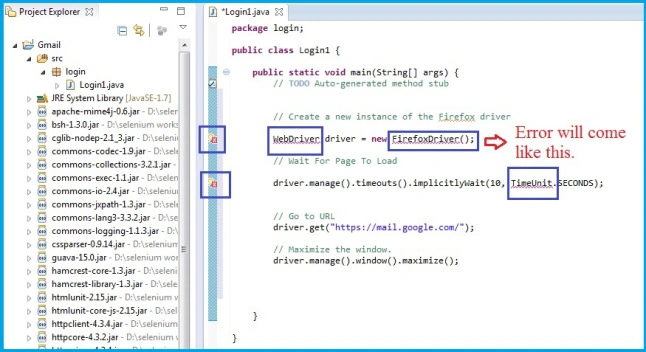
- // Create a new instance of the Firefox driver
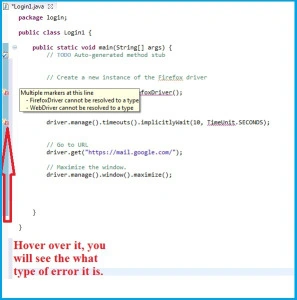
- WebDriver driver = new FirefoxDriver();
- // Wait For Page To Load
- // Put a Implicit wait, this means that any search for elements on the page
- could take the time the implicit wait is set for before throwing exception
- driver.manage().timeouts().implicitlyWait(10, TimeUnit.SECONDS);
- // Navigate to URL
- driver.get("https://mail.google.com/");
- // Maximize the window.
- driver.manage().window().maximize();
- // Enter UserName
- driver.findElement(By.id("Email")).sendKeys(" YOUR USER NAME");
- // Enter Password
- driver.findElement(By.id("Passwd")).sendKeys("YOUR PASSWORD");
- // Wait For Page To Load
- driver.manage().timeouts().implicitlyWait(60, TimeUnit.SECONDS);
- // Click on 'Sign In' button
- driver.findElement(By.id("signIn")).click();
- //Click on Compose Mail.
- driver.findElement(By.xpath("//div[@class='z0']/div")).click();
- // Click on the image icon present in the top right navigational Bar
- driver.findElement(By.xpath("//div[@class='gb_1 gb_3a gb_nc gb_e']/div/a")).click();
- //Click on 'Logout' Button
- driver.findElement(By.xpath("//*[@id='gb_71']")).click();
- //Close the browser.
- driver.close();
- }
- }
Gowtham RajamanickamPosted Apr 25, 2015, 5:25 AM
good
Tom MohanPosted Mar 21, 2015, 12:45 PM
Nice one
Shridhar SharmaPosted Mar 19, 2015, 2:43 PM
good one :)