

Introduction
In this article I am going to make a XML Web service that update data into a Default table of the application. For the basics of XML Web Service read my last article. Here
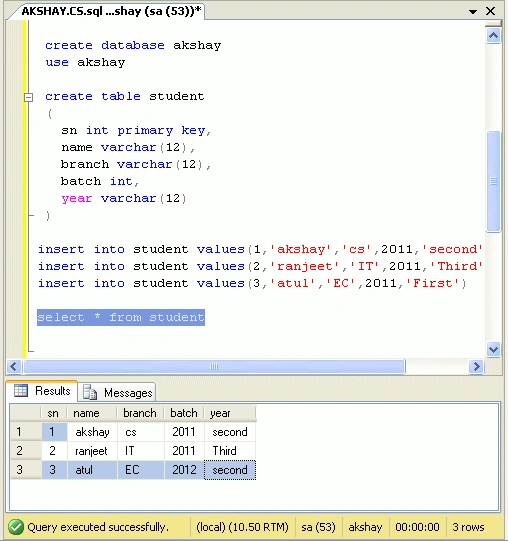
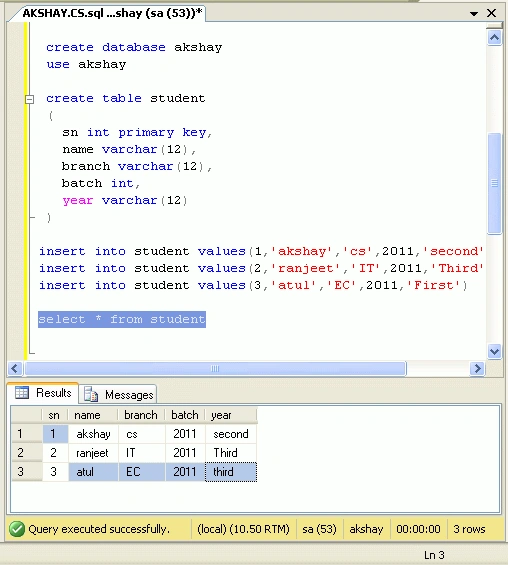
First go through SQL Server and make a table;
The following snapshot show the process.
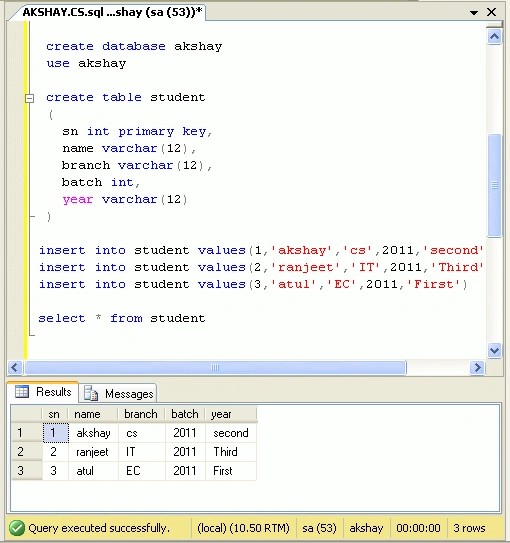
Database- akshay
Table Name- student
Creating XML Web Service in .Net
Here is sample code which I use to create and consume ASP.NET Web Service:
Step 1 : Create the ASP.NET Web Service Source File.
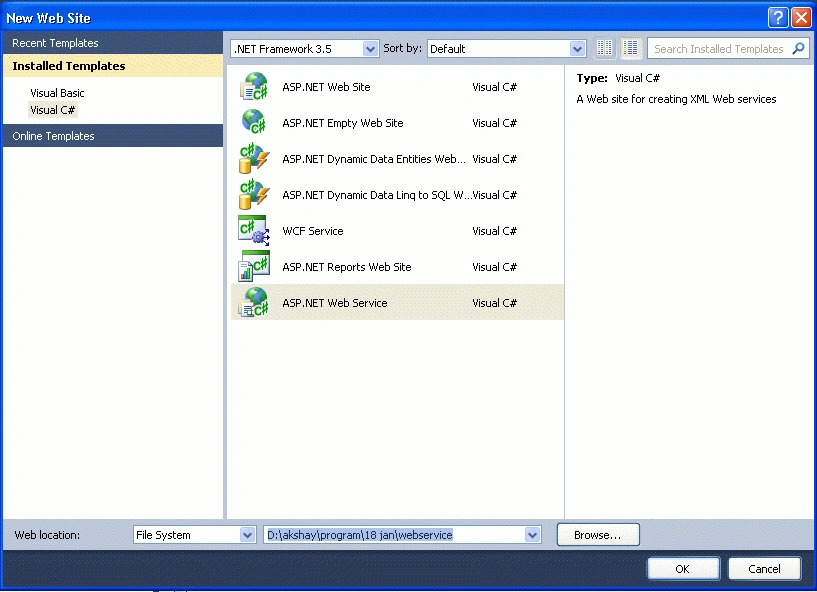
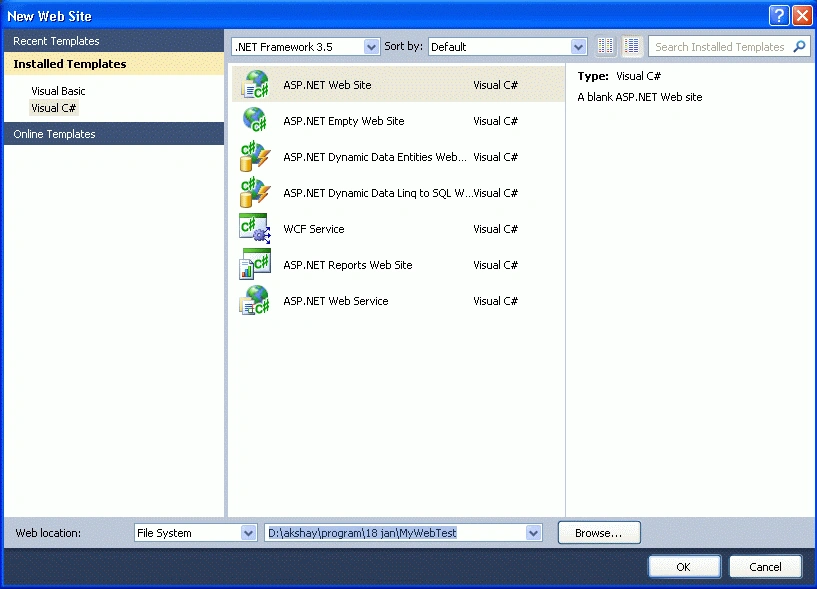
Open Visual Studio 2010 and create a new web site.->Select .Net Framework 3.5. ->Select ASP.NET Web Service page -> Then, you have to give the name of your service. In this example I am giving it the name "MyWebService". Then Click the ok Button. A screen-shot of this activity is shown be.
Step 2 : Click on the "OK" Button. you will see the following window:
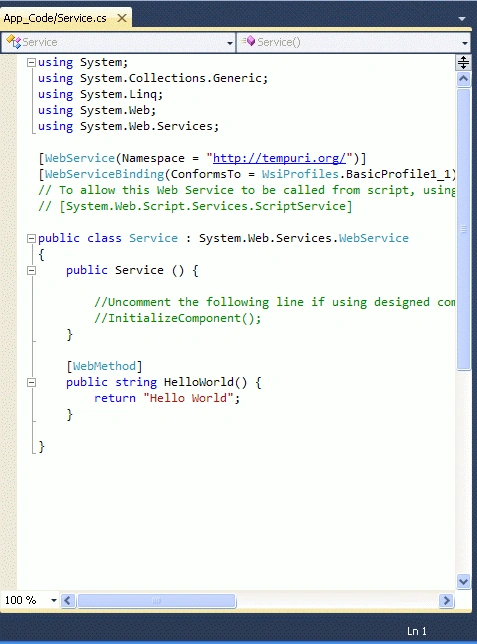
Here (in the above figure), you will note that there is a predefined method "HelloWorld" which returns the string "Hello World". You can use your own method and can perform other operations. Here I made the simple method "GetUpdate" which returns an integer value.
Service.cs
using
System;
using
System.Collections.Generic;
using
System.Linq;
using
System.Web;
using
System.Web.Services;
using
System.Data;
using
System.Data.SqlClient;
[WebService(Namespace =
"http://tempuri.org/")]
[WebServiceBinding(ConformsTo =
WsiProfiles.BasicProfile1_1)]
// To allow this Web
Service to be called from script, using ASP.NET AJAX, uncomment the following
line.
// [System.Web.Script.Services.ScriptService]
public
class
Service : System.Web.Services.WebService
{
SqlConnection
con;
SqlCommand
cmd;
public Service()
{
//Uncomment
the following line if using designed components
//InitializeComponent();
}
[WebMethod]
public
int Getupdate(int
sn, int batch, string
year)
{
con = new
SqlConnection(@"Data
Source=.;Initial Catalog=akshay;Persist Security Info=True;User
ID=sa;pwd=wintellect");
con.Open();
cmd = new
SqlCommand("update
student set batch=" + batch + ",year='"
+ year + "' where sn=" + sn +
"",
con);
int
roweffected = cmd.ExecuteNonQuery();
return
roweffected;
}
}
Step 3 : Build Web Service and Run the Web Service for testing by pressing F5 function key.
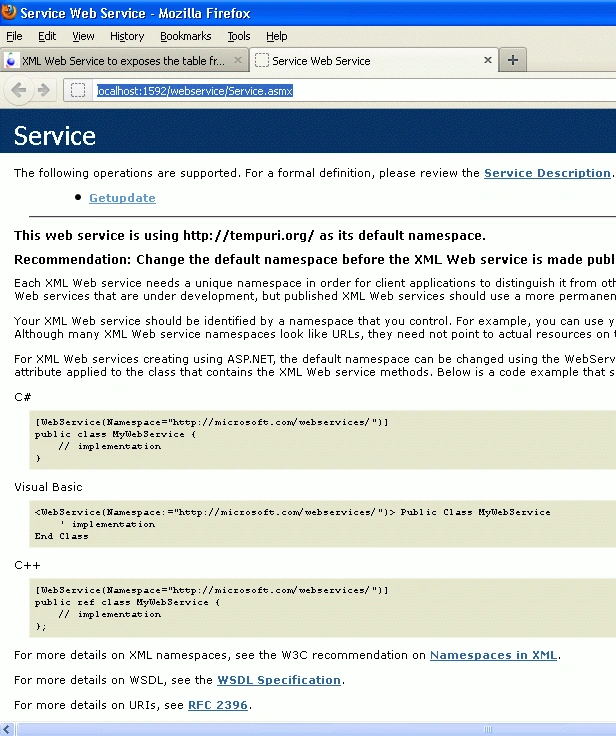
Copy the url of this web service for further use.
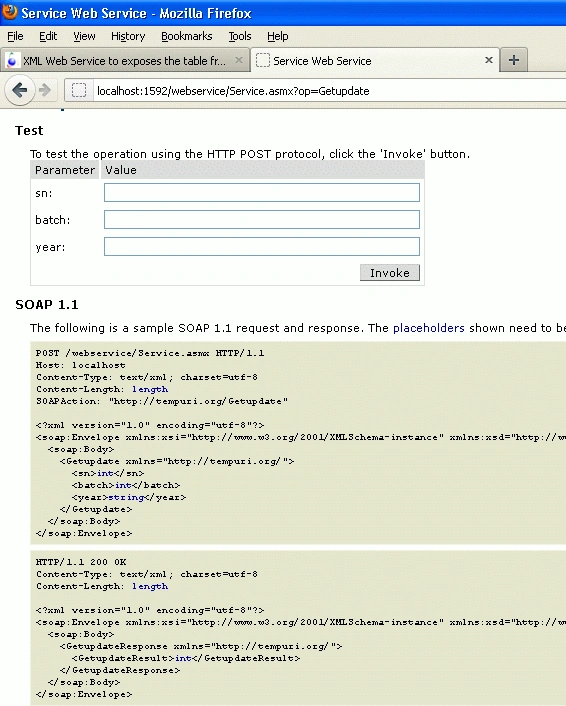
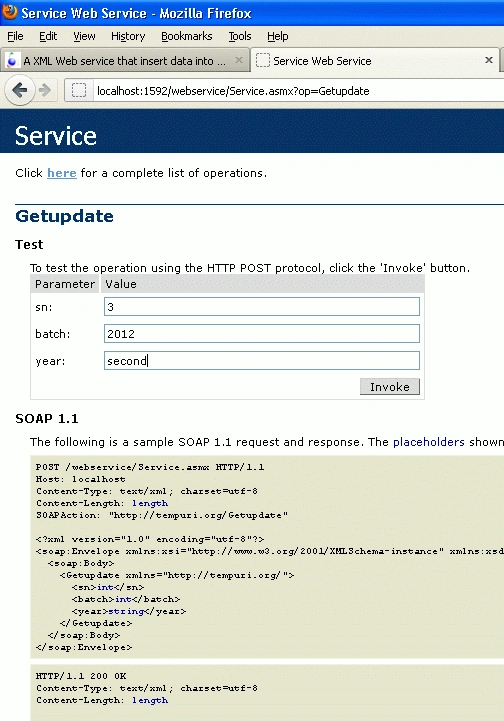
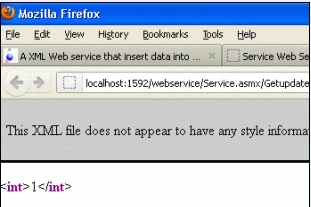
Step 4 : Click on Getmember Button to test the web service.
sushant sundikarPosted Feb 23, 2012, 11:39 AM
Thanks for this article. I was stuck up in one part of code. but your article really helped me out. Thanks again