

In this article we will discuss how to access the Image Library in Silverlight in Windows Phone 7.
Step 1
First we click on File:-> New Project. Here we select the Silverlight for Windows Phone application and then we select Windows Phone application:
Step 2
After that we take two controls (Image and TextBox). Here an image is used to display the images which we want to access and a TextBox is used to set the value in our program. Here we set the value and the visibility of the TextBox is Collapsed:
<Grid x:Name="ContentPanel" Grid.Row="1" Margin="12,1,12,-1">
<Image Height="361" HorizontalAlignment="Left" Margin="69,106,0,0" Name="image1" Stretch="Fill" VerticalAlignment="Top" Width="304" ManipulationStarted="image1_ManipulationStarted" />
<TextBox Height="72" HorizontalAlignment="Left" Margin="10,10,0,0" Name="textBox1" Text="1" VerticalAlignment="Top" Width="460" Visibility="Collapsed" />
</Grid>
Step 3
Now we will take an Images folder in our program and set the images: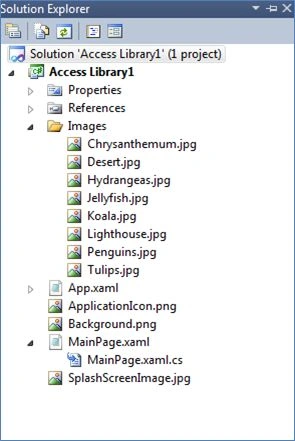
Step 4
After that we write the following code in the .cs page:
public MainPage()
{
InitializeComponent();
image1.Source = (ImageSource)new ImageSourceConverter().ConvertFromString("Images/Desert.jpg");
}
private void image1_ManipulationStarted(object sender, ManipulationStartedEventArgs e)
{
if (textBox1.Text=="1")
{
image1.Source = (ImageSource)new ImageSourceConverter().ConvertFromString("Images/Jellyfish.jpg");
textBox1.Text = "2";

Swati AgarwalPosted Oct 9, 2012, 1:23 AM
Very nice article Mahak.How can i access the same photo from the media library between application instances?