

Introduction
Accordion is a Control added to the WPF Toolkit in February 2010 release. In this article we will see how we can use the control. It was very easy to handle in Silverlight though; we will see how far it is easy in WPF.
If you do not have WPF Toolkit installed, visit to learn how to download and install WPF Toolkit.
Creating WPF Application Project
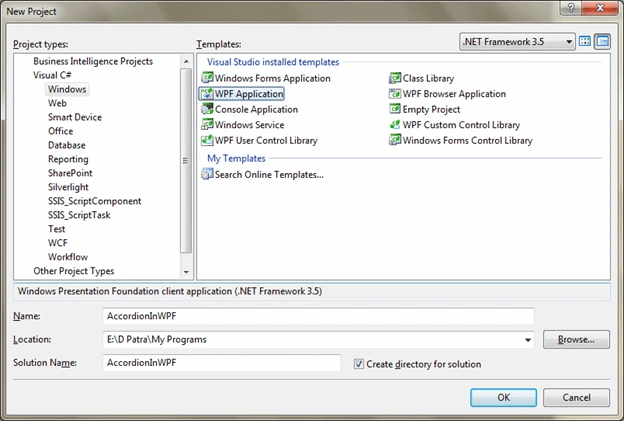
Fire up Visual Studio 2008 and Create a WPF Application and name the project as AccordionInWPF.
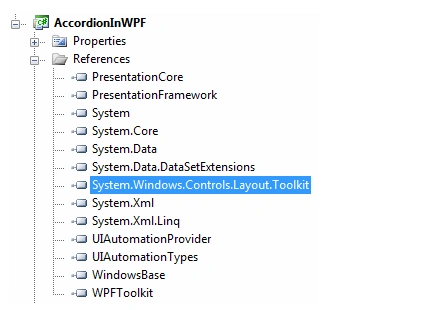
We can add an Accordion Control by referencing the following DLL in the Toolkit Folder.
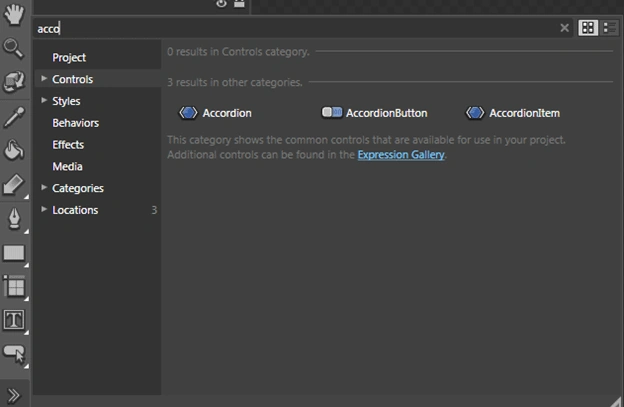
After adding the Accordion, we need to add AccordionItem also. Add two of them.
Expression Blend doesn't support designing.
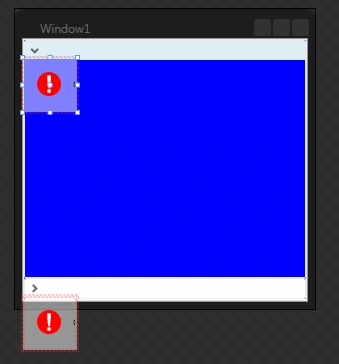
So we would go back to Visual Studio, perhaps there we will be able to!
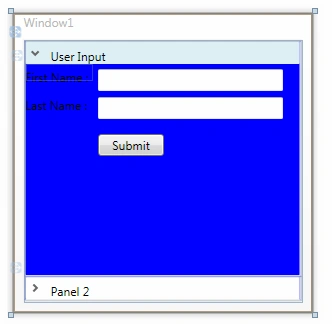
Yes, we can add content to the AccordionItem in Visual Studio.
I realized that after adding each control to the content we have to build the project the Expression Blend is able to reload the design.
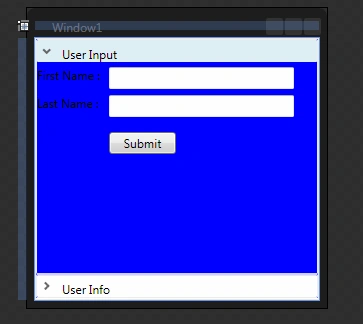
As you see above I have added several controls.
The following is the XAML reference.
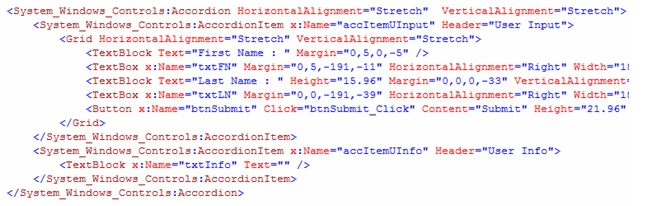
In this sample we will see how we can select another accordion item by some event in other accordion item.
Here's the thing. We will take user input from AccordionItem "User Input" and on Submit Button click event we will display the "User Info" AccordionItem.
The following code is for your reference.
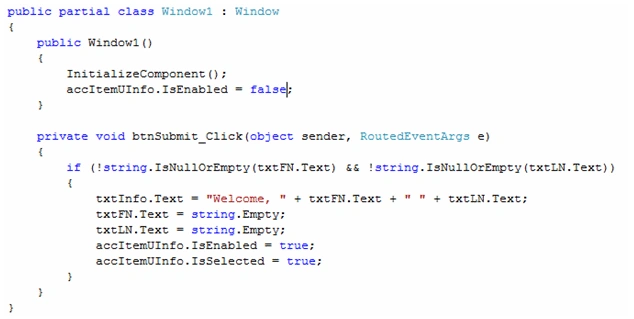
That's it. Run the application and give some input to the TextBoxes and Click on Submit button, you would see the User Info Accordion is selected.
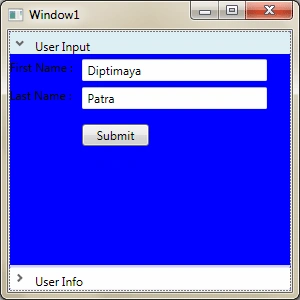
I am not able to change the Background color from Blue to any other color. Let me have some tweak on that.
Hope this article helps.
Bhavya GaurPosted Aug 30, 2018, 6:44 AM
Updated on 08/30/2018
adel biariPosted Oct 11, 2015, 9:41 AM
To change the background, you need to add a <grid> and add controls, like the example: <layoutToolkit:AccordionItem Header="Option" Foreground="White"> <layoutToolkit:AccordionItem.Background> <LinearGradientBrush EndPoint="0.5,1" MappingMode="RelativeToBoundingBox" StartPoint="0.5,0"> <GradientStop Color="#FF80CEF3" Offset="0.01"/> <GradientStop Color="#FF5588A0" Offset="1"/> </LinearGradientBrush> </layoutToolkit:AccordionItem.Background> <Grid Height="120" Width="200" Background="White"> <Button x:Name="button" Content="Button" Width="75" Height="20" Margin="10,10,115,90"/> </Grid> </layoutToolkit:AccordionItem>
siva sankariPosted Dec 11, 2014, 11:45 PM
May I know why the accordion cannot be edited using blend. Plz check the version compatibility of the dll with that of blend. Hope it should work.
siva sankariPosted Dec 11, 2014, 11:44 PM
Hi,
aman gandhiPosted Apr 16, 2011, 3:35 AM
please tell me how to add this. i am unable to do this.
Diego GonzalezPosted Jul 27, 2010, 10:03 AM
You can change the blue background by modifying the theme of the accordion item. For some odd reason it's set to blue.
ImmiPosted May 6, 2010, 7:12 AM
hi, That is very good article, i wanted to know about your progress in changing the blue background color that you mentioned at the end of the article. If you found any thing related then please share it with me Thanks Immi