

Introduction:
There are two ways to save data and parameters. The first is, let us say, the old way. In this case we save application parameters like information entered by the user during the installation process for e.g. or some indications about further parameters that a given application uses to interact with his external environment such as other applications in an intranet context. All this is done using the registry keys or/and (*. INI) files. These were main objects used to restore application's parameters when developing solutions in a previous context. And of Corse, there were some problems that a not negligent number of developers encountered in this context.
Nowadays, there is a new way to do that with a very simple manner. I mean, the application parameters can be saved in a separate file witch is called the configuration file. This last one is an xml format file that contains elements ordered as logical data structure that set and get information about the application configuration, each element is wrapped in two tags, one at the beginning and one at the end. After all configuration parameters have been set, they are inscribed in a configuration file that can be found in the same directory and the same name as the application but with a different extension witch is (*.exe.config). It looks like this .
This is a sample that illustrates how such file form can be:
<?xml version="1.0" encoding="utf-8" ?>
<configuration>
<configSections>
<sectionGroup name="applicationSettings" type="System.Configuration.ApplicationSettingsGroup, System, Version=2.0.0.0, Culture=neutral, PublicKeyToken=null" >
<section name="AppConfig.Properties.Settings" type="System.Configuration.ClientSettingsSection, System, Version=2.0.0.0, Culture=neutral, PublicKeyToken=null" requirePermission="false" />
</sectionGroup>
</configSections>
<connectionStrings>
<add name ="oConnection" connectionString= "Data Source = STANDARD;Initial Catalog = Essai; Integrated Security = true " />
</connectionStrings>
<appSettings>
<add key="Phone" value="21418198"/>
</appSettings>
<applicationSettings>
<AppConfig.Properties.Settings>
<setting name="Phone" serializeAs="String">
<value>123456789</value>
</setting>
</AppConfig.Properties.Settings>
</applicationSettings>
</configuration>
If your application does not have one, then Adding a configuration file into your application is a joke, you simply follow those steps:
-
Open a new project
-
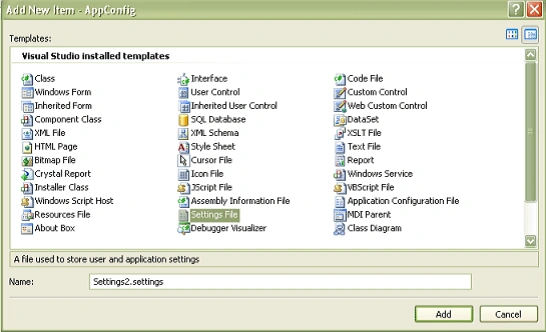
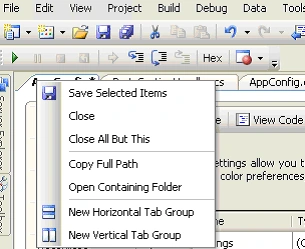
Select a File settings in the items dialog box as bellow:
-
Build the project by clicking build project or click execute
-
Browse to the application directory. The configuration file is located there
-
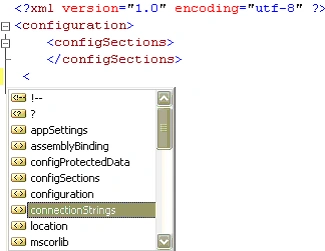
Open it with your IDE or any other XML editor , the result will be as mentioned bellow:
<?xml version="1.0" encoding="utf-8" ?>
<configuration>
<configSections>
</configSections>
<connectionStrings />
</configuration>
Add connection strings to a given project:
This configuration element is used to save parameters of several connections used by the application during the run time and it can be added, removed or cleared using those elements mentioned in the table bellow:
| Element | Description |
| "add" | Adds a connection string as a name/value pair to the collection of connection strings. |
| "clear" | Removes all references to inherited connection strings, allowing only the connection strings that are added by the current add element. |
| "remove" | Removes a reference to an inherited connection string from the collection of connections strings. |
Each connection string is specified using a dual attributes, the first one is the name and the second one is the connection string. Of Corse, there are multiple methods used to add connection strings.
Add connection string using the Project properties menu item from the project menu:
-
Open the project menu and click on the project properties:
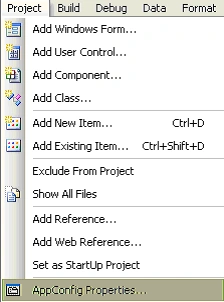
Figure 1
The followed window will be opened: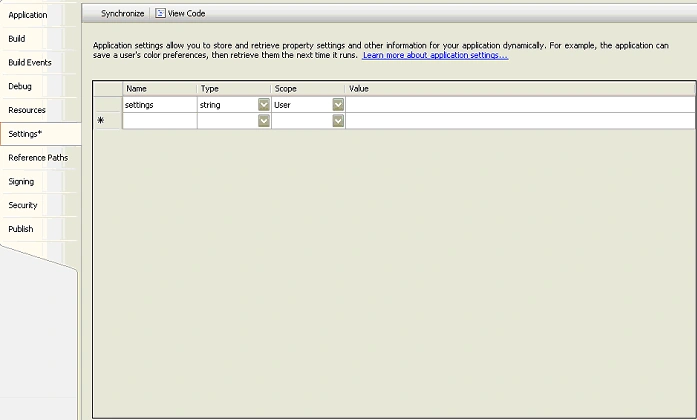
Figure 2
- Add connection name and set the type as connection string, the scope will be changed automatically to Application. Click on the "Value" corresponding cell and a small button will appear.
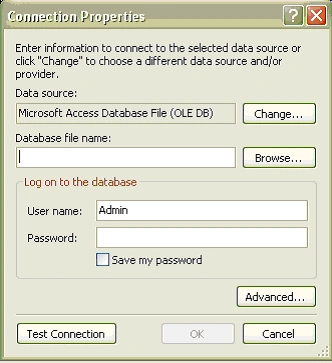
- Click it to open the connection properties dialog box
SubashPosted Aug 12, 2016, 1:34 AM
Nice sir
Santhakumar MunuswamyPosted Dec 1, 2015, 3:17 AM
Good One