

Introduction
As you know that add button is used to add new data in the database. There is + sign to add new data in Visual Studio LightSwitch . If you want to add new data using custom button in the LightSwitch, it is possible.
Step by step solution
Step 1: Open Visual Studio LightSwitch->File->New->Project->Create new table.

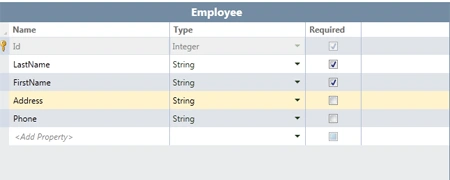
Step 2: Now we will make a table like as Employee.
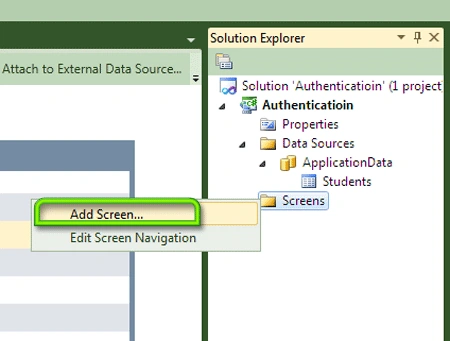
Step 3: Right click on screen->Add new screen.
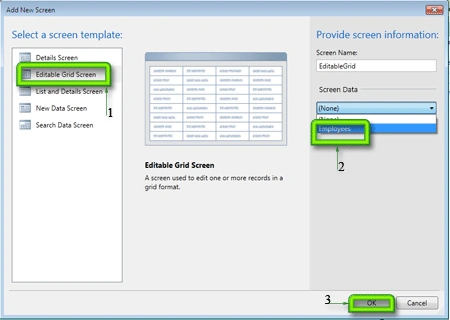
Step 4: Select Editable grid screen->Select screen data (Employee)->Ok.
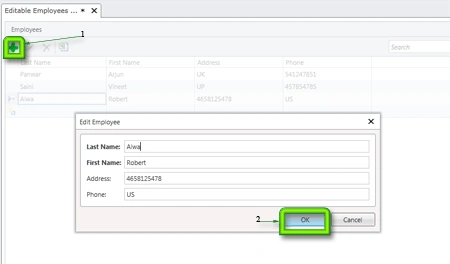
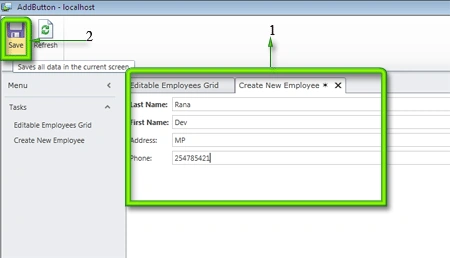
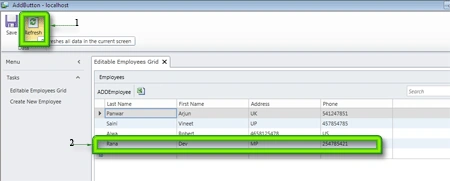
Step 5: Run application (Press F5)->Click + sign ->Fill data->Ok->Save.
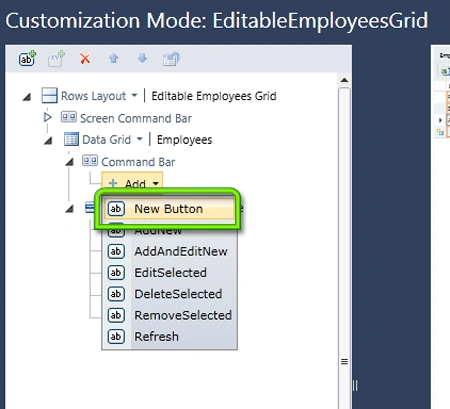
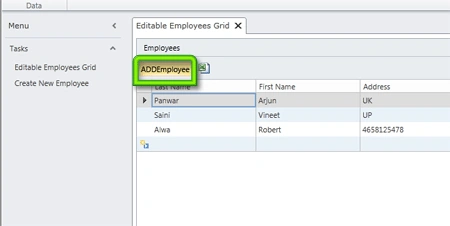
Step 6: Design screen->Command Bar->Add->New button->Change display name (AddEmployee)->Save.
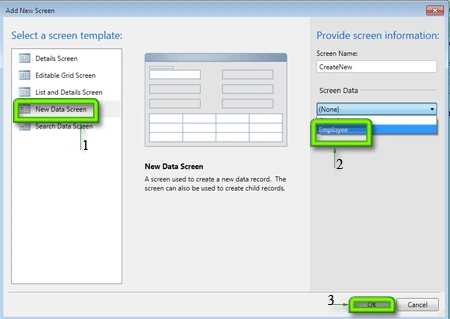
Step 7: Stop debugging->Add screen->Select new data screen->Select screen data (Employee)->Ok.
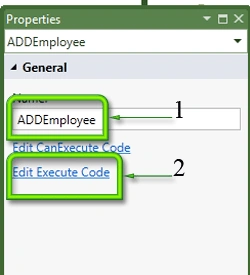
Step 8: Go to properties of Editable
grid screen->Change method name (AddEmployee)->Click edit execute code>Write the below code.
Code :
Join the conversation! Your thoughts help the community grow.