

Introduction
Sometimes, it is not directly possible to transform the data/text from a huge data table. But, with Power Query, you can easily do it using Add Column from Examples feature. In the previous article, you can see how to add a custom column. Here in this article, I am going to show you how to add a column from example, to do so we have a feature in our Power Query Editor i.e. ‘Add Column from Examples’. Follow to below step to know where you can get this feature, how to use it, and how to perform the task that you want.
Step 1
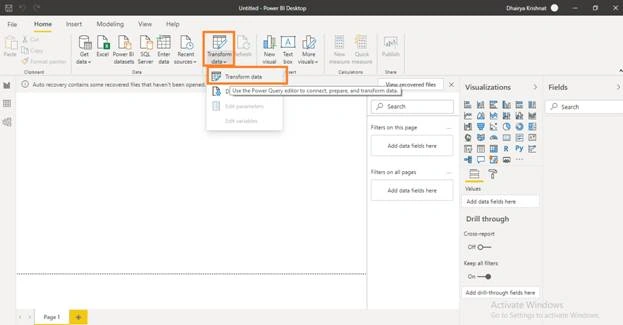
To open the Power Query editor, click on ‘Transform data’ on the home page of ‘Power BI Desktop’.
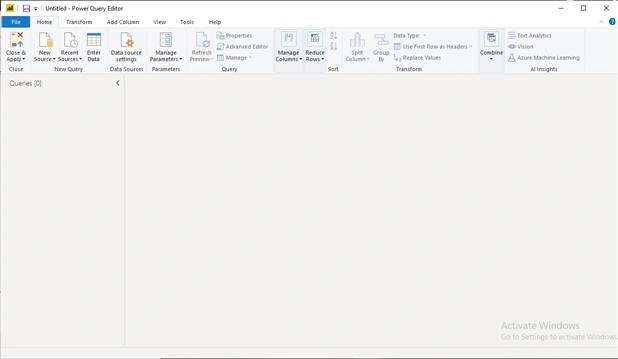
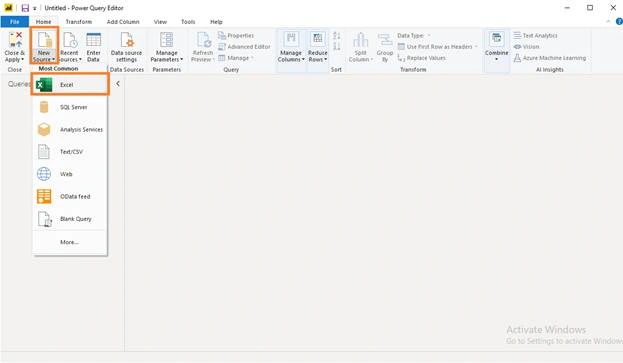
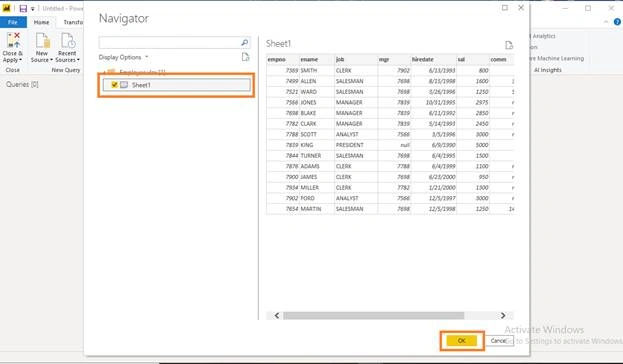
Now go to ‘New source’ and import data from any source that you want. Here I am using the ‘Excel sheet’ that contains the data of ‘Employees’. So click on ‘Excel’ and give the path of the file and open it into the power query editor.
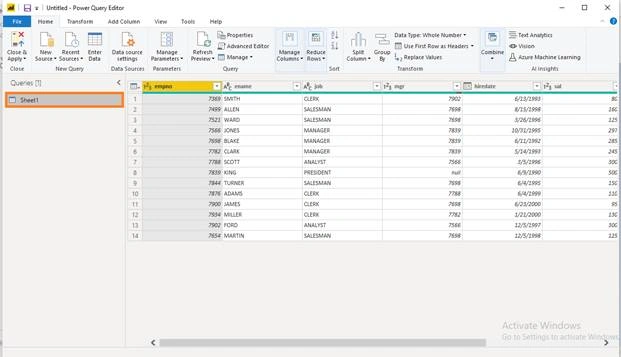
Step 2
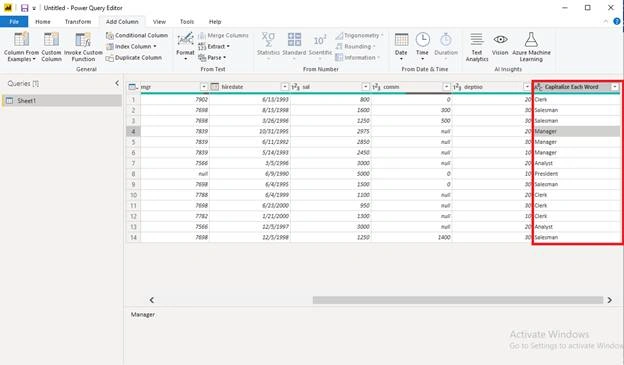
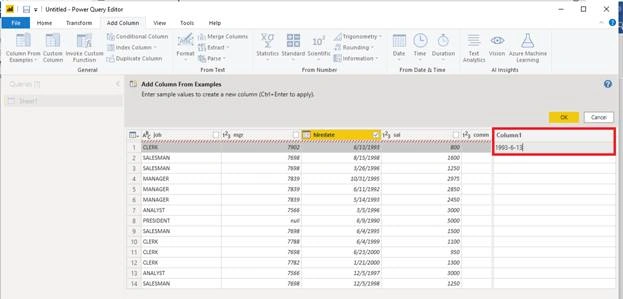
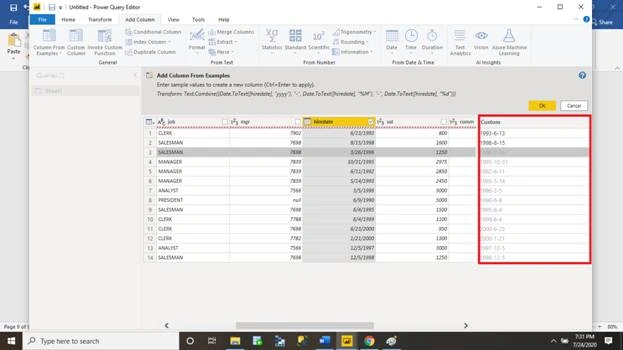
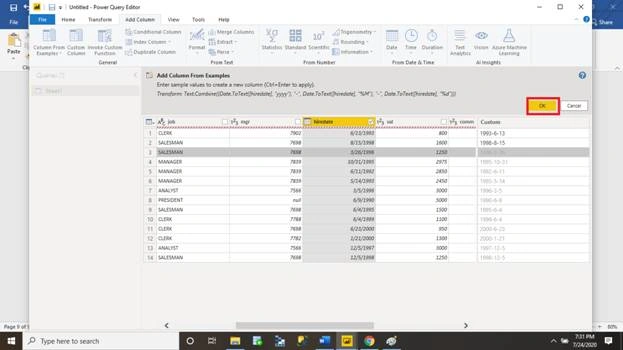
Now select any column, I am selecting ‘Job’. Go to the ‘Add Column’ tab and click on it’s first drop-down option i.e. ‘Column From Example’ then click on ‘From Selection’.
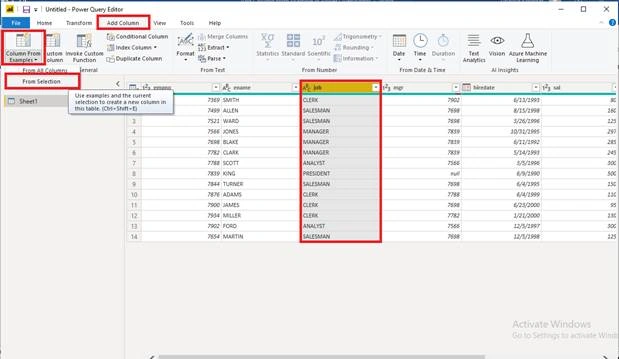
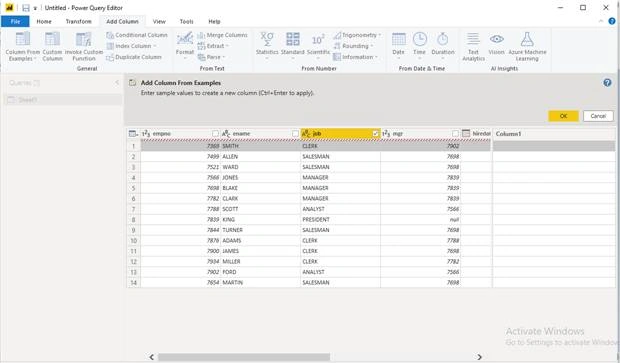
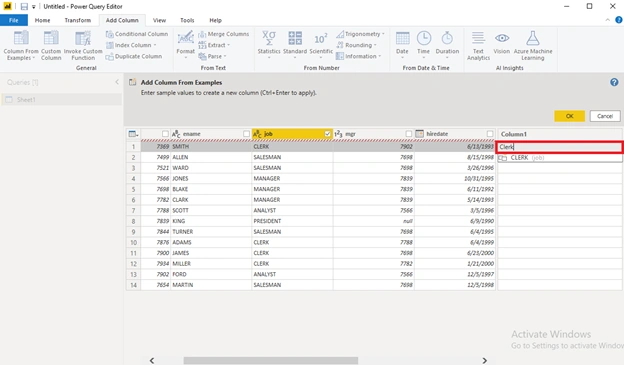
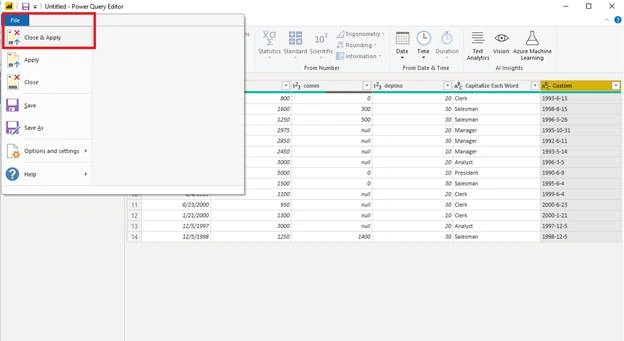
Here I want to create a column same like ‘Job’ but I want its data in initial-cap. Once you click on ‘From Selection’ a new column will be added to your table.
Roshan RathodPosted Jul 27, 2020, 4:50 AM
Nice........