In this article, you will know how to add a ComboBox & CheckBox into the DataGridView at runtime.
Create an object of DataGridViewComboBoxColumn.
- DataGridViewComboBoxColumn dgvCmb = new DataGridViewComboBoxColumn();
Give the Header name to the DataGridViewComboboxColumn for the DataGridView.
- dgvCmb.HeaderText ="Name";
Now add the items into the ComboBox.
- dgvCmb.Items.Add("Ghanashyam");
- dgvCmb.Items.Add("Jignesh");
- dgvCmb.Items.Add("Ishver");
- dgvCmb.Items.Add("Anand");
Give the name to that ComboBox to refer to it from the DataGridView.
- dgvCmb.Name="cmbName";
- Finally add that newly created ComboBox into the DataGridView.
- myDataGridView.Columns.Add(dgvCmb);
The whole code :
- using System;
- using System.Windows.Forms;
-
- namespace DataGridView
- {
- public partial class Form1 : Form
- {
- public Form1()
- {
- InitializeComponent();
- }
-
- private void btn_Click(object sender, EventArgs e)
- {
- DataGridViewComboBoxColumn dgvCmb = new DataGridViewComboBoxColumn();
- dgvCmb.HeaderText ="Name";
- dgvCmb.Items.Add("Ghanashyam");
- dgvCmb.Items.Add("Jignesh");
- dgvCmb.Items.Add("Ishver");
- dgvCmb.Items.Add("Anand");
- dgvCmb.Name="cmbName";
- myDataGridView.Columns.Add(dgvCmb);
- }
- }
- }
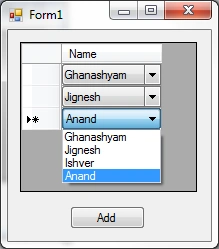
See the following image.
Code For Adding CheckBox Into the DataGridView at Runtime.
First of all create the object of the DataGridViewCheckBoxColumn.
- DataGridViewCheckBoxColumn dgvChb = new DataGridViewCheckBoxColumn();
Then set the header text for that CheckBox for DataGridView.
- dgvChb.HeaderText = "Pass";
Then set the name of that CheckBox for use in the DataGridView.
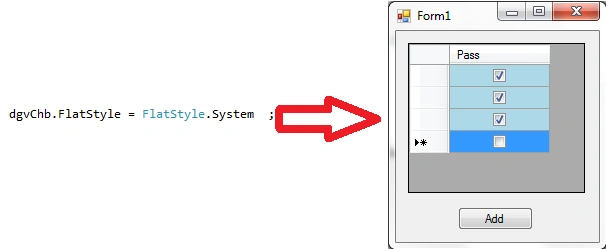
You can set the flat style of the CheckBox for the style the CheckBox will be displayed. The default flat style is standard.
- dgvChb.FlatStyle = FlatStyle.Standard;
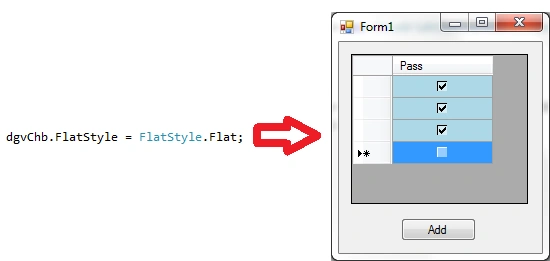
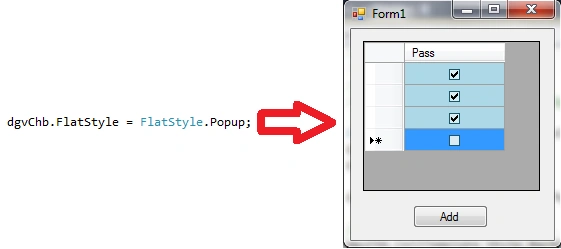
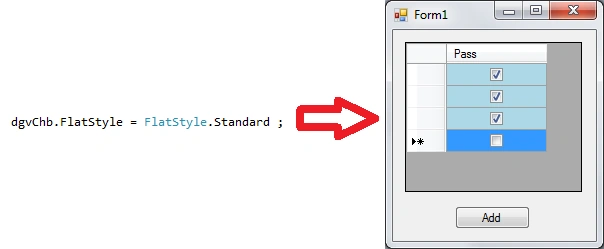
There are four different flat styles. See the following images:
1) FlatStyle is Flat.
2) FlatStyle is Popup.
3) FlatStyle is Stsndard.
4) FlatStyle is System.
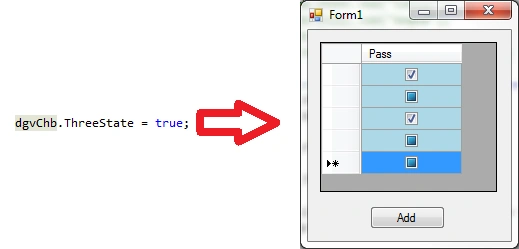
You can also set the ThreeState CheckBox. In that there are a total of three kinds of states available & the user can set any one of them.
Assume that there are three states such as "Pass", "Fail" & "Backlog".
- dgvChb.ThreeState = true;
See the following image.
Finally add that CheckBox into the DataGridView.
- myDataGridView.Columns.Add(dgvChb);
See the whole code:
- using System;
- using System.Windows.Forms;
-
- namespace DataGridView
- {
- public partial class Form1 : Form
- {
- public Form1()
- {
- InitializeComponent();
- }
-
- private void btn_Click(object sender, EventArgs e)
- {
- DataGridViewCheckBoxColumn dgvChb = new DataGridViewCheckBoxColumn();
- dgvChb.HeaderText = "Pass";
- dgvChb.Name = "chbPass";
- dgvChb.FlatStyle = FlatStyle.Standard;
- dgvChb.ThreeState = true;
- dgvChb.CellTemplate.Style.BackColor = System.Drawing.Color.LightBlue;
- myDataGridView.Columns.Add(dgvChb);
- }
- }
- }
Hope this is clear to you guys.


amir amirPosted Mar 2, 2016, 9:58 AM
Hi,i want implement GridViewComboBoxColumn and GridViewTextBoxColumn together,can u help me????
priya santhiPosted Nov 23, 2014, 11:45 PM
This article is very useful for me..thanks
men phallaPosted Nov 21, 2013, 8:48 PM
hi developer! i like to ask you a question. how can i display a form after i select a value from gridviewcombobox? EX: I choose a value from datagridviewcombobox and display a form. what event should i choose?
william albertPosted Jun 11, 2012, 6:06 AM
Data grid view concept is an interesting and an important one.Its presentation in this article is awesome. http://www.dapfor.com/en/net-suite/net-grid/features/headers-and-columns
divya perumalPosted Mar 9, 2012, 8:35 AM
I want to know one think .How to add new row in datagridview.When I type data in to the Text Box ,it will directly added to the DataGridView.
divya perumalPosted Mar 9, 2012, 2:49 AM
This article useful to me a lot . Thank you for this article.
Jessica StephenPosted Feb 21, 2012, 11:10 PM
Good implementation, I will try to implement this.
Laura ParkerPosted Feb 21, 2012, 11:05 PM
Thank you so much for posting this. This seems useful for me.
James LerdorfPosted Feb 21, 2012, 10:48 PM
Thanks for this valuable article.