

Here are the steps:
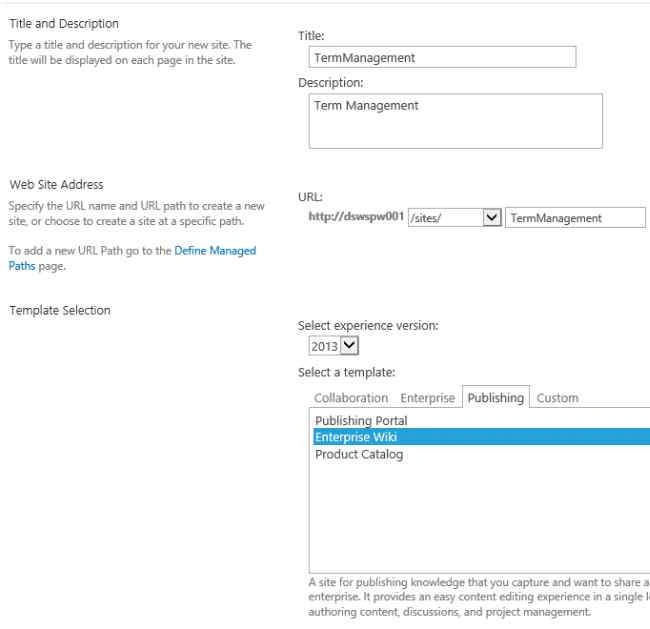
Step 1: Create Enterprise wiki site.
Go to central admin, then Create new site collection. When creating new site collection select Template as “Enterprise Wiki” & experience version 2013.
Step 2: Create New Term Group.
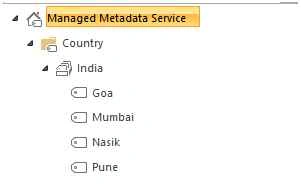
Go to Term Store Management. In this example create new Term Group named Country. Under Country group create single term set named India. Under India there will be multiple terms as in the following image:
Step 3: Page Library setting changes. We need to create column with reference to manage metadata.
Go to site content - Pages, Library, then Library Settings.

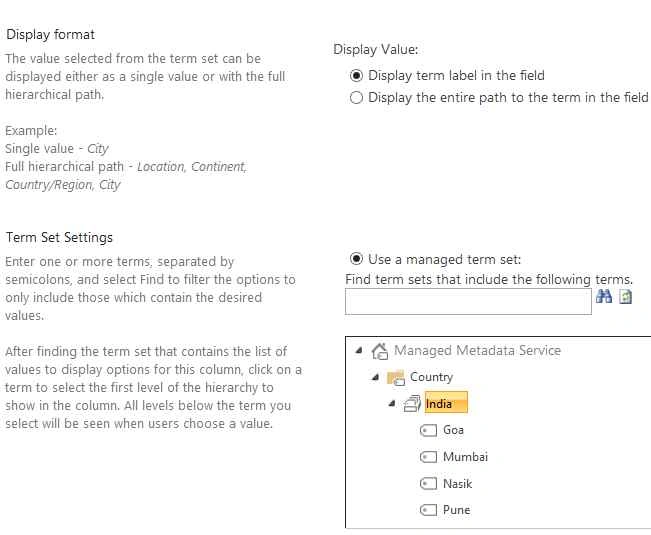
Create new column with name "country " & datatype as Managed Metadata. Under manage metadata select “India” as in the following image.
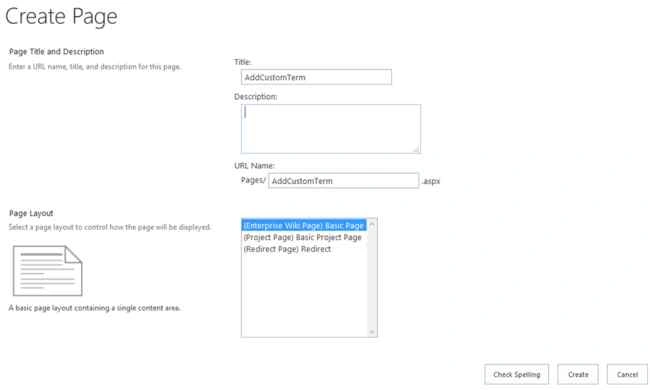
Step 4: Create new wiki page. Here select (Enterprise Wiki Page) Basic Page Layout.
Page name – AddCustomTerm.aspx
Step 5: Edit Page using SPD 2013.
Firstly, open SharePoint Designer SPD 2013. Now open wiki site into it. Go to All Files, then Pages.
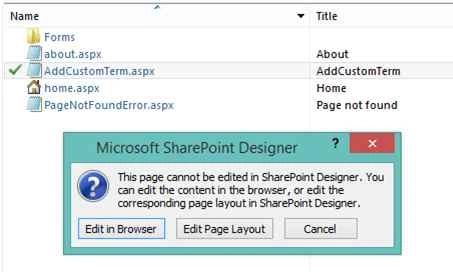
Under pages our new wiki page is located. Check out page for editing. It prompts to edit page layout as in the following image.
Step 6: Add Taxonomy code, The following code reference the new column which we created in step3.
Go to central admin, then Create new site collection. When creating new site collection select Template as “Enterprise Wiki” & experience version 2013.
Step 2: Create New Term Group.
Go to Term Store Management. In this example create new Term Group named Country. Under Country group create single term set named India. Under India there will be multiple terms as in the following image:
Step 3: Page Library setting changes. We need to create column with reference to manage metadata.
Go to site content - Pages, Library, then Library Settings.
Create new column with name "country " & datatype as Managed Metadata. Under manage metadata select “India” as in the following image.
Step 4: Create new wiki page. Here select (Enterprise Wiki Page) Basic Page Layout.
Page name – AddCustomTerm.aspx
Step 5: Edit Page using SPD 2013.
Firstly, open SharePoint Designer SPD 2013. Now open wiki site into it. Go to All Files, then Pages.
Under pages our new wiki page is located. Check out page for editing. It prompts to edit page layout as in the following image.
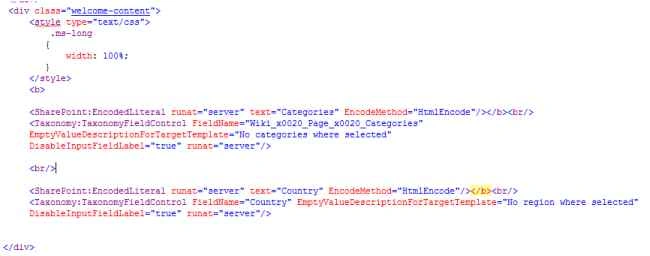
Step 6: Add Taxonomy code, The following code reference the new column which we created in step3.
- <SharePoint:EncodedLiteral runat="server" text="Country" EncodeMethod="HtmlEncode"/></b><br/>
- <Taxonomy:TaxonomyFieldControl FieldName="Country" EmptyValueDescriptionForTargetTemplate="No Country where selected" DisableInputFieldLabel="true" runat="server"/>
Step 7: Add new term to wiki page.
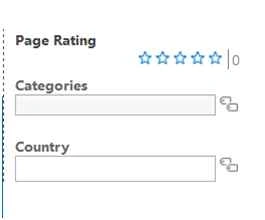
Finally, we are going to add custom term to the page. Click on link to edit page in browser.
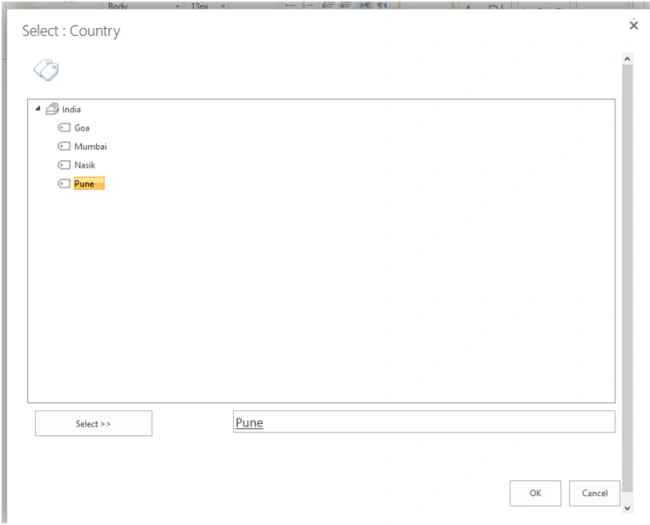
After page is available for editing, select image next to country textbox. New dialog box openS which prompt to select city names as in the following image.
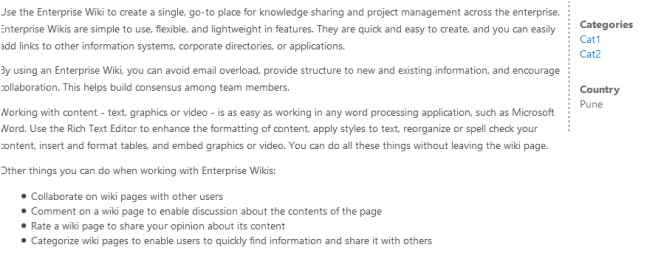
Save page. You will see the following view on page.
Lakshmanan Sethu SankaranarayanPosted Nov 12, 2015, 3:42 PM
Excellet one!!
Santhakumar MunuswamyPosted Nov 11, 2015, 8:50 AM
Good one
Gowtham KPosted Nov 7, 2015, 10:13 AM
Thanks for sharing
Sibeesh VenuPosted Nov 7, 2015, 3:33 AM
Nice Share
Harshad PansuriyaPosted Nov 6, 2015, 11:27 PM
Nice one
Rupali ShindePosted Nov 6, 2015, 10:25 PM
thanks
Sagar PardeshiPosted Nov 6, 2015, 9:17 PM
Nice Share!
Abhay ShankerPosted Nov 6, 2015, 9:04 PM
Nice One...