

Introduction
We already know that there is no Start Button and Start Menu on the desktop in Windows 8. Microsoft has decided to remove the Start Button and Start Menu in Windows 8. Many problems can happen to users who are unfamiliar with Windows 8 without the use of the Start Button and Start Menu.
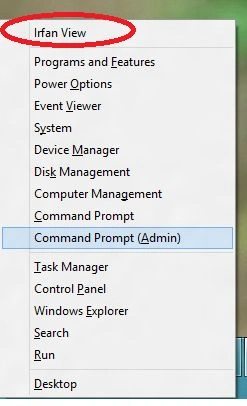
But despite all these things Microsoft introduced something called the Win+X menu which is supposed to be a replacement for the Start Button in Windows 8. In Windows 8 a Win+X menu is provided instead of the Start screen button. It is a hidden context menu that is displayed when the user presses the Windows Key + X from the keyboard and it appears at the left corner of the desktop screen; that why it is known as the Win+X menu.
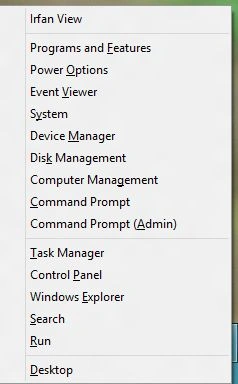 The Win+X menu is like your old Start Button that consists of the system programs and tools for the user to easily navigate without the start screen. It consists of many options such as Command Prompt, Disk Management, Task Manager and other tools.
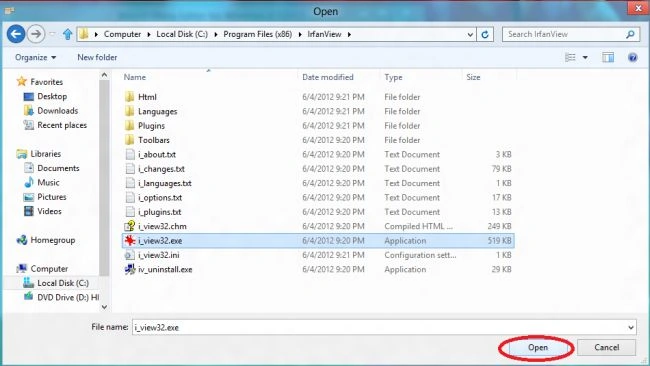
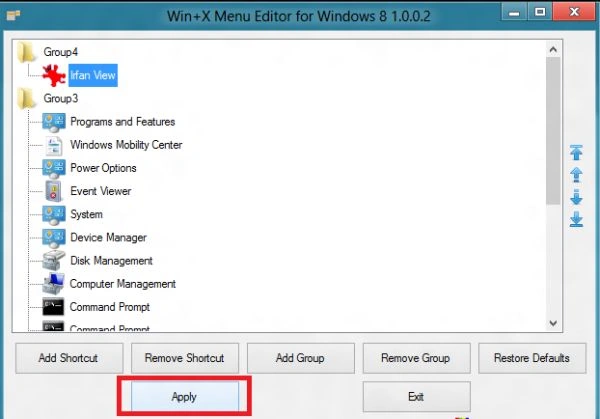
We can also add other items that we use frequently to the Win+X menu. To add the programs we use frequently, the free tool WinXEditior allows us to add programs to the Win+X menu. You can download it from the following link:
http://winaero.com/download.php?view.21.
Step 1
Steps to be followed
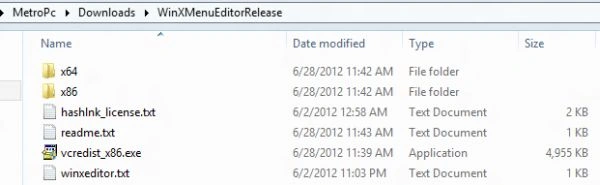
Unzip the downloaded folder and open it.
 Step 2
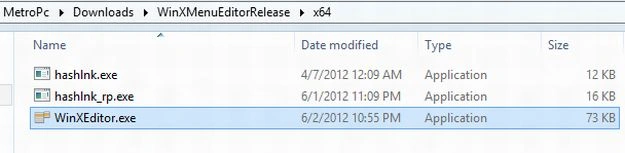
Open either the x64 or x86 folder. You will see the Win+X Menu Editor and the hashlnk executable files. Double-click on the WinXEditor.exe file to run the program.
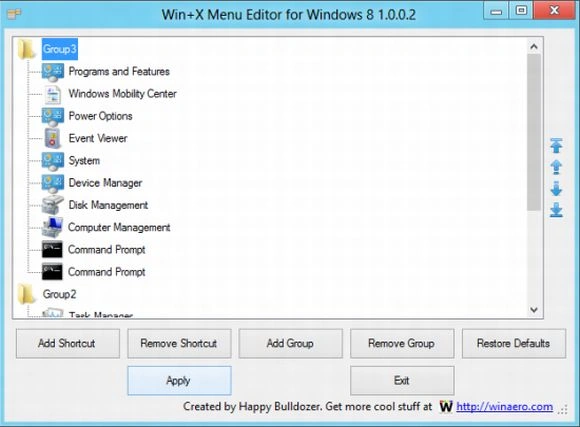
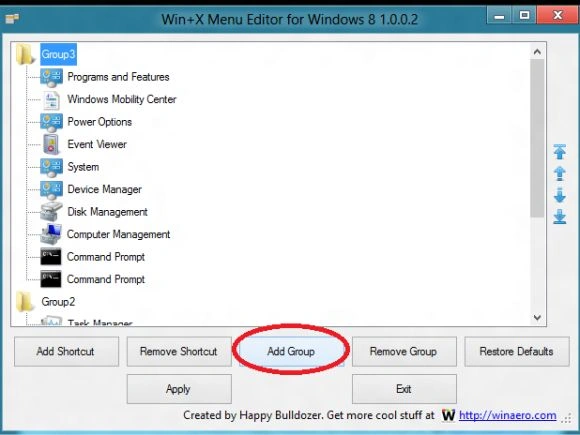
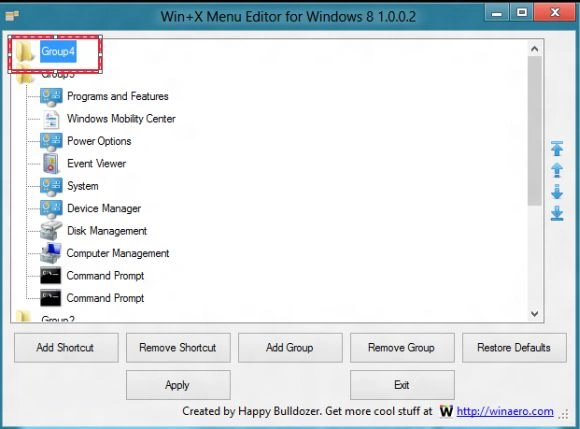
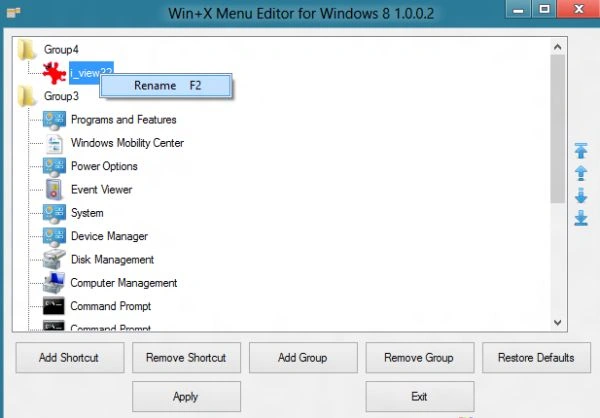
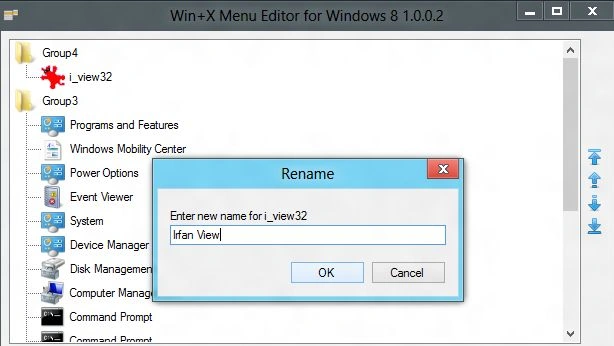
A Win+X Menu Editor for Windows 8 window is opened. There are already three groups of shortcuts displayed in the window.
 Step 4
Join the conversation! Your thoughts help the community grow.