

Introduction
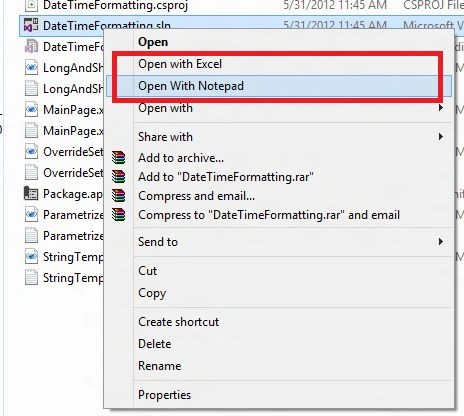
Today we are discussing the Context Menu that is shown when the user right-clicks a file to open it. By default when a user right-clicks on a file, a Context Menu is displayed and it consists of all the methods or lists to open the file. The user can select an option from the list to open the file. But in some cases, the default style is displayed with "Open with" which provides a list of various applications and the user must go through from the list of unknown applications. This leads to a waste of time to open a specific file. We can also extend the functionality of the Windows 8 Context Menu. We can also set our application as the one for opening files such as with Notepad.
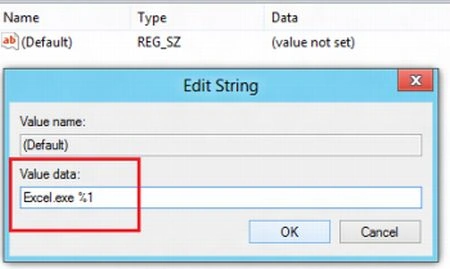
In this article, we are going to add an extra feature to open the files in the Context Menu of Windows 8. To add the option in the Context Menu we need to configure it in the registry. Here we define two options in the Context Menu "Open with Notepad" and "Open with Excel" by configuring it in the system registry.
You have to follow these steps to add the option in the Context Menu for all files in Windows 8.
Step 1
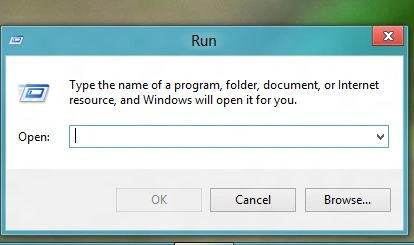
Go to the run box by pressing Windows Key + R from the keyboard.
 Step 2
Enter regedit.exe in the open box and press Ok.
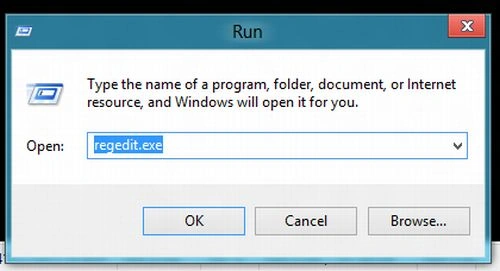 The Registry Editor window is opened.
Step 3
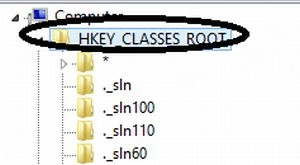
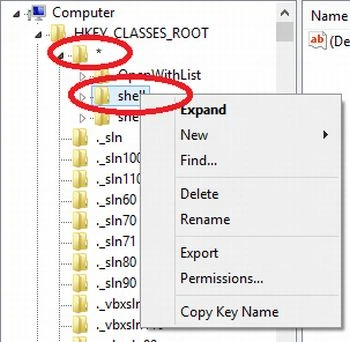
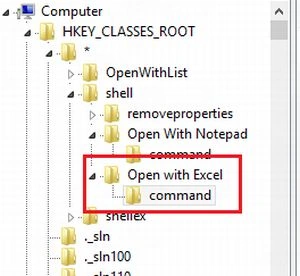
Go to the HKEY_CLASSES_ROOT and expand it. Then expand the * folder.
 Step 4
Point to the "shell" folder and right-click on it.
 Step 5
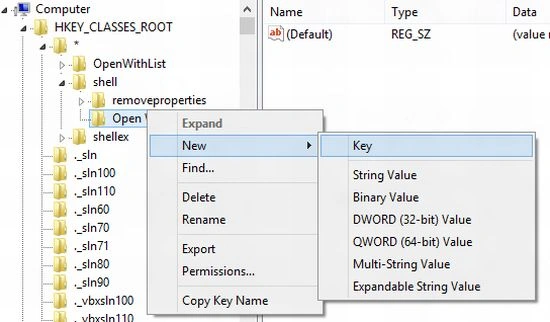
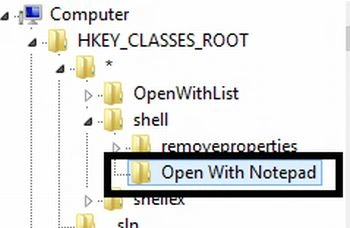
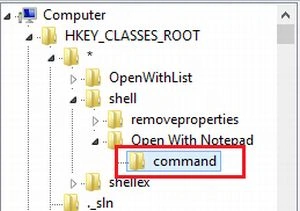
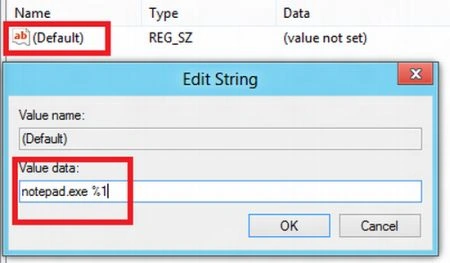
Phillip FeldmanPosted Feb 9, 2013, 3:31 PM
This is not working for me as described above. When I right-click on a file, the new item appears in the context menu, but if I select that item, a dialog box opens, asking "How do you want to open this file?" Whatever I select then becomes the new default application for opening this type of file. This is not good. Phillip M. Feldman