

Introduction
Today we explain how to add a Search contract item template in Windows Store apps. In Windows Store apps you can add the Search Contract item template to an app. The item template for searching in tables in an app to present a search results page for a search that's initiated by the Search charm.
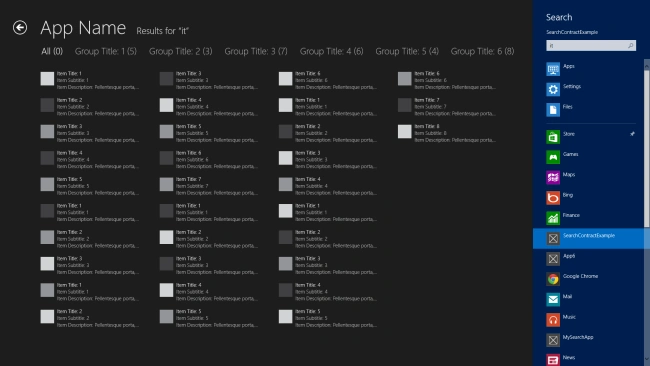
Using a search contract enables an app user to search from anywhere in their system, including from your app. Users will be able to use the Search charm to open a search pane where they can enter search queries and select your app to display their search results.
Step 1
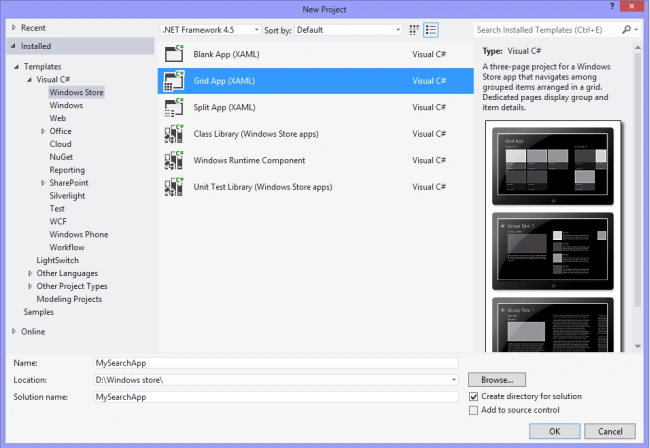
Open Visual Studio 2012 and create a new Windows Store apps project. In the New project dialog box select "Grid App" and click on "OK".
Step 2
Go to Solution Explorer, right-click the project and then click "Add" > "New Item".
Step 3
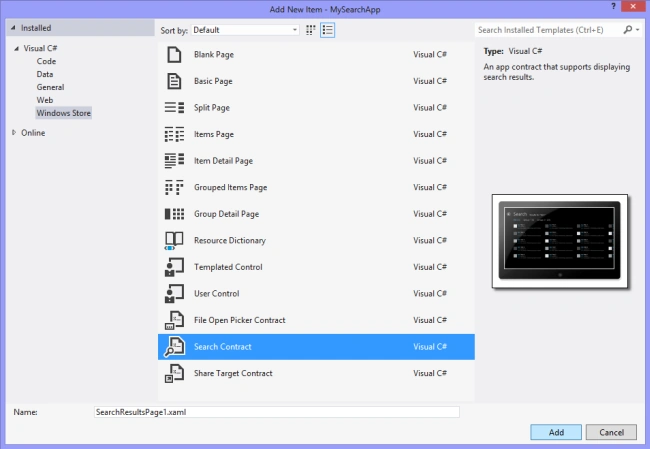
In the add new item dialog box select "Search contract" and name it "SearchResutlsPage1.xaml" and click on "Add".
Step 4
In the "SearchResutlsPage1.xaml.cs" page replace all code with the following code. If your search contract page name is different then you must change the name of the class.
using System;
using System.Collections;
using System.Collections.Generic;
using System.IO;
using System.Linq;
using Windows.ApplicationModel.Activation;
using Windows.Foundation;
using Windows.Foundation.Collections;
using Windows.UI.Xaml;
using Windows.UI.Xaml.Controls;
using Windows.UI.Xaml.Controls.Primitives;
using Windows.UI.Xaml.Data;
using Windows.UI.Xaml.Input;
using Windows.UI.Xaml.Media;
using Windows.UI.Xaml.Navigation;
using SearchContractExample.Data;
namespace SearchContractExample
{
public sealed partial class SearchResultsPage1 : SearchContractExample.Common.LayoutAwarePage
{
public SearchResultsPage1()
{
this.InitializeComponent();
}
public Dictionary<String, IEnumerable<SampleDataItem>> SearchResult { get; set; }
protected override void LoadState(Object navigationParameter, Dictionary<String, Object> pageState)
{
var queryText = navigationParameter as String;
var fltList = new List<Filter>();
var TotMatchItem = 0;
SearchResult = new Dictionary<string, IEnumerable<SampleDataItem>>();
foreach (var grp in SampleDataSource.GetGroups("AllGroups"))
{
var matchItems = grp.Items.Where(item => item.Title.Contains(queryText));
int NoOfMatchItems = matchItems.Count();
if (NoOfMatchItems > 0)
{
SearchResult.Add(grp.Title, matchItems);
fltList.Add(new Filter(grp.Title, NoOfMatchItems));
}
}
fltList.Insert(0, new Filter("All", TotMatchItem, true));
this.DefaultViewModel["QueryText"] = '\u201c' + queryText + '\u201d';
this.DefaultViewModel["Filters"] = fltList;
this.DefaultViewModel["ShowFilters"] = fltList.Count > 1;
}
void Filter_SelectionChanged(object sender, SelectionChangedEventArgs e)
{
var selectedFilter = e.AddedItems.FirstOrDefault() as Filter;
if (selectedFilter != null)
{
selectedFilter.Active = true;
if (selectedFilter.Name.Equals("All"))
{
var tempResults = new List<SampleDataItem>();
nazish sattarPosted Jan 18, 2018, 2:10 AM
How can i download it from here?
Gowtham RajamanickamPosted Apr 25, 2015, 6:43 AM
good