

This article explains how to add Silverlight into a web page using HTML. Use the following procedure to do this.
- Create a Silverlight application
- Add some TextBox and button to the XAML file
- Write the logic on the click event of the button in the .cs file
- Add a HTML page and add some tags to access the Silverlight generated .xap file
Step 1: Create a new project of Silverlight application named "SilverlightExample".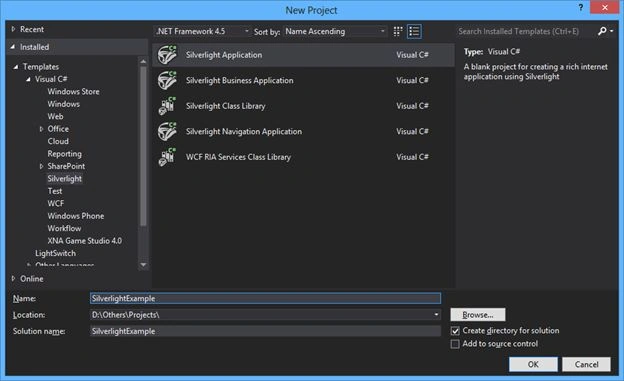
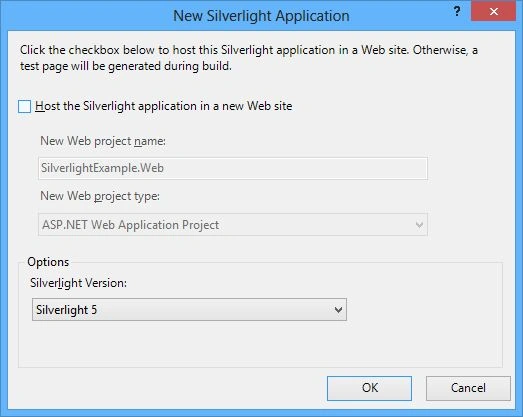
Uncheck the checkbox to not create a web project for hosting the Silverlight.
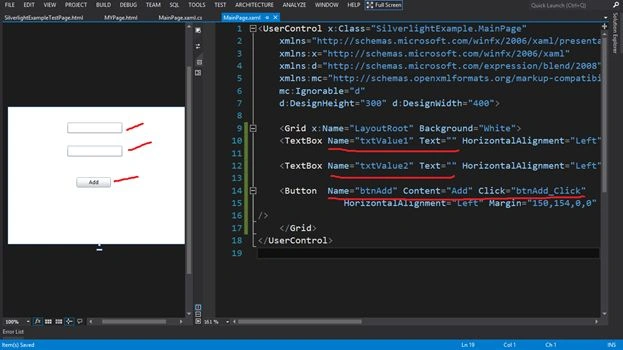
Step 2: In the default page named "MainPage.xaml", add 2 Textboxes for getting the input named "txtvalue1" and "txtvalue2" with blank text by default ( text=””) and add a button named "btnAdd" with content "Add". Then create onClick event of the button.
<TextBox Name="txtValue1" Text="" HorizontalAlignment="Left" Height="23" Margin="130,34,0,0" TextWrapping="Wrap" VerticalAlignment="Top" Width="120"/>
<TextBox Name="txtValue2" Text="" HorizontalAlignment="Left" Height="23" Margin="130,85,0,0" TextWrapping="Wrap" VerticalAlignment="Top" Width="120"/>
<Button Name="btnAdd" Content="Add" Click="btnAdd_Click" HorizontalAlignment="Left" Margin="150,154,0,0" VerticalAlignment="Top" Width="75" />
Step 3: Write the code in the section of the onclick event of the button in "MainPage.xaml.cs" that will add the values of the textboxes and show the addition via alert message.
int value1 = Convert.ToInt32(txtValue1.Text);
int value2 = Convert.ToInt32(txtValue2.Text);
int result = value1 + value2;
MessageBox.Show(result.ToString());

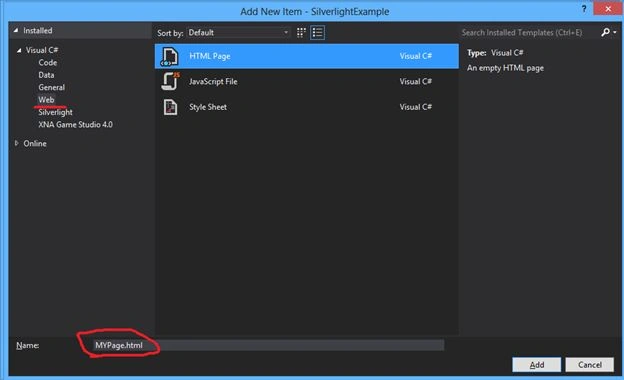
Step 4: Now add a HTML Page named "MYPage.html" into the application.
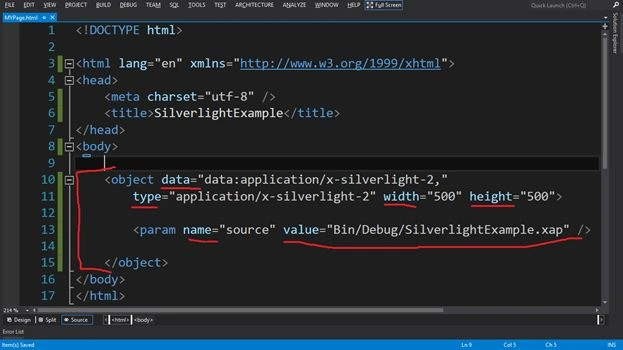
Add an <object> tag to the HTML page with data, type, width and height attributes and <param> element with name and value attributes.
<object data="data:application/x-silverlight-2," type="application/x-silverlight-2"
width="500" height="500">
<param name="source" value="Bin/Debug/SilverlightExample.xap" />
</object>
- data attribute and its value are recommended to avoid performance issues on some browsers.
- type attribute and the specific value shown are also required. This value uses the Silverlight MIME type to identify the plug-in and the required version.
- width and height attributes are required for cross-browser compatibility.
- the <param> element named source is required and indicates the location and name of your application file.
Note: .xap exists in the bin/Debug folder, that's why value="Bin/Debug/SilverlightExample.xap".
Open the HTML file using a browser.
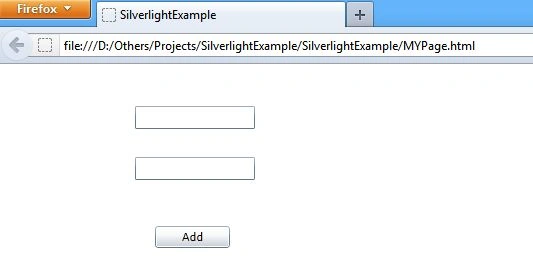
Enter the 2 integer values into the textboxes respectively and press the button to see the ouput.

You can also create the .html file anywhere in your system and put the Silverlight generated .xap file with in the same folder, but in this case you need to write the value="SilverlightExample.xap" because now the .xap and .html files are in the same folder or location.
Join the conversation! Your thoughts help the community grow.