

We have found several validation rule options in Add validation Rule Pop up:
- Form Field- Verifies the expected form field with Actual specified name and value.
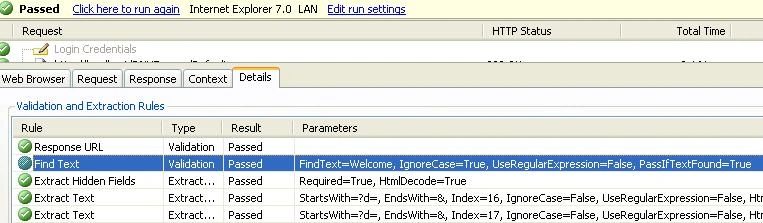
- Find Text- Verifies the expected text with Actual specified text in the response.
- Maximum Request Time- Verifies the request finishes within a specified of time.
- Required Attribute Value- Verifies the existence of a specified HTML tag that contains an attribute with a specified value.
- Required Tag- Verifies the existence of specified HTML tag in the response.
- Response UR- Validates that the response URL after redirects are followed is the same as the recorded response URL.
Adding a validation rule to a Web test
- Right-click on the Web request in the Web Test Editor
- From the context menu select "Add Validation Rule".
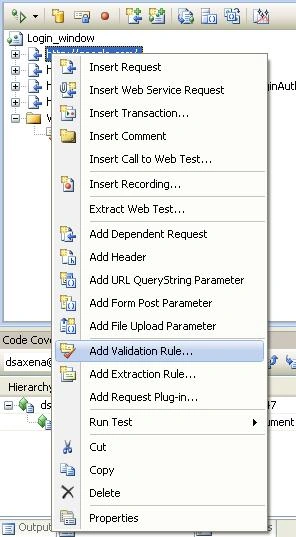
This will open the Add Validation Rule window:
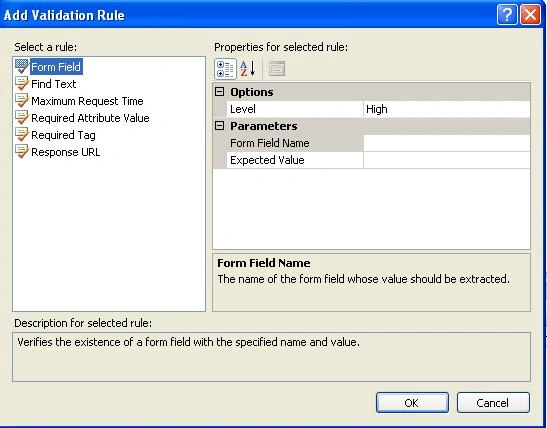
We have multiple Validation rule options to choose from.
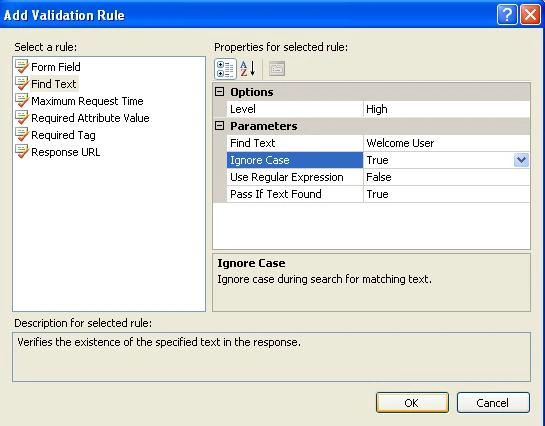
- Select the Find Text rule.
- Enter Welcome User in the Find Text property.
- Set the Ignore Case property to True.
- Click on OK button.
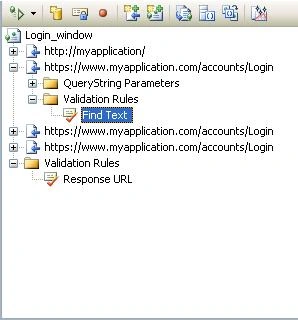
Now our web test, under the request, a new folder called Validation Rules with the rule we just created in it.
Click the run test from the top for web test again
Join the conversation! Your thoughts help the community grow.