

Introduction
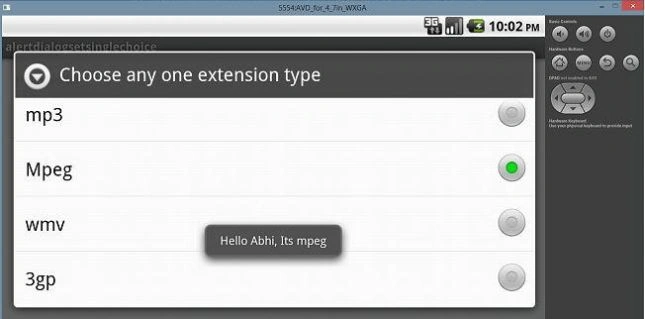
In this article, we'll learn how to add the alert dialog with setSingleChoiceitems in Android. Let's start with the following procedure.
- Start Eclipse IDE.
- Create a new project.
- Create a MainActivity.java file.
- Create an activity_main.xml file for layout design.
- Add a Textview field in the XML layout.
- Then declare a string array in the MainActivity class like this:
String[] str={"mp3","Mpeg","wmv","3gp"};
- Create an object like this: AlertDialog.Builder aa=new AlertDialog.Builder(this);
- With this object add setSingleChoiceItems.
The following is the code.
MainActivity.java
- package com.example.alertdialogsetsinglechoice;
- import android.app.Activity;
- import android.app.AlertDialog;
- import android.content.DialogInterface;
- import android.content.DialogInterface.OnClickListener;
- import android.os.Bundle;
- import android.widget.Toast;
- public class MainActivity extends Activity {
- String[] str = {
- "mp3",
- "Mpeg",
- "wmv",
- "3gp"
- };
- @Override
- protected void onCreate(Bundle savedInstanceState) {
- super.onCreate(savedInstanceState);
- setContentView(R.layout.activity_main);
- ffff();
- }
- public void ffff() {
- AlertDialog.Builder aa = new AlertDialog.Builder(this);
- aa.setTitle("Choose any one extension type");
- aa.setSingleChoiceItems(str, 2, new OnClickListener() {
- public void onClick(DialogInterface dialog, int which) {
- switch (which) {
- case 1:
- Toast.makeText(getApplicationContext(), "Hello Abhi, Its mpeg", 100).show();
- break;
- case 2:
- Toast.makeText(getApplicationContext(), "Hello Guyzz ", 100).show();
- break;
- case 3:
- Toast.makeText(getApplicationContext(), "Hello Guyzz ", 100).show();
- break;
- case 4:
- Toast.makeText(getApplicationContext(), "Hello Guyzz ", 100).show();
- break;
- default:
- break;
- }
- }
- });
- aa.show();
- }
- }
activity_main.xml
Join the conversation! Your thoughts help the community grow.