

This article tells you how to set up a custom domain name for the Azure VM using DNS Zone. DNS zone in Azure is basically used to host the DNS record. To host our domain name in Azure DNS, we need to create a DNS Zone.
- Create a DNS Zone
- Customizing the Nameserver in GoDaddy
- Add a DNS record in Zone
Create a DNS Zone
Step 1
Login into Azure portal (https://portal.azure.com/# )
Step 2
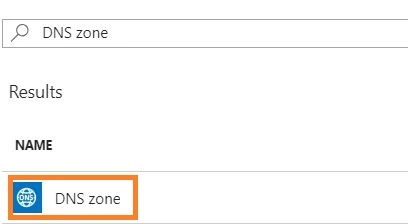
Search for DNS Zone in marketplace, select and click on create.
Step 3
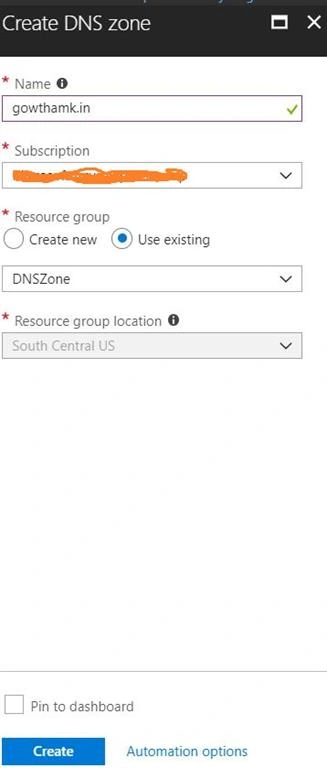
Give a domain name as a DNS Zone name, select a subscription, resource group and location
Customizing the Nameserver in GoDaddy
Step 1
Login to GoDaddy
Step 2
Go the Domains and click on DNS as shown in the below figure.

Step 3
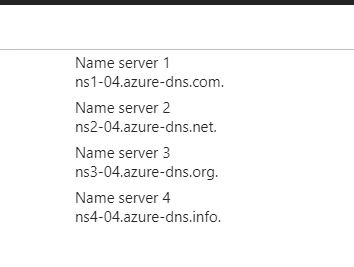
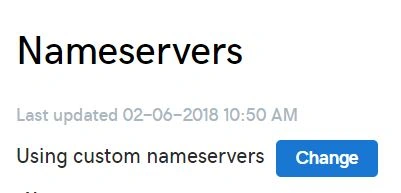
In Nameservers section click on change, choose customize from the dropdown and add a nameservers which is listed in Azure DNS Zone
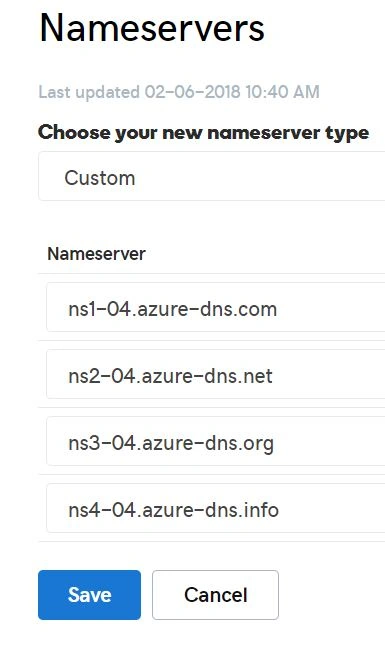
Add a DNS record in Zone
Step 1
Go back to Azure portal DNS Zone
Step 2
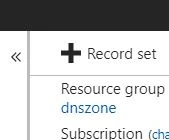
Click on Record Set, as show in the below figure
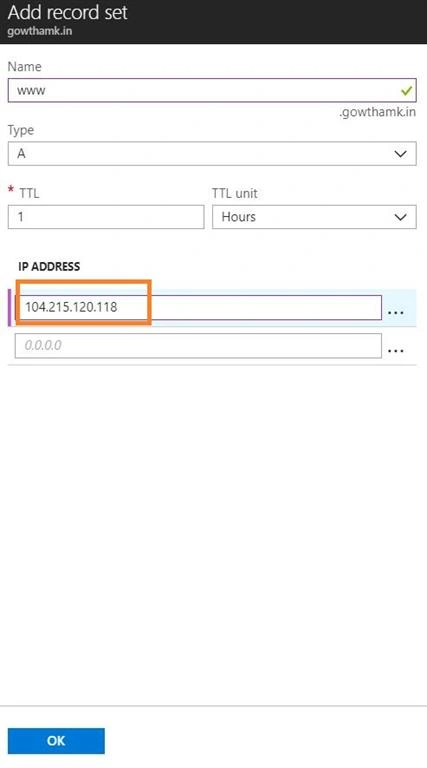
Give the name as www, choose type as A, and add an IP (In my case I added an IP of my VM which is created in my last article), as shown in the below figure.
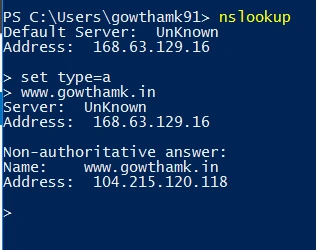
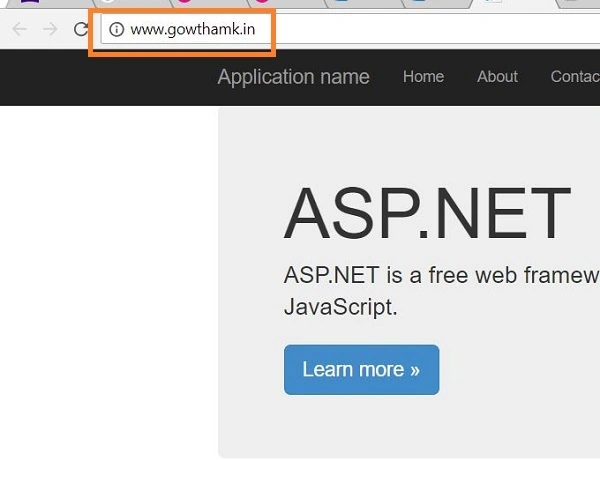
Usually DNS propagation will take some time, we can confirm the mapping using the powershell nslookup command as shown in the below figure.
david tayoPosted Nov 12, 2020, 2:03 PM
Hi, thanks for this. But I want to host multiple websites on a single VM in Azure. How can I achieve that?
Hadshana KamalanathanPosted Jul 14, 2018, 11:45 PM
Thank you for sharing...
Vignesh ManiPosted Jun 6, 2018, 6:20 AM
Nice article bro. Thank you for sharing