
This article describes the process to add a picture on a button on an Outlook Commandbar.
Using VSTO, we can add coomandbars to an office application. Following code can be used to add a commandbar to an outlook application.
using
Outlook = Microsoft.Office.Interop.Outlook;using Office = Microsoft.Office.Core;
string COMMANDBAR_NAME = "My ToolBar";
Office.CommandBar myBar;
Office.CommandBarButton myButton;
myBar = this.ActiveExplorer().CommandBars.Add(COMMANDBAR_NAME, Office.MsoBarPosition.msoBarTop, false, true);
myBar.Visible = true;
Now to add a button to the commandbar use following code
string BUTTON_NAME = "My Button";Office.CommandBarButton myButton;
myButton = (Office.CommandBarButton)myBar.Controls.Add(Office.MsoControlType.msoControlButton, Type.Missing, Type.Missing, Type.Missing, true);
myButton.Caption = BUTTON_NAME;
myButton.Style = Office.MsoButtonStyle.msoButtonIconAndCaption;
myButton.Enabled = true;
Till now things were so easy, isn't it? Now comes the toughest part i.e. how to add a picture to the command button like u see in various office applications.
If however you can see in the below diagram that CommandBarButton supports a property Picture. The issue with this property as evident form the diagram below is this Picture property takes an instance of stdole.IPictureDisp.
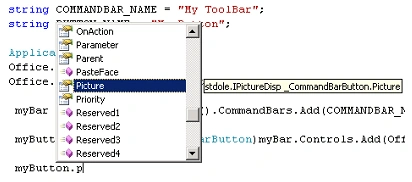
So how doe we get IPictureDisp from a bitmap. We can make use of a class System.Windows.Forms.AxHost which provides a protected method GetIPictureDispFromPicture which will return an IPictureDisp from an Image.
Include following class in your application.
using
System;using System.Drawing;
using System.Windows.Forms;
using stdole;
public class MyHost : AxHost
{
public MyHost(): base("59EE46BA-677D-4d20-BF10-8D8067CB8B33")
{
}
public new static IPictureDisp GettIPictureDispFromPicture(Image image)
{
return (IPictureDisp)AxHost.GetIPictureDispFromPicture(image);
}
}
Above class inherits from System.Windows.Forms.AxHost. So now that we have this class, we can pass an image to the method GetIPictureDispFromPicture and can get the IPictureDisp in return. There are several ways to pass an image to this method.
You can embed a bitmap in your project (assign the Build Action property as Embedded Resource) and then load the same using reflection as shown below.
Assembly ThisAssembly = Assembly.GetExecutingAssembly();
Stream imgageStream = ThisAssembly.GetManifestResourceStream("AssembleName.BitmapFile");
myButton.Picture = MyHost.GetIPictureDispFromPicture(Image.FromStream(imgageStream));
Alternatively you can have an ImageList control on a form class in your application and assign the picture to the image list. Then the same can be passed to the GetIPictureDispFromPicture as shown below.
myButton.Picture = MyHost.GetIPictureDispFromPicture(MyForm.ImageList.Images(0));
This approach will work fine when you use Explorer. The same fails when you try to assign the picture property to a CommandBarButton on a CommandBar using Outlook Inspector. Just to inform, the Outlook object model also defines two interesting types i.e. Explorer and Inspector, which allows you to manipulate the user interface. An Explorer represents a window in which folder contents are displayed. An inspector represents a window that contains a specific Outlook item, such as an e-mail message or a contact, and any tabbed pages within the Outlook item (for example, the Details tab of a task item). The Application class maintains a collection of all Explorers and Inspectors, which can be obtained using the properties Explorers and Inspectors. You can get the currently active UI element by using methods GetActiveExplorer() and GetActiveInspector() of Application class.
Ok now let's come back to our original discussion point i.e. how to assign the Picture property to a CommandBarButton while using Outlook Inspector. Somehow the above approach doesn't work with Outlook Inspector.
However there is a workaround for the same. To set the Picture property to a CommandBarButton while using Outlook Inspector, you can use the ClipBoard object. ClipBoard exposes a method SetDataObject as shown below.
public
static void SetDataObject(object data, bool copy);This method places data on the system clipboard and specifies whether the data should remain on the clipboard after the application exits (as indicated by the Boolean variable copy).
Now you can use following code to assign the picture property to a CommandBarButton while using Outlook Inspector.
Clipboard.SetDataObject(MyForm.ImageList.Images(0),
false);myButton.PasteFace(); On a closing note, you can specify an image on a CommandBarButton by assigning a property called FaceId. Office provides thousands of icons by default. You just have to choose one and assign the FaceId property as shown below.
myButton.FaceId = 2521;
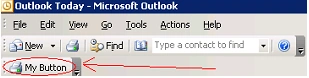
In above code I am assigning the FaceId as 2521, which represents the Print icon as shown below.
david_cool721editedPosted Oct 7, 2009, 10:06 PMEdited Oct 7, 2009, 10:09 PM
Hi Amit, Can i have this source code from you? my email address as below: [email protected] Cheers
George MathewPosted Apr 2, 2009, 9:29 AM
AxHost.GetIPictureDispFromPicture(image); above line not working,, GetIPictureDispFromPicture i s not a member of AxHost
y vinod kumarr reddyPosted Dec 4, 2007, 2:20 AM
hi can usend how to get values of faceid property and that to i want the value of search icon of faceid plz help me as soon as possible if u know
Abey RajuPosted Sep 29, 2006, 11:57 PM
How to add a custom button in the "New message" of Outlook? Can I know how to add a button in the "New Message" of the outlook? Can you please help me with an example. I have seen examples of adding button to the main appplication but not any in the new message. Thanx. Abey Thomas
Haider ShahPosted Aug 22, 2006, 7:22 AM
Hello Amit. I am using Vb.Net 2003. I Build a Addin for Outlook 2003 . same as u write i used Paseface function to paste icon in mail inspector and it is pasted successfully but its mask i mean it is not in transparent form so please inform me how can i pasted it in Transparent form like in Explorer ".Picture" property for Picture and ".Mask" property for it mask of Transparent. I am using the following function Public Function S_CopyBmpToClipboard1(ByVal idx As Integer) As Boolean Try Dim datobj As New System.Windows.Forms.DataObject ' Bitmap.FromFile() datobj.SetData(DataFormats.Bitmap, Me.frmImages.ImageList1.Images(idx)) Clipboard.SetDataObject(datobj) S_CopyBmpToClipboard1 = True Catch ex As Exception S_CopyBmpToClipboard1 = False End Try End Function i am waiting for your soon reply. Thanks.