

Introduction
In this article, I will show you how to add a RadioButton control in the Web API. We use the radio button in a group in which we select only one at a time. When the user uses the radio button then the user makes a choice among a set of absolute and related options. The user can select only one option from the radio buttons set. Radio Buttons are so called because they work like channels on a radio.
Now see an example of adding the radio button control in the Web API.
Step 1
Create a Web API application as in the following:
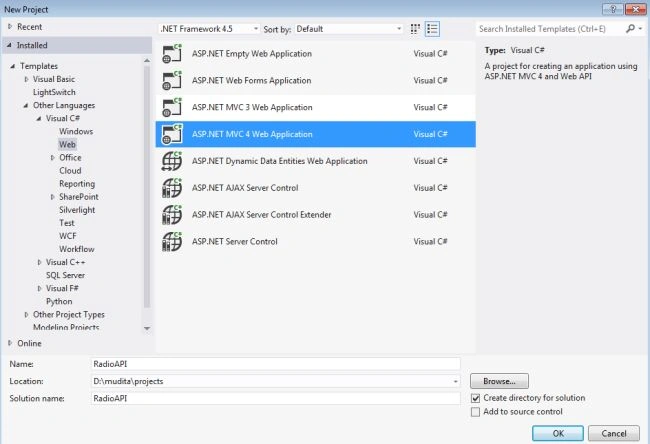
- Start Visual Studio 2012.
- From the start window select "Installed" -> "Visual C#" -> "Web".
- Select "ASP.NET MVC4 Web Application" and click the "OK" button.
- From the "MVC4 project" window select "Web API".
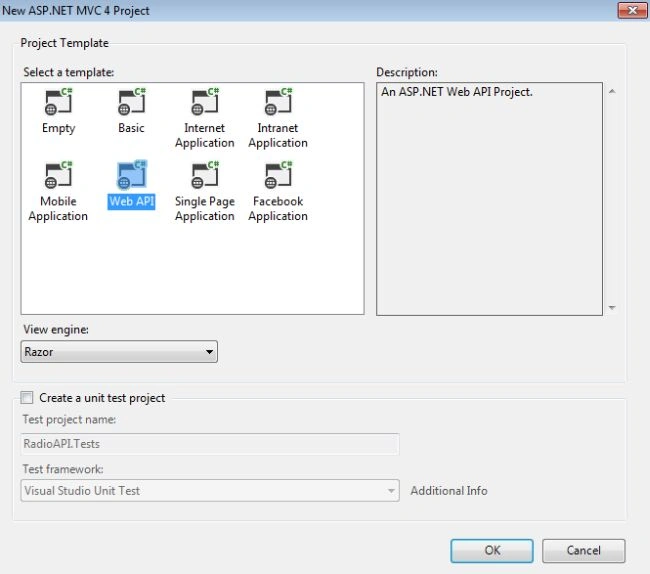
- Click the "OK" button.
Step 2
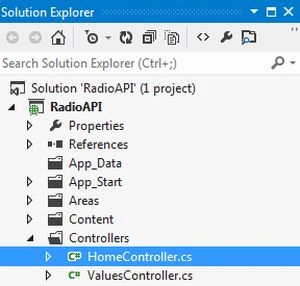
Select the "HomeController.cs" file and write some code. This file exists in:
- In the "SolutionExplorer".
- Select "Controller" -> "HomeController".
Add the following code in this file:
- using System;
- using System.Collections.Generic;
- using System.Linq;
- using System.Web;
- using System.Web.Mvc;
- namespace RadioAPI.Controllers
- {
- public class HomeController : Controller
- {
- public ActionResult Index()
- {
- return View();
- }
- [AcceptVerbs(HttpVerbs.Post)]
- public string Display(FormCollection form)
- {
- string selectlanguage = form["language"];
- return "Selected Language: <b>" + selectlanguage + "</b>";
- }
- }
- }
Join the conversation! Your thoughts help the community grow.