

Here we will see how to programmatically add a record from one table to another using LightSwitch in Visual Studio 2012.
Procedure showing how to add a record from one table to another.
Step 1
Open the LightSwitch Application in Visual Studio 2012 and go to the Solution Explorer.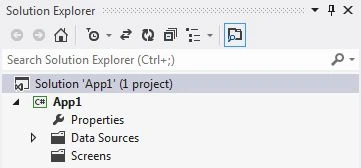
Right-click on the Data Source and choose "Add Table".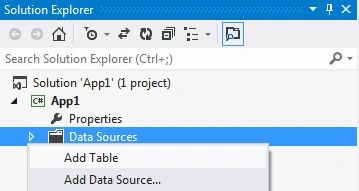
The table appears in the table designer window. Insert the records in the following table. In this way we will add two tables.
Employee Table
ExEmployee Table 
Step 2
Now once again go to the Solution Explorer. Right-click on Screens and choose "Add Screen".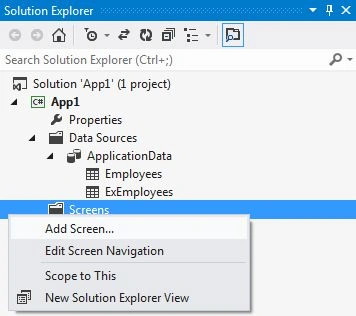
The Add New Screens dialog box appears. Select the "List and Details Screen" from the Screen Template, under screen information, choose "Employee" under screen data and provide some name to the Screen and click the "OK" button.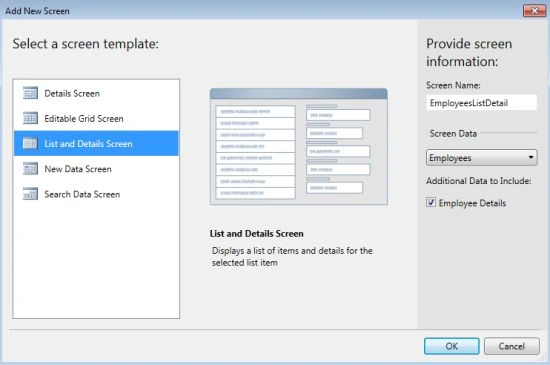
The Screen Designer appears as shown below.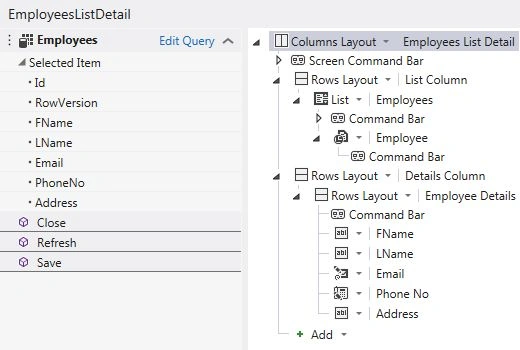
In the same way we will add another Screen, in other words "Search Data Screen". But this time under Screen Data, choose "ExEmployee" as shown below.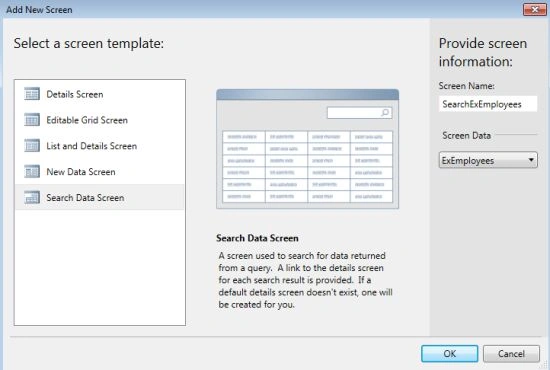
Step 3
Now open the Screen Designer of the List and Details Screens.
Under the Command Bar, right-click on the Delete option and choose "Override Code".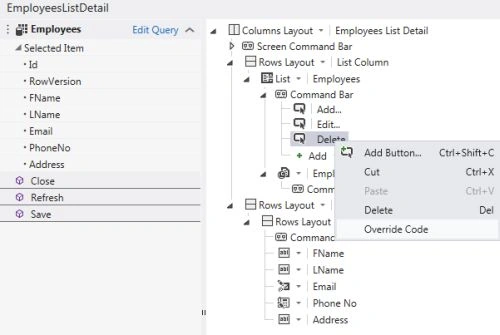
Step 4
The Code Designer appears. Do your coding under the " _ Execute()" method.
using System;
using System.Linq;
using System.IO;
using System.IO.IsolatedStorage;
using System.Collections.Generic;
using Microsoft.LightSwitch;
using Microsoft.LightSwitch.Framework.Client;
using Microsoft.LightSwitch.Presentation;
using Microsoft.LightSwitch.Presentation.Extensions;
namespace LightSwitchApplication
{
public partial class EmployeesListDetail
{
partial void EmployeeListDeleteSelected_CanExecute(ref bool result)
{
// Write your code here.
}
partial void EmployeeListDeleteSelected_Execute()
{
// Write your code here.
ExEmployee ex = this.DataWorkspace.ApplicationData.ExEmployees.AddNew(); // Creates a new record in ExEmployee entity.
ex.FName = this.Employees.SelectedItem.FName; // It assign the deleted Employee record to the ExEmployee properties.
ex.LName = this.Employees.SelectedItem.LName; // It assign the deleted Employee record to the ExEmployee properties.
ex.Email = this.Employees.SelectedItem.Email; // It assign the deleted Employee record to the ExEmployee properties.
ex.PhoneNo = this.Employees.SelectedItem.PhoneNo; // It assign the deleted Employee record to the ExEmployee properties.
ex.Address = this.Employees.SelectedItem.Address; // It assign the deleted Employee record to the ExEmployee properties.
this.Employees.SelectedItem.Delete(); // It deletes the Employee record which is to be deleted.
this.DataWorkspace.ApplicationData.SaveChanges(); // It saves the changes made to the ExEmployee.
}
}
}
Step 5
Press F5 to run the application. Insert some records inside the table. 
After inserting the record in the "EmployeeListDetail" Screen, select that record and delete it.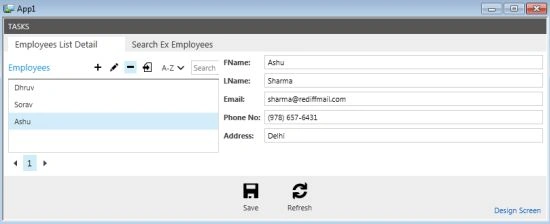
Now we will see that the deleted record will be saved in the "SearchExEmployees" Screen.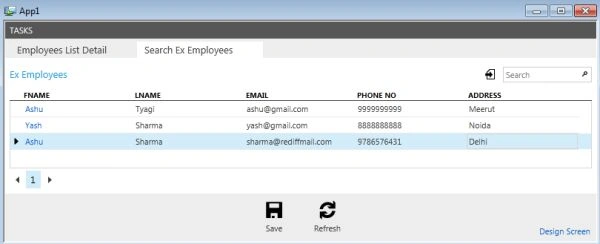
Ck NitinPosted Sep 23, 2013, 10:55 PM
http://social.msdn.microsoft.com/Forums/vstudio/en-US/9bc44af7-74a3-4a7f-acf0-cf2551484246/is-visual-studio-lightswitch-worth-learning