
First of all we should realize that we are writing for pocketPC and not for PC platform. What the differences? Well despite interfaces and forms there is one big problem - limited memory! This means whatever we do and create - it must not "eat" to much memory. Adding graphics to a sudoku in C# can be a bit treaky. Of course we can always use C++ lagnguage and create a more low level code and more optimized compiled source but let's do some work and use C# to do that.
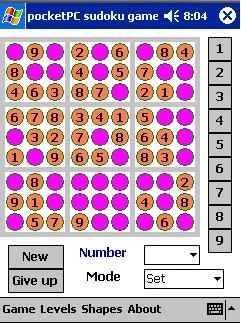
First - lets create some nice interface - buttons. it is not that difficult to do if you are familiar with user controls and event handling. We will use both since our button must responce to a click.
The definition of colorbutton class in in colorbutton.cs file of sources. Initially this class was created for a PC, but since compact environment does not support some of its features they were just disabled but main feature remains - a button is better than a regular one in compact framework - we can real-time change its shape and colors!
using System;
using System.ComponentModel;
using System.Drawing;
using System.Drawing.Drawing2D;
using System.Windows.Forms;
namespace ColorButton
{
public class ColorButton : System.Windows.Forms.Control
{
private enum _States
{
Normal,
MouseOver,
Clicked
}
public enum ButtonStyles
{
Rectangle,
Ellipse
}
// default values
private bool _Active = true;
private _States _State = _States.Normal;
private ButtonStyles _ButtonStyle = ButtonStyles.Rectangle;
private int handle = 0;
private Color _NormalBorderColor = Color.Green;
private Color _NormalColorA = Color.Green;
private Color _NormalColorB = Color.Honeydew;
private Color _HoverBorderColor = Color.MediumVioletRed;
private Color _HoverColorA = Color.MediumVioletRed;
private Color _HoverColorB = Color.White;
public ColorButton(int ihandle)
{
// initiate button size and font
base.Size = new Size(200, 40);
base.Font = new Font("Verdana", 10, FontStyle.Bold);
this.handle = ihandle;
}
public int getHandle()
{
return this.handle;
}
public ButtonStyles ButtonStyle
{
get
{
return _ButtonStyle;
}
set
{
_ButtonStyle = value;
this.Invalidate();
}
}
public Color NormalBorderColor
{
get
{
return _NormalBorderColor;
}
set
{
_NormalBorderColor = value;
this.Invalidate();
}
}
public Color HoverBorderColor
{
get
{
return _HoverBorderColor;
}
set
{
_HoverBorderColor = value;
this.Invalidate();
}
}
public Color NormalColorA
{
get
{
return _NormalColorA;
}
set
{
_NormalColorA = value;
this.Invalidate();
}
}
public Color NormalColorB
{
get
{
return _NormalColorB;
}
set
{
_NormalColorB = value;
this.Invalidate();
}
}
public Color HoverColorA
{
get
{
return _HoverColorA;
}
set
{
_HoverColorA = value;
this.Invalidate();
}
}
public Color HoverColorB
{
get
{
return _HoverColorB;
}
set
{
_HoverColorB = value;
this.Invalidate();
}
}
public bool Active
{
get
{
return _Active;
}
set
{
_Active = value;
this.Invalidate();
}
}
// to make sure the control is invalidated(repainted) when the text is changed
public override string Text
{
get
{
return base.Text;
}
set
{
base.Text = value;
this.Invalidate();
}
}
protected override void OnPaint(System.Windows.Forms.PaintEventArgs e)
{
SolidBrush brush;
SizeF textSize = e.Graphics.MeasureString(this.Text, base.Font);
int textX = (int)(base.Size.Width / 2) - (int)(textSize.Width / 2);
int textY = (int)(base.Size.Height / 2) - (int)(textSize.Height / 2);
Rectangle newRect = new Rectangle(ClientRectangle.X + 1, ClientRectangle.Y + 1,
ClientRectangle.Width - 3, ClientRectangle.Height - 3);
if (_Active)
{
brush = new SolidBrush(_NormalColorA);
switch (_ButtonStyle)
{
case ButtonStyles.Rectangle:
e.Graphics.FillRectangle(brush, newRect);
e.Graphics.DrawRectangle(new Pen(_NormalBorderColor), newRect);
break;
case ButtonStyles.Ellipse:
e.Graphics.FillEllipse(brush, newRect);
e.Graphics.DrawEllipse(new Pen(_NormalBorderColor), newRect);
break;
}
e.Graphics.DrawString(this.Text, base.Font, new SolidBrush(base.ForeColor), textX, textY);
}
else
{
brush = new SolidBrush(_NormalColorA);
switch (_ButtonStyle)
{
case ButtonStyles.Rectangle:
e.Graphics.FillRectangle(brush, newRect);
e.Graphics.DrawRectangle(new Pen(_NormalBorderColor), newRect);
break;
case ButtonStyles.Ellipse:
e.Graphics.FillEllipse(brush, newRect);
e.Graphics.DrawEllipse(new Pen(_NormalBorderColor), newRect);
break;
}
e.Graphics.DrawString(this.Text, base.Font, new SolidBrush(_NormalColorA), textX, textY);
}
}
protected override void OnMouseUp(System.Windows.Forms.MouseEventArgs e)
{
if (_Active)
{
_State = _States.MouseOver;
this.Invalidate();
base.OnMouseUp(e);
}
}
protected override void OnMouseDown(System.Windows.Forms.MouseEventArgs e)
{
if (_Active)
{
_State = _States.Clicked;
this.Invalidate();
base.OnMouseDown(e);
}
}
protected override void OnClick(System.EventArgs e)
{
// prevent click when button is inactive
if (_Active)
{
if (_State == _States.Clicked)
{
base.OnClick(e);
}
}
}
}
}
Now let see what we've got :

Looks not bad isn't it? But it is not all - in the menu you might want those buttons to be somethins else? No problem :
Working in this direction you might change the above class and create whatever shape you want - I leave it to your imagination :)
Now what else can we add to make a user's life a bit better?
We can add some kind of hints, no, not the hits which number to put, it would make a game not interesting, but at least we might tell to user that he is putting a number which can not be at that place bacause he is violating a sudoku rules - same number twice in a row, column or a block! I'm not that good to always see it so I can make such mistake just very easy.
for(int xx = 0; xx < 9; xx++)
{
if(xx != x)
{
if(sudoku[xx][y] == chosenNum)
{
MessageBox.Show("Number " + chosenNum.ToString() + " can not be set!","Column constraint violated!");
buttons[x][y].Text = " ";
statuses[x][y] = 0;
buttons[x][y].NormalColorA = colors[statuses[x][y]];
sudoku[x][y] = 0;
numbers[chosenNum]++;
clickers[chosenNum-1].Visible = true;
return;
}
}
if(xx != y)
{
if(sudoku[x][xx] == chosenNum)
{
MessageBox.Show("Number " + chosenNum.ToString() + " can not be set!","Row constraint violated!");
buttons[x][y].Text = " ";
statuses[x][y] = 0;
buttons[x][y].NormalColorA = colors[statuses[x][y]];
sudoku[x][y] = 0;
numbers[chosenNum]++;
clickers[chosenNum-1].Visible = true;
return;
}
}
}
int relX = 3*(x/3);
int relY = (y/3)*3;
for(int xx = relX;xx < relX+3;xx++)
for(int yy = relY; yy < relY+3; yy++)
{
if(xx != x && yy != y)
{
if(sudoku[xx][yy] == chosenNum)
{
MessageBox.Show("Number " + chosenNum.ToString() + " can not be set!","Block constraint violated!");
buttons[x][y].Text = " ";
statuses[x][y] = 0;
buttons[x][y].NormalColorA = colors[statuses[x][y]];
sudoku[x][y] = 0;
numbers[chosenNum]++;
clickers[chosenNum-1].Visible = true;
return;
}
}
}

In my previous article I have already explained how to generate sudokus and solve them using programming techniques ( use of Knuth's dancing links algorythm ), so this time for those who missed it just a few words :
Generating a valid sudoku grid can be done in many ways, for me the fastest I could make for now was is to use an actual sudoku solver. So first I fill 27 sudoku cells on the big diagonal - upper left, middle and lower right blocks since all those cell do not have intersections with others. So I fill them with random variations of numbers 1.9
Next I use my solver to found a firt solution for this grid - if no solution, well fill it again.
After getting solution I start to remove numbers one by one and checking that grid would have a solution and preferbly the only one. If no, I put the taken number back and play with other one. I continue to do so until there are expected number of numbers ( clues ) left on the grid.
The solver it simple inplementation of an total coverage puzzle solution. I create matrix for covering all constraints and numbers already existing in a grid and find a combination as it is done for a classic Knuth's matrix with 1's and zeroes. You might do a short lookup in google for it, it is easy to find that article.
Good luck in making games.
Join the conversation! Your thoughts help the community grow.