

Step 1
Open Expression Blend 4 -> select Silverlight-Application -> select Silverlight-Application + Website -> change Name and Location accordingly -> hit OK.
Step 2
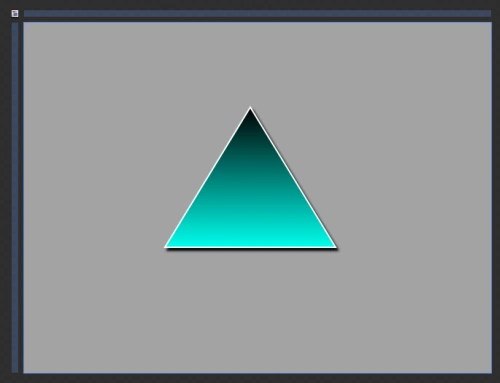
Select Assets -> select Triangle -> draw Triangle -> manage width & height, color, stroke color and stroke thickness as shown below:
Step 3
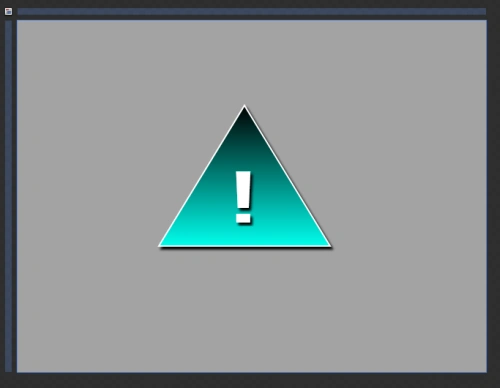
Select Text-Block from Tool-Box , hit Exclamation Mark from the Keyboard with Shift-Key inside Text-Block , manage width & height, color, stroke color and stroke thickness as shown below:
Step 4
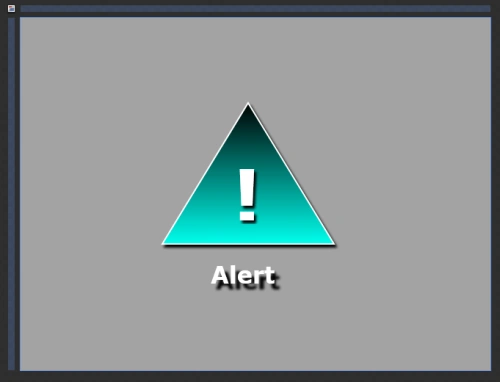
Again, select Text-Block from the Tool-Box, Write Alert, manage width & height, color, stroke color and stroke thickness as shown below:
Step 5
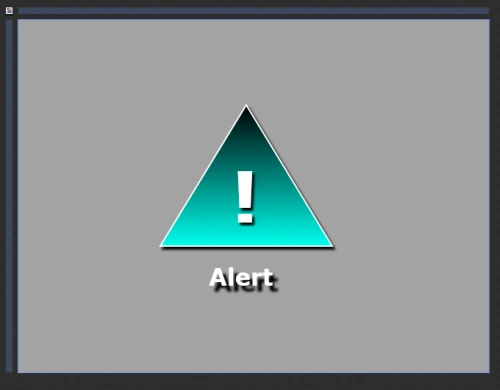
Have a look at the XAML code as shown below:
<ed:RegularPolygon InnerRadius="1" PointCount="3" Stretch="Fill" Stroke="White" UseLayoutRounding="False" Margin="192,115,212,171" StrokeThickness="2">
<ed:RegularPolygon.Effect>
<DropShadowEffect/>
</ed:RegularPolygon.Effect>
<ed:RegularPolygon.Fill>
<LinearGradientBrush EndPoint="0.5,1" StartPoint="0.5,0">
<GradientStop Color="Black" Offset="0"/>
Join the conversation! Your thoughts help the community grow.