

Introduction
Microsoft Power Platform enables the power users and end-users to have the process automated easily by providing powerful actions with less code to no code. Almost any user who has zero knowledge of this powerful platform can start building by leveraging existing templates and configuring the actions according to the needs. Now coming to this flow being turned off, I recently experienced this scenario where there are 2 notifications.
‘Your flow is not running’
This notification basically says your flow is not running for the past 90 days and please take action. If there is no action for the next 30 days your flow will be turned off completely. Below is the screen capture for reference.

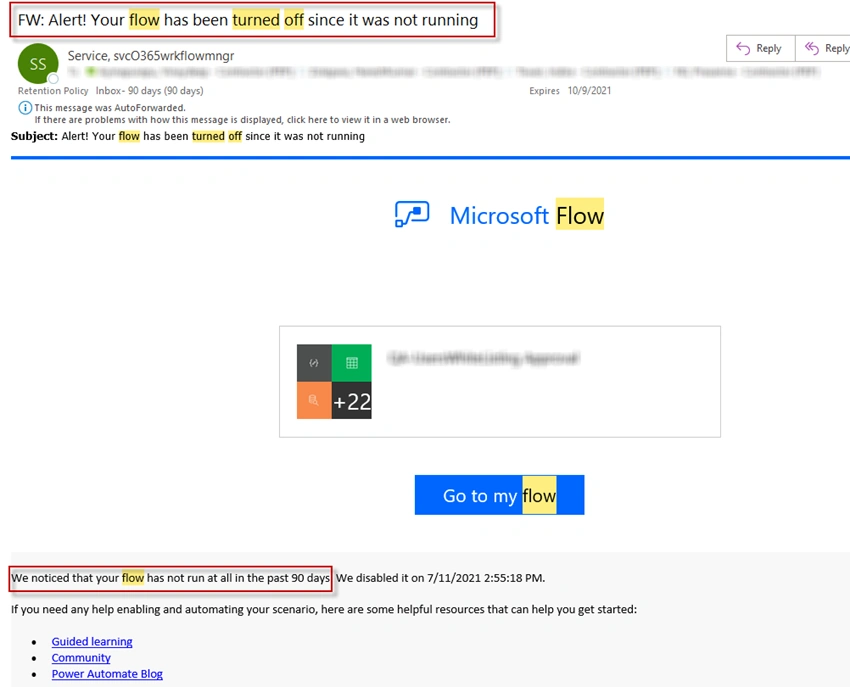
‘Your flow has been turned off'
This is the second and final notification, which basically says your flow has been turned off.
In any of the above scenarios, as a flow owner, you can go back to flow and turn on again and things are back to normal. This article explains how you can automatically turn on flows using the existing actions in Power Automate.
You can also download the package, that is attached to article and import it to your environment and test this flow. Also, there is a video on the reference section done by Deepak and provided step-by-step guidance.
Reason
Your flow could be turned off for the following 3 reasons,
- Reason1: Your flow may not have run for the past 3 months and if there is no action text in the next 30 days, in other words, if there are no runs for flow for 120 days then it will be turned off.
- Reason2: If the flow is running with issues, for the 14 days and no action is taken during the end of the 14th day
- Reason3: If the flow is throttling for the first 14 days and no action is taken by the end of the 14th day
In this article, we will go through the steps to turn on which got ‘turned off due to reason 1 where the flows do not have any trigger activity for consecutive 120 days.
Fix
However, there are some ways you can overcome this situation, where you know that a particular flow needs to be run. An example could be where there are quarterly reviews for employees or yearly appraisal for promotion cycles, where the flow needs to run quarterly (every 3 months), yearly (once a year). In this case, you can leverage the flow actions for following
- To get a list of flows that got ‘Turned Off’
- To turn on the selected flows.
Steps
Step 1
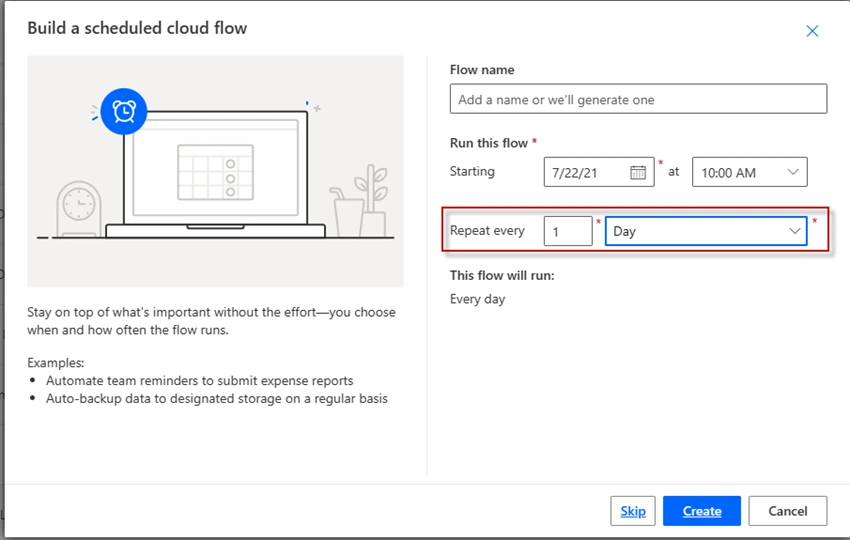
Go to the flow maker portal and click on ‘Scheduled cloud flow’. I am creating for the day. you can configure to run per week or month based on the need.
Step 2
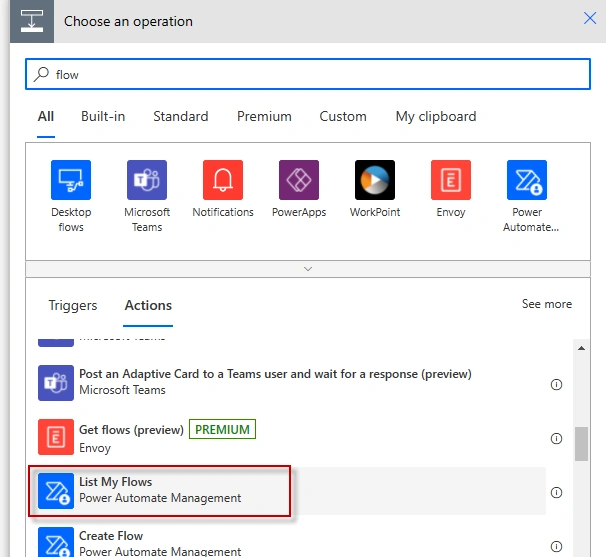
Search for ‘flow’ under new step à operation, and select ‘List My Flows’?
Step 3
Every response contains flowing
- DisplayName
- State
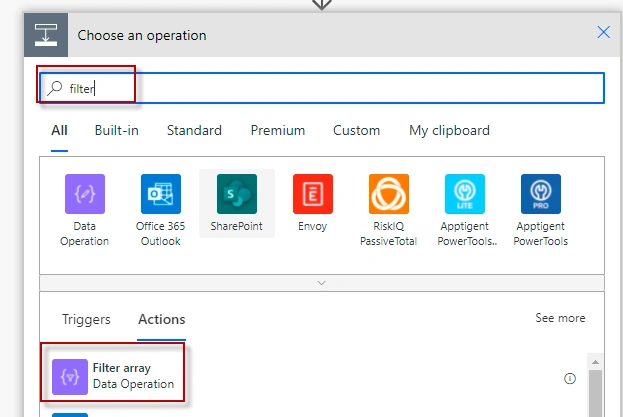
Now add action and now search for ‘Filter’ and select ‘Filter Array’.
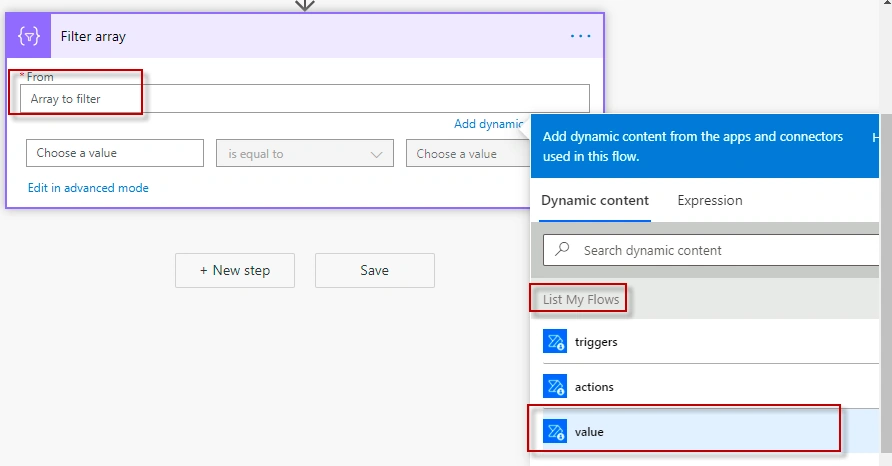
For the ‘From’ value select the ‘value’ that is coming from ‘List My Flows’.
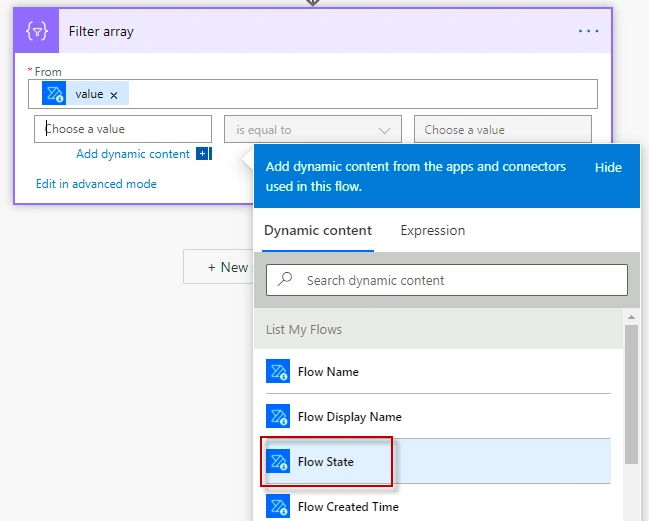
In the filter select the value ‘Flow State’ coming from ‘List My Flows’.
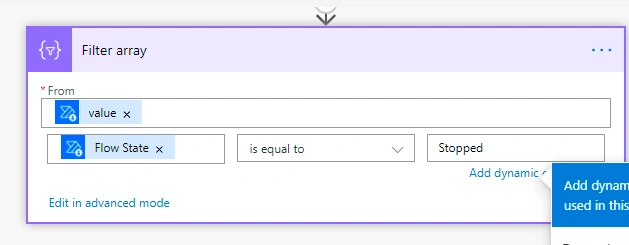
The final action should be like this ‘Flow State’ is equal to ‘Stopped’.
Step 4
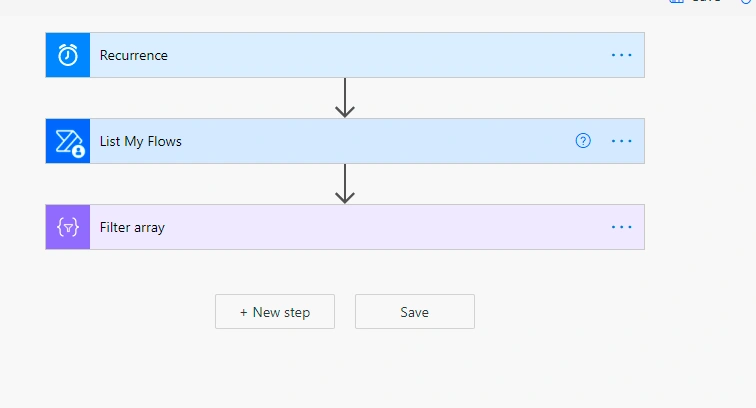
Now in this case you may not want all the flows to be turned off. When normally saving the production flows, it is a best practice to append ‘Prod’ in the naming convention, such that you know that this is a real prod flow. Now after the above steps, my flow should look like below,
Step 5
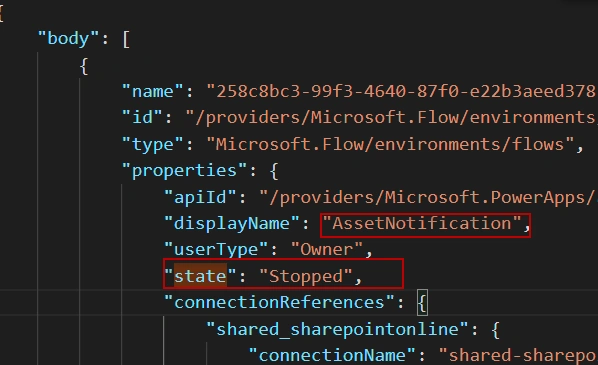
Test the flow. The following response from action ‘List My Flows’ is analyzed using Visual Studio code. In my case, when testing I can see 2 flows that got turned off. I have to get the response of the flow and then examine using VS code. One of the flow names is ‘Asset Notification’.
And other is called ‘WelcomeMate-Prod’.
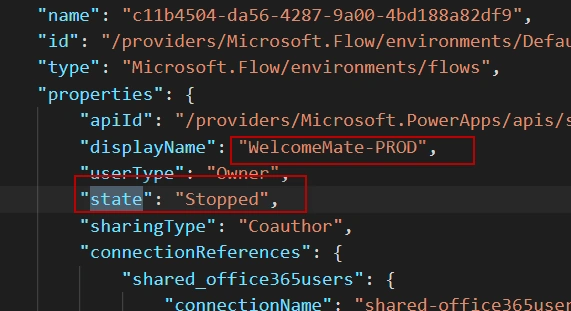
Here I am interested in turning on only the flows that have the name contains ‘PROD’. Let's write a filter condition that satisfies it.
Step 6
Edit the current filter condition in advanced mode and it will end up like below. Please focus on the below condition, as this is a little trickier.
@equals(item()?['properties/state'], 'Stopped')
Now add another ‘And’ condition to make sure you are turning on only the PROD flows. Here I am using contains operator to achieve this. The final expression looks like this.
@and(equals(item()?['properties/state'], 'Stopped'),contains(item()?['properties/displayName'], 'PROD'))
Now, insert case insensitive condition, like if the Display Name contains ‘PROD’ or ‘prod’ add the condition toUpper. The final filter condition should look like below.
@and(equals(item()?['properties/state'],'Stopped'),contains(toUpper(item()?['properties/displayName']),toUpper('prod')))
All we are doing is the first condition get the flows which are all ‘Stopped’ and the second one checks for the word PROD/prod in the display name.
Step 6
The next step is to Turn on Flow. add a new step and from flow management select ‘Turn On Flow’.
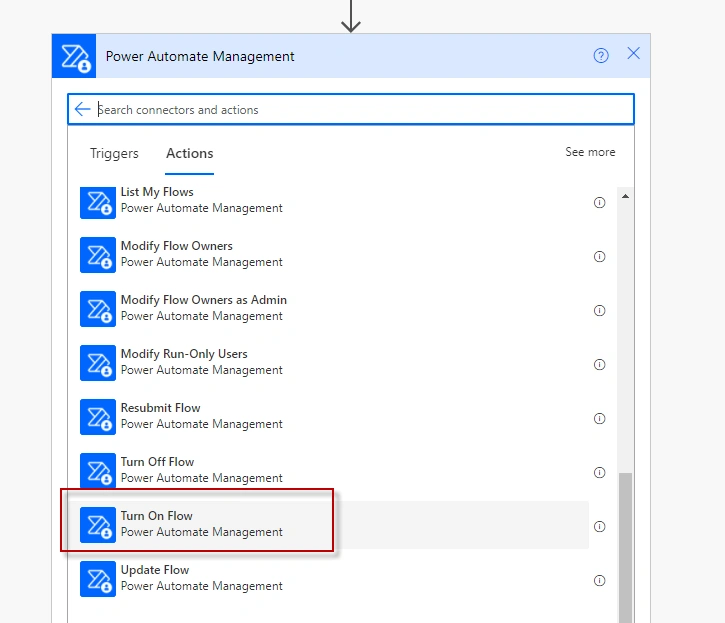
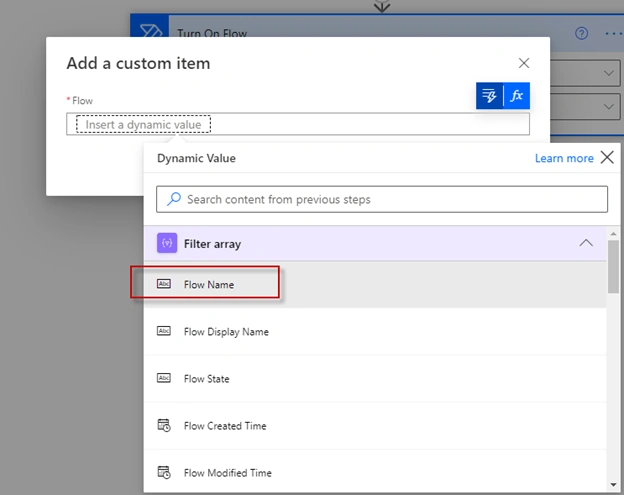
Now configure this by selecting your environment and for flow name, select ‘Add a custom item’.
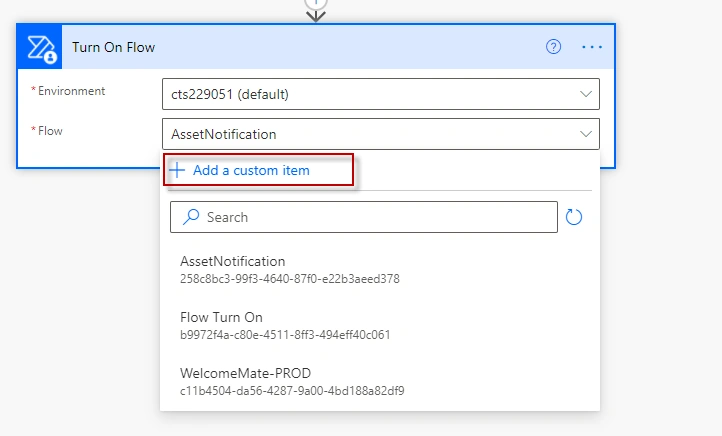
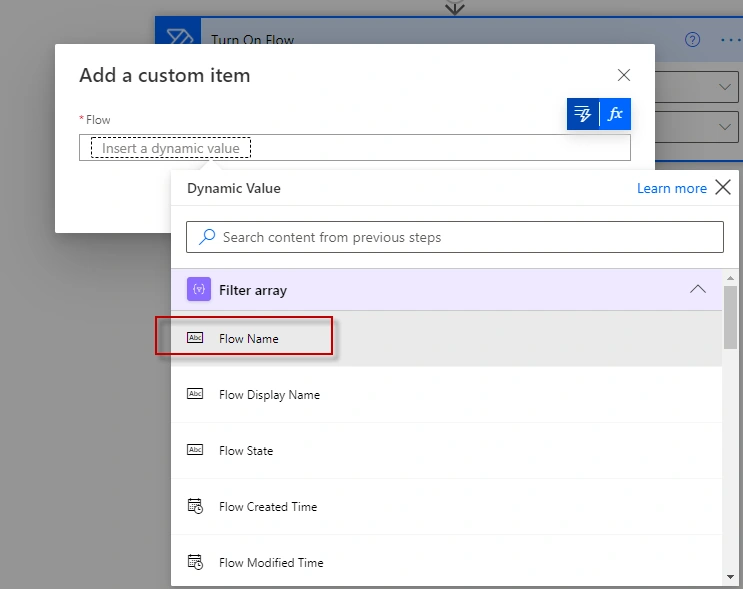
Now select the ‘Flow Name’ that is coming from the ‘Filter array’. Flow name is the unique identifier that is used in ‘Turning on’ the flow.
Step 7
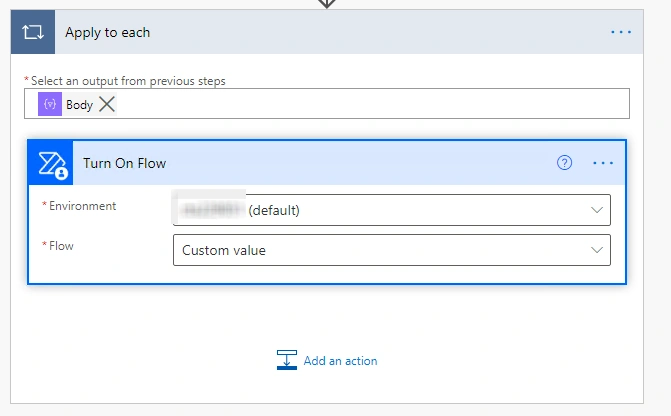
The final action should look like below,
Step 8
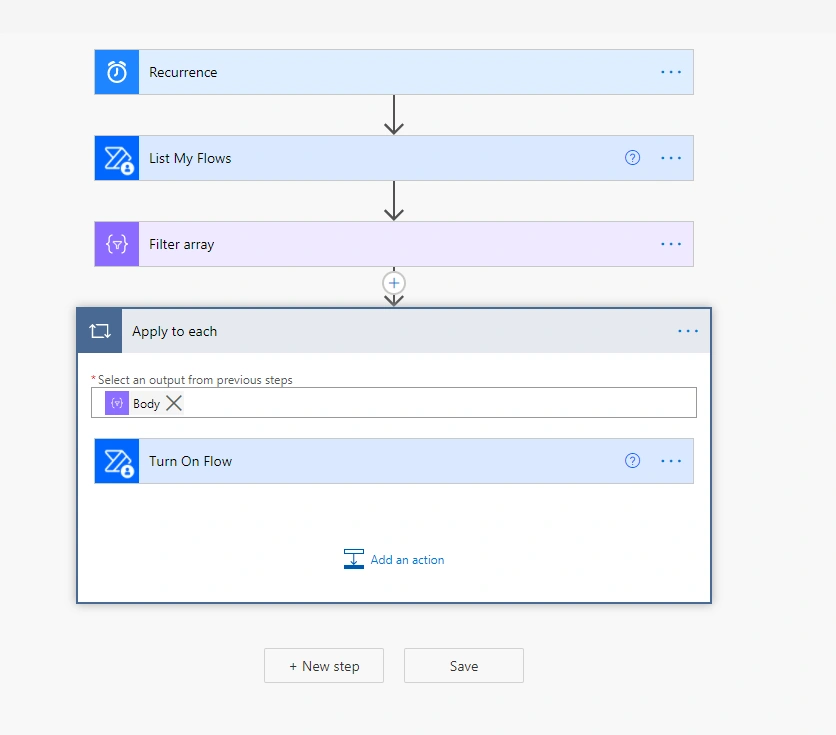
The final flow should look like this.
Output
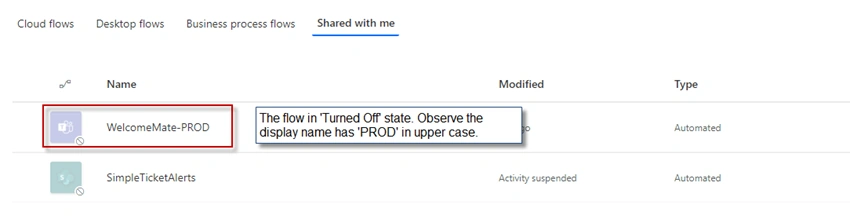
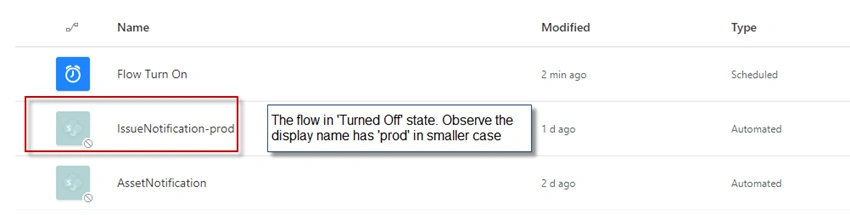
Flows screen capture before the ‘Turn On Flow’ has run.
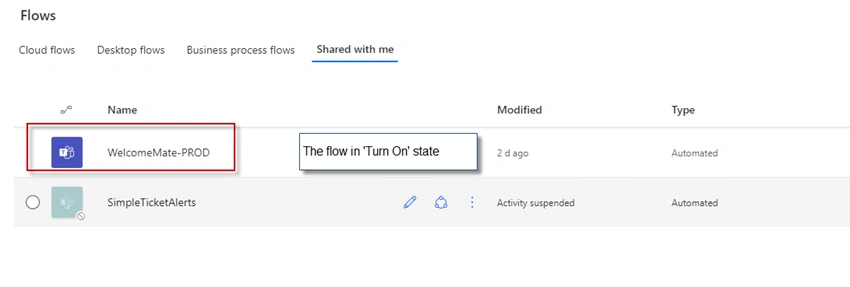
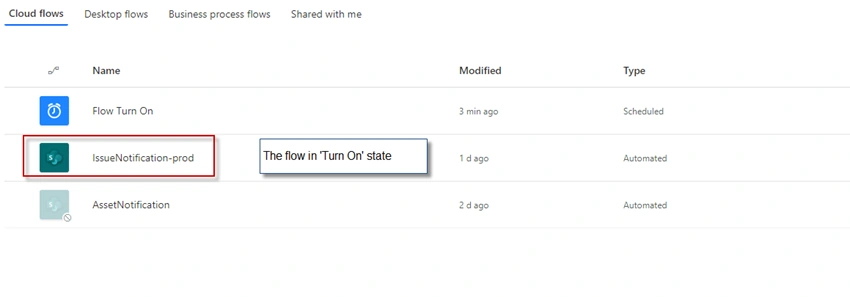
Flows screen capture after the ‘Turn On Flow’ has been run.
References
- https://docs.microsoft.com/en-us/azure/logic-apps/workflow-definition-language-functions-reference
- https://docs.microsoft.com/en-us/power-automate/limits-and-config
- https://powerusers.microsoft.com/t5/Building-Flows/How-to-apply-a-case-insensitive-condition-to-an-email-based-flow/td-p/120586
- https://www.youtube.com/watch?v=Heu4WGlnDm4&t=603s
Join the conversation! Your thoughts help the community grow.