

In this article we will try to implement Alerting in Prometheus with AlertManager. We know Prometheus helps us to predict potential problem in our services by providing details and related metrics but Alerting helps us to notify the occured problem and allow developer to identify problems.
N.B. To have a better understanding in this article, I would recommend to go through my other article "Instrumenting ASP.NET Core Application for exporting metrics to Prometheus"
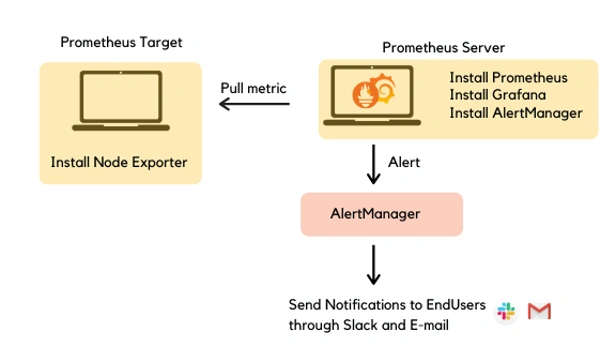
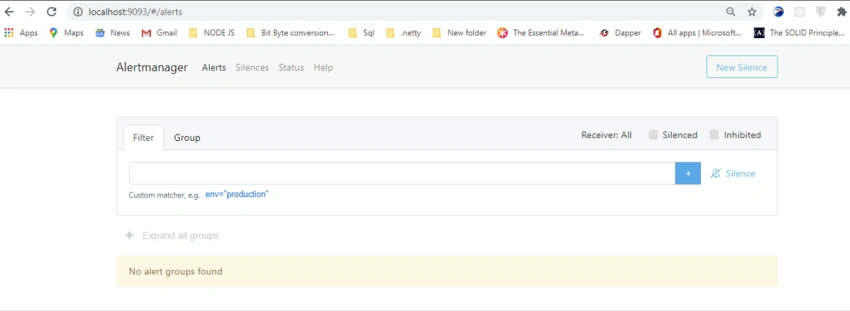
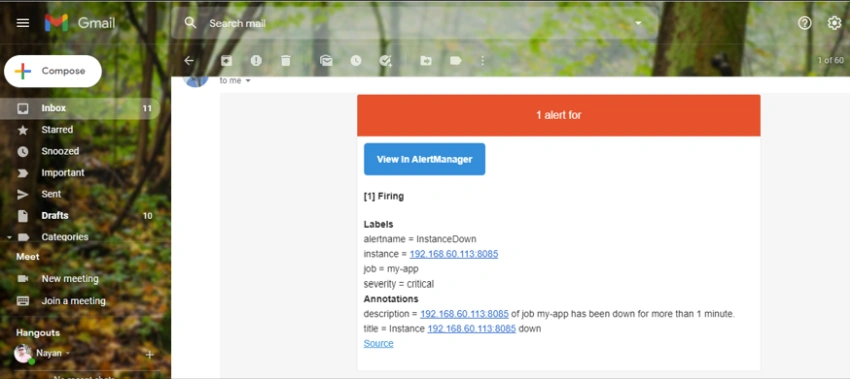
AlertManager handles alerts sent by the Prometheus server and notifies end-user through E-mail, Slack, or other tools. For this we need to define alert rules in Prometheus configuration and while scraping metrics Prometheus checks if any alert condition hits depending on the defined rules. If alerts occur then Prometheus pushes it to AlertManager.
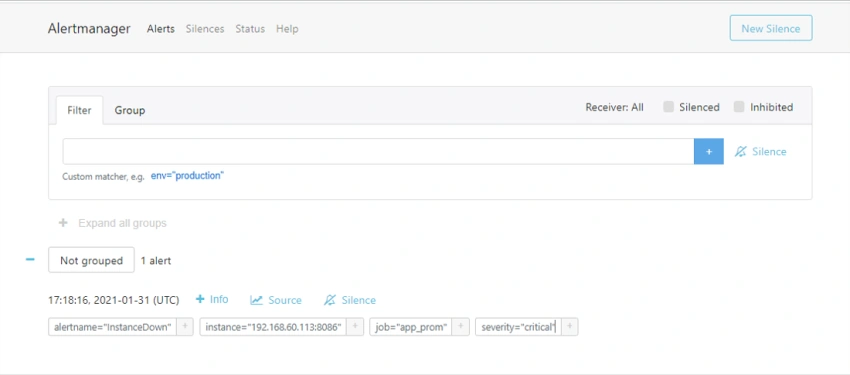
AlertManager manages all alerts through its pipeline of Silencing, grouping, inhibition, and sending out notifications.
- Silencing - Silencing is to mute alerts for a given period of time.
- Grouping - Grouping groups alerts of similar nature into a single notification. This helps prevent multiple notifications simultaneously to the receivers.
- Inhibition - To suppress specific alerts if other alerts are already fired.
To Configure AlertManager we need to follow these steps,
Step 1 - Configure Alert Rule
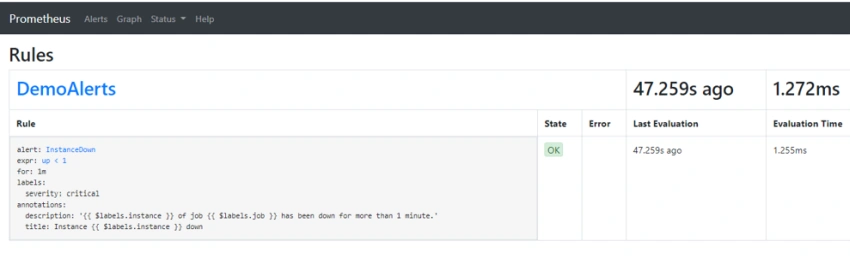
Rule file holds the conditions depending on which Prometheus triggers an alert. Inside the "Prometheus" folder create a new file "alert.yml". And inside the "alert.yml" put the following,

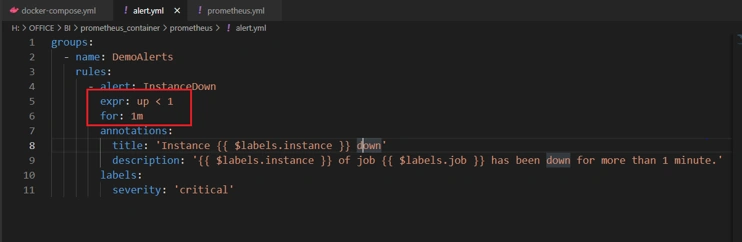
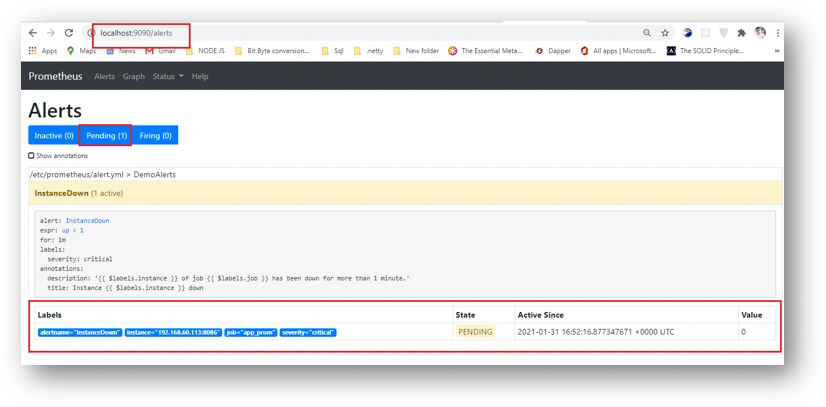
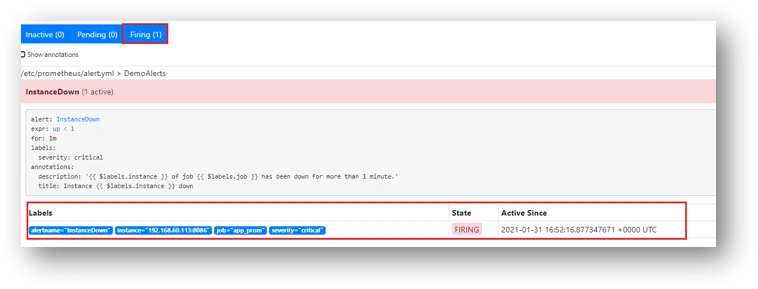
Here this alert states that if any target is "down" for 1 minute it will trigger an alert.
Step 2 - AlertManager Config File
Create a new folder "alertmanager" and inside it create a new file "alertmanager_Mail.yml" that holds the configuration for Alert Manager.
route:
  group_by: [Alertname]
  # Send all notifications to me.
  receiver: email-me

receivers:
- name: email-me
  email_configs:
  - to: <receiver's email>
    from: <Sender's email>
    smarthost: smtp.gmail.com:587
    auth_username: <Sender's email>
    auth_identity: <Sender's email>
    auth_password: <Sender's mail password>
    send_resolved: true
Step 3 - Update prometheus.yml file to configure Prometheus server to talk with AlertManager Service
We need to update our previously created (Previous article) prometheus.yml file to configure the AlertManager.
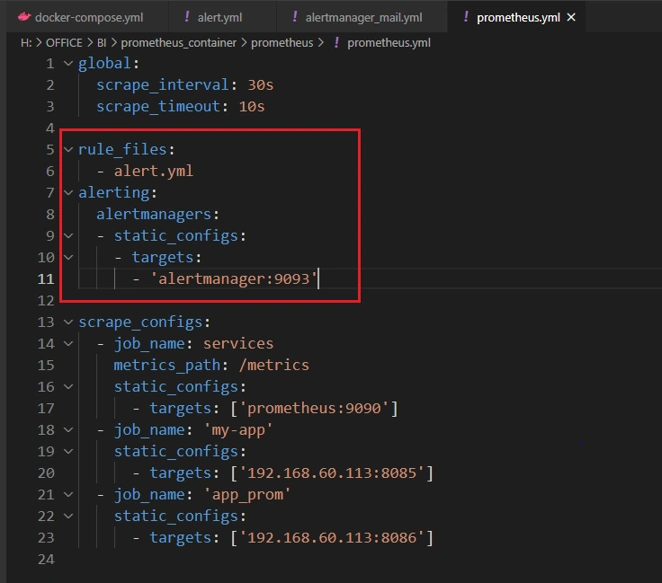
Here we have configured the alertmanager and it will be running on port:9093.

Join the conversation! Your thoughts help the community grow.