

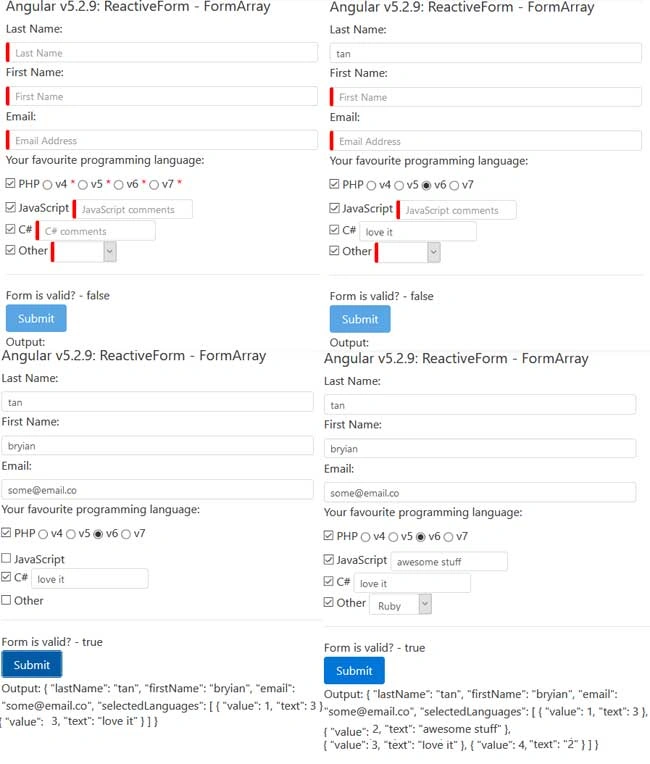
Table of Contents
- Introduction
- Display required field indicators
- Display the checkboxes in the FormArray dynamically
- Hide and show a form control based on checkbox selection
- Collect the selected checkbox and dynamic control value
- Conclusion
- History
- Watch this script in action
- Download
- Resources
Introduction
I am sharing an article on how to dynamically display controls in FormArray using Angular 5 Reactive Forms and enable/disable the validators based on the selection.
Recently, I was working with Angular 5 Reactive forms to create a registration form. Part of the form requires the checkbox elements to be generated dynamically. So, it could be 3,4,5 or more checkboxes on the form. If the checkbox is checked, a new FormControl/HTML element will appear next to it. That could be a textbox, dropdown or radio button list types in contingent to the checked item and they are required fields. In this article, I will share how to accomplish the following task. If you have a different opinion, please share it -- I’d really appreciate it.
- Display the checkboxes in the FormArray dynamically
- Hide and show a form control based on checkbox selection
- Add and remove required field validator based on checkbox selection
- Add required field indicator to radio button list
- Display required field indicators
- Collect the selected checkbox and dynamic control value
Display required field indicators
Instead of displaying the required field message next to each form element, we can program the form to display an error indicator by using Cascading Style Sheets (CSS) selector. For instance, we can use the ::after selector to append an asterisk next to the label in red font.
Listing 1
- .required::after { content: " *"; color: red; }
Or make the form control border red color if the control has ng-invalid class. Figure 1 shows the output results by using the CSS in Listing 1 and Listing 2.
Listing 2
- .form-control.ng-invalid { border-left:5px solid red; }
Figure 1
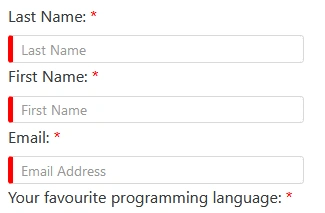
The radio button list is a little tricky, based on the sample application, we can utilize the CSS combinators and pseudo-classes in Listing 3 to append an asterisk next to the label. Basically, the selector will select all the labels under a form control with invalid state and append an asterisk next to it with red font. Figure 2 shows the form control output using the CSS in listing 3.
Listing 3
- .form-control.ng-invalid ~ label.checkbox-inline::after { content: " *"; color: red; }
Figure 2

Display the checkboxes in the FormArray dynamically
Listing 4 shows how to utilize the FormBuilder.group factory method to creates a FormGroup with firstName, lastName, email and programmingLanguage FormControl in it. The first three FormControls are required and the email must match the regular expression requirement. The programmingLanguage values type is a FormArray, which will host an array of available programming languages using Checkboxes and another input type.
Listing 4
- this.sampleForm = this.formBuilder.group({
- firstName: new FormControl('', Validators.required),
- lastName: new FormControl('', Validators.required),
- email: new FormControl('', [Validators.required,Validators.pattern(this.regEmail)]),
- programmingLanguage: this.formBuilder.array([{}])
- });
Shown in listing 5 is the sample object and data that the application will be using.
Listing 5
- class Item {
- constructor(
- private text: string,
- private value: number) { }
- }
- class FormControlMetadata {
- constructor(
- private checkboxName: string,
- private checkboxLabel: string,
- private associateControlName: string,
- private associateControlLabel: string,
- private associateControlType: string,
- private associateControlData: Array<Item>) { }
- }
- this.programmingLanguageList = [
- new Item('PHP',1),
- new Item('JavaScript',2),
- new Item('C#',3),
- new Item('Other',4)];
- this.otherProgrammingLanguageList = [
- new Item('Python',1),
- new Item('Ruby',2),
- new Item('C++',3),
- new Item('Rust',4)];
- this.phpVersionList = [
- new Item('v4',1),
- new Item('v5',2),
- new Item('v6',3),
- new Item('v7',4)];
The next step is to populate the programming language FormArray. This FormArray will contain an array of FormGroup and each FormGroup will host multiple FormControl instances. Shown in Listing 6 is the logic used to populate the FormArray and the langControlMetada object that will be utilized by the HTML template later on. The later object is to store the properties of element/control such as Checkbox, Textbox, Radio button, Dropdown list and etc.
Initially, the code will loop through the properties of programmingLanguageList object and populate the langControlMetada object. The Checkbox and associate HTML element name will be the combination of a static text and the Item.value/key from the data source. These properties will be mapped to formControlName in the HTML template. The Checkbox label will come from the Item.text. The associateControlLabel property will serve as a placeholder attribute for the input element. By default, the associateControlType will be a textbox, in this example, the application will display a radio button list if PHP option is checked, and a dropdown list if Other option is checked. The purpose of the associateControlData property is to hold the data source for the radio button and dropdown elements.
The next step is to create two FormControls, one for the Checkbox element and one for the associated element. By default, the associated element is disabled. Then, insert the child controls created previously into a FormGroup. The key will be identical to the Checkbox and associate element name. Finally, insert the FormGroup instance into the programmingLanguage object.
Listing 6
- enum ControlType {
- textbox =1 ,
- dropdown = 2,
- radioButtonList = 3
- }
- export class Common {
- public static ControlType = ControlType;
- public static CheckboxPrefix = 'cbLanguage_';
- public static OtherPrefix ='otherValue_';
- }
- langControlMetada: Array<FormControlMetadata> = [];
- populateProgrammingLanguage() {
- //get the property
- this.programmingFormArray = this.sampleForm.get('programmingLanguage') as FormArray;
- //clear
- this.programmingFormArray.removeAt(0);
- let p:Item;
- //loop through the list and create the formarray metadata
- for (p of this.programmingLanguageList) {
- let control = new FormControlMetadata();
- let group = this.formBuilder.group({});
- //create the checkbox and other form element metadata
- control.checkboxName = `${Common.CheckboxPrefix}${p.value}`;
- control.checkboxLabel = p.text;
- control.associateControlName = `${Common.OtherPrefix}${p.value}`;
- control.associateControlLabel = `${p.text} comments`;
- control.associateControlType = Common.ControlType[Common.ControlType.textbox];
- //assume 1 is radio button list
- if (p.value == 1) {
- control.associateControlType = Common.ControlType[Common.ControlType.radioButtonList];
- control.associateControlData = this.phpVersionList;
- }
- //just assumed id 4 is dropdown
- if (p.value == 4) {
- control.associateControlType = Common.ControlType[Common.ControlType.dropdown];
- control.associateControlData = this.otherProgrammingLanguageList;
- }
- //store in array, use by html to loop through
- this.langControlMetada.push(control);
- //form contol
- let checkBoxControl = this.formBuilder.control('');
- let associateControl = this.formBuilder.control({ value: '', disabled: true });
- //add to form group [key, control]
- group.addControl(`${Common.CheckboxPrefix}${p.value}`, checkBoxControl);
- group.addControl(`${Common.OtherPrefix}${p.value}`, associateControl);
- //add to form array
- this.programmingFormArray.push(group);
- }
- }
Chandu SattiPosted Aug 16, 2019, 1:09 PM
Hi Bryian, In my project I have need to add dyanamic images Using Reactive Forms I have done it (looping of File controls) . But the problem in I am unable to set preview of image that i have uploaded. Can you please suggest me how to solve the problem
Chandu SattiPosted Aug 16, 2019, 1:05 PM
Hi Bryian ,
Narayan AdhurtiPosted Aug 21, 2018, 6:08 AM
Hi Bryian,They are some bugs in your code.Actually the code is fine after bug fixing.