

Step 1
Open Expression Blend 4 -> select WPF -> select WPF Application -> change the Name and Location accordingly -> hit OK. A Blank Window appears on the ArtBoard.
Step 2
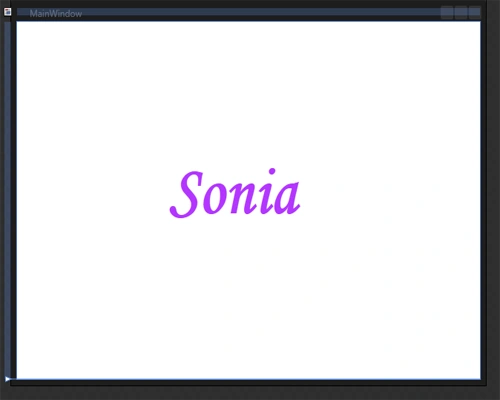
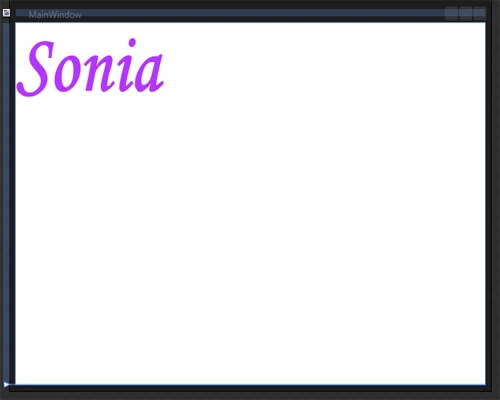
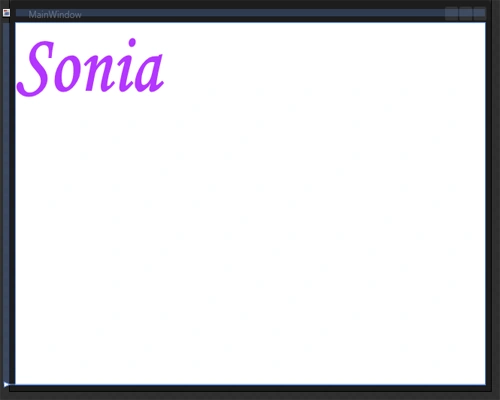
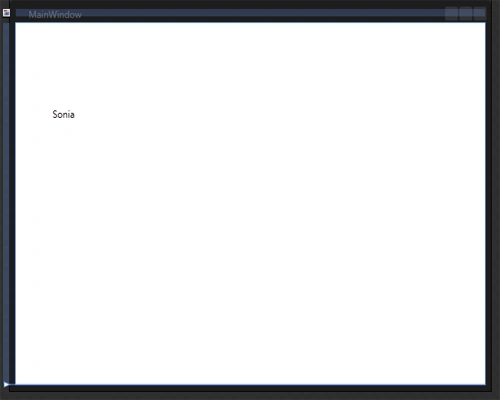
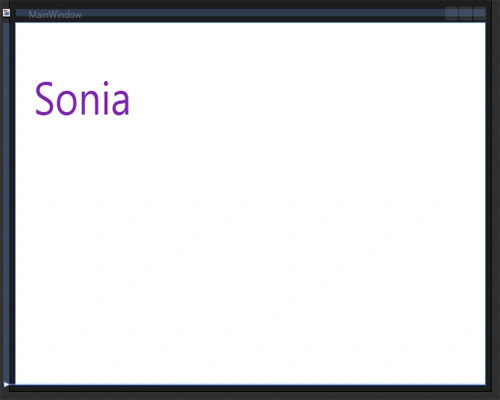
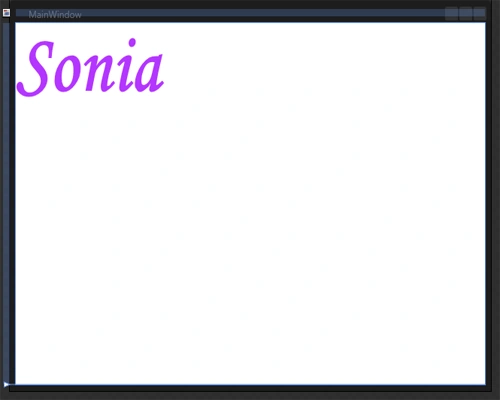
Select TextBlock Tool, write any text, for example "Sonia"; manage height, width, color & stroke as shown below:
Step 3
Select Window -> Workspace -> Design or Animation, a Storyboardtimeline Window at Artboard appears and have a look at the Object and Timeline Window as shown below:


Note: In the Object and Timeline Window we have to activate the Storyboardtimeline for the beginning of the animation as shown below:
- Click on the the Drop-Down Arrow as shown below:
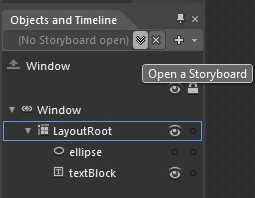
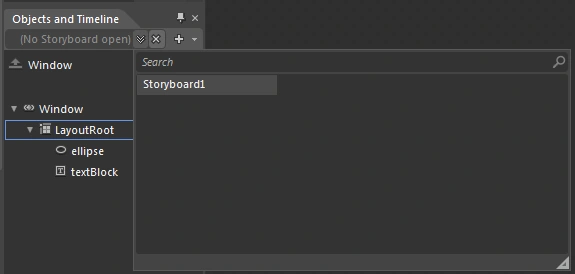
- Click on Storyboard1 as shown below:
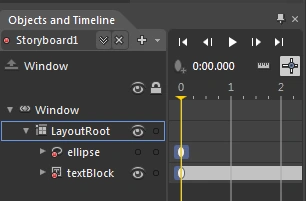
- The Storyboard appears as shown below:
Step 4
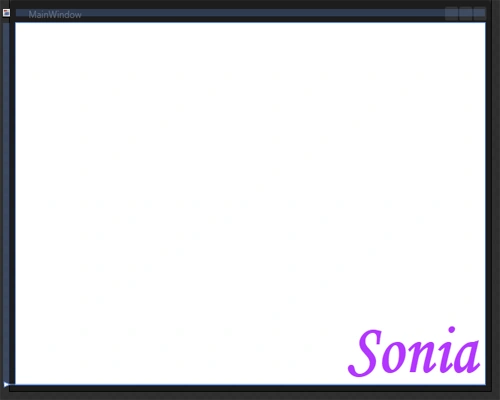
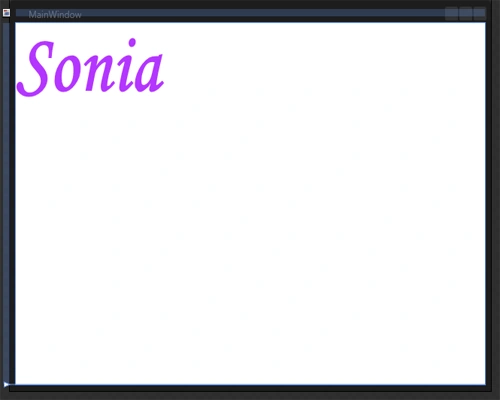
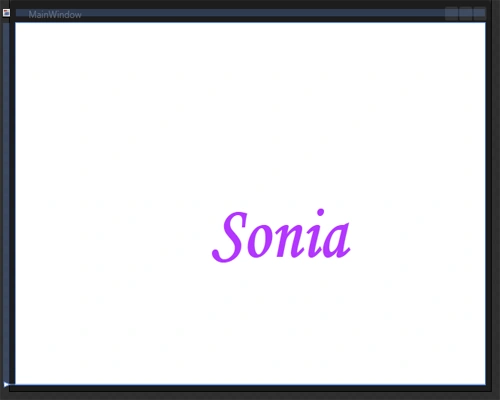
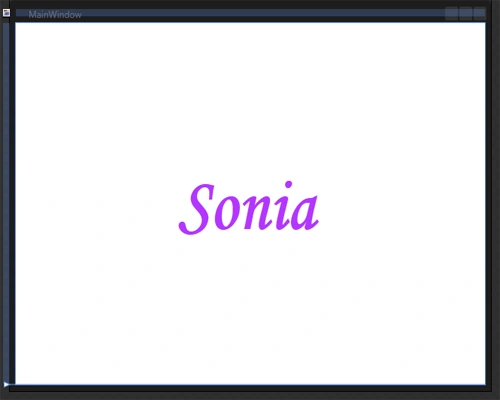
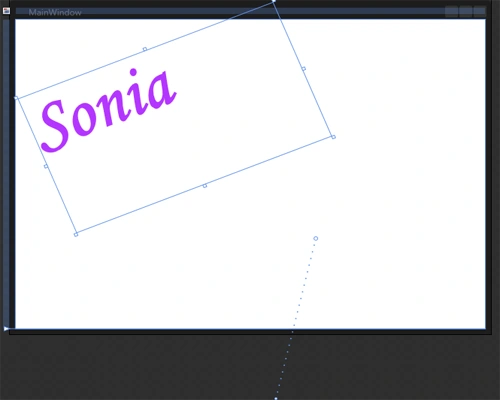
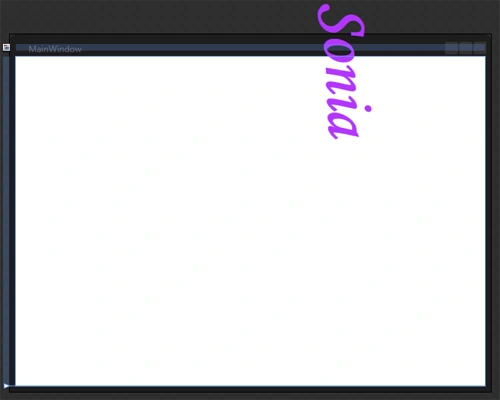
After Editing-Formatting of text, when we start the animation the Text moves from Top to Bottom as shown below:
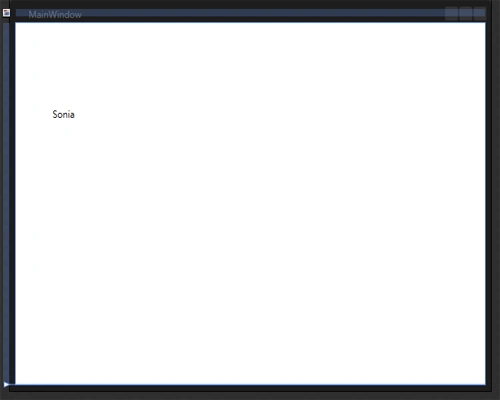
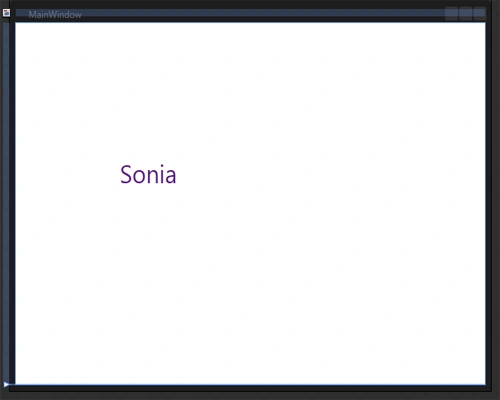
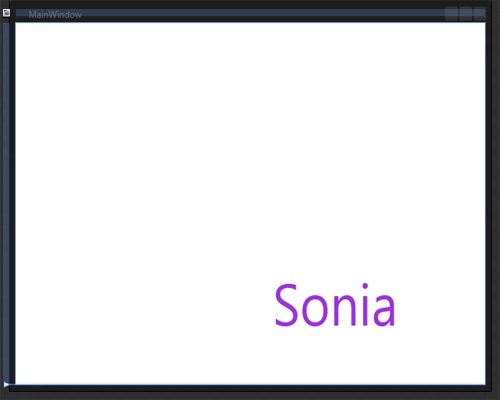

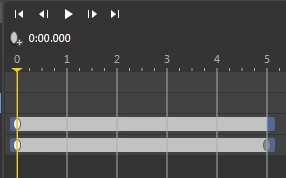
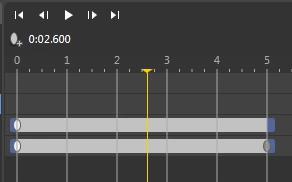
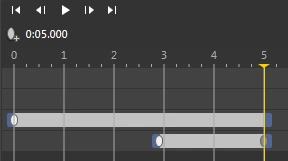
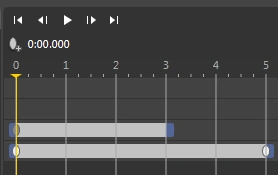
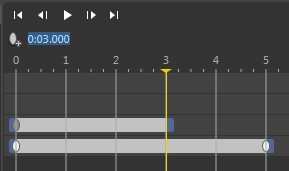
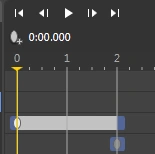
- Look at the Tabs Window; the Yellow Line Tab and Grey Line Tab starts from Zero (0) and ends at five (5) as shown below:

Step 5
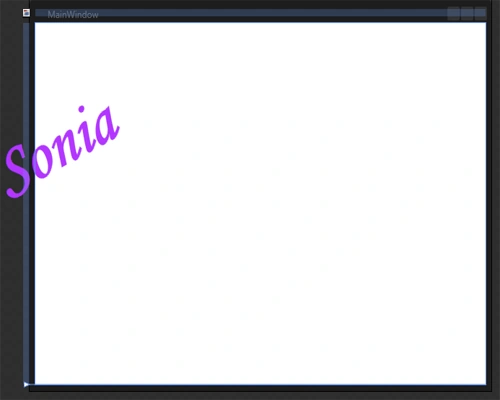
Now, we are going to make changes in the tab's position and see the various effects on text as shown below:
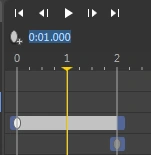
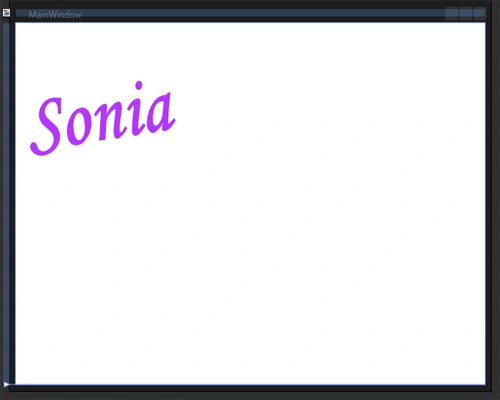
- If both the Upper and Lower Grey Line Tabs are at the same position then the "Formatted-Text" is animated as shown below:
Tab-Position
Initial Stage
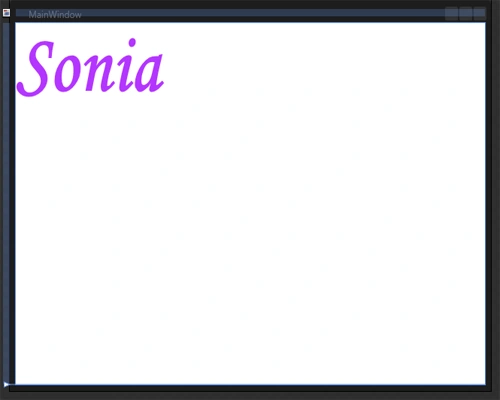
Middle Stage
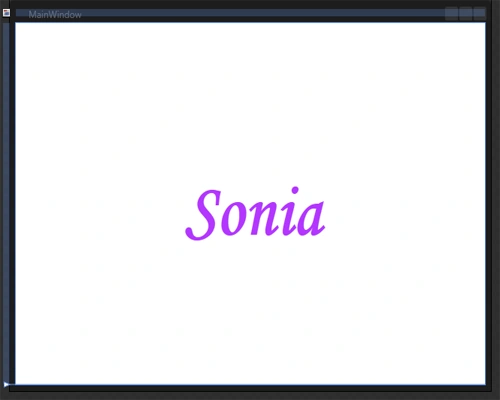
Last Stage

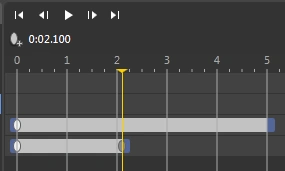
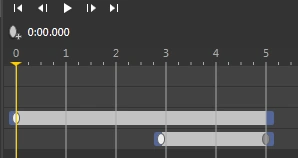
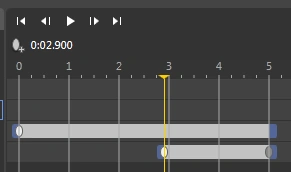
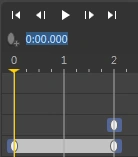
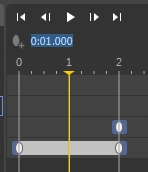
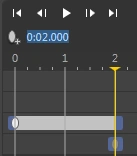
- If the Upper Tab is at the same position and the Lower Tab is changed ie; moved backward then the effect will be as shown below:
Tab-Position
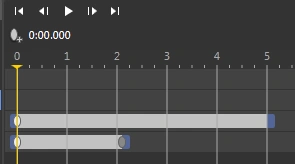
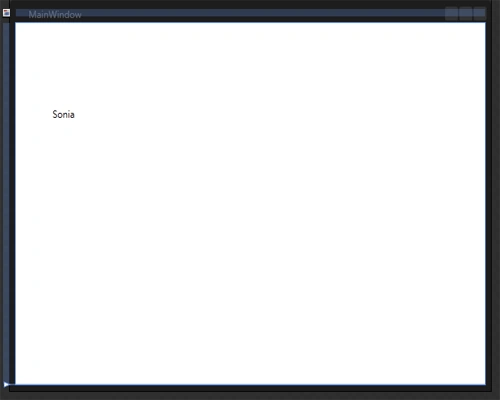
Initial Stage
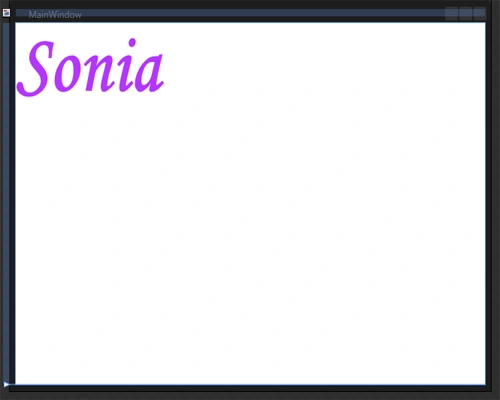
Middle Stage
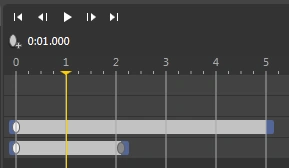
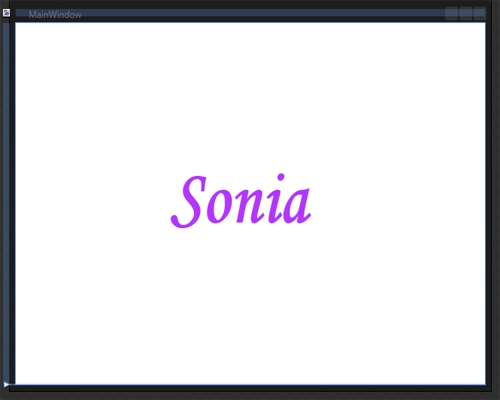
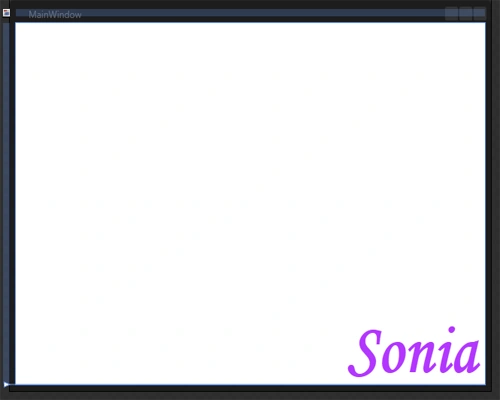
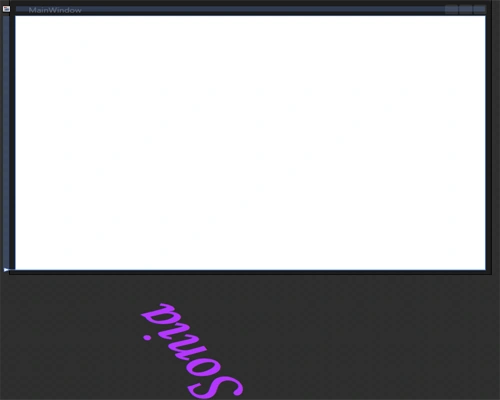
Last Stage: Here the text animates up to two.


Join the conversation! Your thoughts help the community grow.