

In this article, we’ll learn to create an Apache Spark cluster with Azure HDInsight. This article is a part of the Apache Spark Series. You can learn more about Apache Spark and Azure HDInsight in my previous article, Apache Spark. Here, we’ll get into step-by-step process to create the Spark Cluster which will be paramount for work with Spark in Azure HDInsight.
Apache Spark
Developed at the AMPLab of University of California, Berkeley, Apache Spark is an analytics engine dedicated to the processing of large-scale data. Fault Tolerance and Data Parallelism is provided with programming cluster interface. The big-data analytics application performance can be boosted with Apache Spark with its parallel processing framework which supports in-memory processing.
In-Memory cluster computing is supported by Apache with loading and caching of data into memory performed with spark job which can then be queried thereafter. We know that when compared to the disk-based applications like Hadoop that used Hadoop Distributed File System (HDFS), in-memory computing outshines with its faster processing. Moreover, distributed data sets can be manipulated as local collections with the integration of Spark into Scala.
Azure HDInsight
Azure HDInsight enables creating and configuring the Spark Clusters extremely easily in Apache Spark. The entire Spark environment is provided thus making it convenient to customize in Azure itself. Data can be stored and processed all within Azure with Apache Spark in Azure HDInsight. Azure Data Lake Storage Gen 1 and Gen 2, Azure Blob Storage, all support Spark Clusters. Hence, we can process our Spark onto the pre-existing data stores.
Now, let us get started to create the Spark Cluster in Azure Insight.
Step 1
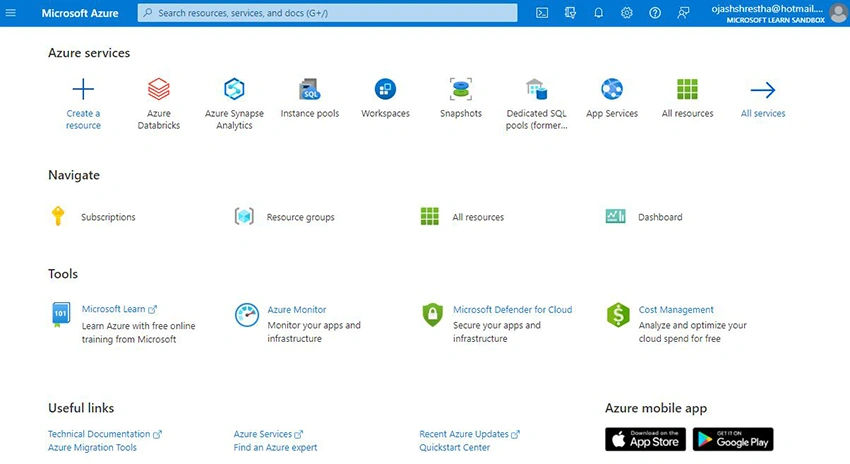
Login into the Azure Portal. You’ll be welcomed to the Azure Portal homepage that looks similar to the following.
Step 2
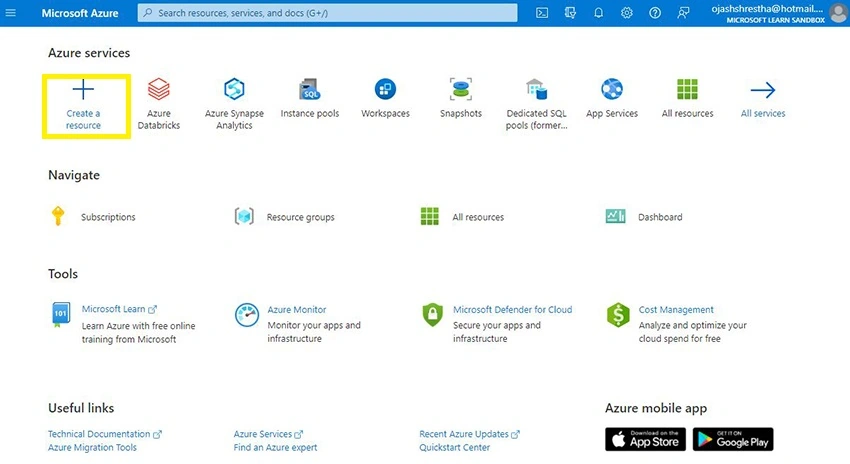
Here, click on Create a Resource.
Step 3
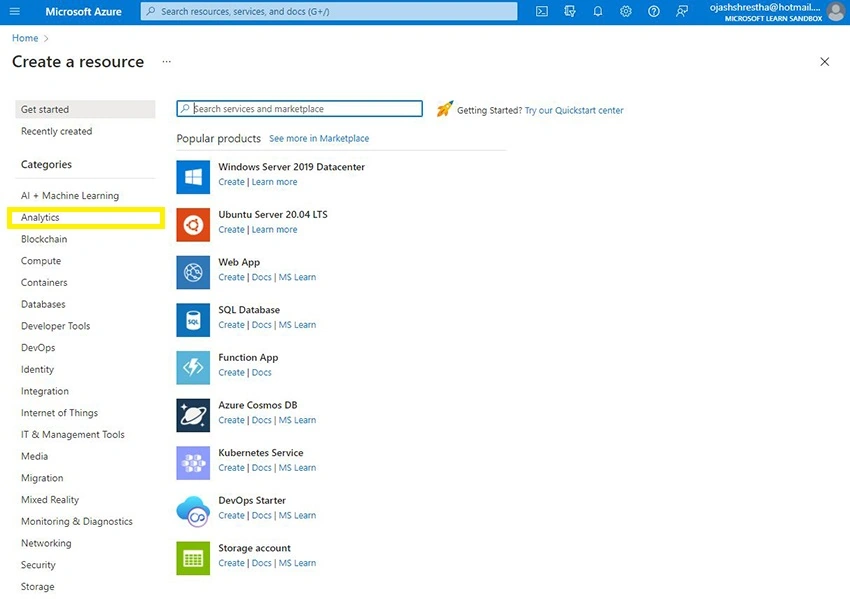
Now, on the Create a Resource page, look for the Analytics under Categories and Click it.
Step 4
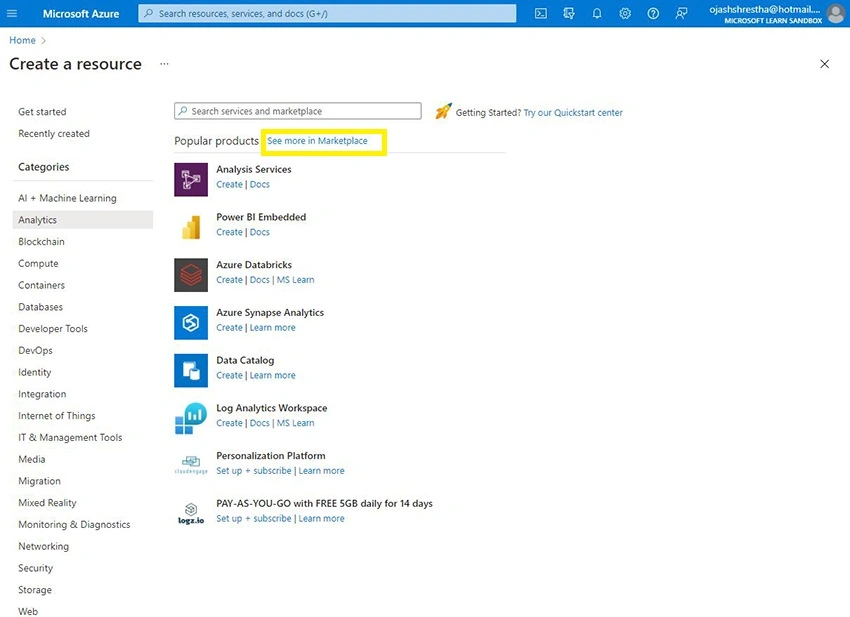
Here, you can see the list of popular products. To check for Azure HDInsight, let's dive to See more in Marketplace.
Step 5
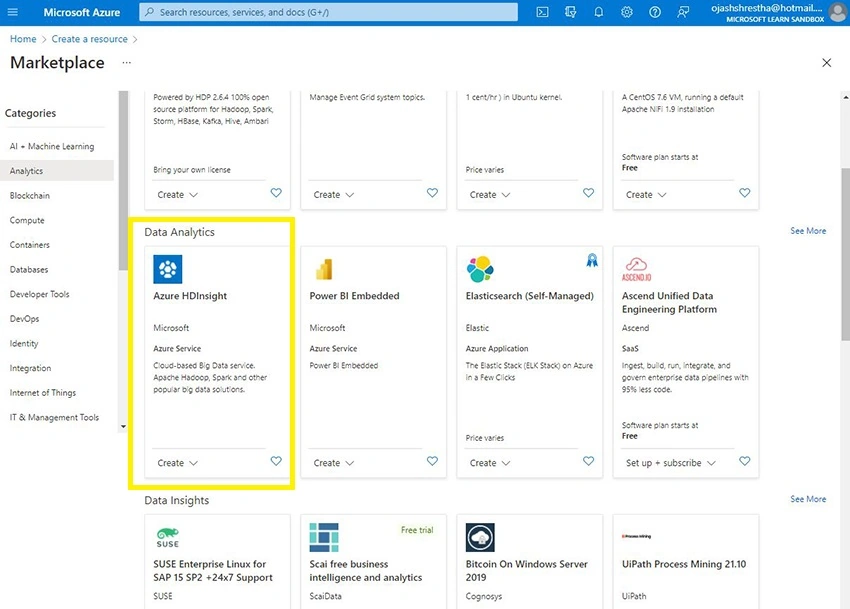
Now here, under Data Analytics, we can see Azure HDInsight. Click it.
Step 6
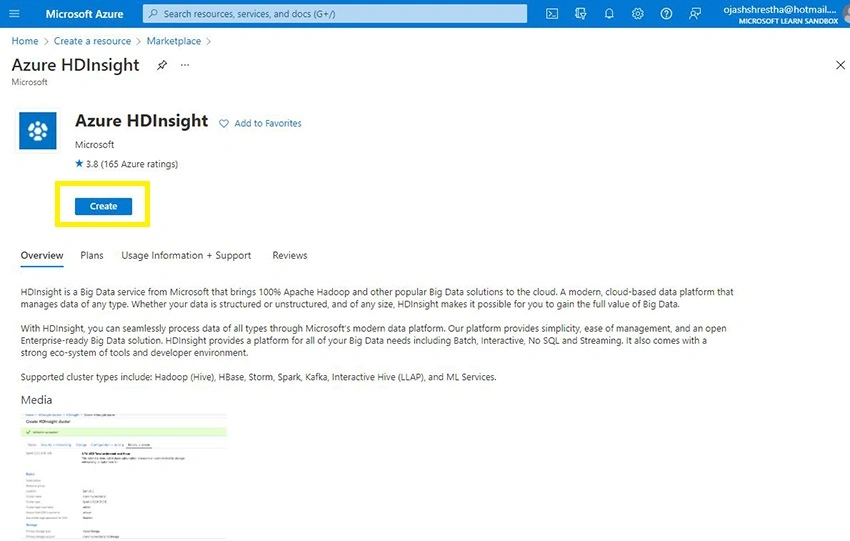
We are now at the Azure HDInsight page. Click on Create.
Step 7
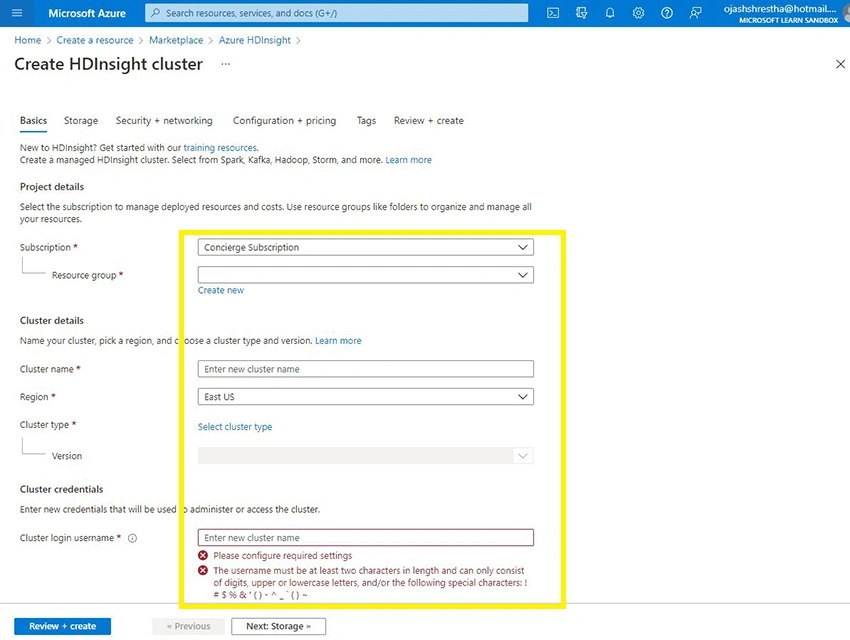
We are getting started now. All the details that need to be filled in to create the HDInsight Cluster can be viewed.
Step 8
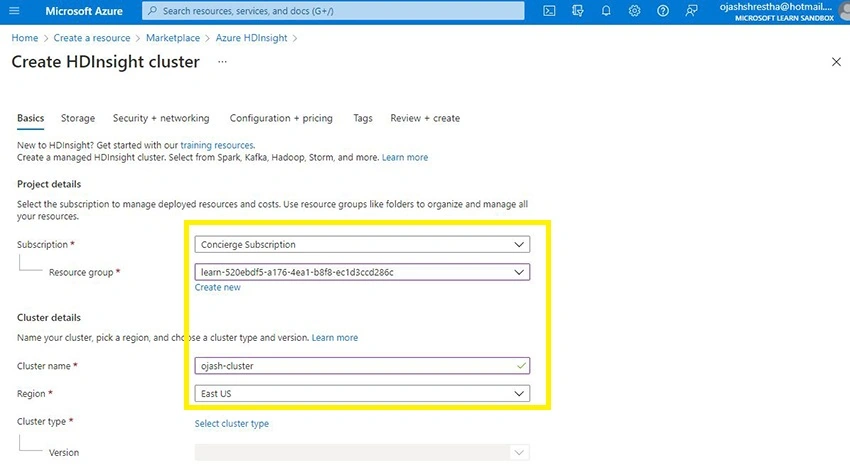
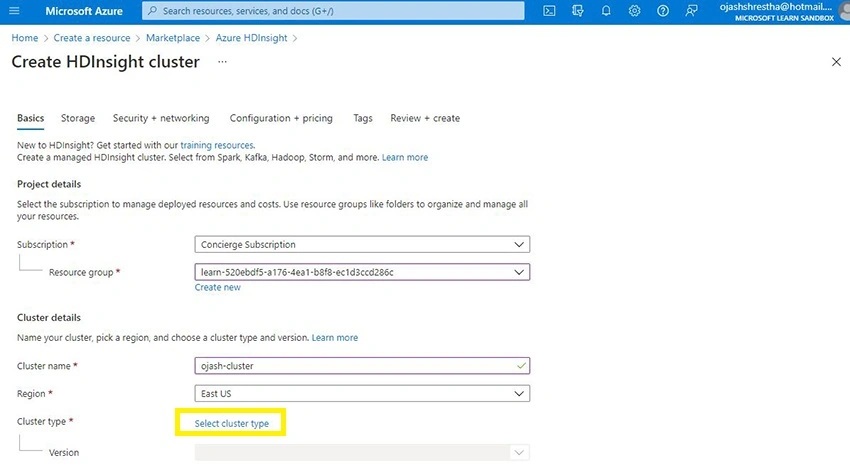
Fill in the details, choose your Subscription and Resource group. Next, fill in the Cluster name and Region. Remember, the Cluster name must be unique.
Step 9
Now, in order to choose the Cluster variation, click on Select Cluster type.
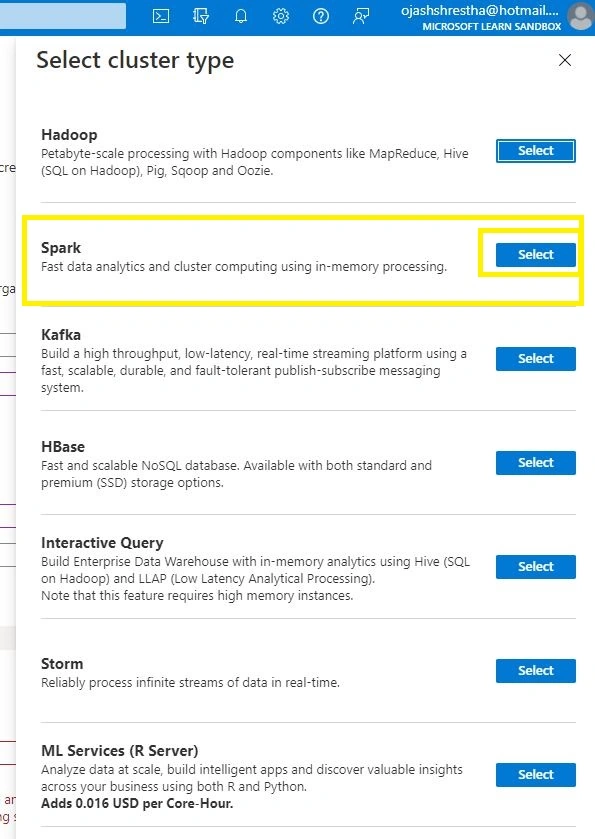
A new pop-up box will open. Here, Click on Select under Spark.
Step 10
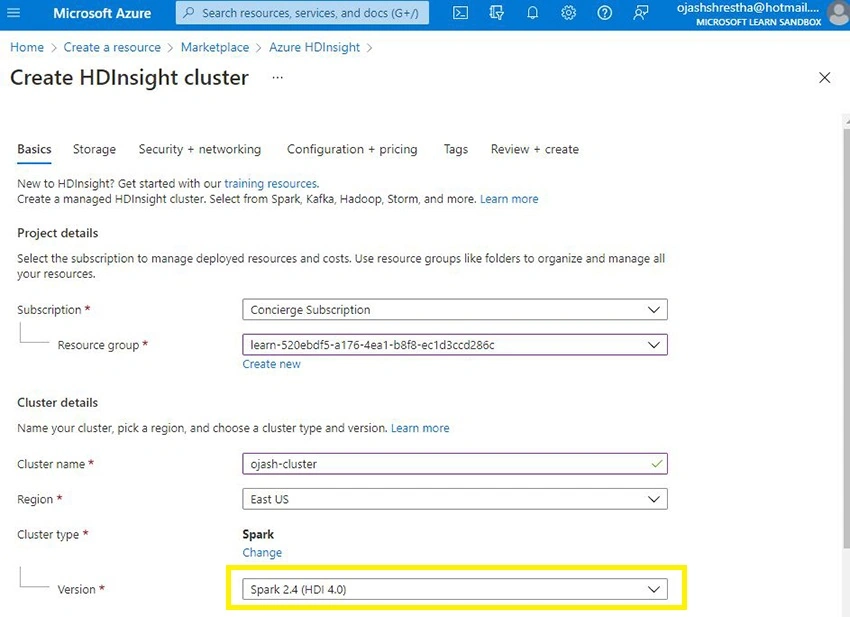
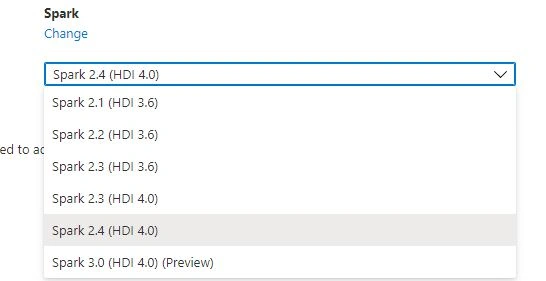
Now, we can see, the Spark 2.4 HDI 4.0 has been selected. To change the version of Spark, simply click on the Version tab and you can see the list of different versions of Spark alone to choose from.
Step 11
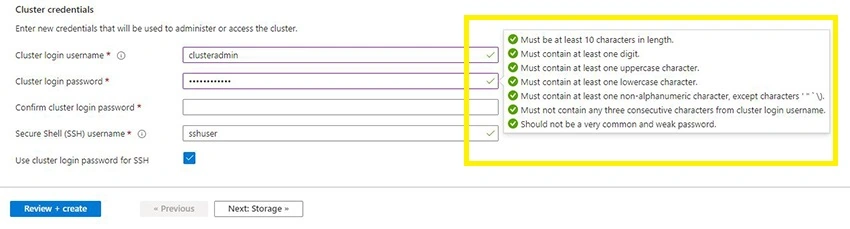
Now, fill in the Cluster Login Username, Password, and Secure Shell username. Remember, for the passwords there are a few criteria. A minimum length of 10 characters, minimum one numeric value, uppercase character, and lowercase character with a non-alphanumeric character such as $, % are important to validate the password.
Step 12
Now, click on Storage.
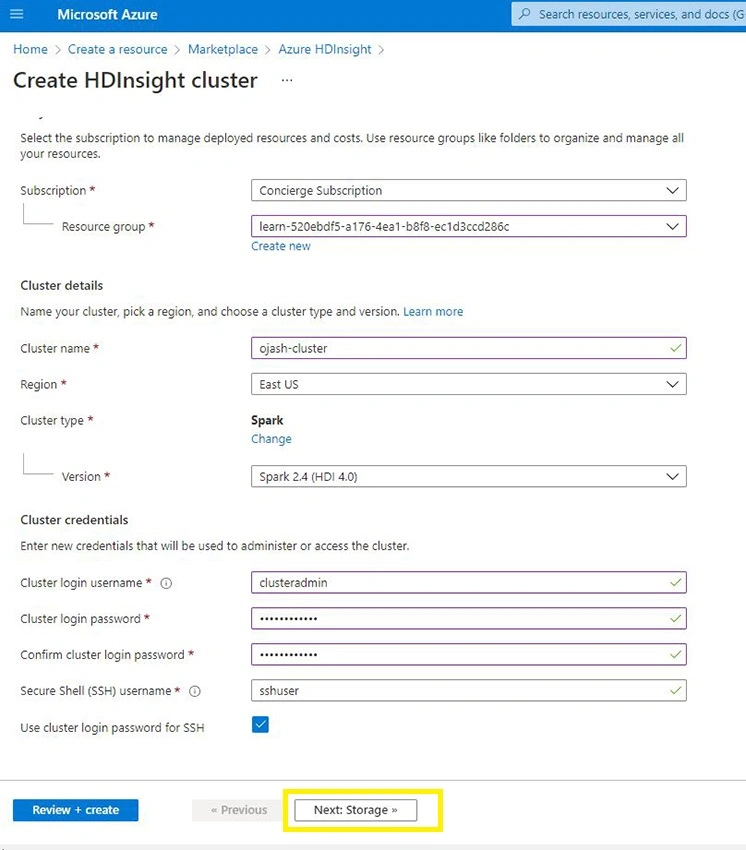
We can see, the storage page now.
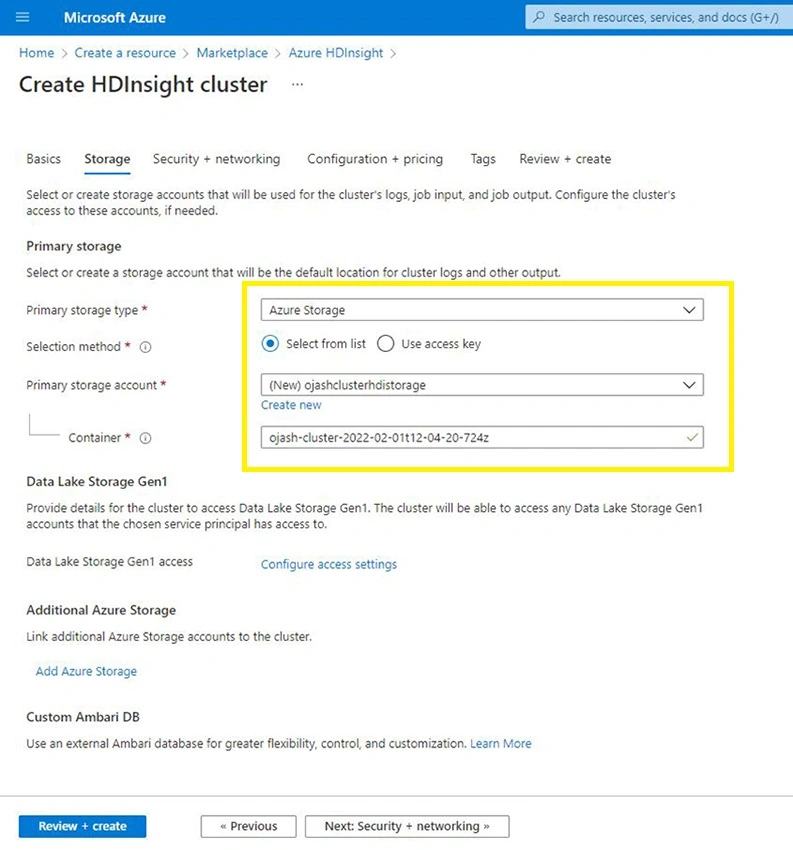
Select Azure Storage for Primary Storage Type, Select from list and the Cluster Storage for Primary Storage account. If you do not have one, create one by clicking on Create new button. Furthermore, also fill in the Container name we are to use.
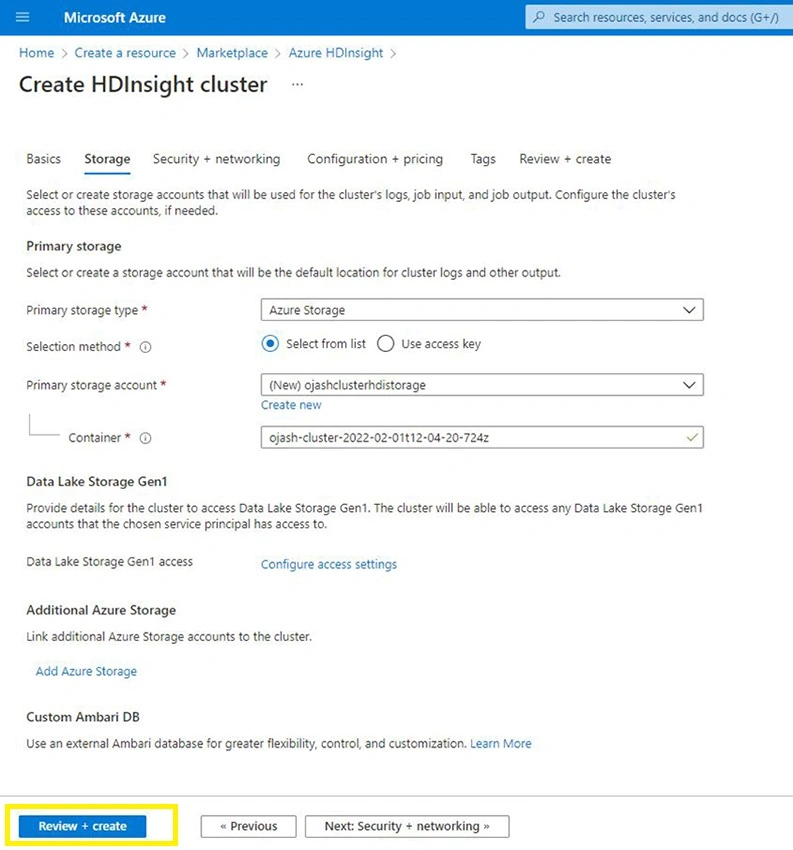
Now, we are ready. Click on Review + Create
Step 13
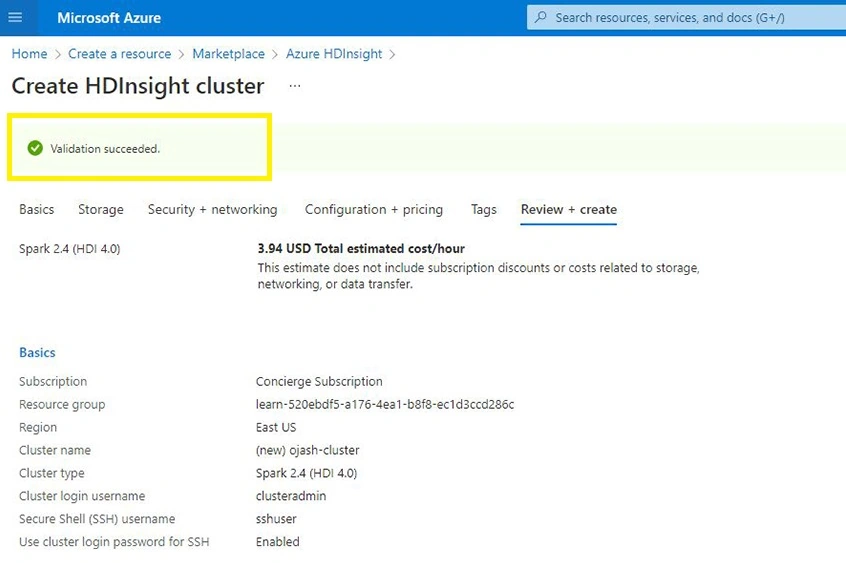
Azure will now validate our settings. We can see the green tick pop up as all the settings are validated.
Step 14
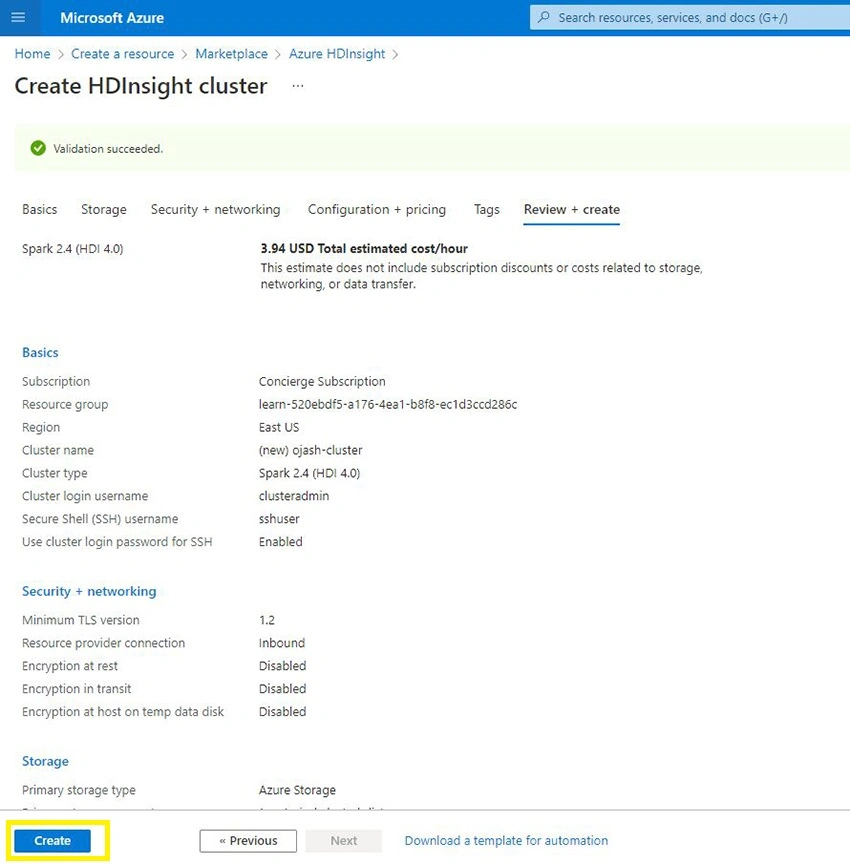
Now, Click on Create.
Step 15
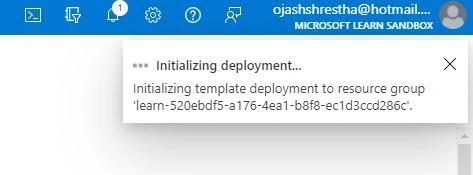
The Deployment will now initiate and we can be updated from the notification tab.
Lastly, our Azure Spark Cluster will now be created.
Conclusion
Thus, in this article, we learned to create an Azure Spark Cluster in Azure HDInsight. With the Cluster created, we can then go ahead and use the cluster for our queries, configurations, and numerous works for analytics ahead.
Join the conversation! Your thoughts help the community grow.