

Introduction
In this article we open an existing project from Xcode and set an icon image on that app. To understand it we use these steps.
Step 1
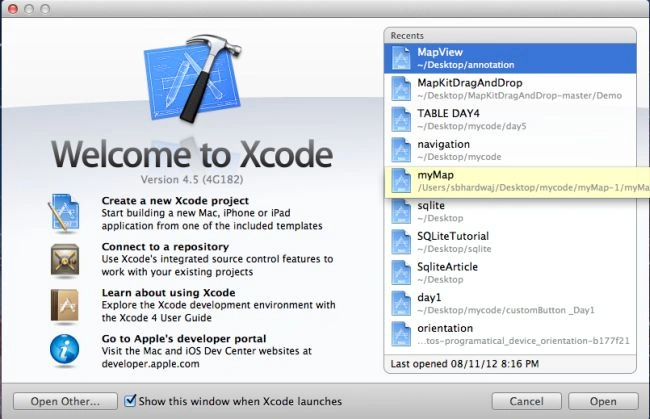
Open XCode by double-clicking on it.

Step 2
Open an existing XCode Project via click on it.
Step 3
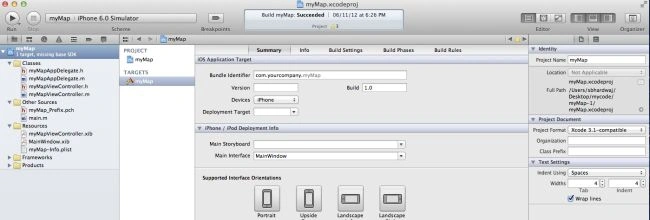
Now click on the project's icon.
Step 4
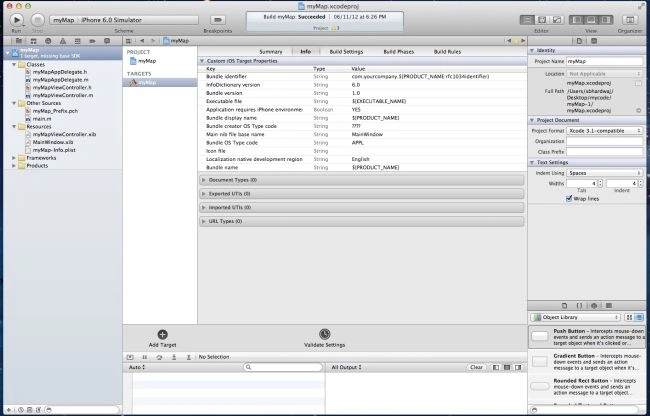
And Select info.
Step 5
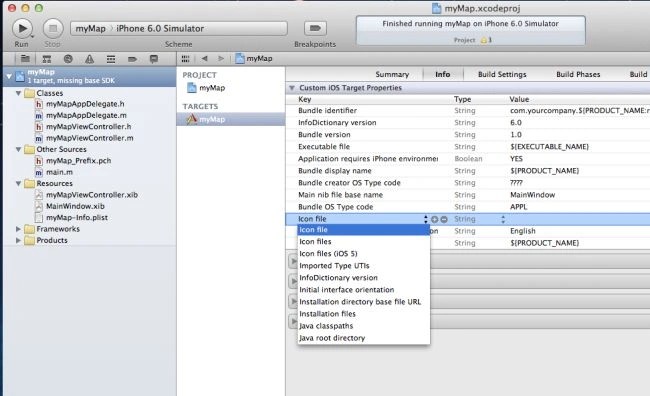
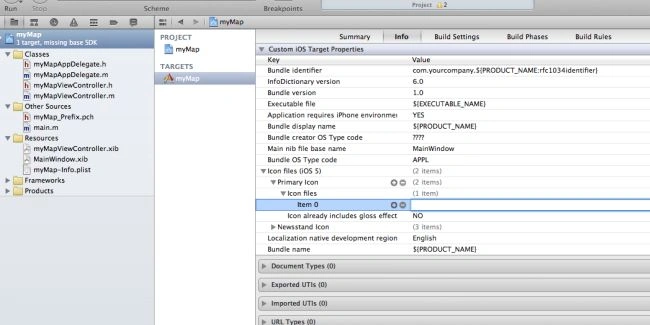
Now click on the icon file and select the icon files (ios 5) from the drop down menu.
Step 6
Now click on the icon files (ios 5) arrow and choose item 0.
Step 7
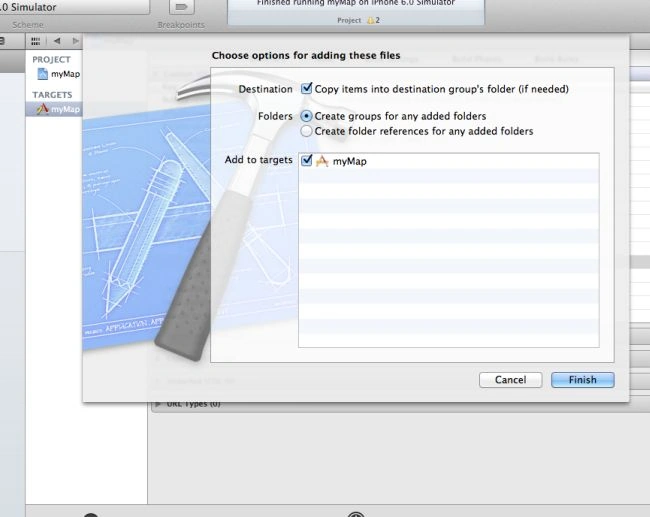
Now copy the image you want to set an app icon image for and paste it to the bundle (resource folder).

Step 8
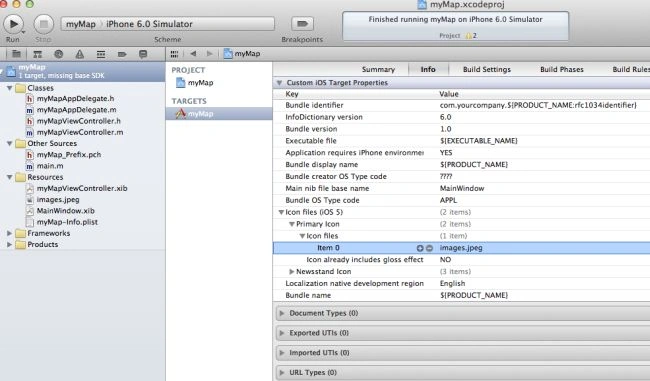
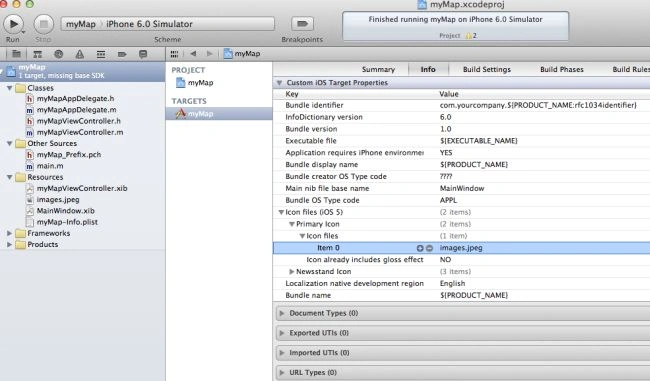
Now copy the image name and paste it to item 0.

Step 9
Now Clean our product and run it to show output on the Simulator.
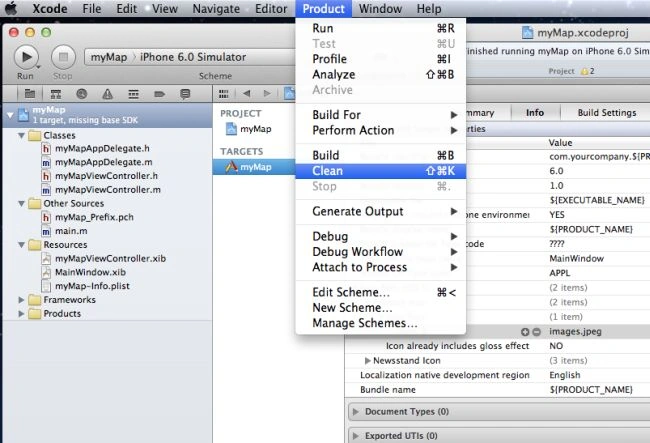

Step 10
Output 1 in iPhone
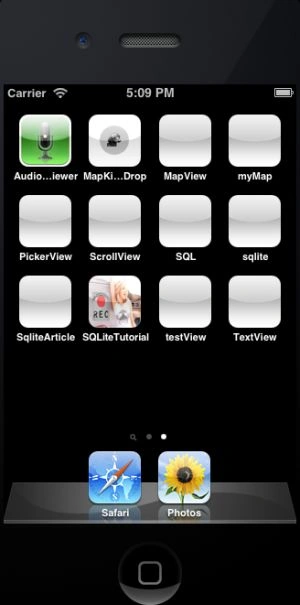
Before setting app icon image.
Output 2 in iPhone


After set app icon image.
Join the conversation! Your thoughts help the community grow.