

What is Application Insights?
Application Insights is a logging tool for both production and development environment workloads which also provides deep information about your Azure application and on-premise environments. It will help to improve application performance with each in & out request.
Why?
Application Insights (AI) will help us to maintain application-level logging (PaaS) or on-premises(IaaS) trace events from end to end, app performance, page views counts, and more as shown in below.
- Troubleshooting
- Performance
- Improvement
- Trends
- Customer Experience
- Business Decisions.
It supports multiple languages like .Net(VB.Net, C#.Net, etc), Java(C++), Java Script,Node.js, Python, Ruby, etc. For more information about supported languages please follow the below Url: https://docs.microsoft.com/en-in/azure/azure-monitor/app/platforms
It will detect and diagnose issues in your cloud applications and dependencies using Application Insights. It will co-relate your cloud application traces and drill into your issues using log analytics for troubleshooting and diagnosing your application exceptions, performance-related issues, etc.
Below I’m showing a small example of Application Insights using ASP Core.
Learning Series
Prerequisites
- Azure Subscription to create Azure apps.
- Visual Studio 2019
- SQL Server (Any version)
Project Information
- Web API Core App
- MVC Core application
- Entity Framework Core
Azure Apps
- Azure Resource Group
- Web Apps - 2
- One Application Insights
- Free SQL Database server
- Azure DevOps to configure CI and CD pipeline.
- GIT Hub
I’ll show you the Azure apps required for the below example. if you already know how to create apps for your project, you can directly shift to the next step.
Create a resource group to maintain all Azure app services as environment-specific.
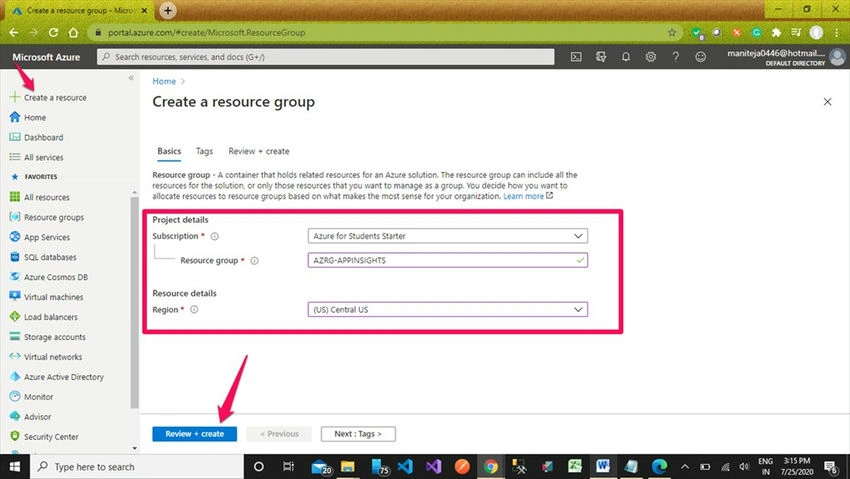
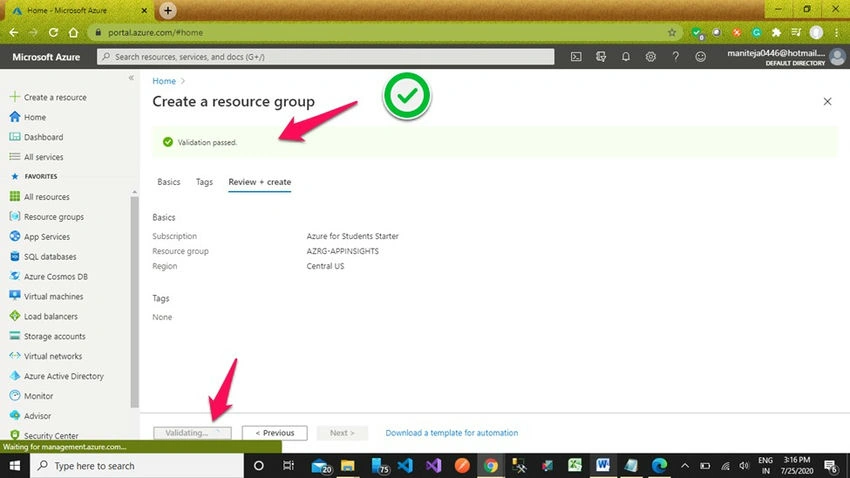
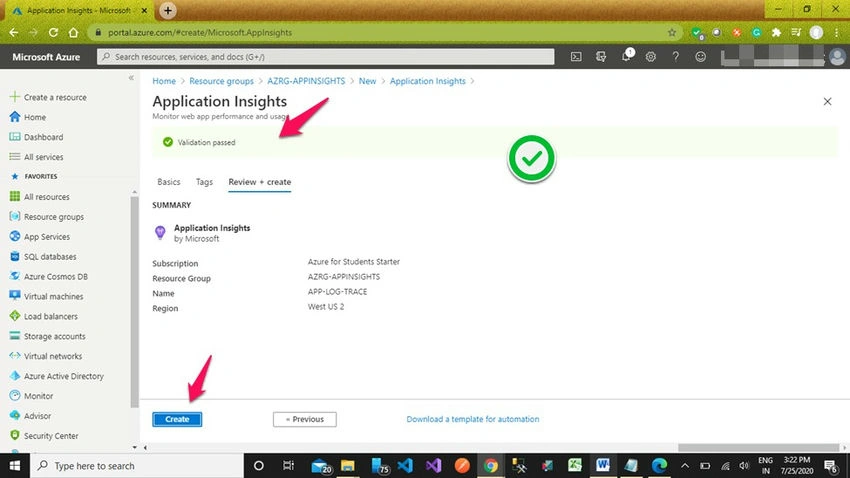
Once the required fields are filled and it gives validation as shown in the below screenshot, then click on the create button.
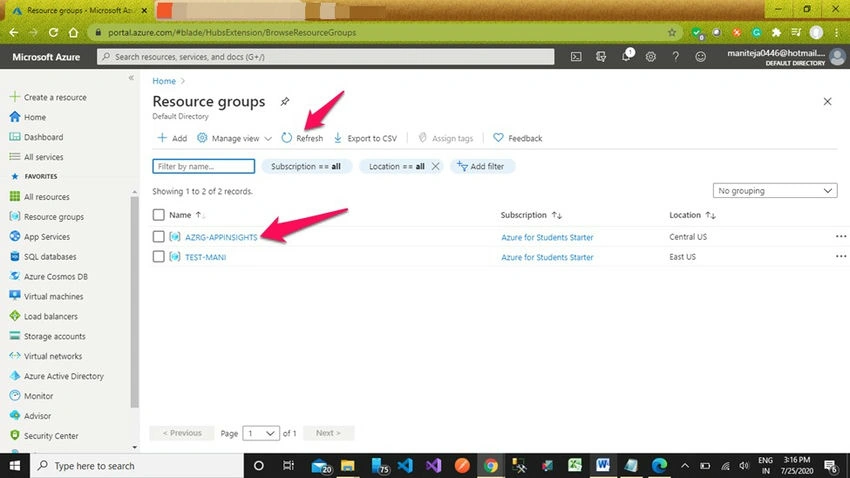
You can click on the resource groups option and click on the refresh button to retrieve your created resource group. Now click on the newly created resource group to open.
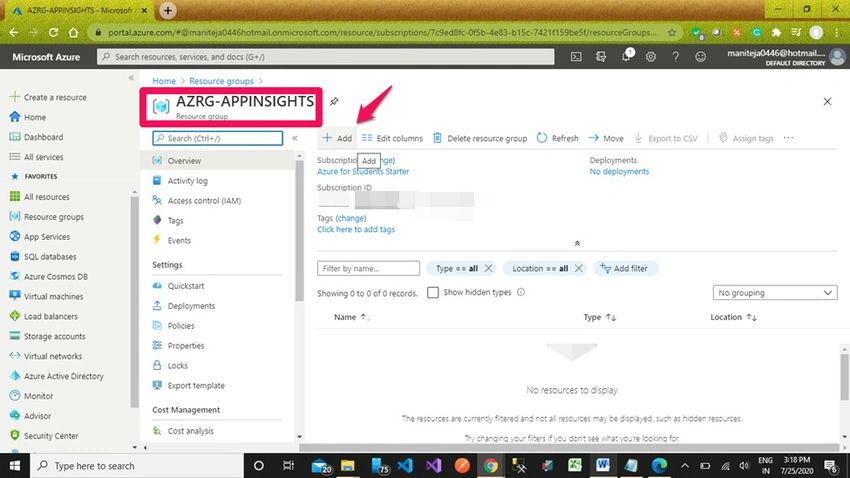
Now it’s time to create our Azure apps for project setup. Click on the ‘+Add’ option to create new Azure apps.
It will redirect to the below screen where you can enter your Azure app information. First, create your application insights or Azure plan service. In this activity, I have a free subscription, and by default, I’ll get a free Azure service plan. So, I directly created application insights and followed the below process.
As per the below screen, enter keywords as application insights and click on enter or you can select the filtered option as shown in the below screengrab.
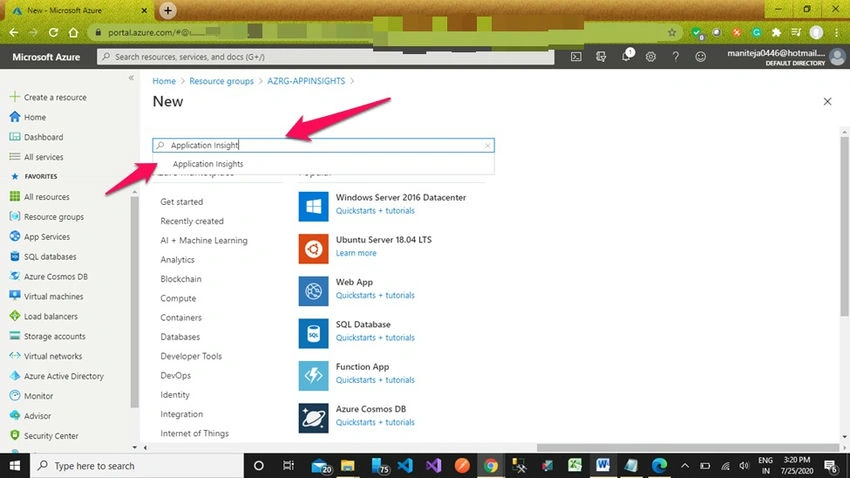
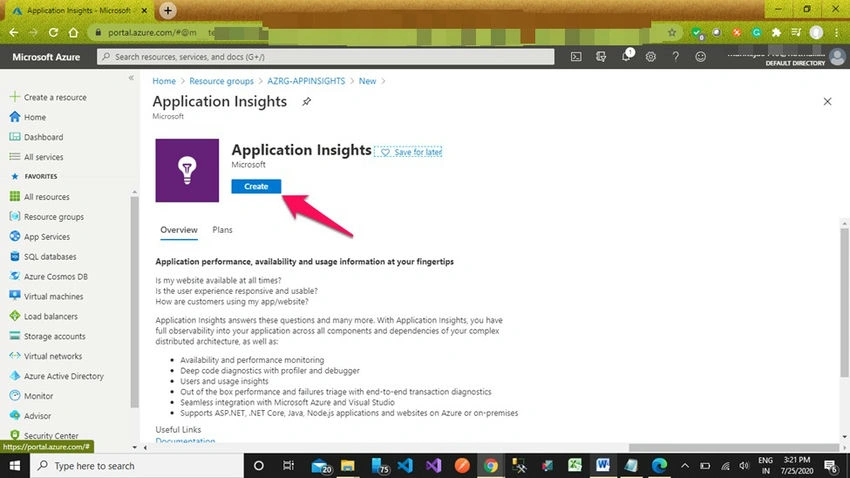
Then action was redirected to the below screenshot and click on the ‘Create’ option to continue.
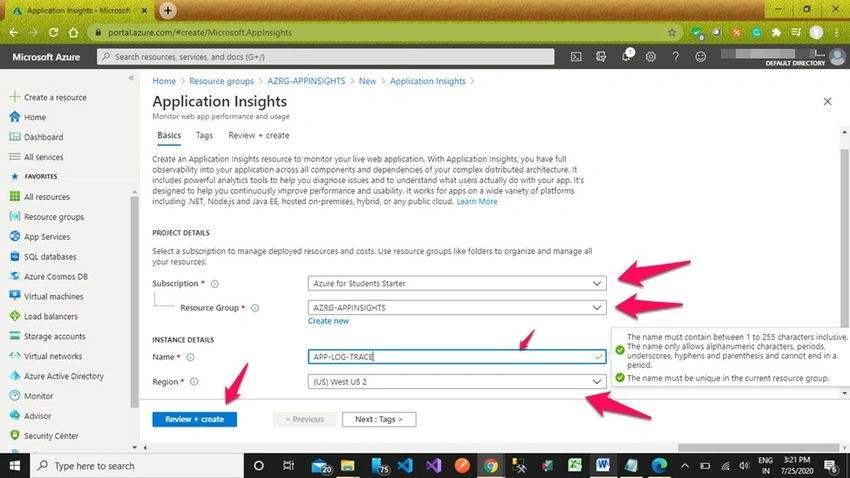
Select your resource group by selecting the drop-down list and provide the valid name to your application insights app service. Click on the ‘Review + Create’ blue colored button.
The tags option is not required for my example now, so I can skip and I’ll pass the validation for creation.
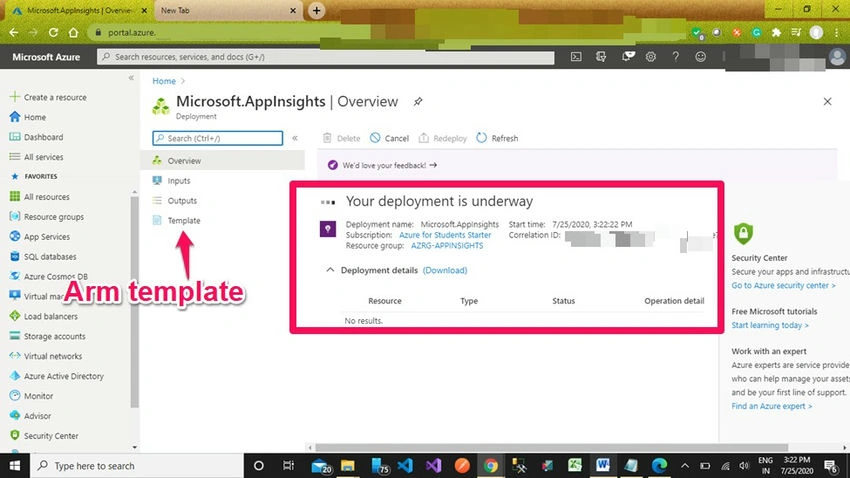
The below screen shows us the deployment process for Application Insights and also provides you with the ARM Template information in the templates section.
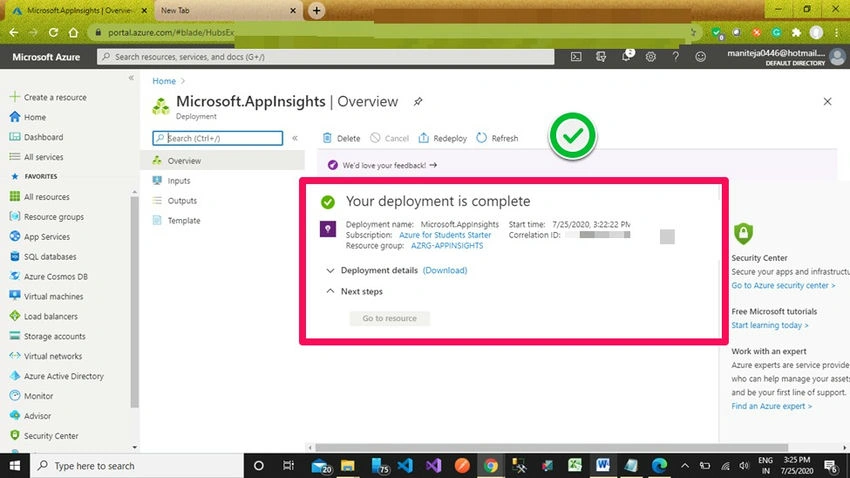
Now application insights deployment is complete and goes with the remaining app services.
Now add 2 more web applications with a free app service plan for end-to-end trace logging in application insights.
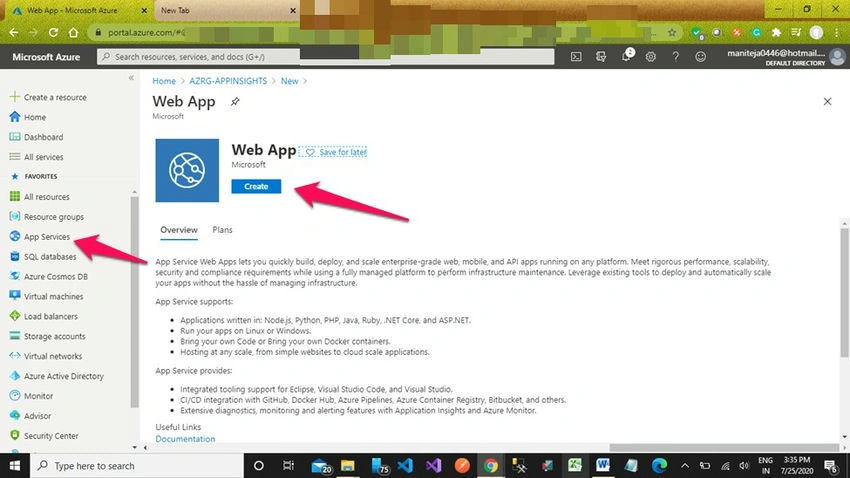
New Azure web app creation process for the client-side logging.
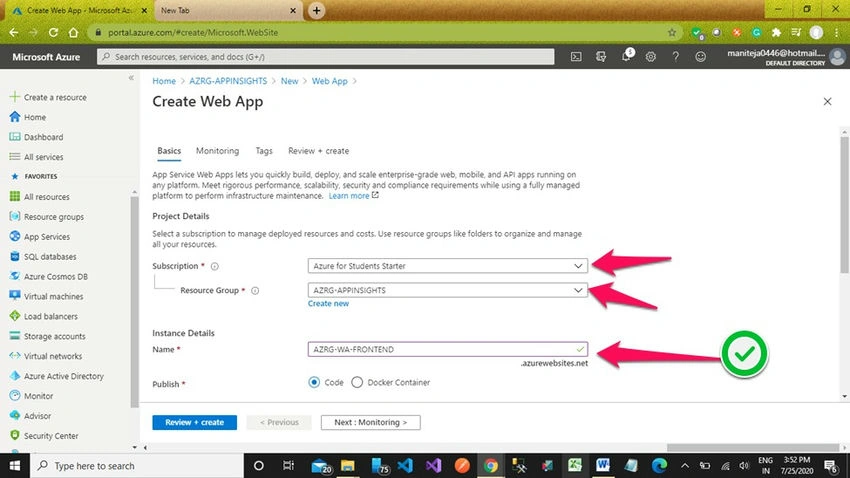
Runtime stack in .net core and Windows operating system with a free app service plan as shown in the below screengrab.
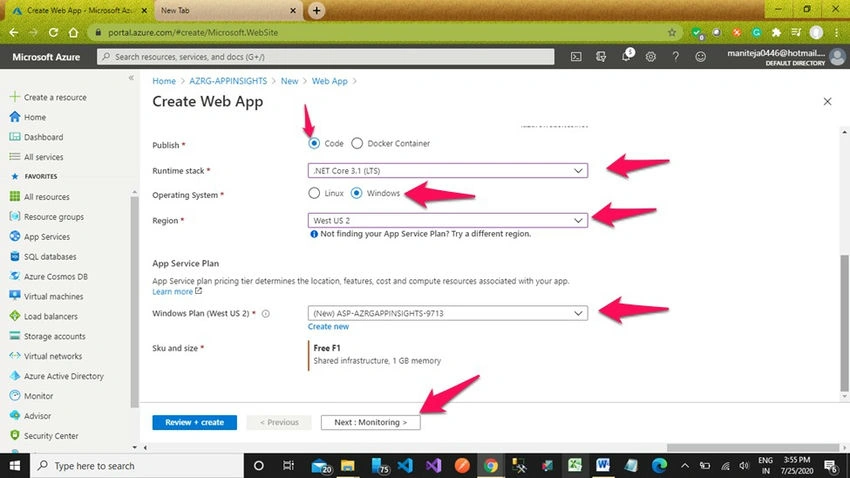
Now we need to map existing application insights for new app creation. Here I'm trying to show you how to use application insights mapping to give a clear picture of components across all components of our distributed applications with flows.
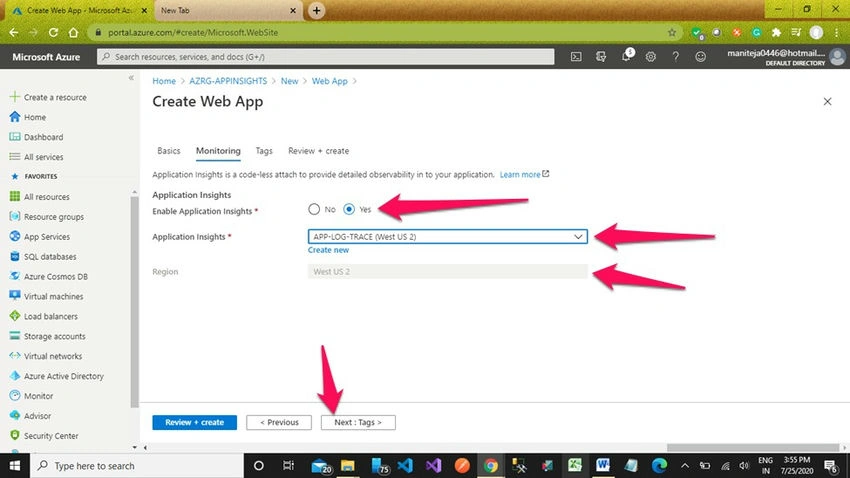
You can skip this Tags option and Click on the 'Next: Review Create' button for validation.

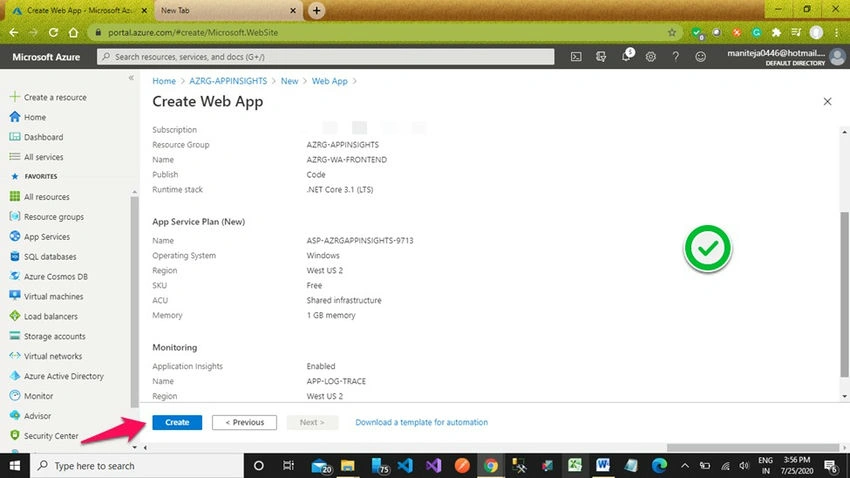
Validation passed now, click on the 'Create' button.
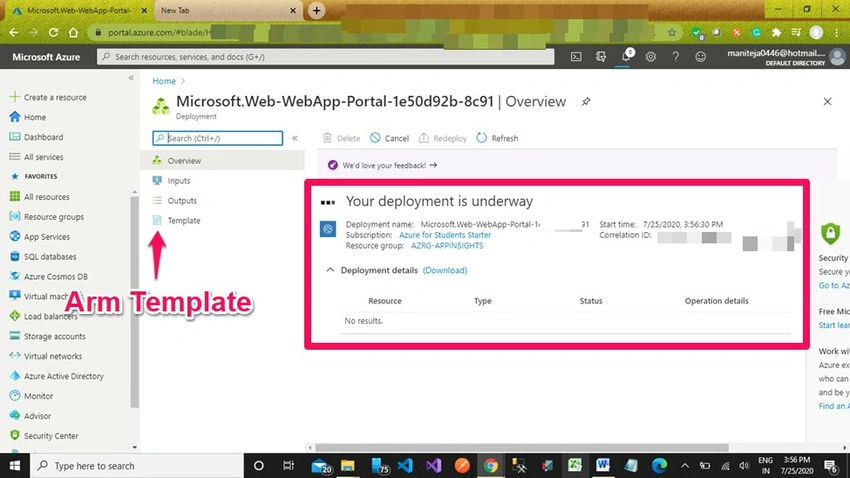
Once the deployment is complete, click on the 'Go to resource' button.
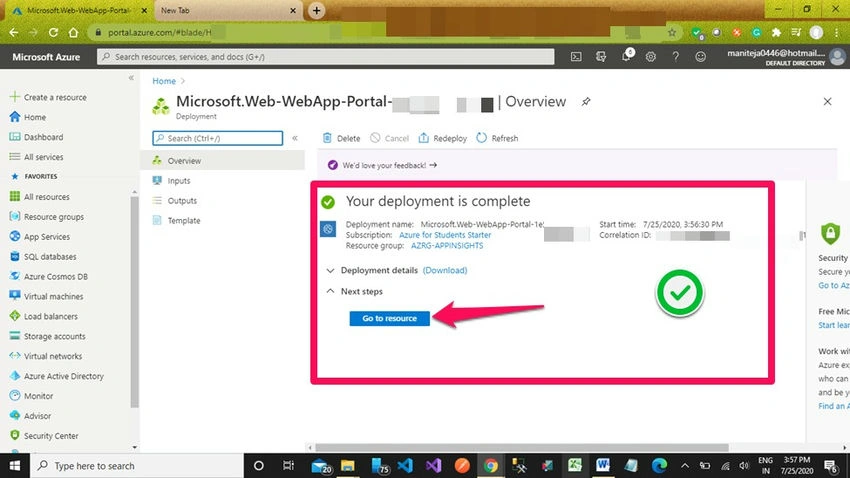
Now repeat the above web app creation process for the remaining web apps.
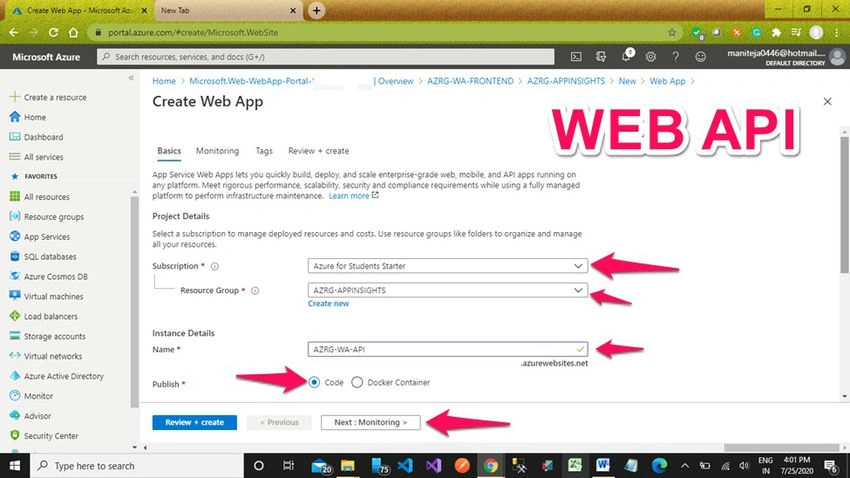
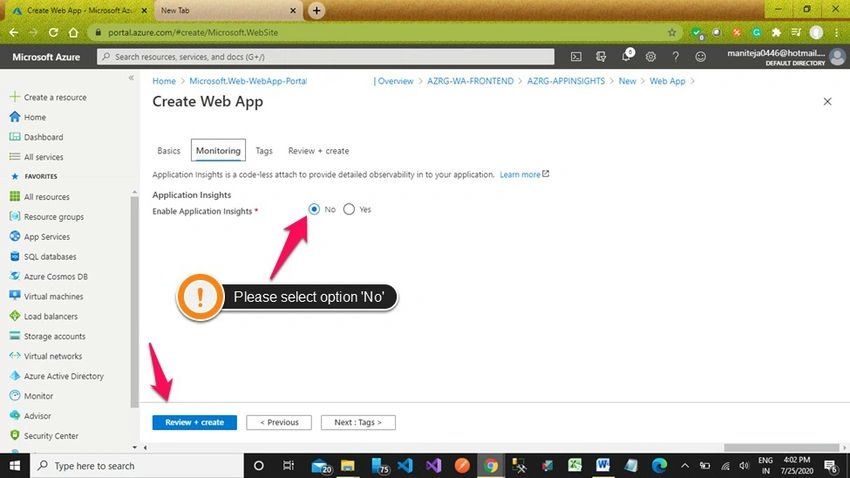
Now, don't create another new application insight or enable or map existing application insights. Select the 'Review + Create' button for the review process.
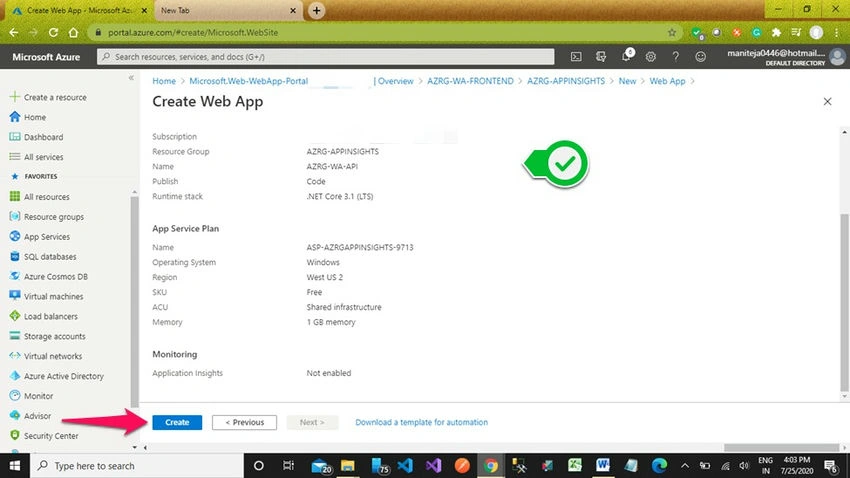
Validation Passed now, Click on the 'Create' button.
Now our app services are ready as shown in the below screenshot.
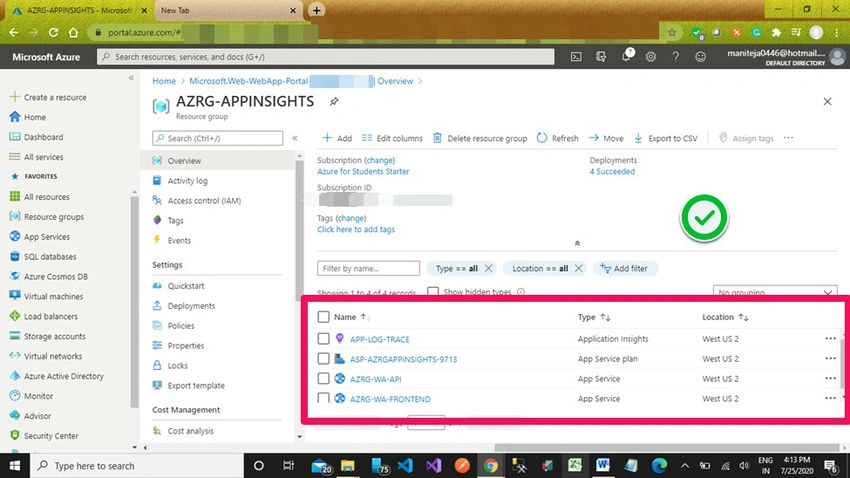
In Azure Cloud, app services configuration was done and in the next articles, we will learn about the local environment setup and some practices about Application Insights.
Jorge Garmilla ManchoPosted Oct 10, 2020, 2:48 AM
Hi. Links to go to Part 3 and Part 4 are broken