

Applying Custom Validation to a field
A validation rule is a condition that the data in our application must conform to. If you can add one or more validation rules to a table then an error appears if a user adds or changes data in a table that violates the rule. Before a user can commit the data, the validation error must be fixed.
LightSwitch includes several built-in validation rules that we can use without writing any custom code. However we can define custom validation rules by writing code.
How we can apply a Custom Validation to a Field
Step 1
Open the Solution Explorer.
Image 1
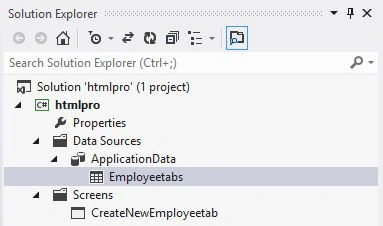
Step 2
In the Solution Explorer, double-click or right-click on the table to open it.
Image 2

Step 3
The table opens in Data Designer.
Image 3
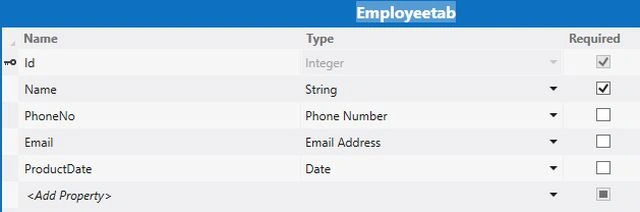
Step 4
In the table, choose the field that you want to validate.
Image 4
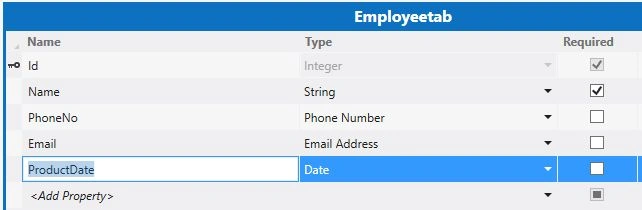
Step 5
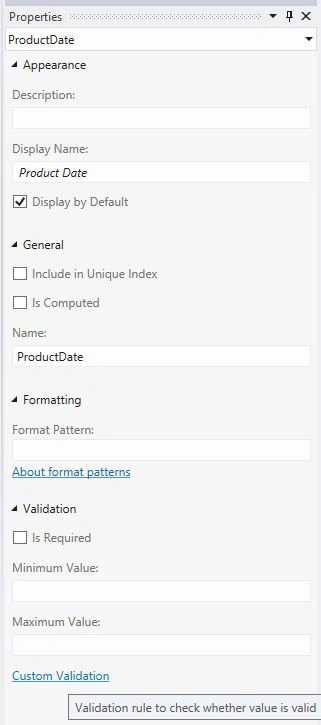
Open the Property Window.
Image 5
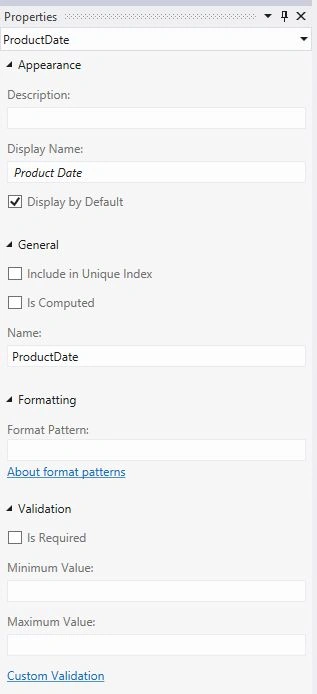
Step 6
In the Property Window, choose the Custom Validation link.
Image 6
Step 7
The Code Editor opens that consists of a method that's named FieldName_Validate(). Add the Validation code to this method.
using System;
using System.Collections.Generic;
using System.Linq;
using System.Text;
using Microsoft.LightSwitch;
namespace LightSwitchApplication

Join the conversation! Your thoughts help the community grow.