

Here, I am going to present a project in MVC ASP.NET. This is the first part of my project.
About This Project:
Here, I am going to make a project on Article Management System. Here, the user can post an article, view all articles, add new technology etc. In this first part, I am going to show how we can show all articles in a list. Here, I am going to use Code First approach.
Now, I am going to explain this step by step:
Open Visual Studio 2015 -> Add new project.
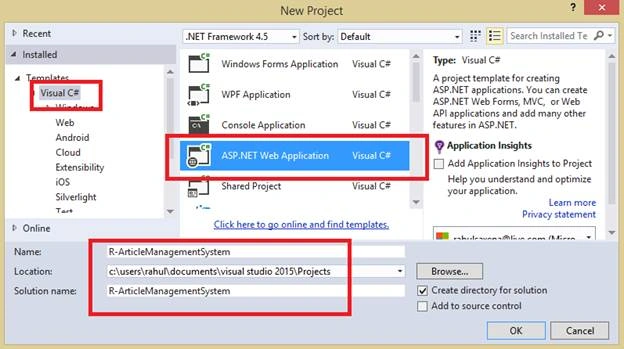
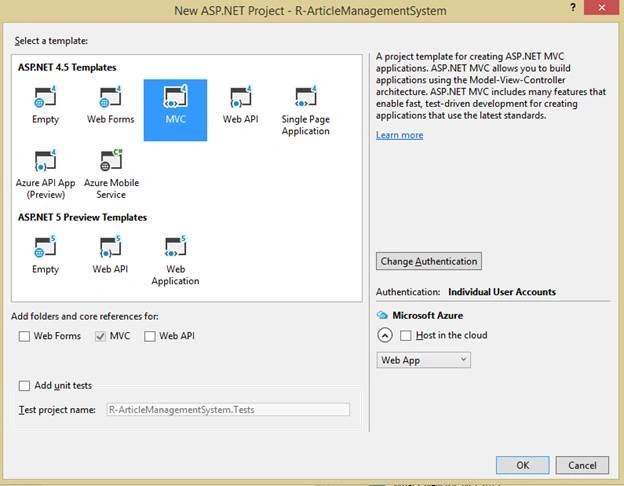
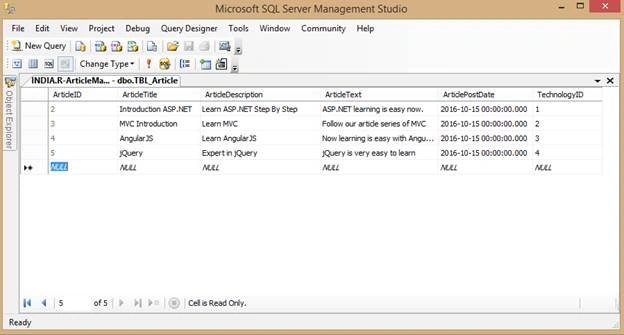
Initially in this project, I am going to use two tables.
- TBL_ARTICLE (To save the article related information).
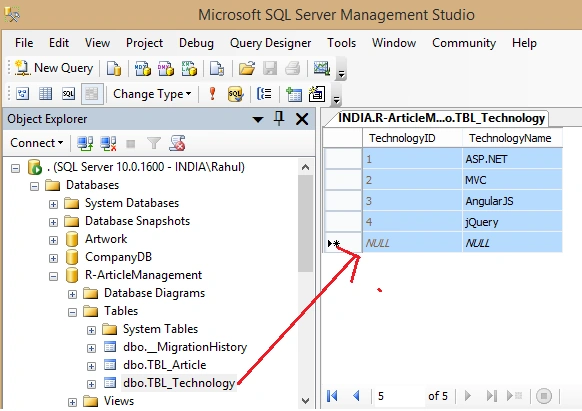
- TBL_TECHNOLOGY (To save the technology information).
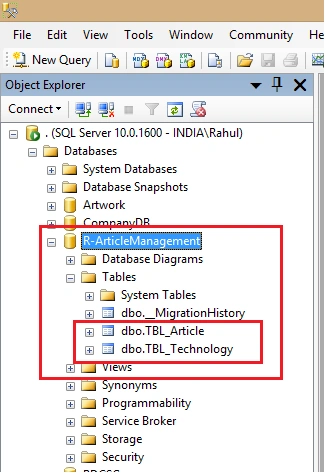
As I told you, I am going to use Code First approach. Hence, there is no need to create a database. It will create automatically, when you will run your Application first.
For each table you need in your project you have to create class in your Application: Right click on Models folder and add new class: Article.cs
- using System;
- using System.Collections.Generic;
- using System.Linq;
- using System.Web;
- using System.ComponentModel.DataAnnotations.Schema;
- using System.ComponentModel.DataAnnotations;
- namespace R_ArticleManagementSystem.Models
- {
- [Table("TBL_Article")]
- public class Article
- {
- [Key]
- public int ArticleID { get; set; }
- [MaxLength(500)]
- [Column(TypeName = "varchar")]
- public string ArticleTitle { get; set; }
- [MaxLength(1000)]
- [Column(TypeName = "text")]
- public string ArticleDescription { get; set; }
- [Column(TypeName = "text")]
- public string ArticleText { get; set; }
- public DateTime ArticlePostDate { get; set; }
- public int TechnologyID { get; set; }
- }
- }
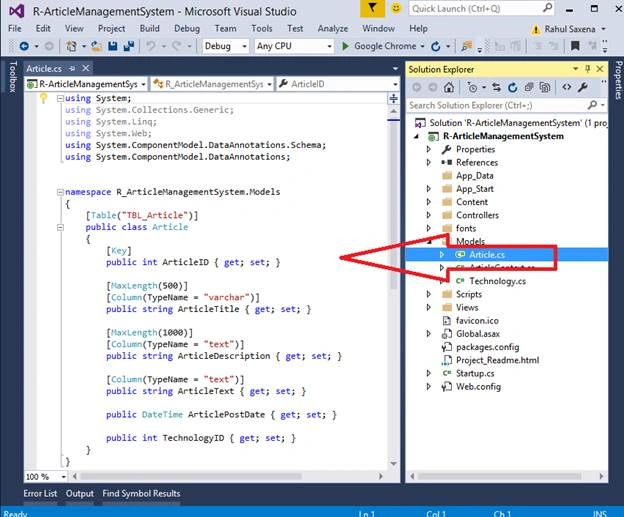
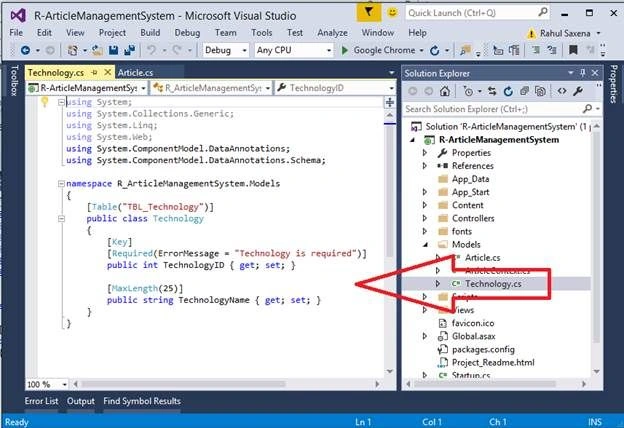
Now, again right click on Models folder and add a new class: Technology.cs and execute the code, given below.
- using System;
- using System.Collections.Generic;
- using System.Linq;
- using System.Web;
- using System.ComponentModel.DataAnnotations;
- using System.ComponentModel.DataAnnotations.Schema;
- namespace R_ArticleManagementSystem.Models
- {
- [Table("TBL_Technology")]
- public class Technology
- {
- [Key]
- [Required(ErrorMessage = "Technology is required")]
- public int TechnologyID { get; set; }
- [MaxLength(25)]
- public string TechnologyName { get; set; }
- }
- }
Now, add a context class, which will be responsible for the database activity i.e. ArticleContext.cs and execute the code, given below.
- using System.Data.Entity;
- namespace R_ArticleManagementSystem.Models
- {
- public class ArticleContext : DbContext
- {
- public ArticleContext() : base("MyConnection")
- {
- }
- public DbSet<Article> Articles { get; set; }
- public DbSet<Technology> Technologys { get; set; }
- }
- }
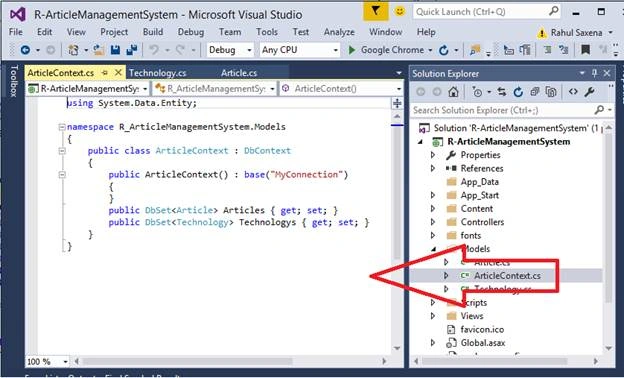
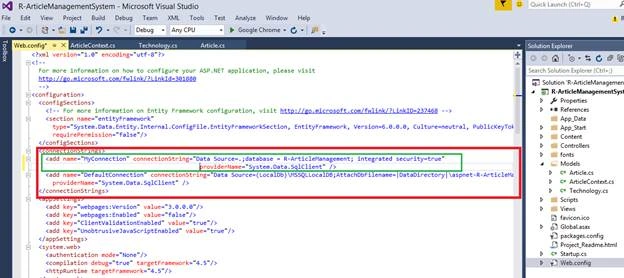
Here, you will notice I am using :base("MyConnection") this MyConnection is my connection string, which should exist in your web.config file, as given below.
- <connectionStrings>
- <add name="MyConnection" connectionString="Data Source=.;database = R-ArticleManagement; integrated security=true"
- providerName="System.Data.SqlClient" />
- <add name="DefaultConnection" connectionString="Data Source=(LocalDb)\MSSQLLocalDB;AttachDbFilename=|DataDirectory|\aspnet-R-ArticleManagementSystem-20160919025329.mdf;Initial Catalog=aspnet-R-ArticleManagementSystem-20160919025329;Integrated Security=True"
- providerName="System.Data.SqlClient" />
- </connectionStrings>
Thennarasu NPosted Apr 20, 2018, 6:29 AM
Nice Article thank you upload .