

Introduction
This article will show how to configure and use CosmoDB in an ASP.Net MVC web application. The tasks will be stored as JSON documents in Azure Cosmos DB.
STEP 1 - Make sure you have installed the prerequisites
Without these requisites, the application will not run.
- Visual Studio 2017
- CosmoDB configuration on Azure Portal
STEP 2 - Create an ASP.NET MVC Web Application
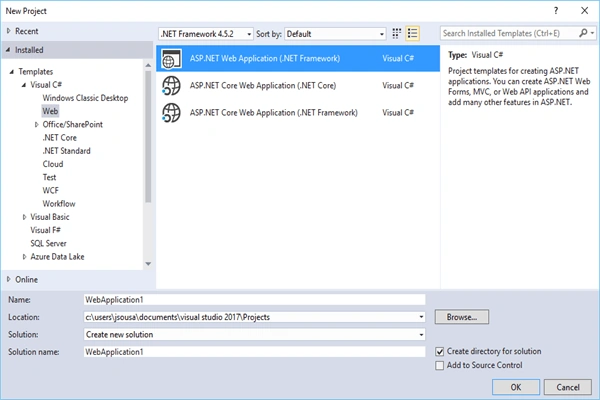
Go to Visual Studio’s File >> New Project menu, expand the Web category, and pick ASP.NET Web Application.
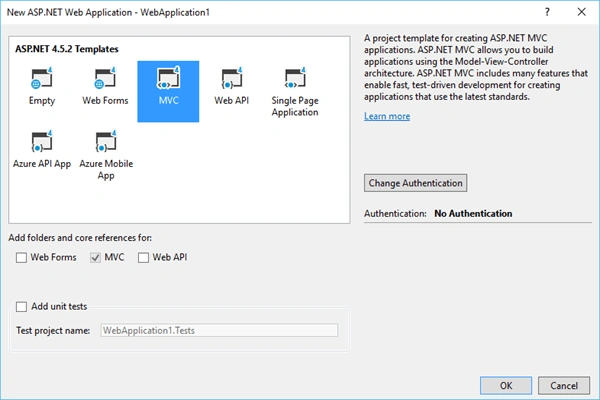
 Select the template as MVC.
STEP 3 - Create Cosmos DB on Azure Portal
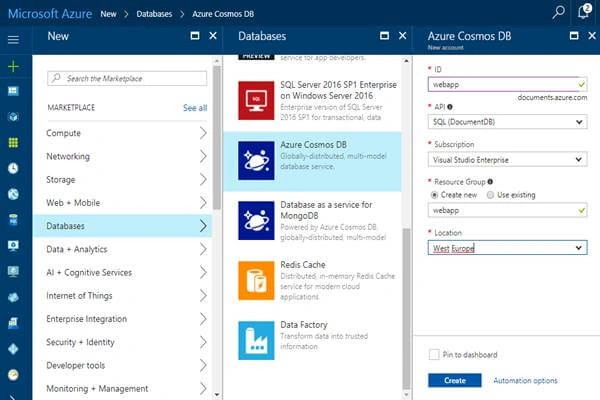
Go to the Azure portal and select Database -> Azure Cosmo DB. Fill in the requested data and select the "Create" option.
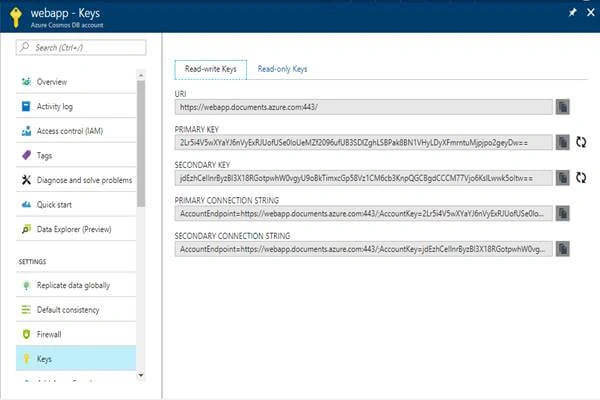
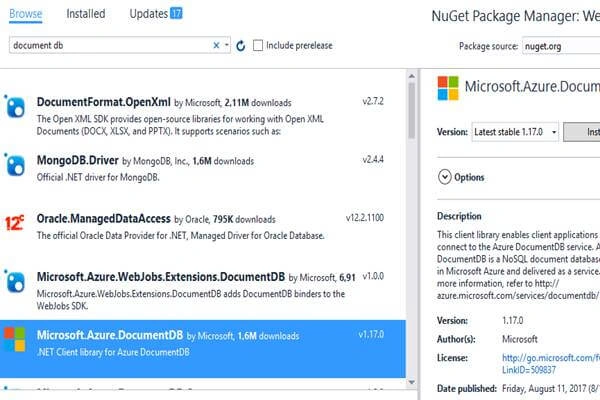
Add a new NuGet package, "Microsoft.Azure.DocumentDB", to your application.
 Create your MVC.
- We create a car Model with 3 properties.
- using System;
- using System.Collections.Generic;
- using System.Linq;
- using System.Web;
- using Newtonsoft.Json;
- namespace WebApp.Models
- {
- public class Car
- {
- [JsonProperty(PropertyName = "id")]
- public string Id { get; set; }
- [JsonProperty(PropertyName = "model")]
- public string Model { get; set; }
- [JsonProperty(PropertyName = "Year")]
- public string Year { get; set; }
- }
- }
- Add a CarController.
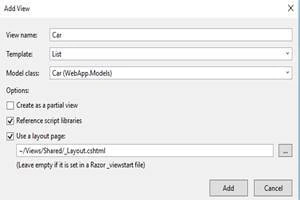
- And two Views configured like this,
- List View
- List View
- Create View
Like the list view that only needs to change the ViewName and Template associated (in this case), we must use the "Create Template".
This is the final structure of our solution.

To run this web app, we need to create a generic repository to connect to Azure Cosmos DB. Check the code below.
C#
- using Microsoft.Azure.Documents;
- using Microsoft.Azure.Documents.Client;
- using Microsoft.Azure.Documents.Linq;
- using System.Configuration;
- using System.Linq.Expressions;
- using System.Threading.Tasks;
- using System.Net;
- using System;
- using System.Collections.Generic;
- using System.Linq;
- namespace WebApp
- {
- public static class Repository<T> where T : class
- {
- private static readonly string DatabaseId = ConfigurationManager.AppSettings["database"];
- private static readonly string CollectionId = ConfigurationManager.AppSettings["collection"];
- private static DocumentClient client;
- public static void Initialize()
- {
- client = new DocumentClient(new Uri(ConfigurationManager.AppSettings["endpoint"]), ConfigurationManager.AppSettings["authKey"]);
- CreateDatabaseIfNotExistsAsync().Wait();
- CreateCollectionIfNotExistsAsync().Wait();
- }
- private static async Task CreateDatabaseIfNotExistsAsync()
- {
- try
- {
- await client.ReadDatabaseAsync(UriFactory.CreateDatabaseUri(DatabaseId));
- }
- catch (DocumentClientException e)
- {
- if (e.StatusCode == System.Net.HttpStatusCode.NotFound)
- {
- await client.CreateDatabaseAsync(new Database { Id = DatabaseId });
- }
- else
- {
- throw;
- }
- }
- }
- private static async Task CreateCollectionIfNotExistsAsync()
- {
- try
- {
- await client.ReadDocumentCollectionAsync(UriFactory.CreateDocumentCollectionUri(DatabaseId, CollectionId));
- }
- catch (DocumentClientException e)
- {
- if (e.StatusCode == System.Net.HttpStatusCode.NotFound)
- {
- await client.CreateDocumentCollectionAsync(
- UriFactory.CreateDatabaseUri(DatabaseId),
- new DocumentCollection { Id = CollectionId },
- new RequestOptions { OfferThroughput = 1000 });
- }
- else
- {
- throw;
- }
- }
- }
- public static async Task<IEnumerable<T>> GetItemsAsync()
- {
- IDocumentQuery<T> query = client.CreateDocumentQuery<T>(
- UriFactory.CreateDocumentCollectionUri(DatabaseId, CollectionId))
- .AsDocumentQuery();
- List<T> results = new List<T>();
- while (query.HasMoreResults)
- {
- results.AddRange(await query.ExecuteNextAsync<T>());
- }
- return results;
- }
- public static async Task<Document> CreateItemAsync(T item)
- {
- return await client.CreateDocumentAsync(UriFactory.CreateDocumentCollectionUri(DatabaseId, CollectionId), item);
- }
- }
- }
For more information, please visit the official link from Microsoft.
STEP 5 - Results
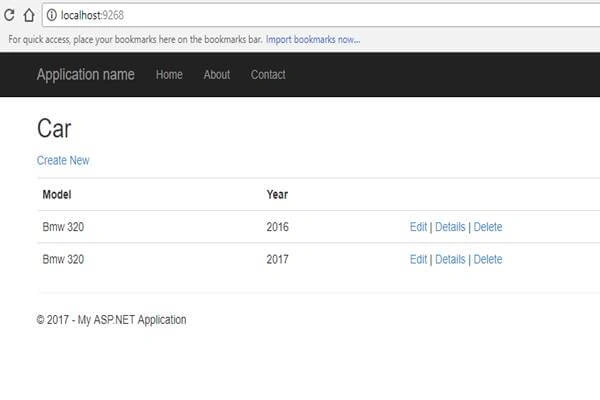
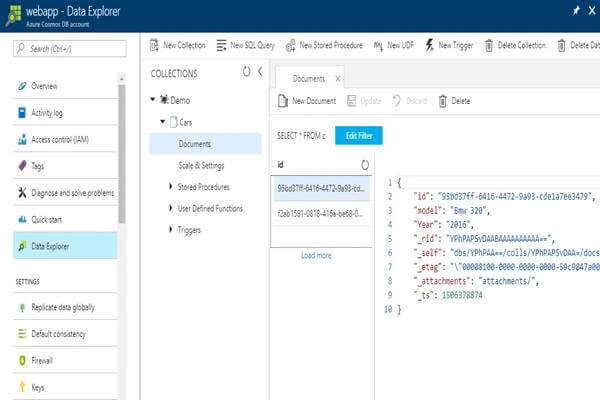
You can now access your Cosmos DB on the Azure portal and check the data created. As you can see, all the data is in JSON format.
Resources
Theodorus GumilangPosted Jan 16, 2018, 2:50 AM
Can you do it wihtout MVC , so we use postman to get the data and post the data. Im stuck try to achieve that