

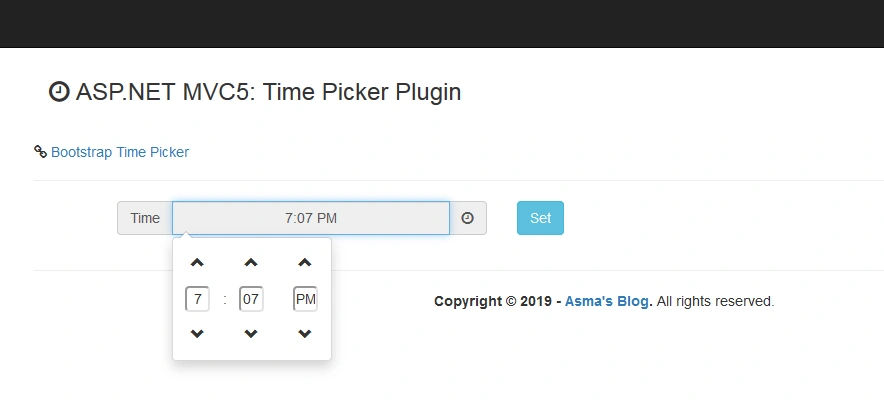
In most of the scenarios, time is usually an auto-generated component of the product but occasionally, there comes a situation where time input is required from the end-user. For such scenarios, there is a very simple and interactive jQuery plugin Bootstrap Time Picker available. This plugin adds interactivity to the end-user choice of providing time input.
Today, I shall be demonstrating integration and basic usage of the Bootstrap Time Picker jQuery plugin in ASP.NET MVC5 platform.
Prerequisites
Following are some prerequisites before you proceed any further in this tutorial.
- Knowledge of ASP.NET MVC5.
- Knowledge of HTML.
- Knowledge of JavaScript.
- Knowledge of Bootstrap.
- Knowledge of Jquery.
- Knowledge of C# Programming.
The running working source code solution for this article is being developed in Microsoft Visual Studio 2017 Professional.
Let's begin now.
Step 1
Step 2
Step 3
...

    /// <summary>
    /// Timer view model class.
    /// </summary>
    public class TimerViewModel
    {
        ...

        /// <summary>
        /// Gets or sets the HTML content property.
        /// </summary>
        [Required]
        [Display(Name = "Time")]
        public string Timer { get; set; }

        ...
    }

...
In the above code, I have created my view model which I will attach to my view. Here, I have created string type Timer property which will capture time input from the end-user.
Step 4
Step 5
...

         <div class="input-group">
              <span class="input-group-addon">Time</span>
              <input id="timerId" type='text' class="form-control text-center" placeholder="Time" readonly="readonly" />
              <span class="input-group-addon">
                  <span class="fa fa-clock-o"></span>
              </span>
          </div>

...
In the above code, I have created a simple view for taking time input from the end-user via Bootstrap Time Picker Jquery plugin.
Step 6
$(document).ready(function ()
{
    ...

    var timerVal = moment().format('hh:mm A');

    ...

    $('#timerId').timepicker(
    {
            template: 'dropdown',
            minuteStep: 1,
            secondStep: 1,
            showMeridian: true,
            defaultTime: timerVal
   });

   ...

});
In the above code, I have created basic Bootstrap Time Picker JQuery plugin settings to integrate the plugin with asp.net mvc platform.
Step 7
Conclusion
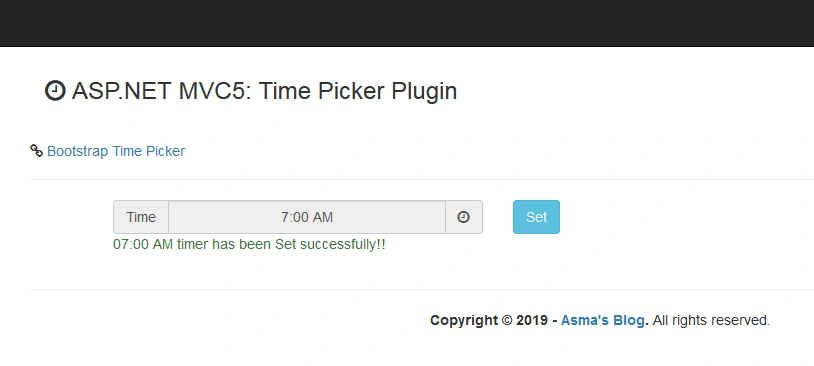
In this article, we learned how to integrate Bootstrap Time Picker jQuery plugin with ASP.NET MVC5 platform. Also, we looked into the basic usage of the time picker plugin and learned to take time input from end-user and apply proper date/time format to the provided time input.
d singhPosted Jan 8, 2023, 1:59 PM
Hi... I tried this code, it is working but arrow icons are not showing ..
Riddhi ValechaPosted Sep 30, 2021, 11:38 AM
Hi... I tried this code, but it did not work for me... Hi... I found other solution...
RAMMOHAN SUHDAMPosted Jul 6, 2020, 8:52 PM
Thanks for your article it was great help for me...