

Introduction
Query String Parameters is an important concept in .NET programming. Let us learn how to use query string parameters in ASP.NET Web API programming. Follow the steps mentioned below.
Step 1
- CREATE TABLE [dbo].[Employees](
- [EmployeeId] [int] IDENTITY(1,1) NOT NULL,
- [Name] [nvarchar](50) NULL,
- [Gender] [char](10) NULL,
- [Age] [int] NULL,
- [Position] [nvarchar](50) NULL,
- [Office] [nvarchar](50) NULL,
- [HireDate] [datetime] NULL,
- [Salary] [int] NULL,
- PRIMARY KEY CLUSTERED
- (
- [EmployeeId] ASC
- )WITH (PAD_INDEX = OFF, STATISTICS_NORECOMPUTE = OFF, IGNORE_DUP_KEY = OFF, ALLOW_ROW_LOCKS = ON, ALLOW_PAGE_LOCKS = ON) ON [PRIMARY]
- ) ON [PRIMARY]
- GO
Step 2
- insert into Employees values('Airi Satou','Male',34,'Software Engineer','Tokyo','2018-11-01',162700)
- insert into Employees values('Angelica Ramos','Male',40,'Accountant','London','2018-08-10',1200000)
- insert into Employees values('Caesar Vance','Male',42,'Sales Assistant','New York','2018-05-01',162700)
- insert into Employees values('Cara Stevens','Male',30,'Pre-Sales Support','New York','2018-11-01',162700)
- insert into Employees values('Colleen Hurst','Male',34,'Software Engineer','San Francisco','2018-12-05',86000)
- insert into Employees values('Dai Rios','Male',45,'Regional Director','London','2018-08-10',132000)
- insert into Employees values('Gavin Joyce','Female',28,'Developer','San Francisco','2018-09-15',206850)
- insert into Employees values('Brenden Wagner','Male',38,'Support Engineer','New York','2018-10-20',372000)
- insert into Employees values('Cara Stevens','Female',30,'Integration Specialist','Tokyo','2018-12-25',145600)
- insert into Employees values('Cedric Kelly','Female',22,'Senior Javascript Developer','Edinburgh','2018-12-30',106450)
Step 3
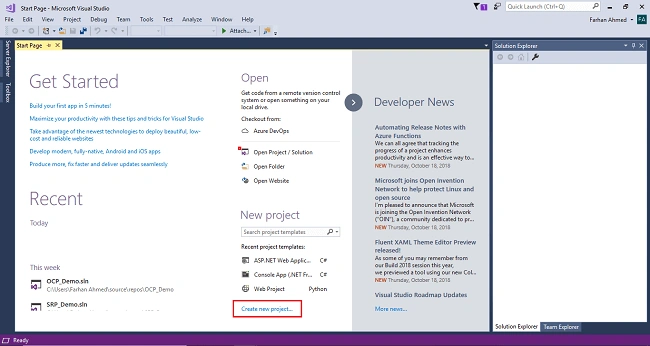
After clicking on the "New Project" link, a window will appear. Select "Web" from the left panel, choose ASP.NET Web application, give a meaningful name to your project, and then click OK, as shown in the below screenshot.
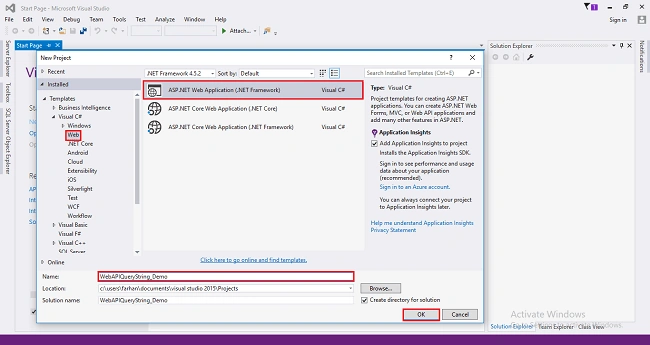
After clicking on OK, one more window will appear; choose Empty, check on Empty Web API checkbox and then, click OK, as shown in the following screenshot.
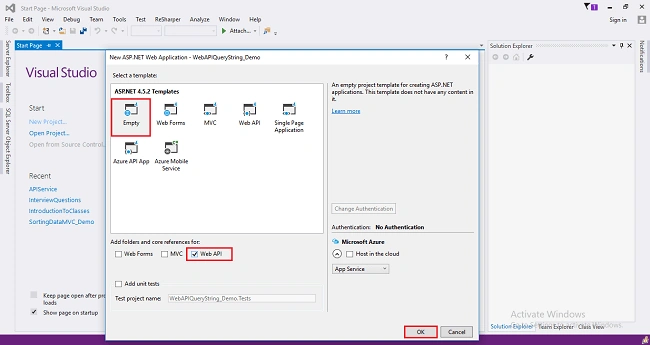
After clicking OK, the project will be created with the name you have given. In my case, it is WebAPIQueryString_Demo.
Step 4
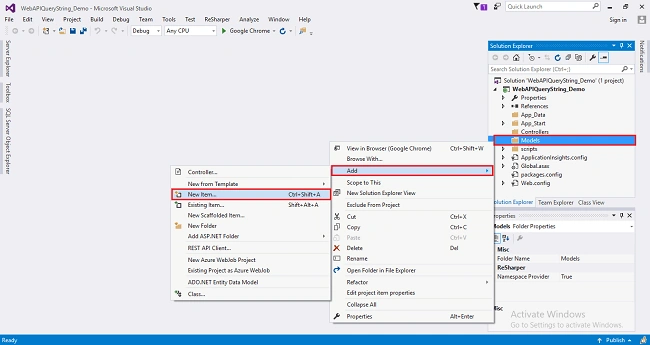
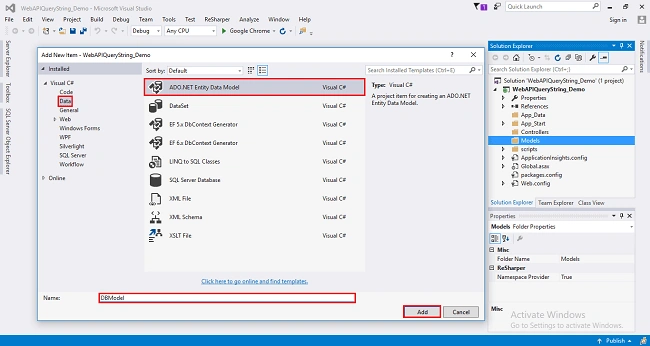
Again, you will get a window, from where you need to select "Data" from the left panel and choose ADO.NET Entity Data Model. Give it a name, like DBModel (this name is not mandatory, you can give any name) and click "Add".
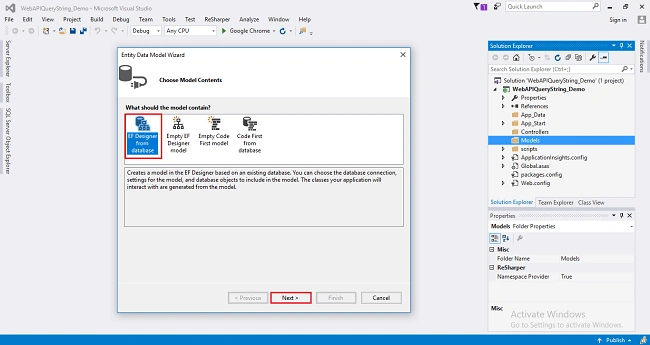
After you click on "Add a window", the wizard will open. Choose EF Designer from the database and click "Next".
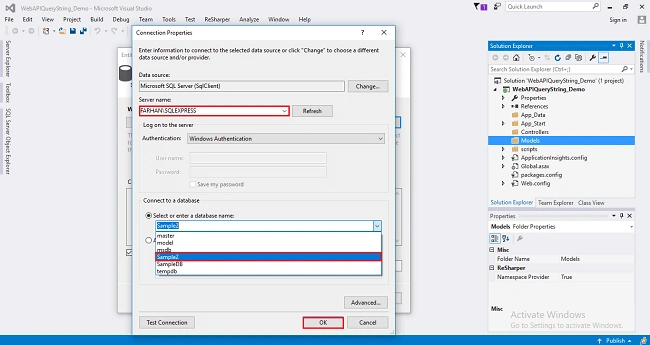
After clicking on "Next", a window will appear. Choose "New Connection". Another window will appear; add your server name here. If it is local, then enter dot (.) instead of the server name. Choose your database and click "OK".
The connection will be added. If you wish to save the Connection, you can opt for it. You can change the name of your connection like below. It will save the connection in web.config. Click "Next".
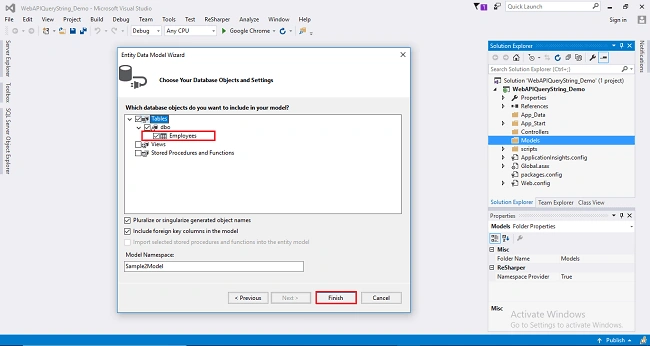
In the next window, choose database table name as shown in the below screenshot, and click "Finish". Entity Framework will be added to your project and the respective class gets generated under "Models" folder.
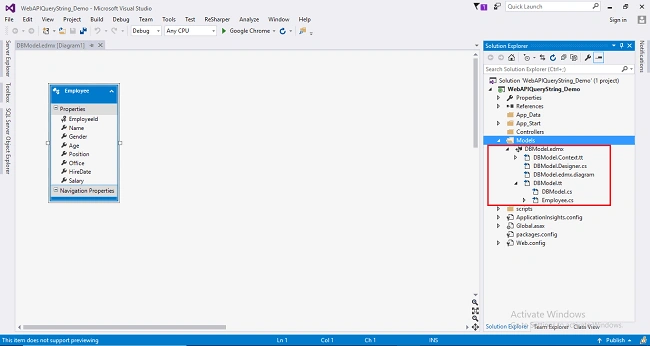
The following class will be added.
- namespace WebAPIQueryString_Demo.Models
- {
- using System;
- using System.Collections.Generic;
- public partial class Employee
- {
- public int EmployeeId { get; set; }
- public string Name { get; set; }
- public string Gender { get; set; }
- public Nullable<int> Age { get; set; }
- public string Position { get; set; }
- public string Office { get; set; }
- public Nullable<System.DateTime> HireDate { get; set; }
- public Nullable<int> Salary { get; set; }
- }
- }
Step 5
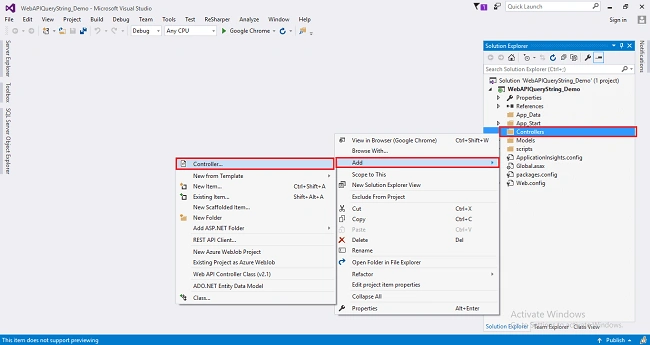
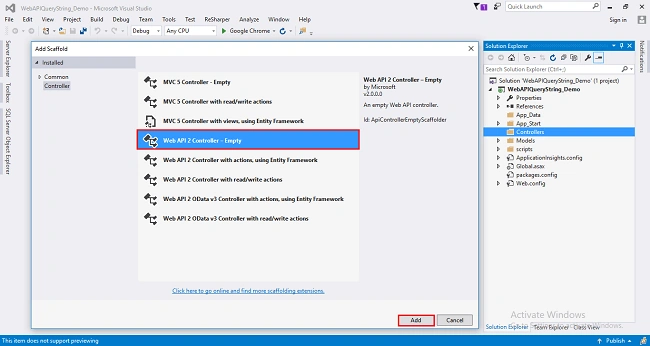
After clicking on Controller, a window will appear. Choose Web API 2 Controller-Empty and click "Add".
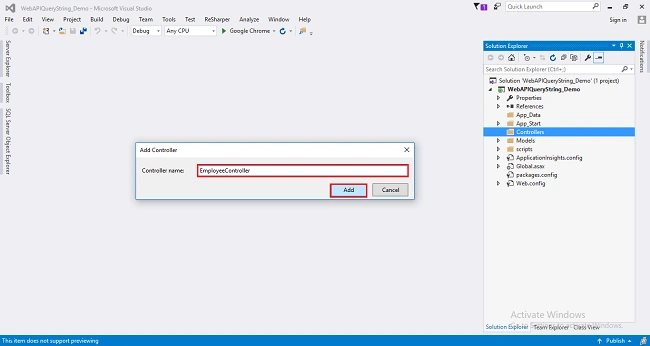
Another window will appear with a name DefaultController. Change the name to EmployeeController and click "Add". The EmployeeController will be added under the Controllers folder. Remember, you don’t have to change the Controller suffix for all the controllers. You should change only the first part of the name, i.e., in place of Default, just change Employee, as shown in the below screenshot.
Complete code for Controller
- using System;
- using System.Collections.Generic;
- using System.Linq;
- using System.Net;
- using System.Net.Http;
- using System.Web.Http;
- using WebAPIQueryString_Demo.Models;
- namespace WebAPIQueryString_Demo.Controllers
- {
- public class EmployeeController : ApiController
- {
- private EmployeeEntities contentEntities;
- public EmployeeController()
- {
- contentEntities=new EmployeeEntities();
- }
- [HttpGet]
- public HttpResponseMessage GetEmployees(string gender="All")
- {
- switch (gender.ToLower())
- {
- case "all":
- return Request.CreateResponse(contentEntities.Employees.ToList());
- case "male":
- return Request.CreateResponse(contentEntities.Employees.Where(e => e.Gender == "male").ToList());
- case "female":
- return Request.CreateResponse(contentEntities.Employees.Where(e => e.Gender == "female").ToList());
- default:
- return Request.CreateErrorResponse(HttpStatusCode.BadRequest,"Value for gender must be Male,Female or All." + gender +
- " is invalid.");
- }
- }
- }
- }
Step 6
http://localhost: 53491/api/employee?gender=all
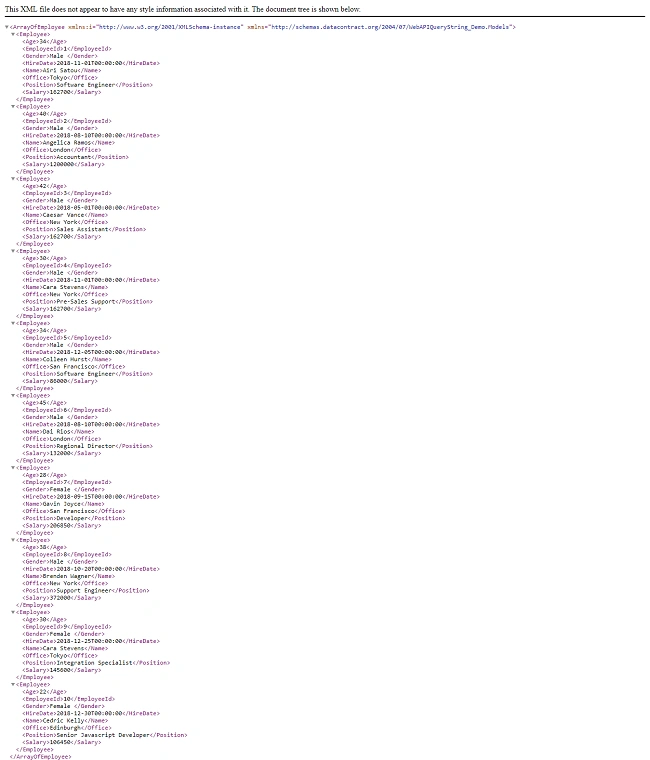
http://localhost: 53491/api/employee?gender=male
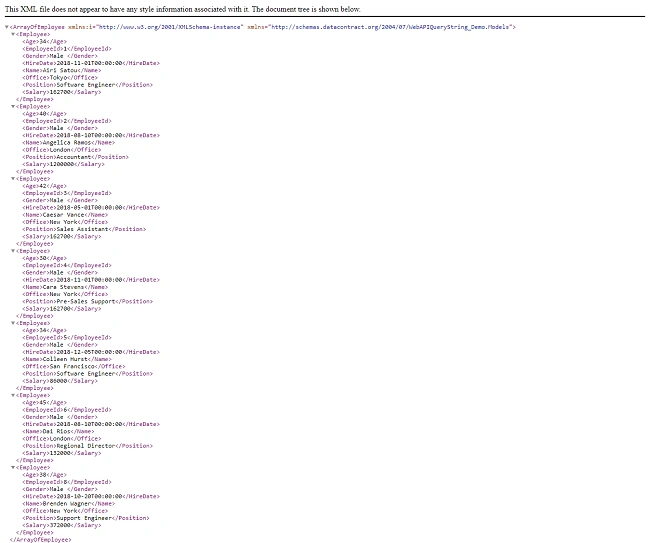
http://localhost:53491/api/employee?gender=abcdef

First LastPosted Jan 28, 2019, 6:25 PM
When issuing: http://localhost: 53491/api/employee?gender=all, how does it know to use the GetEmployees(..) action method?