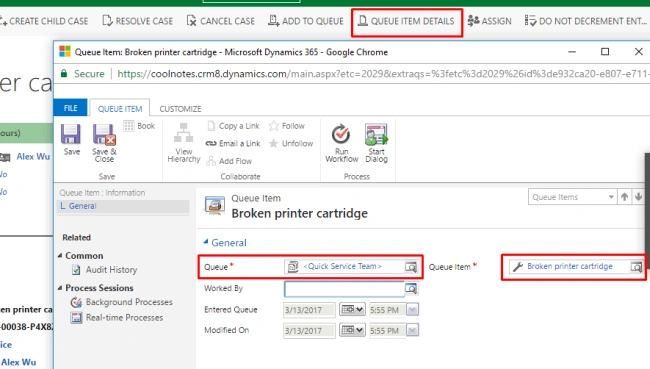
In a recent project, I have worked on one interesting functionality, where I have written a plugin for a Case record to be triggered while assigning it to a Team, and it should fulfil these three requirements.
  1. If the Team has no users in it, Case should be assigned to the default queue of Team.

  2. If the Team has users, the Case should be assigned to the user with the least number of cases.

  3. If more than one user in the Team have the same number of cases, then the case should be randomly assigned to one of them.
Here, I will show you how to implement the above functionaliy. To simplify, I am not using any custom attribute or an entity; you can just create an online trial instance of Dynamics CRM/365 and try it out.

Section 1
Code

Step 1

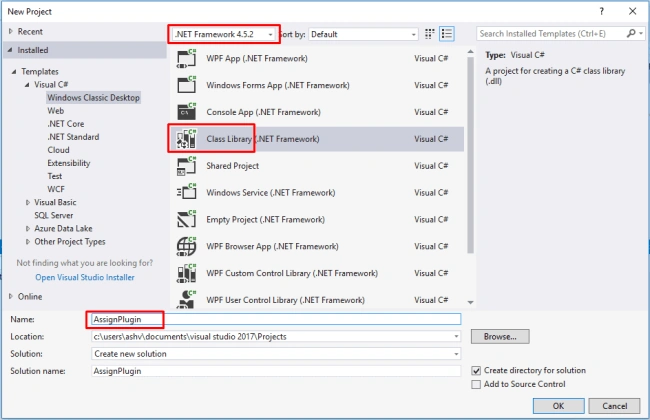
Create a new project in Visual Studio of type Class Library and give the name. I have given the name as AssignPlugin and don't forget to set the framework version to 4.5.2.
Dynamics CRM

Step 2

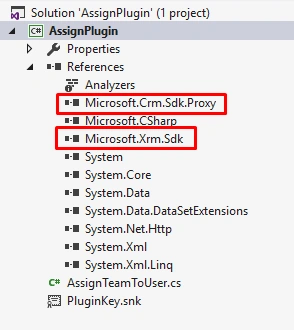
Add the required references to project from CRM SDK.
Dynamics CRM

Step 3

Remove the existing class from the project and add a new class to the project with some name like AssignTeamToUser.cs.

Open this class, make it public, add namespace “Microsoft.Xrm.Sdk” and inherit “IPlugin” interface, which is required for the plugin.

IPlugin requires Execute method to be implemented, so add it to our class.

Now, the code should look, as shown below.
  1. using Microsoft.Xrm.Sdk;
  2. using System;
  3. namespace AssignPlugin
  4. {
  5. public class AssignTeamToUser : IPlugin
  6. {
  7. public void Execute(IServiceProvider serviceProvider)
  8. {
  9. }
  10. }
  11. }
Step 4

Now, we need to add some boilerplate code for some null checks and obtain plugin context and organization Service reference. It's a good idea to maintain business logic separately, so BusinessLogic method in it will contain our Business Logic.
  1. using Microsoft.Xrm.Sdk;
  2. using System;
  3. namespace AssignPlugin
  4. {
  5. public class AssignTeamToUser : IPlugin
  6. {
  7. public void Execute(IServiceProvider serviceProvider)
  8. {
  9. if (serviceProvider == null) return;
  10. // Obtain the Plugin Execution Context
  11. var context = (IPluginExecutionContext)serviceProvider.GetService(typeof(IPluginExecutionContext));
  12. // Obtain the organization service reference.
  13. var serviceFactory = (IOrganizationServiceFactory)serviceProvider.GetService(typeof(IOrganizationServiceFactory));
  14. var service = serviceFactory.CreateOrganizationService(context.UserId);
  15. // To check depth
  16. if (context.Depth > 2) return;
  17. // The InputParameters collection contains all the data passed in the message request.
  18. if (context.InputParameters.Contains("Target") && context.InputParameters["Target"] is EntityReference)
  19. {
  20. // Business logic goes here
  21. new AssignTeamToUser().BusinessLogic(service, context);
  22. }
  23. }
  24. private void BusinessLogic(IOrganizationService service, IExecutionContext context)
  25. {
  26. // Business Logic
  27. }
  28. }
  29. }
Step 5

While registering plugin in
Assign step, it will have two Input parameters in context with the name Target & Assignee, we will pick them in the variable for further use. See the code given below.
  1. private void BusinessLogic(IOrganizationService service, IExecutionContext context)
  2. {
  3. // We are hitting Assign button on a Case record so Target will be a Case record
  4. var caseEntityReference = (EntityReference)context.InputParameters["Target"];
  5. // Assignee could be a User or Team
  6. var teamEntityReference = (EntityReference)context.InputParameters["Assignee"];
  7. // In our requirement it should be a Team, otherwise return
  8. if (teamEntityReference.LogicalName != "team") return;
  9. }

Step 6

Now, let’s jump into the main game. We will retrieve all the users in the given team, using fetchXml. Add namespace Microsoft.Xrm.Sdk.Query in our class, so FetchExpression will be available for the user.
  1. private void BusinessLogic(IOrganizationService service, IExecutionContext context)
  2. {
  3. // We are hitting Assign button on a Case record so Target will be a Case record
  4. var caseEntityReference = (EntityReference)context.InputParameters["Target"];
  5. // Assignee could be a User or Team
  6. var teamEntityReference = (EntityReference)context.InputParameters["Assignee"];
  7. // In our requirement it should be a Team, if user it should return
  8. if (teamEntityReference.LogicalName != "team") return;
  9. // fetchXml to retrieve all the users in a given Team
  10. var fetchXmlLoggedUserInTeam = @"
  11. <fetch version='1.0' output-format='xml-platform' mapping='logical' distinct='true'>
  12. <entity name='systemuser'>
  13. <attribute name='systemuserid' />
  14. <link-entity name='teammembership' from='systemuserid' to='systemuserid' visible='false' intersect='true'>
  15. <link-entity name='team' from='teamid' to='teamid' alias='ac'>
  16. <filter type='and'>
  17. <condition attribute='teamid' operator='eq' uitype='team' value='{0}' />
  18. </filter>
  19. </link-entity>
  20. </link-entity>
  21. </entity>
  22. </fetch>";
  23. // Passing current Team is fetchXml and retrieving Team's user
  24. var users = service.RetrieveMultiple(new FetchExpression(string.Format(
  25. fetchXmlLoggedUserInTeam,
  26. teamEntityReference.Id))).Entities;
  27. }

Step 7

(Implement Condition 1)

If FetchExpression` in the last step returns no users, then we will assign case record for the default queue of the Team, using AddToQueueRequest, add namespace Microsoft.Crm.Sdk.Messages in order to use the same.

Here, we are retrieving Id of default Queue of Team, which is used in DestinationQueueId parameter of AddToQueueRequest and in Target parameter, our case record is given.

Now, complete the code for the given condition and it should look, as shown below.
  1. using Microsoft.Crm.Sdk.Messages;
  2. using Microsoft.Xrm.Sdk;
  3. using Microsoft.Xrm.Sdk.Query;
  4. using System;
  5. namespace AssignPlugin
  6. {
  7. public class AssignTeamToUser : IPlugin
  8. {
  9. public void Execute(IServiceProvider serviceProvider)
  10. {
  11. if (serviceProvider == null) return;
  12. // Obtain the Plugin Execution Context
  13. var context = (IPluginExecutionContext)serviceProvider.GetService(typeof(IPluginExecutionContext));
  14. // Obtain the organization service reference.
  15. var serviceFactory = (IOrganizationServiceFactory)serviceProvider.GetService(typeof(IOrganizationServiceFactory));
  16. var service = serviceFactory.CreateOrganizationService(context.UserId);
  17. // To check depth
  18. if (context.Depth > 2) return;
  19. // The InputParameters collection contains all the data passed in the message request.
  20. if (context.InputParameters.Contains("Target") && context.InputParameters["Target"] is EntityReference)
  21. {
  22. // Business logic goes here
  23. new AssignTeamToUser().BusinessLogic(service, context);
  24. }
  25. }
  26. private void BusinessLogic(IOrganizationService service, IExecutionContext context)
  27. {
  28. // We are hitting Assign button on a Case record so Target will be a Case record
  29. var caseEntityReference = (EntityReference)context.InputParameters["Target"];
  30. // Assignee could be a User or Team
  31. var teamEntityReference = (EntityReference)context.InputParameters["Assignee"];
  32. // In our requirement it should be a Team, if user it should return
  33. if (teamEntityReference.LogicalName != "team") return;
  34. // fetchXml to retrieve all the users in a given Team
  35. var fetchXmlLoggedUserInTeam = @"
  36. <fetch version='1.0' output-format='xml-platform' mapping='logical' distinct='true'>
  37. <entity name='systemuser'>
  38. <attribute name='systemuserid' />
  39. <link-entity name='teammembership' from='systemuserid' to='systemuserid' visible='false' intersect='true'>
  40. <link-entity name='team' from='teamid' to='teamid' alias='ac'>
  41. <filter type='and'>
  42. <condition attribute='teamid' operator='eq' uitype='team' value='{0}' />
  43. </filter>
  44. </link-entity>
  45. </link-entity>
  46. </entity>
  47. </fetch>";
  48. // Passing current Team is fetchXml and retrieving Team's user
  49. var users = service.RetrieveMultiple(new FetchExpression(string.Format(
  50. fetchXmlLoggedUserInTeam,
  51. teamEntityReference.Id))).Entities;
  52. // Condition 1
  53. // If user count is zero case should be assigned to Team's default Queue
  54. if (users.Count == 0)
  55. {
  56. var team = service.Retrieve("team", teamEntityReference.Id, new ColumnSet("queueid"));
  57. var addToQueueRequest = new AddToQueueRequest
  58. {
  59. Target = caseEntityReference,
  60. DestinationQueueId = team.GetAttributeValue<EntityReference>("queueid").Id
  61. };
  62. service.Execute(addToQueueRequest);
  63. }
  64. } }
  65. }
Our first condition is done. You can directly jump to further sections to quickly test it. Follow the steps further to implement the rest of the conditions.

Step 8

(Implement Condition 2)
If the Team has users available in it, then cases should be assigned to the user. With the least number of cases, follow the else part in the code given below.
Namespaces System.Collections.Generic & System.Linq needs to be added.
  1. // Condition 1
  2. // If user count is zero case should be assigned to Team's default Queue
  3. if (users.Count == 0)
  4. {
  5. var team = service.Retrieve("team", teamEntityReference.Id, new ColumnSet("queueid"));
  6. var addToQueueRequest = new AddToQueueRequest
  7. {
  8. Target = caseEntityReference,
  9. DestinationQueueId = team.GetAttributeValue<EntityReference>("queueid").Id
  10. };
  11. service.Execute(addToQueueRequest);
  12. }
  13. else
  14. {
  15. var caseCountAssignedToUser = new Dictionary<Guid, int>();
  16. users.ToList().ForEach(user =>
  17. {
  18. var fetchXmlCaseAssignedToUser = @"
  19. <fetch version='1.0' output-format='xml-platform' mapping='logical' distinct='false'>
  20. <entity name='incident'>
  21. <attribute name='incidentid' />
  22. <link-entity name='systemuser' from='systemuserid' to='owninguser' alias='ab'>
  23. <filter type='and'>
  24. <condition attribute='systemuserid' operator='eq' uitype='systemuser' value='{0}' />
  25. </filter>
  26. </link-entity>
  27. </entity>
  28. </fetch>";
  29. var cases = service.RetrieveMultiple(new FetchExpression(string.Format(
  30. fetchXmlCaseAssignedToUser,
  31. user.Id))).Entities.ToList();
  32. caseCountAssignedToUser.Add(user.Id, cases.Count);
  33. });
  34. var sortedCaseCount = from entry in caseCountAssignedToUser
  35. orderby entry.Value ascending
  36. select entry;
  37. var allUserWithSameLeastNumberOfCases = sortedCaseCount
  38. .Where(w => w.Value == sortedCaseCount.First().Value).ToList();
  39. var targetUser = new Guid();
  40. // Condition 1
  41. // Assign the case to user with least number of case assigned
  42. if (allUserWithSameLeastNumberOfCases.Count() == 1)
  43. {
  44. targetUser = sortedCaseCount.First().Key;
  45. }
  46. var assign = new AssignRequest
  47. {
  48. Assignee = new EntityReference("systemuser", targetUser),
  49. Target = caseEntityReference
  50. };
  51. service.Execute(assign);
  52. }

Step 9

(Implement Condition 3)
If more than one user has the same number of cases, then it should be assigned randomly, else follow the part in the code given below.
  1. // Condition 1
  2. // Assign case to user with least number of case assigned
  3. if (allUserWithSameLeastNumberOfCases.Count() == 1)
  4. {
  5. targetUser = sortedCaseCount.First().Key;
  6. }
  7. // Condition 2
  8. // If more than one users are having same least number of users, then it be assigned randomly
  9. else
  10. {
  11. var randomUser = new Random().Next(0, allUserWithSameLeastNumberOfCases.Count() - 1);
  12. targetUser = allUserWithSameLeastNumberOfCases[randomUser].Key;
  13. }
  14. var assign = new AssignRequest
  15. {
  16. Assignee = new EntityReference("systemuser", targetUser),
  17. Target = caseEntityReference
  18. };
  19. service.Execute(assign);
Step 10
(Sign the Assembly)

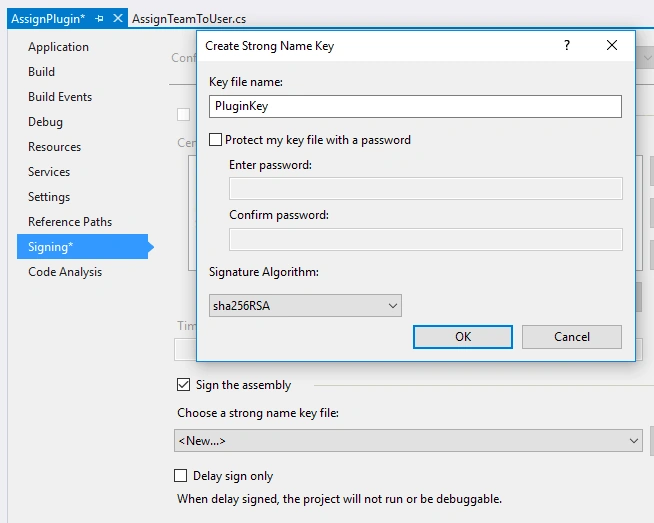
In order to use the plugin in Dynamics 365/CRM assembly has to be signed.

  • To sign, right click on the project and click Properties.

  • Click on signing on the left pane

  • Check Sign the assembly checkbox.

  • In Choose a strong name key file dropdown, select new.

  • In dialog box, give some name for the key.

  • Uncheck Protect my key file with a password (Optional).

  • Hit OK to save.

    Dynamics CRM

Now, our final code looks, as shown below.
  1. using Microsoft.Crm.Sdk.Messages;
  2. using Microsoft.Xrm.Sdk;
  3. using Microsoft.Xrm.Sdk.Query;
  4. using System;
  5. using System.Collections.Generic;
  6. using System.Linq;
  7. namespace AssignPlugin
  8. {
  9. public class AssignTeamToUser : IPlugin
  10. {
  11. public void Execute(IServiceProvider serviceProvider)
  12. {
  13. if (serviceProvider == null) return;
  14. // Obtain the Plugin Execution Context
  15. var context = (IPluginExecutionContext)serviceProvider.GetService(typeof(IPluginExecutionContext));
  16. // Obtain the organization service reference.
  17. var serviceFactory = (IOrganizationServiceFactory)serviceProvider.GetService(typeof(IOrganizationServiceFactory));
  18. var service = servicefonFactory.CreateOrganizationService(context.UserId);
  19. // To check depth
  20. if (context.Depth > 2) return;
  21. // The InputParameters collection contains all the data passed in the message request.
  22. if (context.InputParameters.Contains("Target") && context.InputParameters["Target"] is EntityReference)
  23. {
  24. // Business logic goes here
  25. new AssignTeamToUser().BusinessLogic(service, context);
  26. }
  27. }
  28. private void BusinessLogic(IOrganizationService service, IExecutionContext context)
  29. {
  30. // We are hitting Assign button on a Case record so Target will be a Case record
  31. var caseEntityReference = (EntityReference)context.InputParameters["Target"];
  32. // Assignee could be a User or Team
  33. var teamEntityReference = (EntityReference)context.InputParameters["Assignee"];
  34. // In our requirement it should be a Team, if user it should return
  35. if (teamEntityReference.LogicalName != "team") return;
  36. // fetchXml to retrieve all the users in a given Team
  37. var fetchXmlLoggedUserInTeam = @"
  38. <fetch version='1.0' output-format='xml-platform' mapping='logical' distinct='true'>
  39. <entity name='systemuser'>
  40. <attribute name='systemuserid' />
  41. <link-entity name='teammembership' from='systemuserid' to='systemuserid' visible='false' intersect='true'>
  42. <link-entity name='team' from='teamid' to='teamid' alias='ac'>
  43. <filter type='and'>
  44. <condition attribute='teamid' operator='eq' uitype='team' value='{0}' />
  45. </filter>
  46. </link-entity>
  47. </link-entity>
  48. </entity>
  49. </fetch>";
  50. // Passing current Team is fetchXml and retrieving Team's user
  51. var users = service.RetrieveMultiple(new FetchExpression(string.Format(
  52. fetchXmlLoggedUserInTeam,
  53. teamEntityReference.Id))).Entities;
  54. // Condition 1
  55. // If user count is zero case should be assigned to Team's default Queue
  56. if (users.Count == 0)
  57. {
  58. // Retrieving Team's default Queue
  59. var team = service.Retrieve("team", teamEntityReference.Id, new ColumnSet("queueid"));
  60. var addToQueueRequest = new AddToQueueRequest
  61. {
  62. // Case record
  63. Target = caseEntityReference,
  64. // Team's default Queue Id
  65. DestinationQueueId = team.GetAttributeValue<EntityReference>("queueid").Id
  66. };
  67. service.Execute(addToQueueRequest);
  68. }
  69. else
  70. {
  71. // Dictionary to save UserId and number of case assigned pair
  72. var caseCountAssignedToUser = new Dictionary<Guid, int>();
  73. users.ToList().ForEach(user =>
  74. {
  75. // FetchXml query to retrieve number cases assigned to each user
  76. var fetchXmlCaseAssignedToUser = @"
  77. <fetch version='1.0' output-format='xml-platform' mapping='logical' distinct='false'>
  78. <entity name='incident'>
  79. <attribute name='incidentid' />
  80. <link-entity name='systemuser' from='systemuserid' to='owninguser' alias='ab'>
  81. <filter type='and'>
  82. <condition attribute='systemuserid' operator='eq' uitype='systemuser' value='{0}' />
  83. </filter>
  84. </link-entity>
  85. </entity>
  86. </fetch>";
  87. var cases = service.RetrieveMultiple(new FetchExpression(string.Format(
  88. fetchXmlCaseAssignedToUser,
  89. user.Id))).Entities.ToList();
  90. // Adding user id with number of cases assigned to Dictionay defined above
  91. caseCountAssignedToUser.Add(user.Id, cases.Count);
  92. });
  93. // Sorting in ascending order by number of cases
  94. var sortedCaseCount = from entry in caseCountAssignedToUser
  95. orderby entry.Value ascending
  96. select entry;
  97. // Getting all the users with least sae number of cases
  98. var allUserWithSameLeastNumberOfCases = sortedCaseCount
  99. .Where(w => w.Value == sortedCaseCount.First().Value).ToList();
  100. var targetUser = new Guid();
  101. // Condition 1
  102. // Assign case to user with least number of case assigned
  103. if (allUserWithSameLeastNumberOfCases.Count() == 1)
  104. {
  105. targetUser = sortedCaseCount.First().Key;
  106. }
  107. // Condition 2
  108. // If more than one users are having same least number of users, then it be assigned randomly
  109. else
  110. {
  111. var randomUser = new Random().Next(0, allUserWithSameLeastNumberOfCases.Count() - 1);
  112. targetUser = allUserWithSameLeastNumberOfCases[randomUser].Key;
  113. }
  114. var assign = new AssignRequest
  115. {
  116. Assignee = new EntityReference("systemuser", targetUser),
  117. Target = caseEntityReference
  118. };
  119. service.Execute(assign);
  120. }
  121. }
  122. }
  123. }
Section 2
Deploying in Dynamics 365/CRM
To deploy the plugin to CRM
  • Build the project.

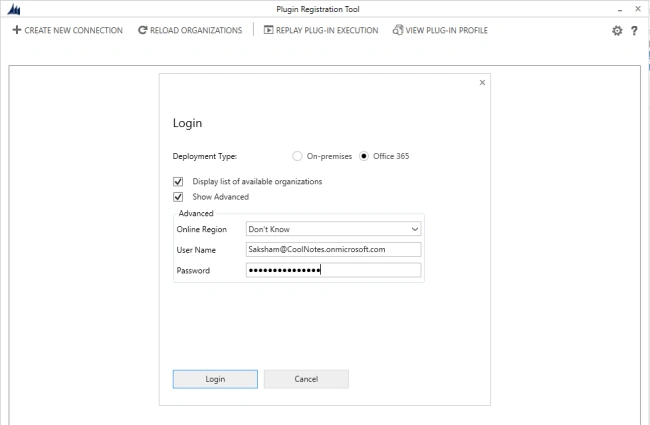
  • Open Plugin Registration tool and connect it to your Dynamics CRM instance.

    Dynamics CRM
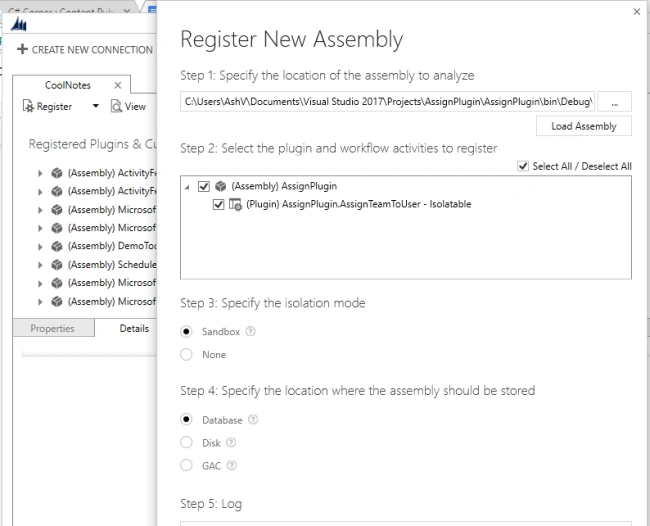
  • Click Register, followed by clicking Register new assembly.

  • In popup Step 1, select your DLL from the debug folder, which we have just created and the location will be similar to this

"C:\Users\AshV\Documents\Visual Studio 2017\Projects\AssignPlugin\AssignPlugin\bin\Debug\AssignPlugin.dll"
  • In Step 2, check select all and hit Register Selected Plugin button.

    Dynamics CRM
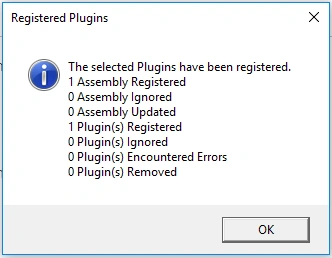
  • After success, you will see the message given below.

    Dynamics CRM
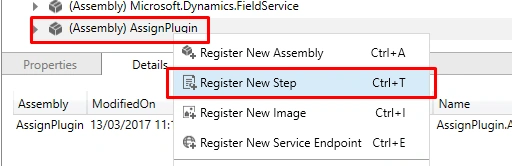
  • Now, a new step has to be resistered on Assign step of Case record, else this plugin will not be triggered. To regster, right click on assemly and click Register new step.

    Dynamics CRM
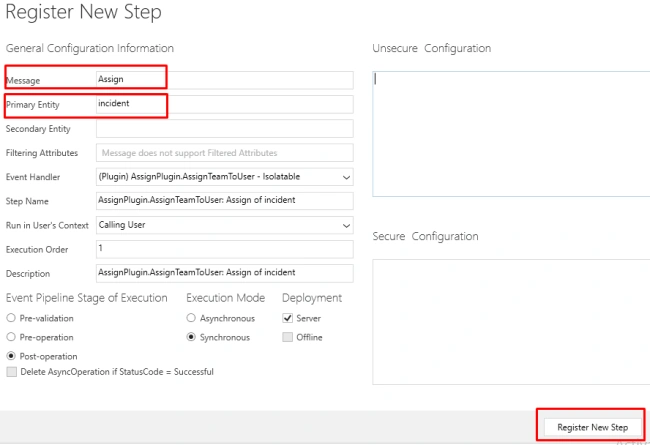
  • In dialogbox, select Message as Assign and Primary Entity as an incident (i.e. case).

    Dynamics CRM
  • Hit Register
Section 3
Configuration in CRM & Verifying Functionality
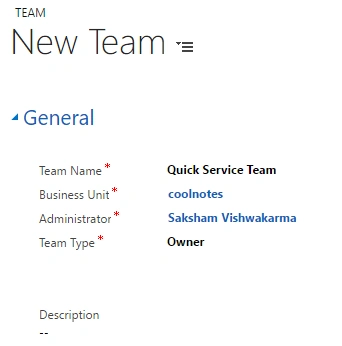
  • Create Team with Administrator priviledges by following Settings -> Security -> Teams and create new Team. I have given Team name as Quick Service Team.

    Dynamics CRM
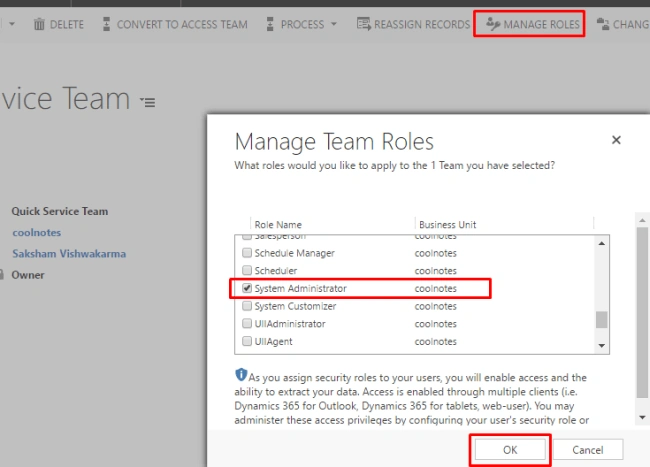
  • Assign System Administrator Role to the newly created Team.

    Dynamics CRM
  • Now, this Team has no users. If any case is assigned to this Team it will go to the default queue, let's try it out.
  • Hit Assign, select Assign To as a User or Team, select Quick Service Team and hit Asssign.

    Dynamics CRM
  • After assigning hit Queue Item Details to verify whether it is assigned to the Queue or not.

    Dynamics CRM
  • To verify the rest of two conditions, create a few more users in Team and try assigning the record to Team and see how records are getting assigned.
You can find this code in my GitHub repo as well https://github.com/AshishVishwakarma/AssignPluginDynamics365. For any query regarding this, feel free to get in touch with me.