
In this article I would like to demonstrate association of Metadata with a Library.
Metadata
This article assumes that you already have Terms created using the Term store management tool. Now you are going to associate the same with a document library.
"Site Actions" > "Site Settings" > "Term store management"
For creating Term Set, please contact the appropriate site collection administrator.
Open Document Library
Open Library Settings then select the Create column link as in the following:
In the page that appears enter the column name, Term for example & choose type as Managed Metadata.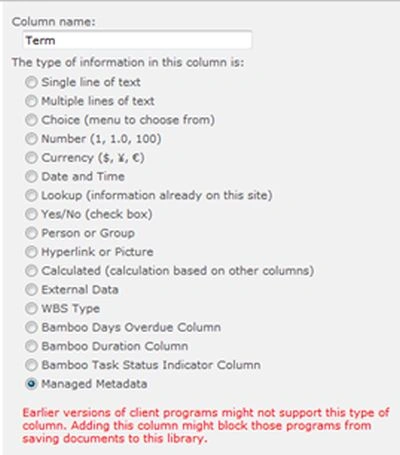
Scroll down the page & from the Term Set Settings section, choose the Term Set.
Click the "Ok" button to save changes.
Good! You are ready with the Term Set associated with the library.
Entering Data
Now you can try entering data along with the Term. Try uploading a new document to the library & you will be prompted with the term input.
You can select the term from a dialog, or type for auto-completion.
After saving the changes, you will see the term in the list view.
Allow Multiple Terms for a Column
In order to allow multiple terms for a column, in the column settings page, choose the option 
Note: Associating Terms along with document, items improve the Content Classification resulting in improved search, key filters.
References
http://bit.ly/IUtSrG
Summary
In this article we have explored how to associate metadata with a Library.

Join the conversation! Your thoughts help the community grow.