

Previous part: Dynamic Styles and Appearance Behavior in MAUI [GamesCatalog] - Part 12
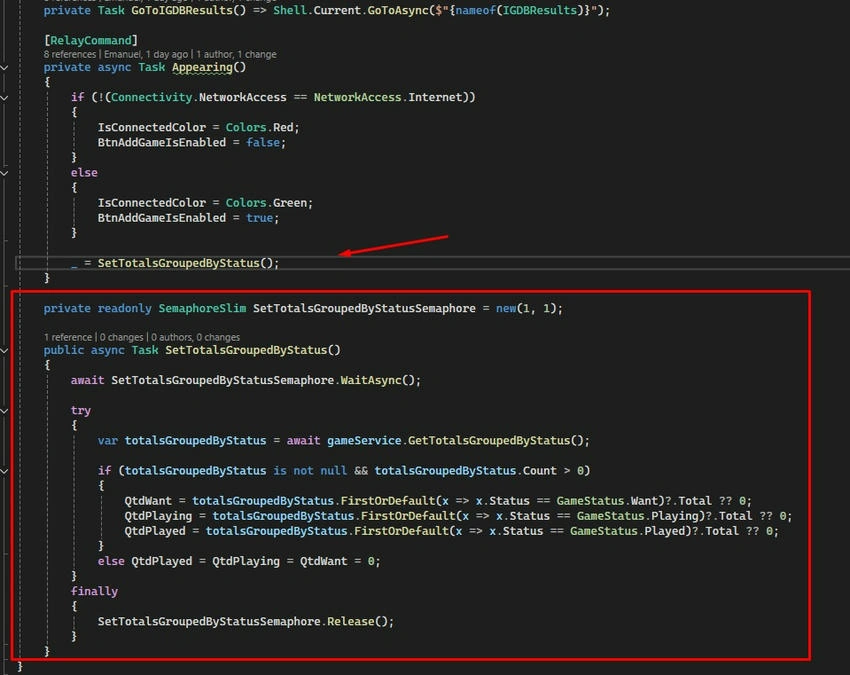
Step 1. In MainVM.cs, let’s add 3 variables for binding the quantities on the main page.
private int qtdWant = 0;
private int qtdPlaying = 0;
private int qtdPlayed = 0;

public int QtdWant
{
    get => qtdWant;
    set => SetProperty(ref qtdWant, value);
}

public int QtdPlaying
{
    get => qtdPlaying;
    set => SetProperty(ref qtdPlaying, value);
}

public int QtdPlayed
{
    get => qtdPlayed;
    set => SetProperty(ref qtdPlayed, value);
}
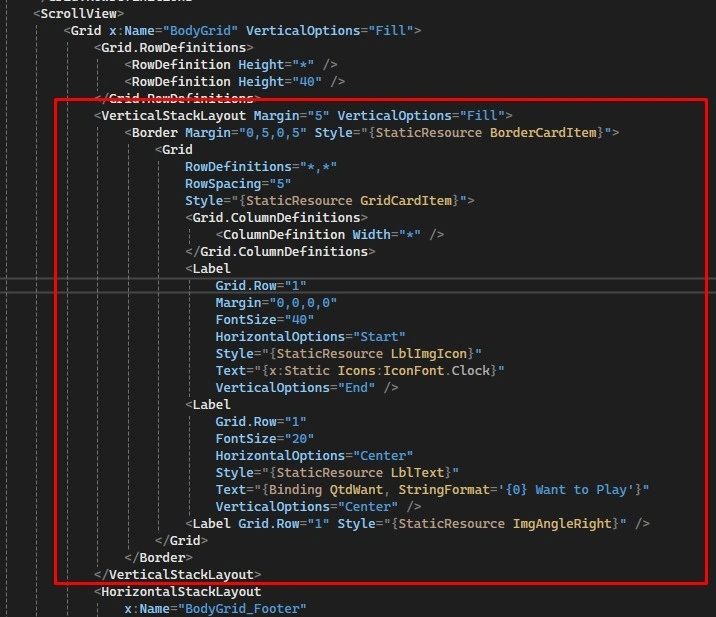
Step 2. In the frontend, we’ll create a VerticalStackLayout that will contain the components related to the game status lists.
This component will be a Grid with a border, and inside it, we’ll have a body and a footer.
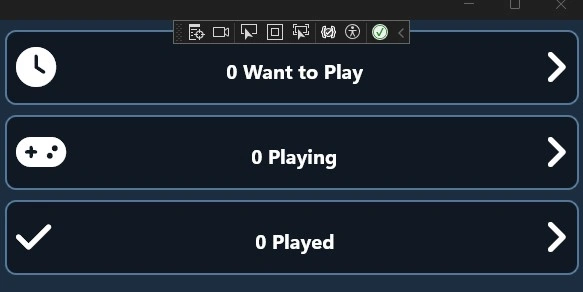
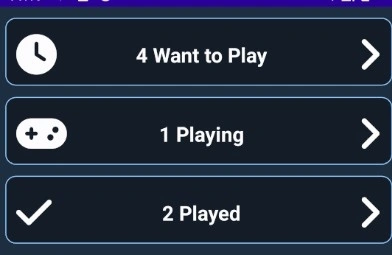
In the footer, we’ll place 3 components: an icon for the status, the quantity, and an arrow to indicate the card is clickable.
Code
<VerticalStackLayout Margin="5" VerticalOptions="Fill">
    <Border Margin="0,5,0,5" Style="{StaticResource BorderCardItem}">
        <Grid
            RowDefinitions="*,*"
            RowSpacing="5"
            Style="{StaticResource GridCardItem}">

            <Grid.ColumnDefinitions>
                <ColumnDefinition Width="*" />
            </Grid.ColumnDefinitions>

            <Label
                Grid.Row="1"
                Margin="0"
                FontSize="40"
                HorizontalOptions="Start"
                Style="{StaticResource LblImgIcon}"
                Text="{x:Static Icons:IconFont.Clock}"
                VerticalOptions="End" />

            <Label
                Grid.Row="1"
                FontSize="20"
                HorizontalOptions="Center"
                Style="{StaticResource LblText}"
                Text="{Binding QtdWant, StringFormat='{0} Want to Play'}"
                VerticalOptions="Center" />

            <Label
                Grid.Row="1"
                Style="{StaticResource ImgAngleRight}" />

        </Grid>
    </Border>
</VerticalStackLayout>
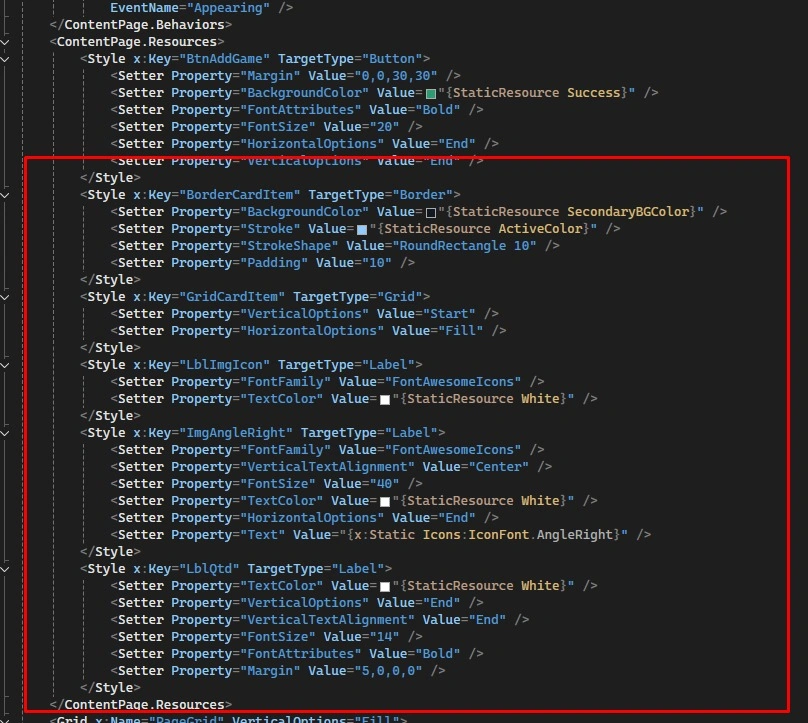
Step 3. Let’s add styles related to these components.
Code
<Style x:Key="BorderCardItem" TargetType="Border">
    <Setter Property="BackgroundColor" Value="{StaticResource SecondaryBGColor}" />
    <Setter Property="Stroke" Value="{StaticResource ActiveColor}" />
    <Setter Property="StrokeShape" Value="RoundRectangle 10" />
    <Setter Property="Padding" Value="10" />
</Style>

<Style x:Key="GridCardItem" TargetType="Grid">
    <Setter Property="VerticalOptions" Value="Start" />
    <Setter Property="HorizontalOptions" Value="Fill" />
</Style>

<Style x:Key="LblImgIcon" TargetType="Label">
    <Setter Property="FontFamily" Value="FontAwesomeIcons" />
    <Setter Property="TextColor" Value="{StaticResource White}" />
</Style>

<Style x:Key="ImgAngleRight" TargetType="Label">
    <Setter Property="FontFamily" Value="FontAwesomeIcons" />
    <Setter Property="VerticalTextAlignment" Value="Center" />
    <Setter Property="FontSize" Value="40" />
    <Setter Property="TextColor" Value="{StaticResource White}" />
    <Setter Property="HorizontalOptions" Value="End" />
    <Setter Property="Text" Value="{x:Static Icons:IconFont.AngleRight}" />
</Style>

<Style x:Key="LblQtd" TargetType="Label">
    <Setter Property="TextColor" Value="{StaticResource White}" />
    <Setter Property="VerticalOptions" Value="End" />
    <Setter Property="VerticalTextAlignment" Value="End" />
    <Setter Property="FontSize" Value="14" />
    <Setter Property="FontAttributes" Value="Bold" />
    <Setter Property="Margin" Value="5,0,0,0" />
</Style>
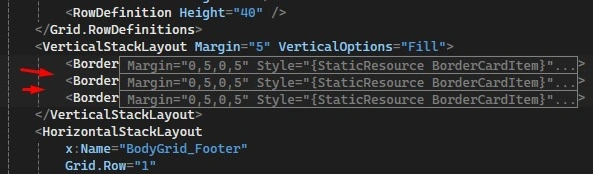
Step 4. We’ll duplicate the Border that represents the card two more times and change the icon, variable, and text according to each game status.
Join the conversation! Your thoughts help the community grow.